This document describes how to restore data using logical backup files.
Scenarios
Note:
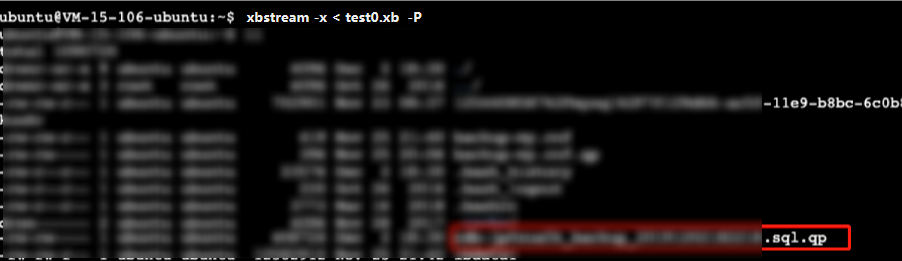
To save storage space, backup files in TDSQL-C for MySQL are first compressed using qpress and then packaged using xbstream (xbstream is a packaging/unpackaging tool from Percona).
If your cluster storage usage exceeds 2 TB, it is not recommended to use logical backup, as this may lead to backup failure.
TDSQL-C for MySQL supports logical backup. You can use the console to perform a manual backup to generate logical backup files and download them for the entire cluster or specific databases/tables. This document describes how to restore data using logical backup files on a Linux platform.
Operation Steps
Step 1: Downloading Backup Files
1. Log in to the TDSQL-C for MySQL console and perform the corresponding operations based on the actual console view mode.
Tab View
List View
Click the target cluster in the cluster list on the left to go to the cluster management page.
Find the target cluster in the cluster list on the left, and click Cluster ID or Operation column's Manage option to enter the cluster management page.
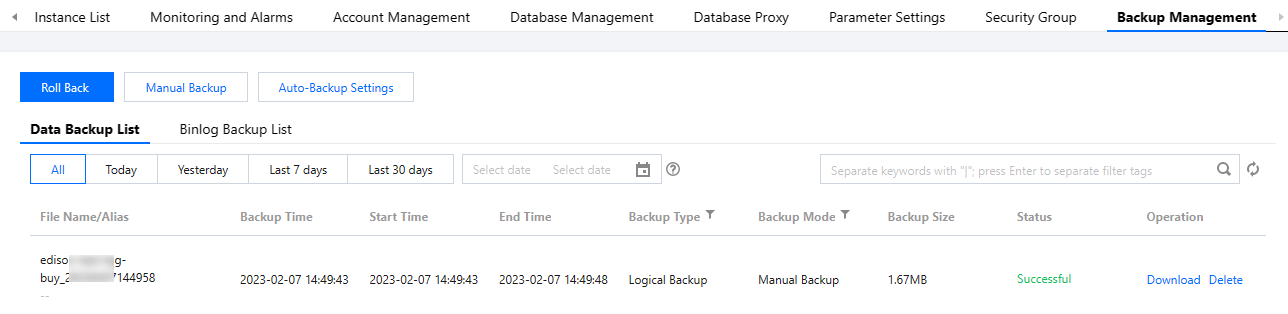
2. On the cluster management page, choose Backup Management > Data Backup List, locate the backup you need to download, and click Download in the Operation column.
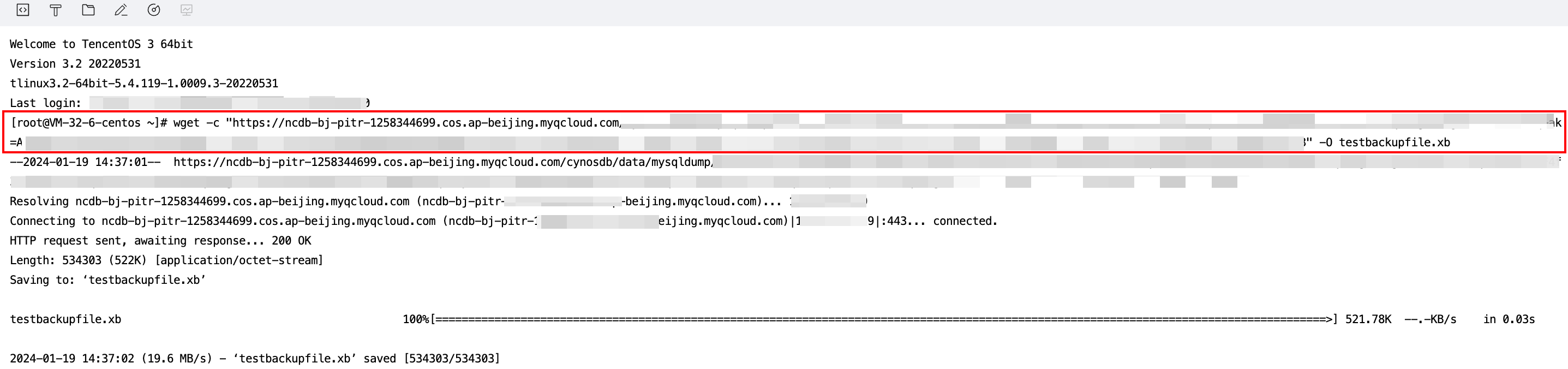
3. In the pop-up dialog box, copy the download address, log in to the CVM (Linux system), and use the wget command for high-speed download.
If the cluster and the CVM are in the same region, you can use the wget command for high-speed download over the private network, regardless of whether they are in the same VPC or across different VPCs.
If the cluster and the CVM are in different regions, high-speed download over the private network is not supported. The CVM must have a public IP address enabled to support downloading using the wget command.
You can also choose to download directly via Local Download, but this method takes more time.
2. Extract the qpress binary file using the following command.
tar-xf qpress-11-linux-x64.tar -C /usr/local/bin
source /etc/profile
3. Use qpress to decompress the backup file.
qpress -d<Backup file><Decompression file>
<Backup file>: Replace it with the name of the corresponding unpacked backup file. Remove the angle brackets <> and keep only the actual parameter.
<Decompression file>: Specify a custom name for the decompressed file, which should follow the unpacked backup file name. Remove the angle brackets <> from the command.
Step 4: Importing Backups to the Target Database
Run the following command to import the sql file into the target database:
mysql -u<Username> -P<Port> -h<Target database private network address>-p<<sql file actually decompressed by qpress>