This document introduces how to create and manage tables, along with related operations.
Use Limits
If a TDSQL-C for MySQL read-only analysis instance contains unsupported data types, the table cannot be opened in the SQL window. For unsupported data types, see Compatibility Note.
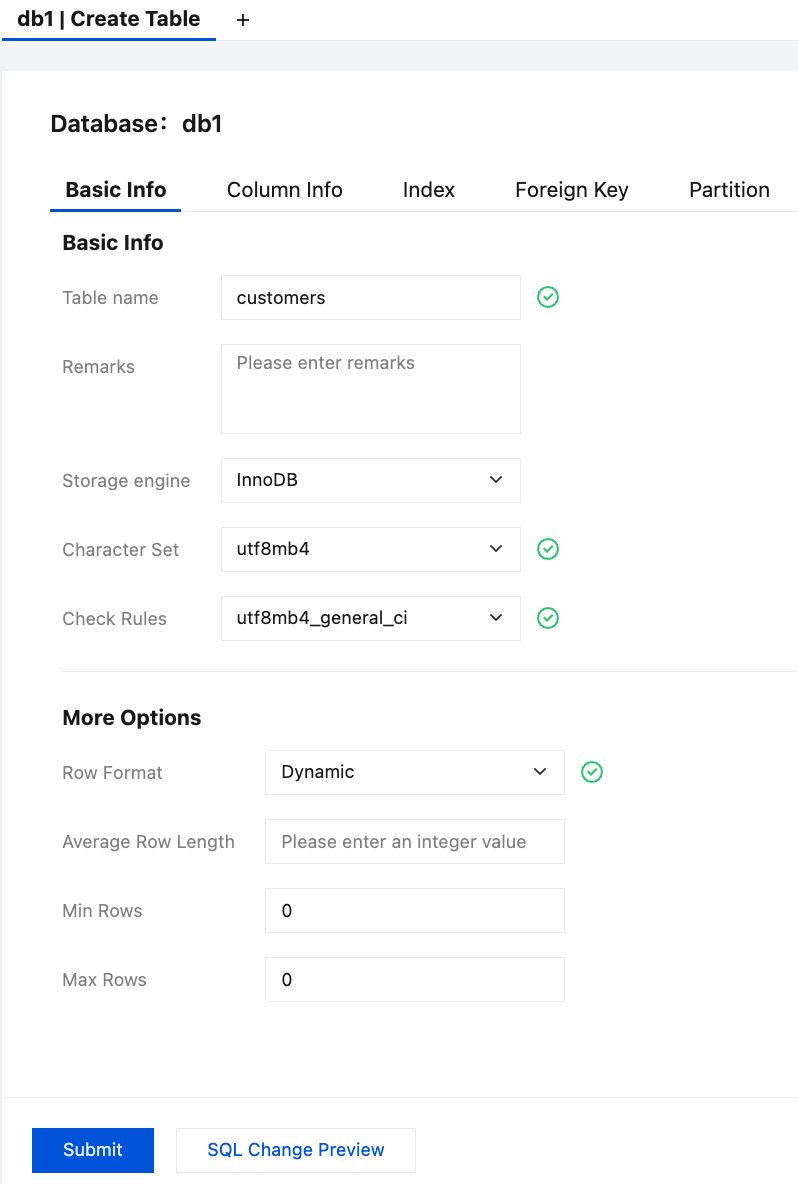
1. In the left database and table panel, hover over the database name and select Operation > Create Table.
2. On the right Create Table page, configure the basic information, column details, indexes, foreign keys, and partition settings.
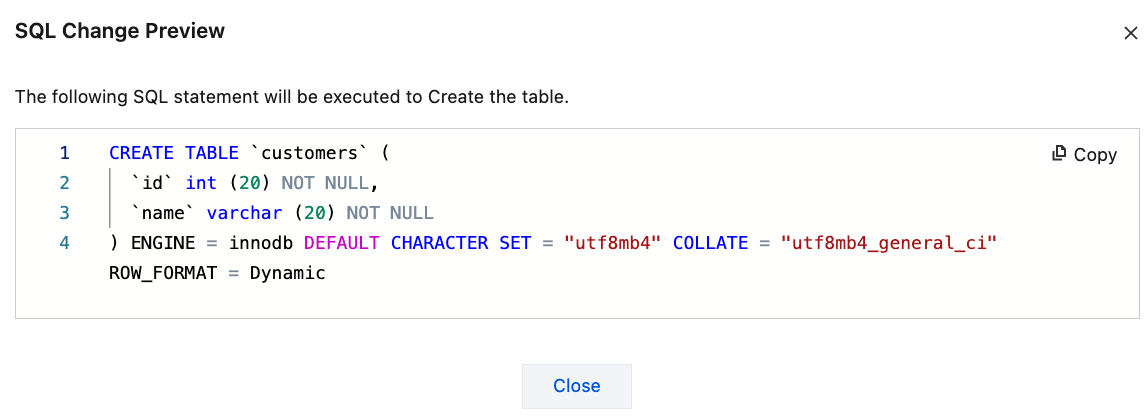
3. After completing the configuration, click SQL Change Preview to review the table creation statement.
4. After confirming the details, click Submit, and then click OK in the pop-up dialog box.
The created table will be displayed under the corresponding database in the left database and table panel.
Table Management
The SQL window also supports the following operations: SQL execution, opening tables, editing table structures, viewing table information, viewing table creation statements, renaming tables, dropping tables, truncating tables, and creating tables with the same structure.
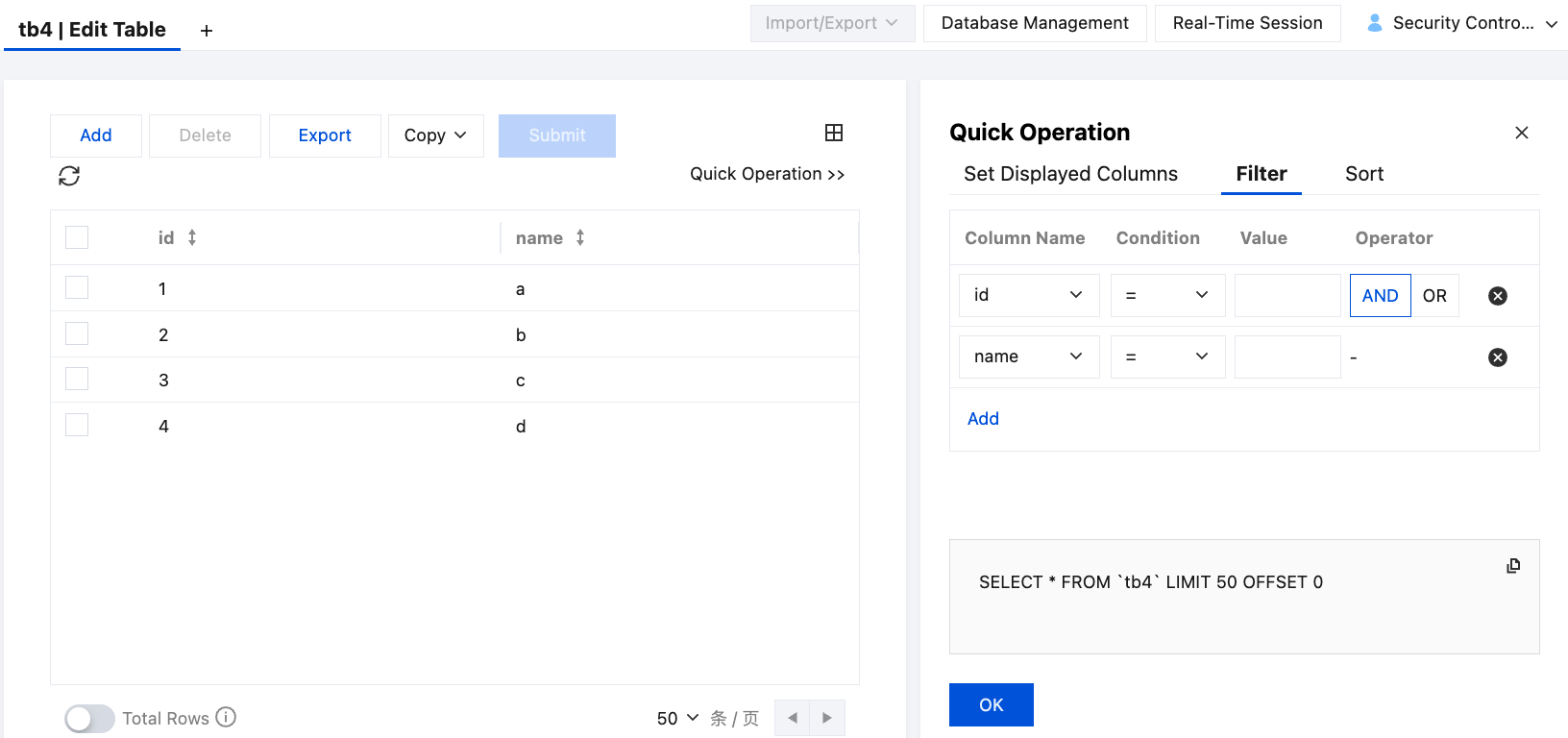
In the left database and table panel, hover over the table name, and then select Operation > Open Table. This allows you to view, add, copy, delete, and export table data. Additionally, you can use quick actions to select displayed fields, filter table data, and sort table data.
Editing the Table Structure
In the left database and table panel, hover over the table name, and then select Operation > Edit Table Structure. This allows you to edit the basic information, column details, indexes, foreign keys, and partition settings of the table. You can also preview SQL changes.
Viewing Table Information
In the left database and table panel, hover over the table name, and then select Operation > View Table Info. This allows you to view the database name, table name, row count, data length, index length, engine, collation, row format, creation date, and update date of the table.
Viewing the Table Creation Statement
In the left database and table panel, hover over the table name, and then select Operation > View Table Creation Statement. This allows you to view the SQL statement used to create the table.
Renaming
In the left database and table panel, hover over the table name, and then select Operation > Rename. Enter the new table name, and click Yes.
The table name supports 1 to 64 characters, including numbers, letters, and special characters (-) and (_).
Drop Table
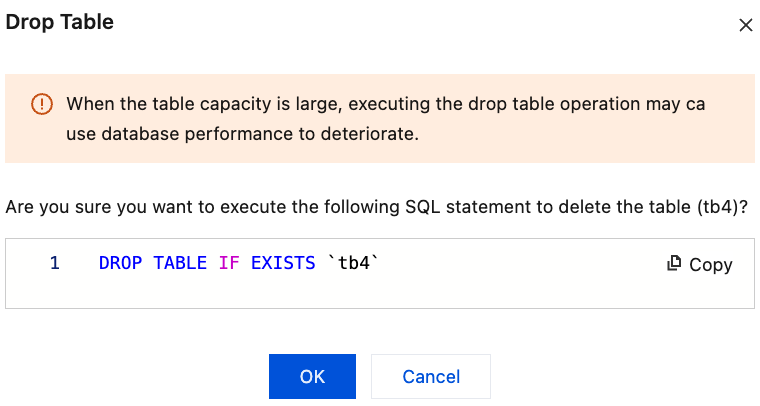
When a table is no longer needed and needs to be deleted, hover over the table name in the left database and table panel, select Operation > Drop Table, and click OK.
Truncate Table
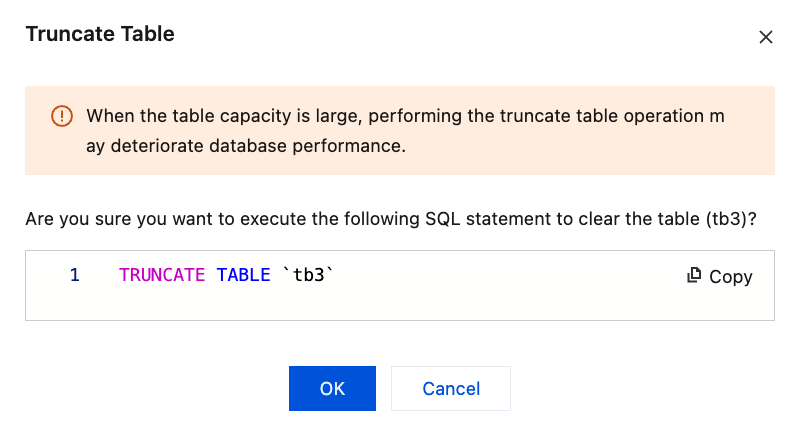
When you need to clear table data and structure information, hover over the table name in the left database and table panel, select Operation > Truncate Table, and click OK.
Creating a Table with the Same Structure
When you need to create a table with the same structure as an existing one, hover over the table name in the left database and table panel, select Operation > Create, select the target database, enter the new table name, and click OK.
The table name supports 1 to 64 characters, including numbers, letters, and special characters (-) and (_).
Quick Search for a Table
At the top of the left database and table panel, select Search for Table, enter the table name, or select Search for Database.Table", enter the database and table name, and click