Real-time log delivery tasks support filters, allowing you to deliver only the logs you need and reduce the volume of data processed by downstream systems. The following are the supported log fields and comparison operators.
Note
Currently, only Real-time Logs > L7 Access Logs supports configuring filters for log delivery.
Supported Log Fields
Field Name
Data Type
Description
SecurityAction
String
Final disposition action after the request hits security rules, with possible values:
-: Unknown/Not Hit
Monitor: Monitor
JSChallenge: JSChallenge
Deny: Block
Allow: Allow
BlockIP: BlockIP
Redirect: Redirect
ReturnCustomPage: ReturnCustomPage
ManagedChallenge: ManagedChallenge
Silence: Silence
LongDelay: Response after a long delay
ShortDelay: Response after a short delay
SecurityModule
String
The name of the security module that finally handles the request, corresponding to SecurityAction, possible values include:
-: Unknown/Not Hit
CustomRule: Web Protection - Custom Defined Rule
RateLimitingCustomRule: Web Protection - Rate Limiting Rules
The status code returned from the node response to the client.
OriginResponseStatusCode
Integer
The origin response status code. If no value is obtained, it is recorded as -1.
Supported Comparison Operators
Comparison Operator Name
Support for This Data Type
String
Integer
Equals (matches any value in the list)
✓
✓
Greater than
✕
✓
Less than
✕
✓
Greater than or equal to
✕
✓
Less than or equal to
✕
✓
Example 1: Filter and Push Logs with HTTP Status Codes 4xx/5xx
Sample Scenario
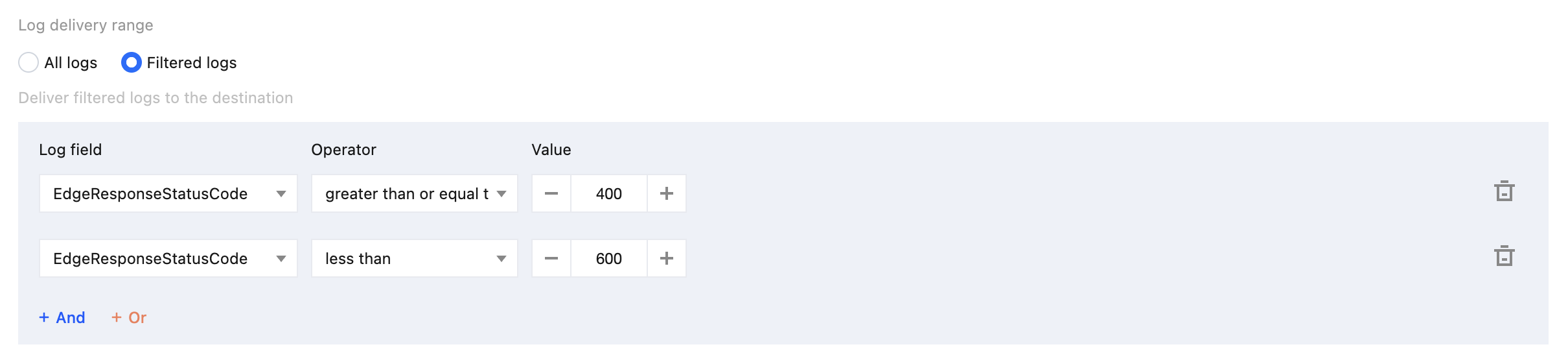
For high-traffic websites, pushing all access logs may place unnecessary load on the downstream analytics platform. You can configure filters to push only the logs you need. For example, you can push only access logs with 4xx or 5xx HTTP status codes to focus on client errors, service failures, and other issues that may require investigation. Follow the steps below to configure log filtering.
Steps
1. Log in to the Tencent Cloud EdgeOne console, enter Service Overview in the left menu bar, and click the site to be configured under Website Security Acceleration.
2. On the Site Details Page, click Log Service > Real-time Logs.
3. On the Real-time Logs page, click Create delivery task.
4. On the Select Log Source page, enter a task name, select the log type and service area, and click Next.
5. On the Select Destination page, select the destination and click Next.
5.1 Select Filtered Logs.
5.2 Configure the filters as shown in the diagram below:
6. Configure the destination details, and click Ship.
Example 2: Filter and Push Layer 7 Access Logs Not Processed by Security Rules
Sample Scenario
Layer 7 Access Logs include, by default, requests processed by security modules such as Web Security and Bot Management. If you only need to push acceleration logs that did not trigger any security rules, you can configure filters in the delivery task to retain only logs with a final action of "No Match".
Steps
1. Log in to the Tencent Cloud EdgeOne console, enter Service Overview in the left menu bar, and click the site to be configured under Website Security Acceleration.
2. On the Site Details Page, click Log Service > Real-time Logs.
3. On the Real-time Logs page, click Create delivery task.
4. On the Select Log Source page, enter a task name, select the log type and service area, and click Next.
5. On the Select Destination page, select the destination and click Next.
5.1 Select Filtered Logs.
5.2 Configure the filters as shown in the diagram below:
6. Configure the destination details, and click Ship.