To make it easier to upgrade or downgrade the configuration (CPU, memory, and GPU) of a Cloud Virtual Desktop (CVD) instance, CVD allows you to scale the configuration up or down within the same specification family.
Operation Limits
The number of upgrades is unlimited. Upgrades take effect immediately.
Yearly/monthly subscription CVD instances can be downgraded at any time, and each instance supports a cumulative total of 5 downgrades.
Pay-as-you-go CVD instances can be downgraded at any time, with no limit on the number of downgrades.
A single batch operation supports adjusting specifications for a maximum of 20 CVD instances. All instances must have the same specification type and billing mode.
Adjusting specifications forces a restart of the CVD instance. Save your work data in advance and avoid performing this operation during business peaks.
The adjustment process takes 5 to 10 minutes. The CVD instance will be unavailable during this process.
Adjustments must adhere to the following constraints between the current and target specification types:
Current Specification
Supported Target Specification
Description
CVD Standard S1
CVD Standard S1 and CVD Standard S2
Supports adjustment to different specifications within Standard S1 or S2.
CVD Standard S2
CVD Standard S1 and CVD Standard S2
Supports adjustment to different specifications within Standard S1 or S2.
CVD Graphics G1
CVD Graphics G1
Only supports adjustment to different specifications within Graphics G1.
Operation Steps
Adjusting Specifications for a Single CVD Instance
2. Select the CVD instance for which you want to adjust the specifications.
Note:
To adjust specifications for multiple CVD instances in a batch, select the checkboxes for the desired instances in the desktop list, and then click Adjust Specifications in the operation bar at the top.
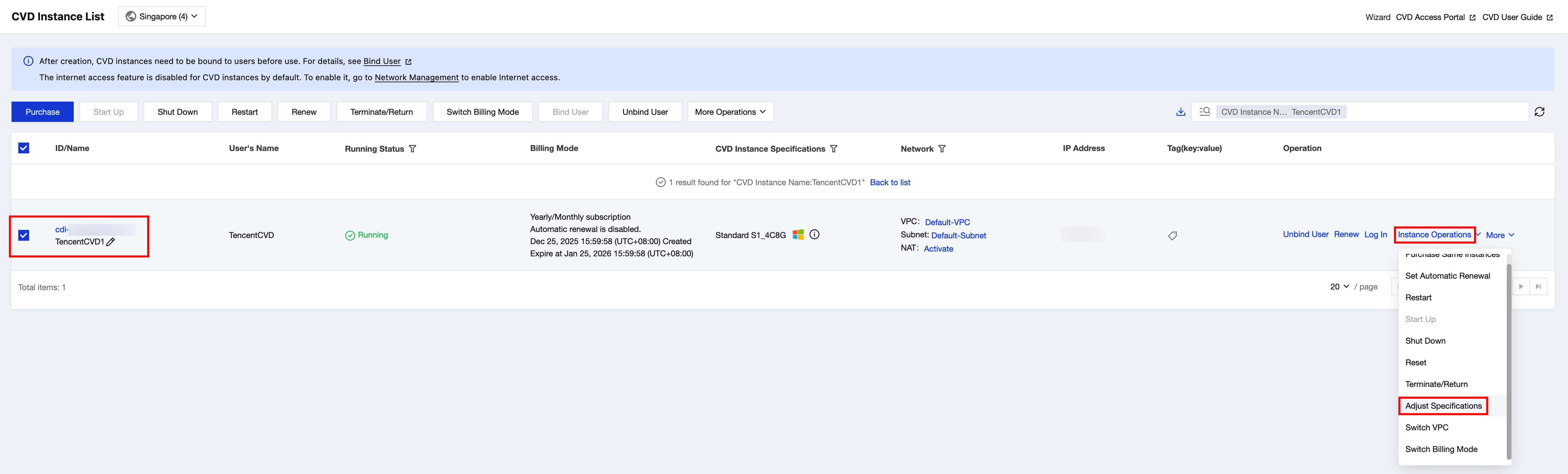
CVD Instance List
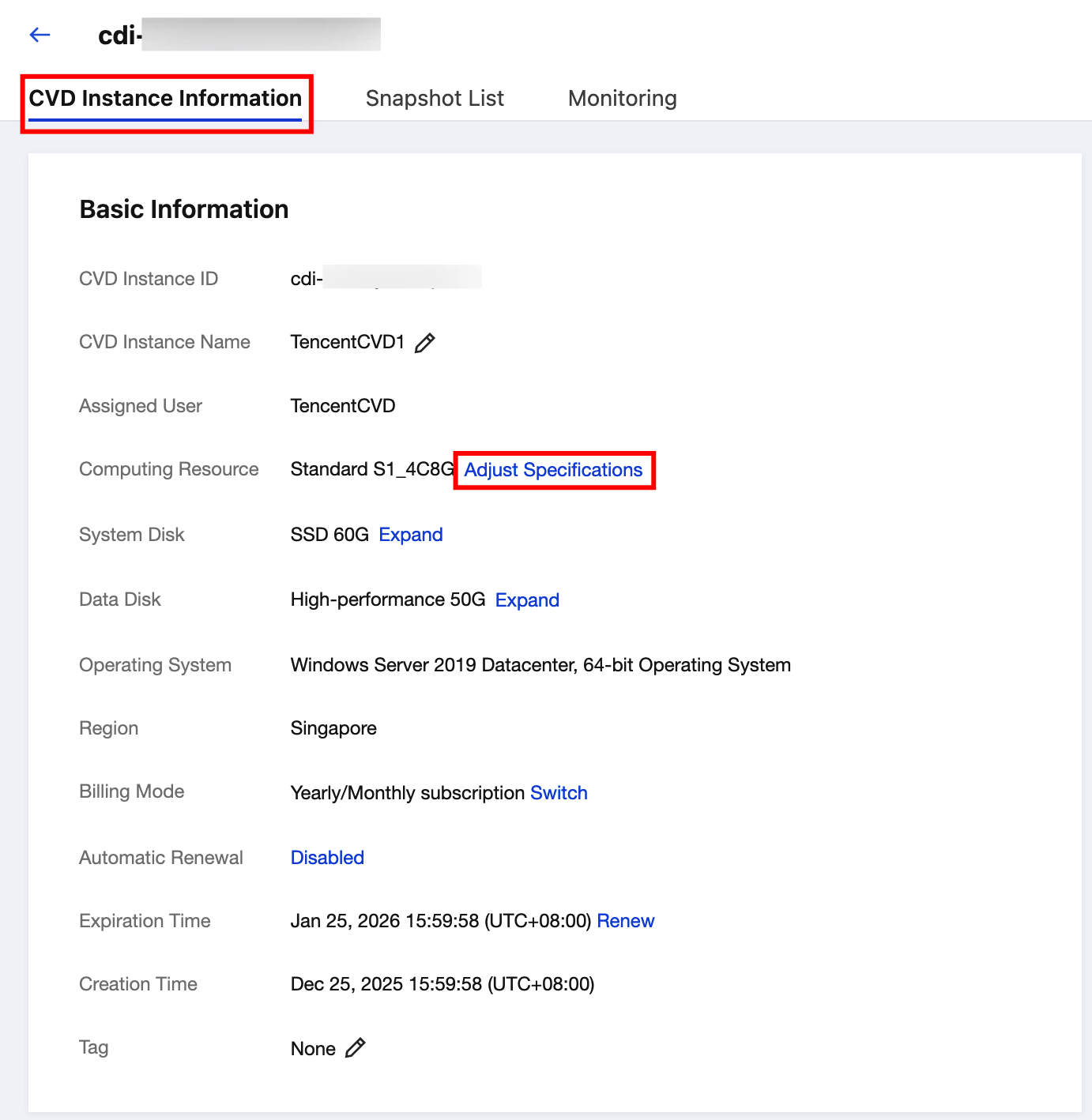
Instance Details Page
On the Desktop List page of the CVD console, select the CVD instances for which you want to adjust specifications. Then, click More Operations > Adjust Specifications in the operation bar at the top, or choose Instance Operations > Adjust Specifications in the operation column.
On the instance details page of the CVD console, click Adjust Specifications next to the CVD instance specifications displayed in the Computing Resources field.
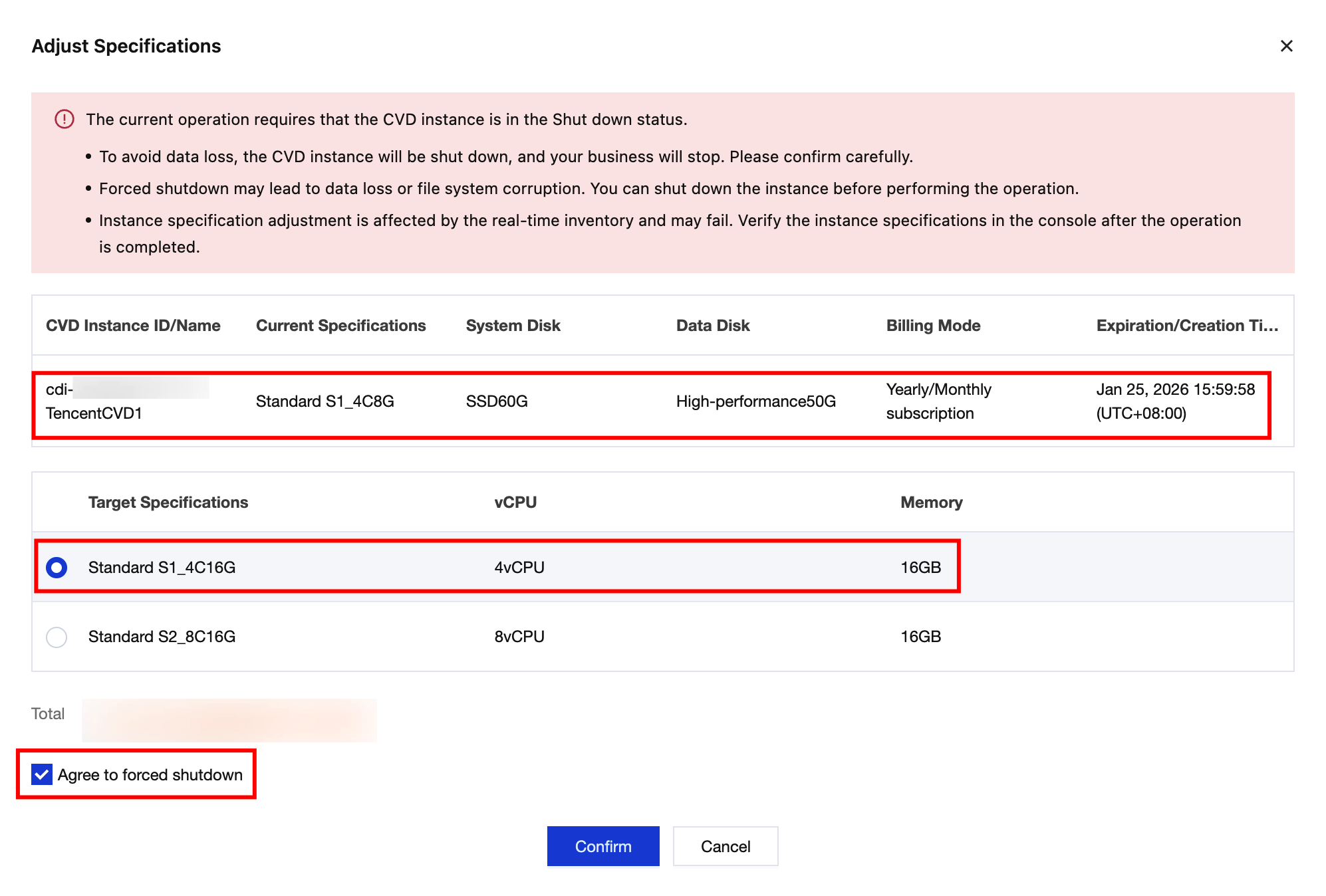
3. In the Adjust Specifications pop-up window, confirm the configuration information of the current CVD instance, select the target specifications, confirm the fee, select the confirmation checkbox, and click Confirm to adjust the specifications.
Note:
Forced shutdown may lead to data loss or file system corruption. We recommend that you actively shut down the instance before adjusting the specifications.
During specification adjustment, the operation status in the desktop list shows Adjusting Specifications. No other operations can be performed on the CVD instance in this status.
During specification adjustment, when end users log in to the CVD portal, the desktop will be temporarily unavailable. The desktop card status prompts Administrator is adjusting configurations. After the specification adjustment is complete, end users can use the CVD instance normally.