Message Subscription
Download
Focus Mode
Font Size
Introduction
Superapp allows mini program or mini game developers to send subscription messages, creating a closed-loop service. This lets developers quickly push business updates within mini programs or mini games to superapp users.
Roles and permissions
Feature | Role | App Team Admin | App Senior Developer | App Developer | App Operator |
View message template list | ✓ | ✓ | ✓ | ✓ |
Create message template | ✓ | ✓ | - | - |
Edit multi-language content of message template | ✓ | ✓ | - | - |
Canary release of message template | ✓ | ✓ | - | - |
Delete message template | ✓ | ✓ | - | - |
View keyword list | ✓ | ✓ | ✓ | ✓ |
Feature description
1. Template list
Description
SAS provides one-time subscription and long-term subscription message templates, which can be used directly for mini programs and mini games. You can also customize message templates.
Filters
Applies to: Mini program or mini game. As the notification scenarios and frequencies differ between mini programs and mini games, each template is designed specifically for either mini programs or mini games.
Type:
One-time subscription: One-time subscription messages address notification needs for follow-up service steps after users engage with a mini program. After each subscription event is triggered, only one subscription message can be sent to the user.
Long-term subscription: While one-time subscription meets most service needs within mini programs, there are scenarios, especially in public services, where one-time subscriptions are insufficient. For example, flight delays require multiple real-time updates. To address this, we offer long-term subscription. After a user subscribes once, developers can send multiple messages over time. Long-term subscription is suitable for public services such as government, civil services, healthcare, transportation, finance, and education.
Status:
Draft: Content saved temporarily during editing.
Canary release: Released to a designated mini program team for testing.
Released: Officially released template.
Note:
Note that while long-term subscription allows multiple messages to be sent, frequent messaging can be disruptive to users. Therefore, SAS limits each long-term subscription template to a maximum of 5 messages per day.
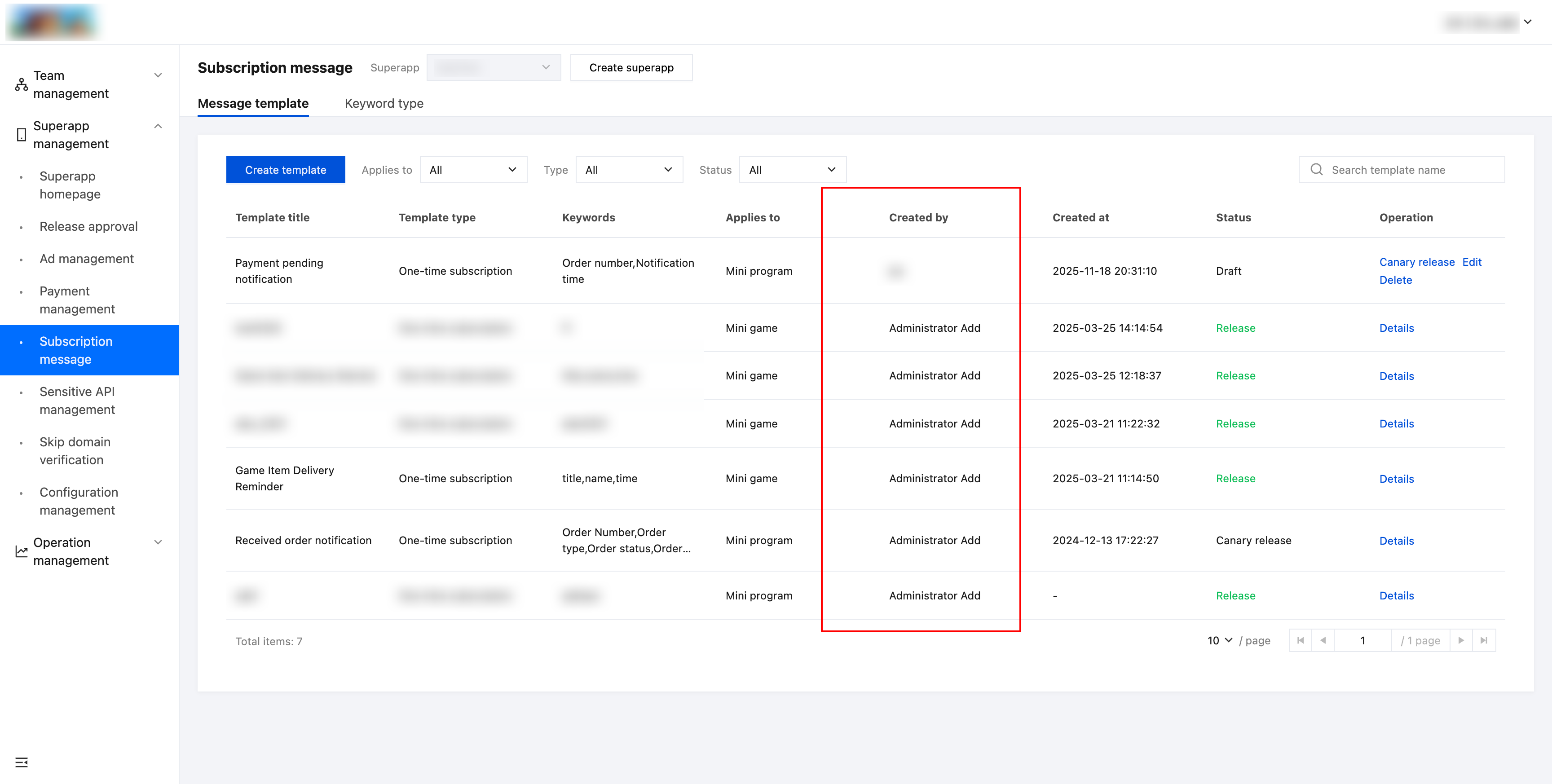
2. Customize the subscription message template
If the default templates don't meet your superapp’s business needs, you can customize the subscription message template.
2.1 Create a template
Click Create template.

Fill in the following:
Basic information
Applies to: Select mini program or mini game.
Message type: One-time subscription or long-term subscription. The latter does not apply to mini games.
Language: Select the languages for which this template needs to provide overrides based on the list of languages enabled for the superapp, at a minimum, content for the default language must be configured.
Template title: Supports up to 64 characters, including letters, numbers, spaces, and certain special characters (, . - _).
Keywords: They are predefined, replaceable variables in the message template. Keyword 1 is required. Click Add keyword to add keyword 2, and so on. Keywords can be deleted individually. When a keyword is deleted, the sequence is reordered (higher numbers shift down). If only one keyword remains, it cannot be deleted. Other required information:
Keyword name: Enter the keyword name, which supports up to 64 characters, including letters, numbers, and spaces.
Keyword type: Select one keyword data validation format.
Preview data: Used to show developers an example of the content expected for this parameter.
Click Save to save the template as a draft.
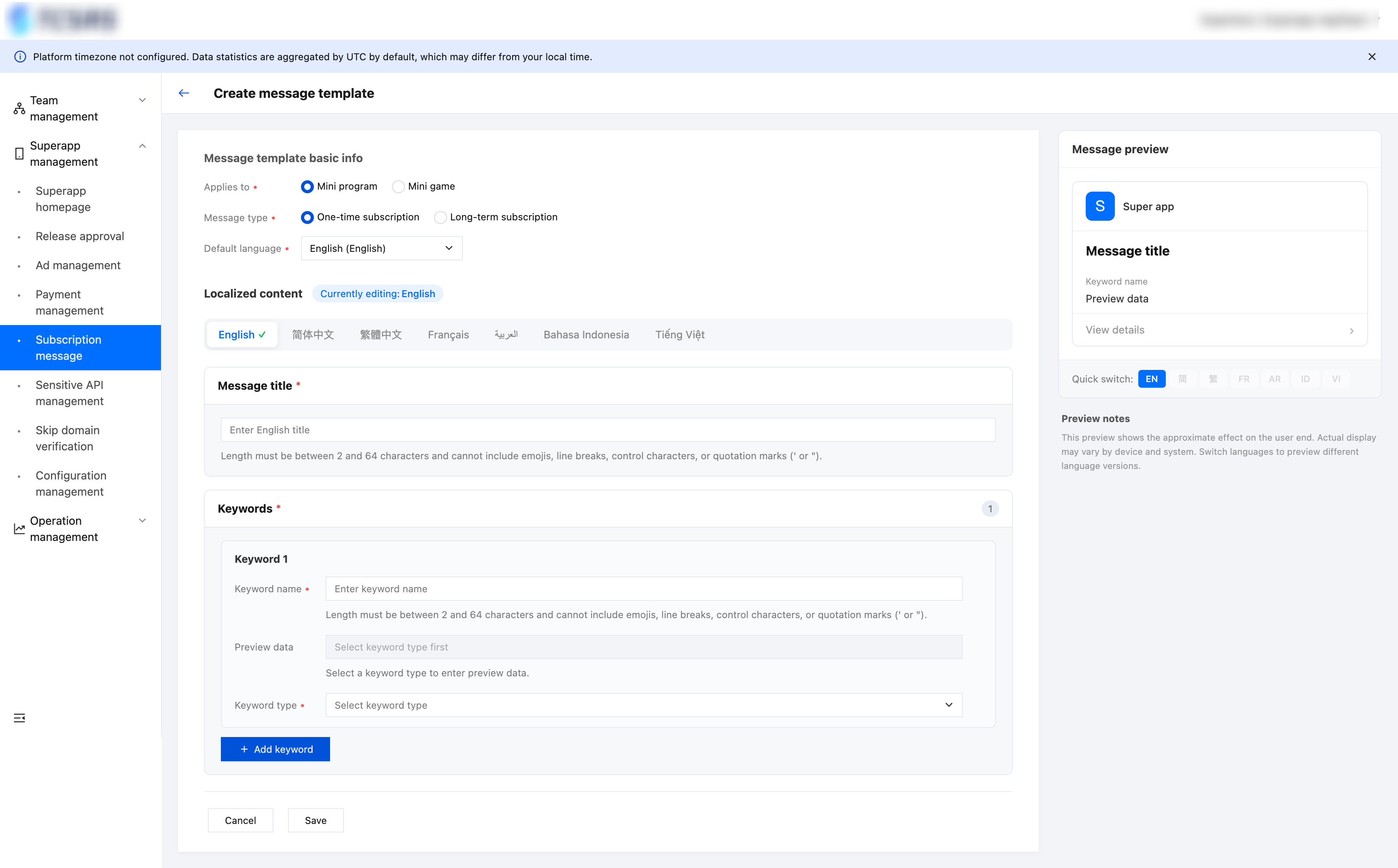
2.2 Multi-language for message templates
To support superapps that operate across multiple countries / locales using the same set of subscription message templates, both the title and keywords of a message template support multi-language configuration. The console respects the languages currently enabled by the application, allowing you to configure the title, keyword names and preview data per language inside the same template. When dispatching a message, the SDK automatically picks the wording matching the user's current language and falls back to the default language when no match is found.
Multi-language concepts
Supported languages (
SupportLang): The set of languages enabled by the application, controlled by Application Internationalization Settings. The template create / edit page only allows you to add content for languages within this set. On save, the console aggregates the language codes of all "filled" content (deduplicated) and submits them as the template's SupportLang.Default language (
DefaultLang): Each template has exactly one default language, which is used for:List & detail rendering: The Template Title and Keywords columns of the template list are rendered using the template's default language by default.
Fallback display: When the user's current language has no matching wording on the client, the SDK falls back to the title and keywords of the default language.
Required baseline: The title and all keyword names / preview values for the default language are required; other languages are optional translations.
Language codes: All languages are keyed by standard BCP-47 codes such as
en-US, zh-CN, zh-Hant, fr-FR, ar-SA, id-ID, vi-VN, mapping to the Lang field of the API. Per-language data is stored in maps keyed by language code, including TemplateTitleMap, KeywordMap, DefaultValueMap, etc.Multi-language editor
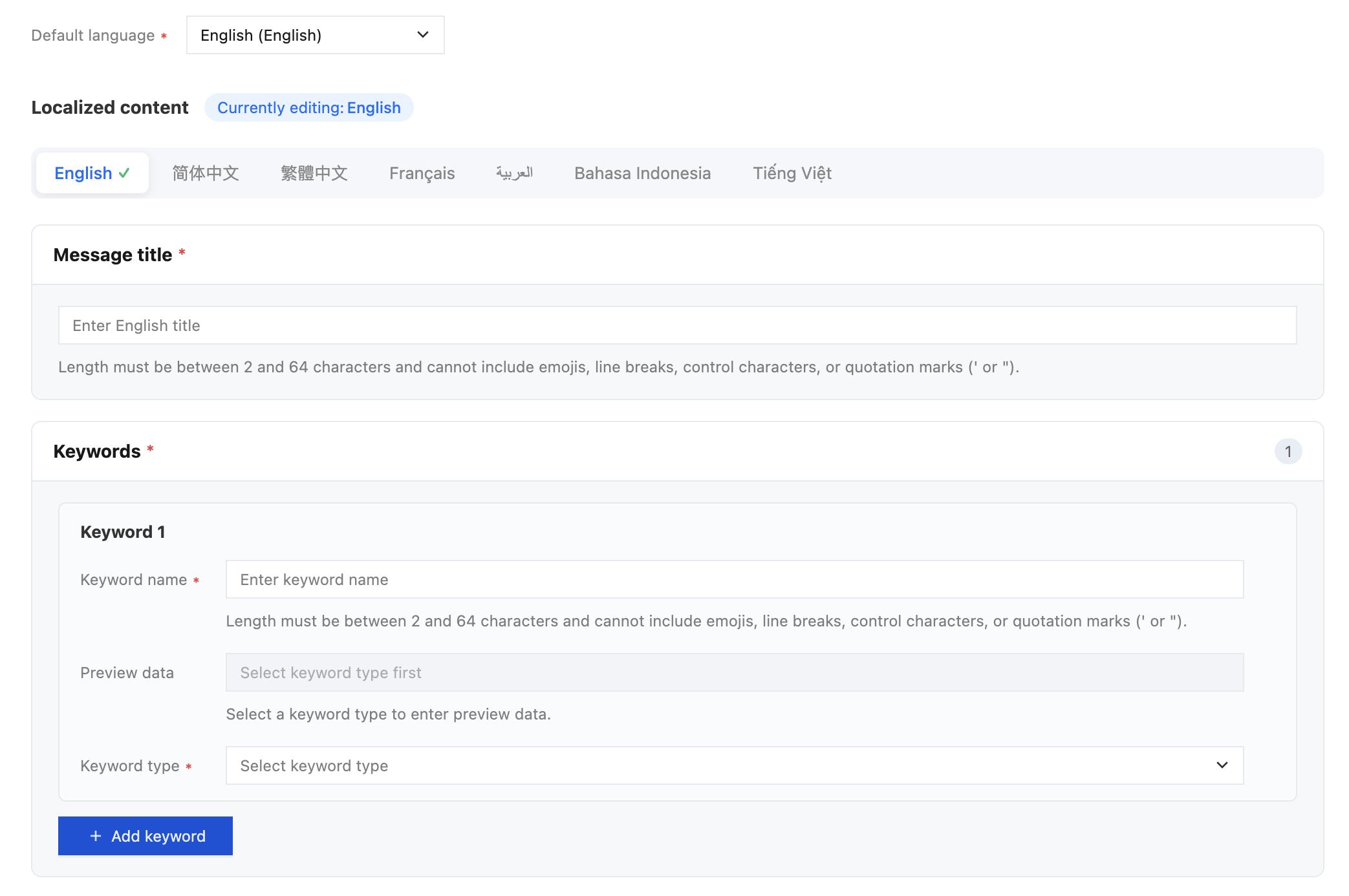
When you create or edit a message template, the page is divided into three areas: basic information, multi-language content editor and right-side preview panel.
Basic information
Default language: Selected from a dropdown (editable only in create / edit mode). Switching the default language keeps the new default language's content (if filled) or falls back to the previous default language's content; content of all other non-default languages is cleared, and the "current editing language" is automatically switched to the new default language.
Multi-language content editor
Top language tab bar : Lists all languages enabled by the application. The default language carries a Default badge; languages with all title + keywords filled in show a Translated state; the language currently being edited is highlighted.
Switching tabs switches the "current editing language": the title and keyword inputs automatically display the values of that language. When empty, the placeholder shows
Please enter <language name> title to indicate the target language.Copy original: On a non-default-language tab, if the default language already has a title or keyword name, an original: xxx hint plus a copy original button appear next to the input. Clicking it copies the default-language content to the current language with one click, useful for translation polishing.
Add / remove keywords: Adding or removing keywords is only allowed on the default-language tab. On any other language tab, the action area shows the hint "To add or remove keywords, please switch to the default language." This guarantees that the number and order of keywords across languages stay strictly aligned. Up to 20 keywords are supported.
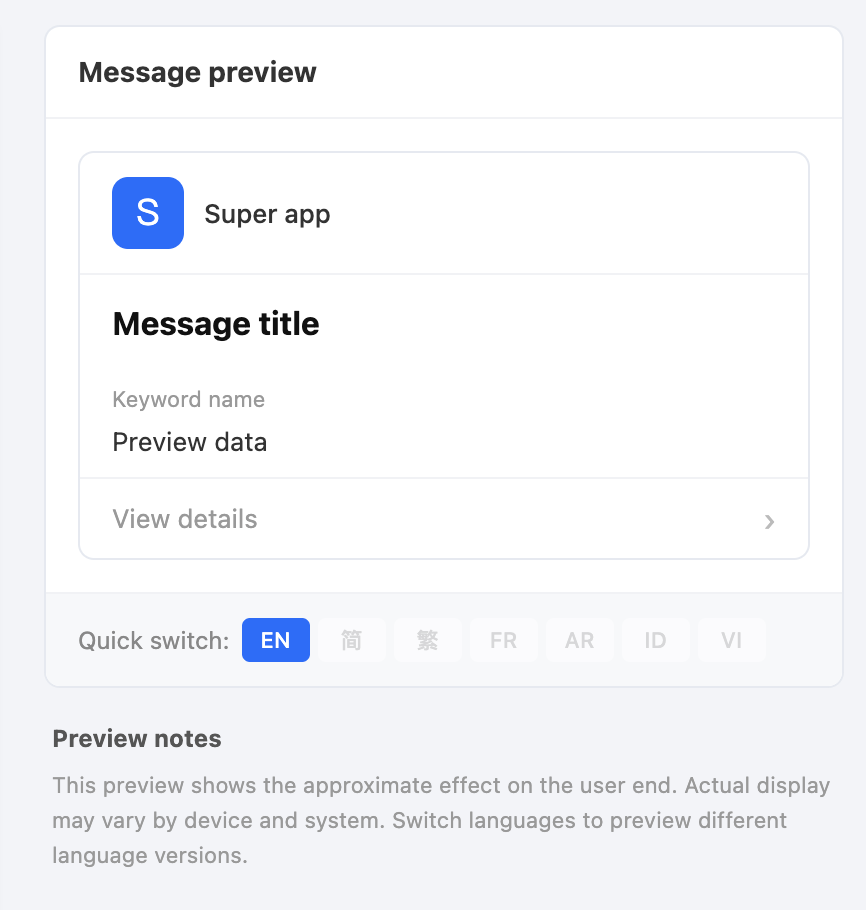
Right-side preview panel
Renders the message-card preview for the "current editing language" in real time, including the superapp name / icon, message title, and each keyword name with its preview data.
Provides a language switcher; the preview language stays in sync with the editing language.
Multi-language validation rules
Default language is required: The message title + all keyword names + all keyword preview values for the default language must be filled in completely. Otherwise the save will fail with the error "
<language name> content is incomplete."Non-default languages are "all-or-nothing": Non-default languages are optional translations, but once any field is filled in for that language (title or any keyword name):
the title, all keyword names, and all keyword preview values must be filled in;
otherwise the save fails with the same error "
<language name> content is incomplete."Cross-language completeness check: On save, the system iterates over all non-current-tab languages and validates completeness, preventing "switching to another tab, filling half, then saving" from leaving dirty data.
Character rules: The message title is 2–64 characters; emoji, line breaks, control characters and single / double quotes (
', ") are not allowed. The exact format constraints are governed by TitleRegex / KeywordRegex returned by the API; the placeholder and regex of each language can be defined separately (see the TmplSupportLanguage API).Multi-language Data Persistence
Save (
CreateTmpl / ModifyTmpl): The console submits per-language titles, keyword names and preview values as TemplateTitleMap, KeywordMap and DefaultValueMap, and automatically aggregates the SupportLang field based on what has actually been filled in. DefaultLang is passed through as a separate field so that the fallback language can be identified later.List rendering (
ListTmpl / Template.tsx): The Template Title and Keywords columns of the template list directly read TemplateTitleMap[DefaultLang] and each keyword's KeywordMap[DefaultLang], falling back to the raw fields when not configured.Detail / view (
DescribeMNPSubscribeTemplate): The Basic information area on the detail page shows the default-language name, and a Language coverage badge lists every language for which content has been configured. In view mode, the tab bar displays only the covered languages and hides the rest.Client-side resolution: When the SDK dispatches a message, it picks the wording from
TitleList / KeywordList[*].KeywordList matching the user's current language, falling back to the wording of DefaultLang if no match is found.Note:
The set of languages a template can configure is determined by the Supported languages of its application. To add a new language, please enable that language in the application internationalization settings first.
The type and preview data of keywords are also configured per language. The type is shared across languages, but the preview data of each language can differ, which makes localization easier.
Be cautious when changing the default language after release: switching the default language clears all translations of non-new-default languages, which then have to be filled in again.
2.3 Canary release
After adding a template, you can choose to perform a canary release by selecting one or more mini program teams. These teams will use the message template for validation.

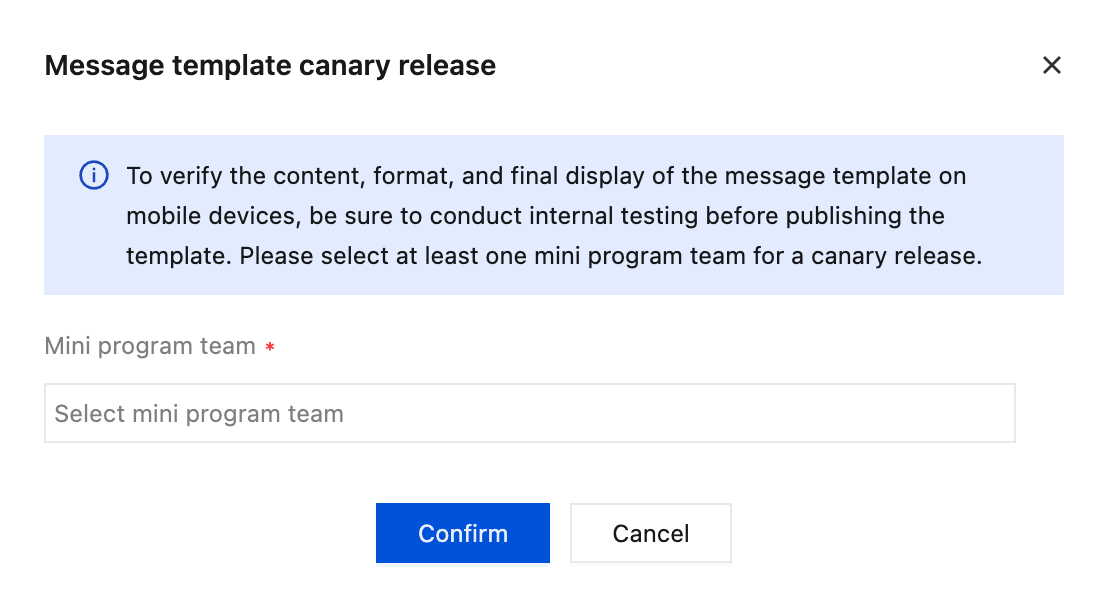
After a template is added, you can do a canary release to validate its business effect. Select one or more mini program teams for the canary release, and let those teams use the template to verify it.

2.4 Release
After the canary release, click Release to officially release the template, making it available for all mini programs and mini games within the superapp.

2.5 Delete
Templates in draft or canary release status can be edited or deleted.
3. Subscription message template details
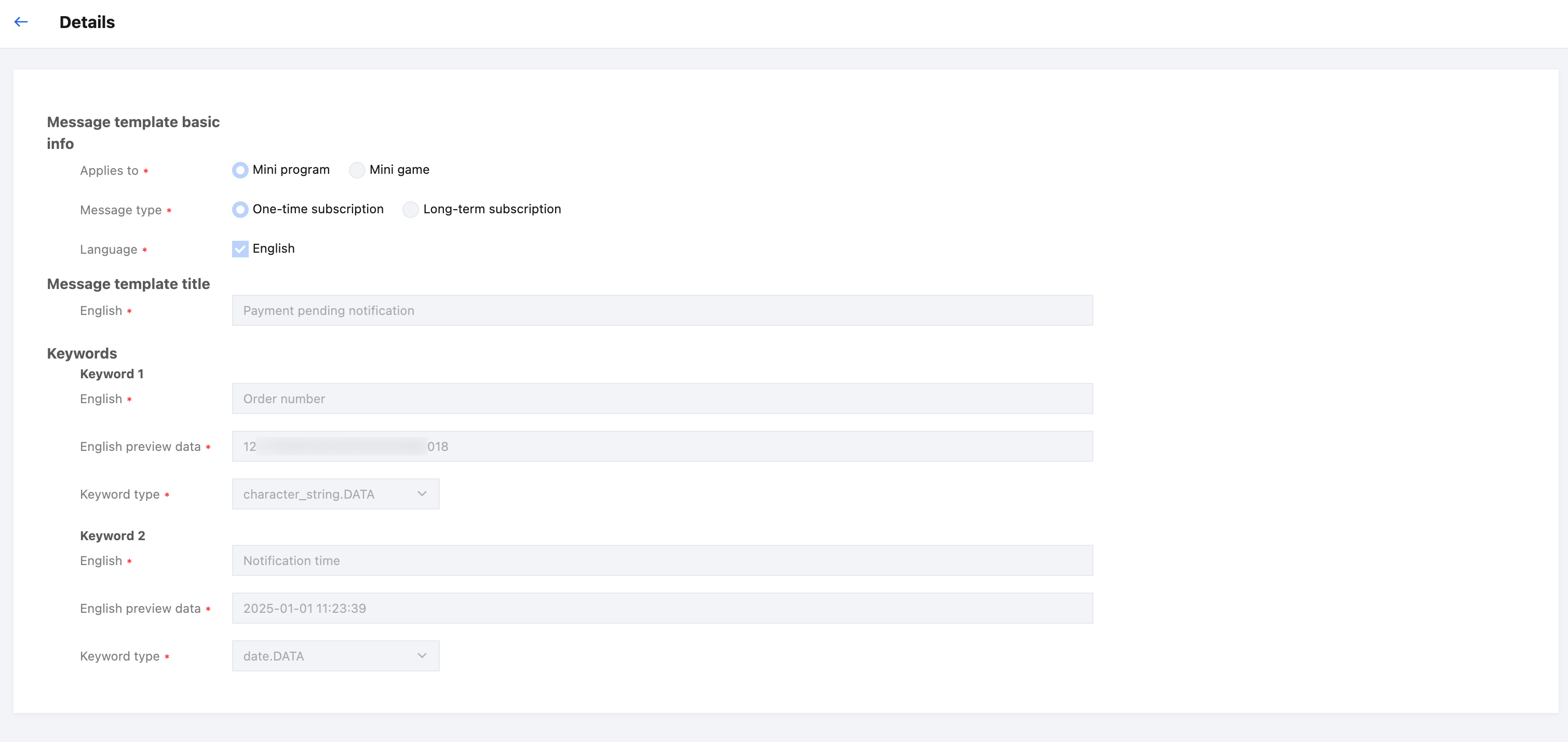
Click Details to view the details of the subscription message template.
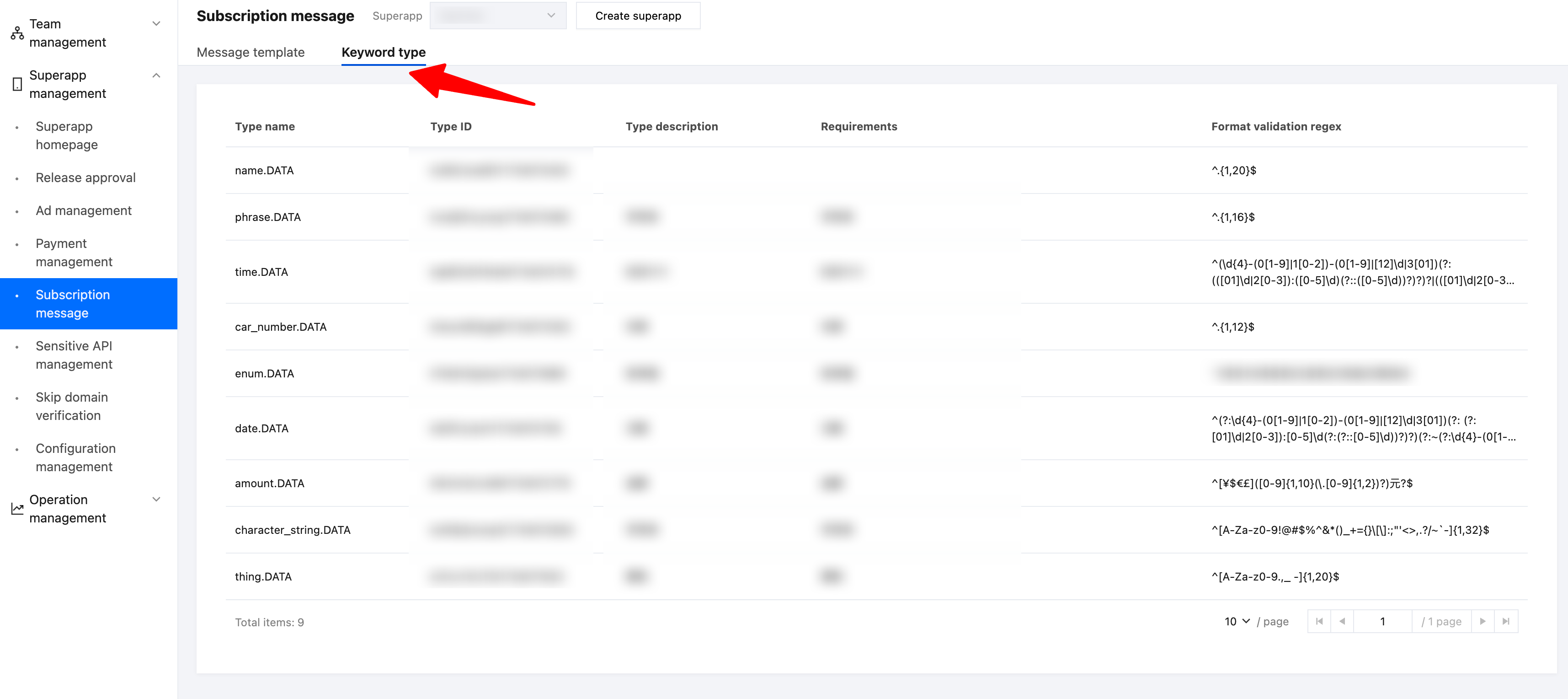
Keyword type
Keywords are predefined, replaceable variables in a message template. When a mini program or mini game sends a specific subscription message to a user, the system automatically fills these keywords with the corresponding content to generate a complete, personalized message.
Format:
In templates, keywords typically appear in the form {{thing.DATA}}, where "thing" is the keyword’s name and ".DATA" is a fixed suffix.
Example:
Suppose you have a delivery notification template for an order, which may include the following keywords:
{{thing1. DATA}} for the product name.
{{character_string2. DATA}} for the order number.
{{time3. DATA}} for the delivery time.
{{thing4. DATA}} for the logistics company name.
Keyword types define the acceptable content format, length limits, and display method for each keyword. This ensures consistent message presentation across different devices.
Note:
Keyword types are currently not customizable.
Help and Support
Was this page helpful?
You can also Contact sales or Submit a Ticket for help.
Help us improve! Rate your documentation experience in 5 mins.
Feedback