Guidance on Associated Resources
Download
Focus Mode
Font Size
While an application is running, it may depend not only on resources automatically created by Marketplace but also on cloud resources that you have manually created in advance. Associating these resources with the application makes its cost statistics more complete.
This guide applies to applications installed from Marketplace. To aggregate your existing cloud resources for unified management and cost tracking, see Application Dashboard Guide.
What Are Associated Resources?
In Marketplace, the cloud resources used by an application fall into two categories:
Deployment resources: cloud resources that Marketplace automatically creates based on your selected configuration when the application is installed and deployed. These resources serve as the underlying foundation that the application depends on to run.
Associated resources: cloud resources that are not automatically created by Marketplace during deployment. Instead, you create them in advance, and they are scheduled and used by the application at runtime to support its normal operation.
For example, when an application is installed, it needs to use an existing COS bucket that you already have. This bucket is not automatically created by Marketplace, but it stores data such as application logs during runtime, making it an associated resource of the application.
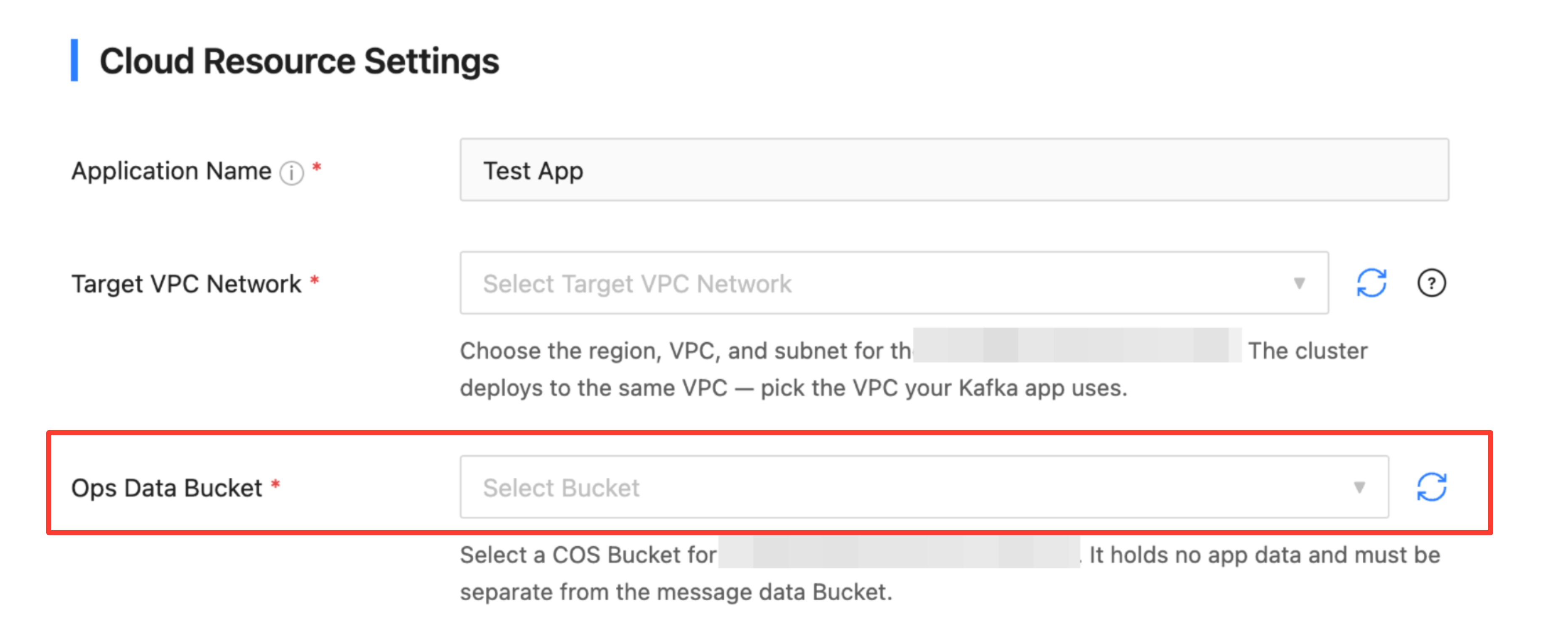
The main differences between the two types of resources are as follows:
Comparison Dimension | Deployment resource | Associated resource |
Resource source | Automatically created by Marketplace based on the configuration at installation. | Created by you in advance and manually associated with the application. |
Cost statistics | Included in application costs by default. | Included in application costs after association. |
Editing permissions | View-only and cannot be removed. | Can be added or removed by yourself. |
Adding Associated Resources
After the application is deployed, you can go to the application details page in the Tencent Cloud Console to add associated resources.
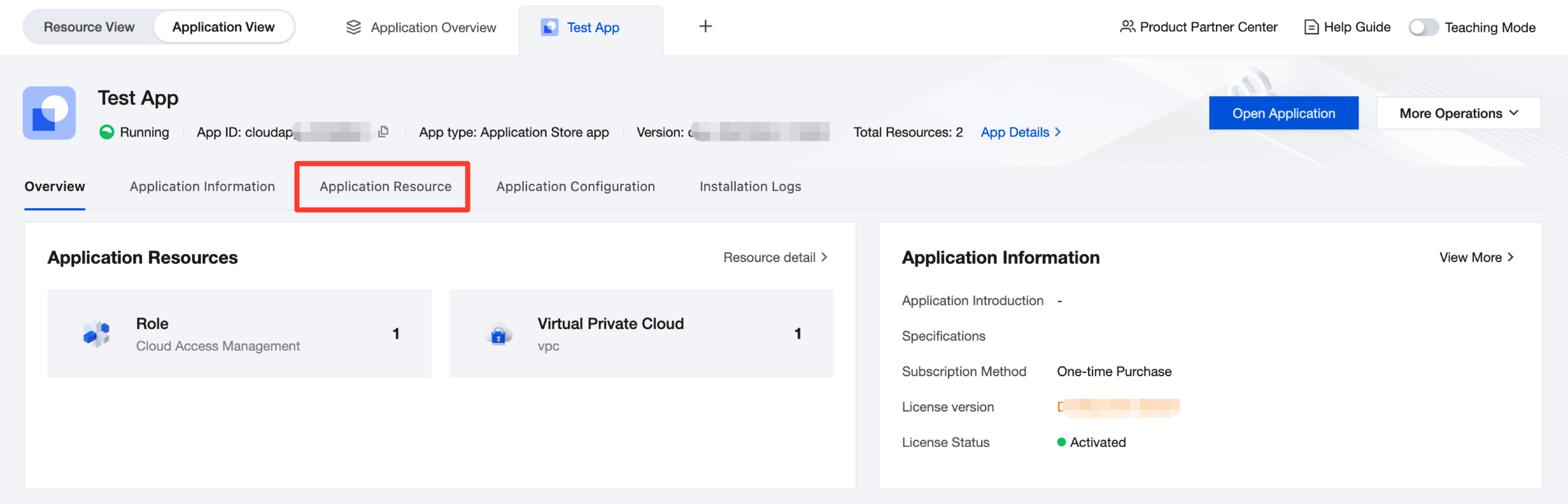
1. Go to the application details page, click Application Resource, and locate the Associated Resource module.
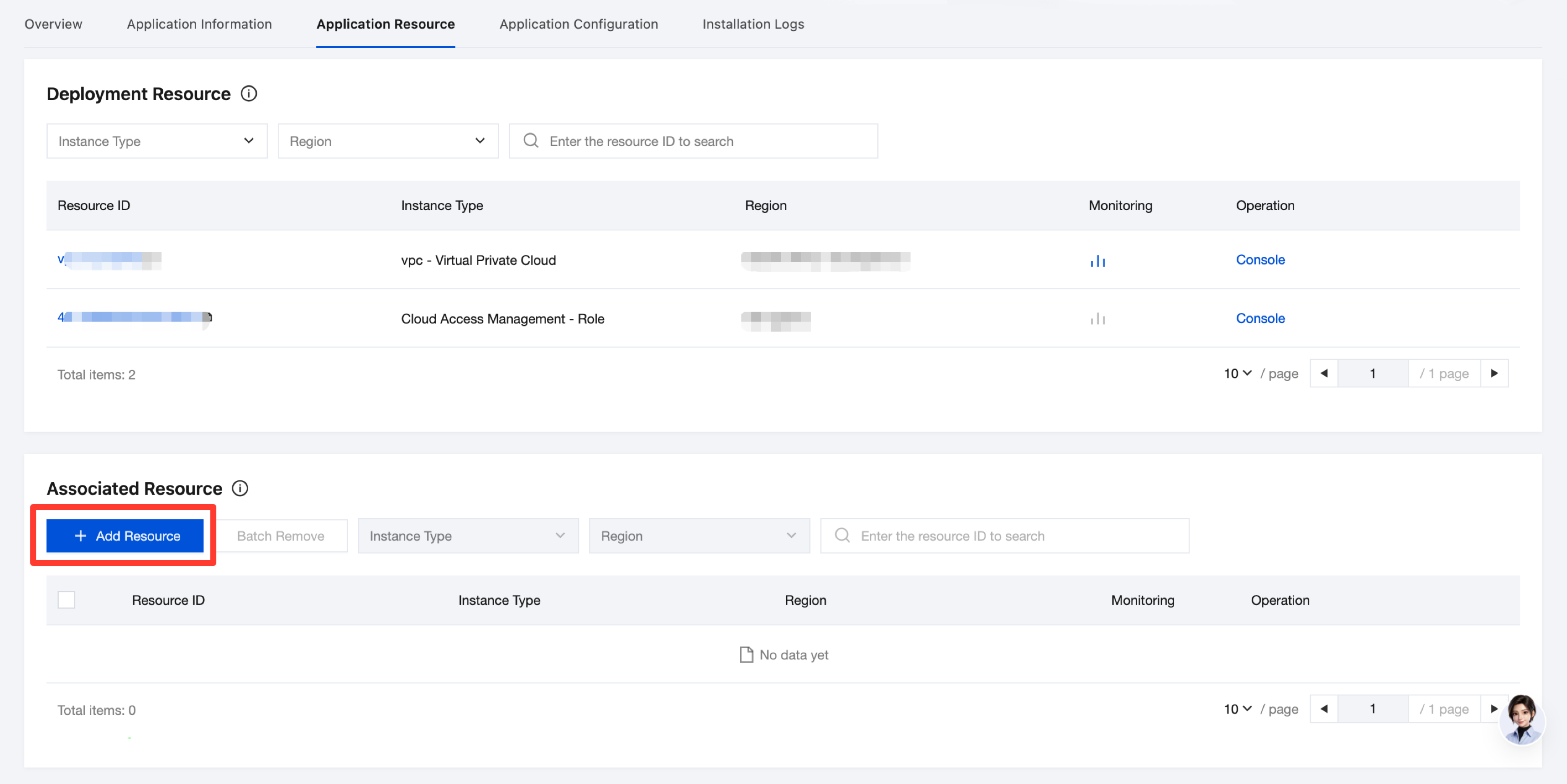
2. Click Add Resource in the Associated Resource module to go to the resource addition page.
3. Select an association method. Marketplace provides two mutually exclusive methods: Subscribe by Tag and Manually Select Resources. You can choose only one.
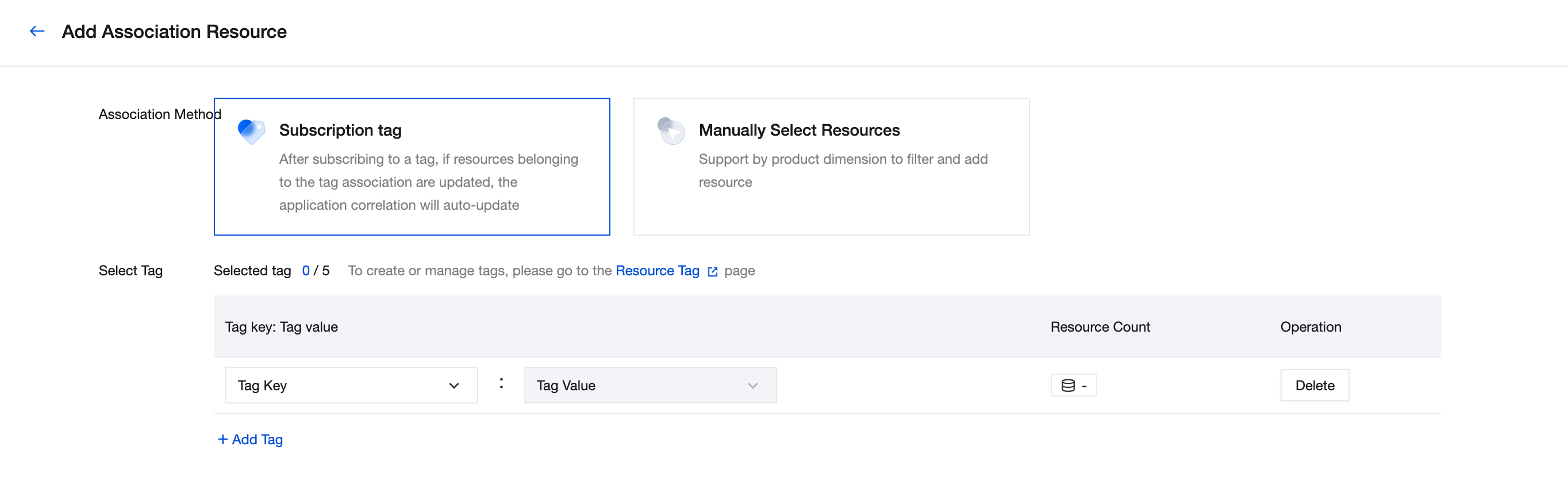
The two association methods are compared as follows. You can choose the method that best suits your needs:
Association Method | Subscription Tag | Select Resources Manually |
Feature Description | Associates resources under the subscribed tags and supports binding up to 5 tags. When the resources under a tag change, the resources associated with the application are automatically synchronized. | Manually select the resources to be associated in the resource selector. This method is intuitive and straightforward. If you have already configured associated resources when installing the application, the page will prompt you to add them with one click, without selecting them one by one. |
Scenario | Suitable for scenarios where you have used tags to manage resources and want resources associated with applications to be automatically maintained as tags change. You need to understand and maintain tags yourself. See Creating Tags. | Suitable for scenarios where resources are relatively fixed. You need to manually adjust when resources change. |
Operation Illustration | 1. Select the tags to bind. 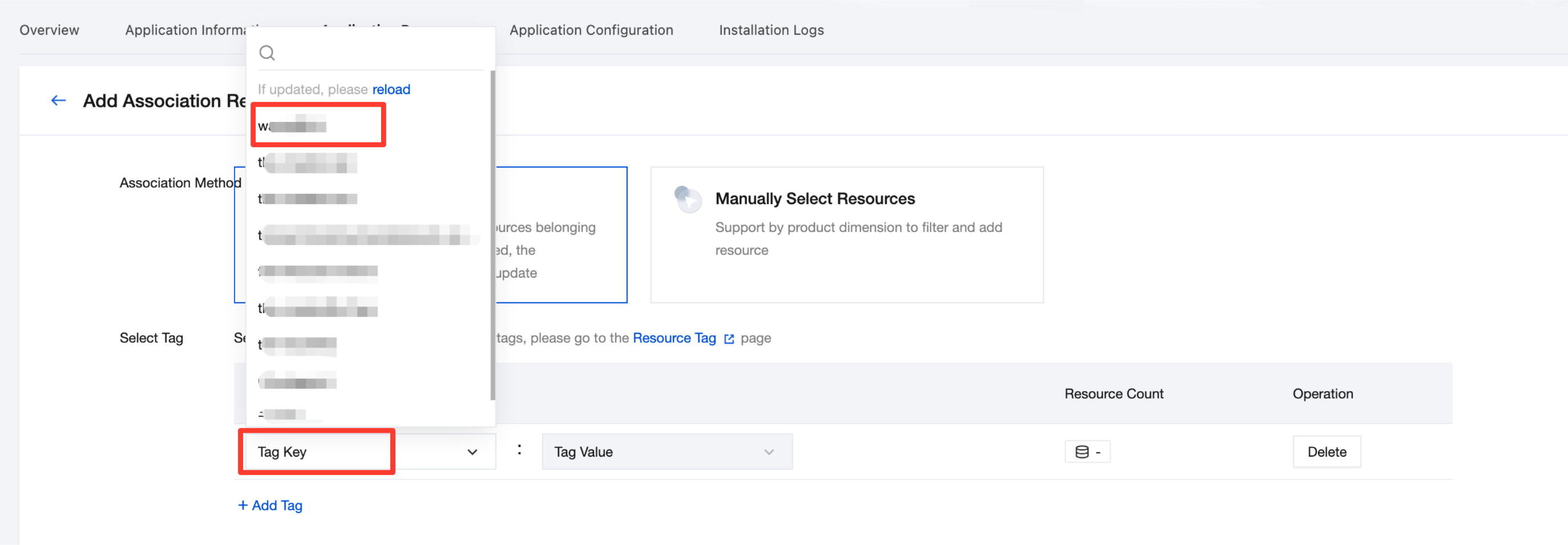 2. After adding tags, click the tag count to view the tag resource details. 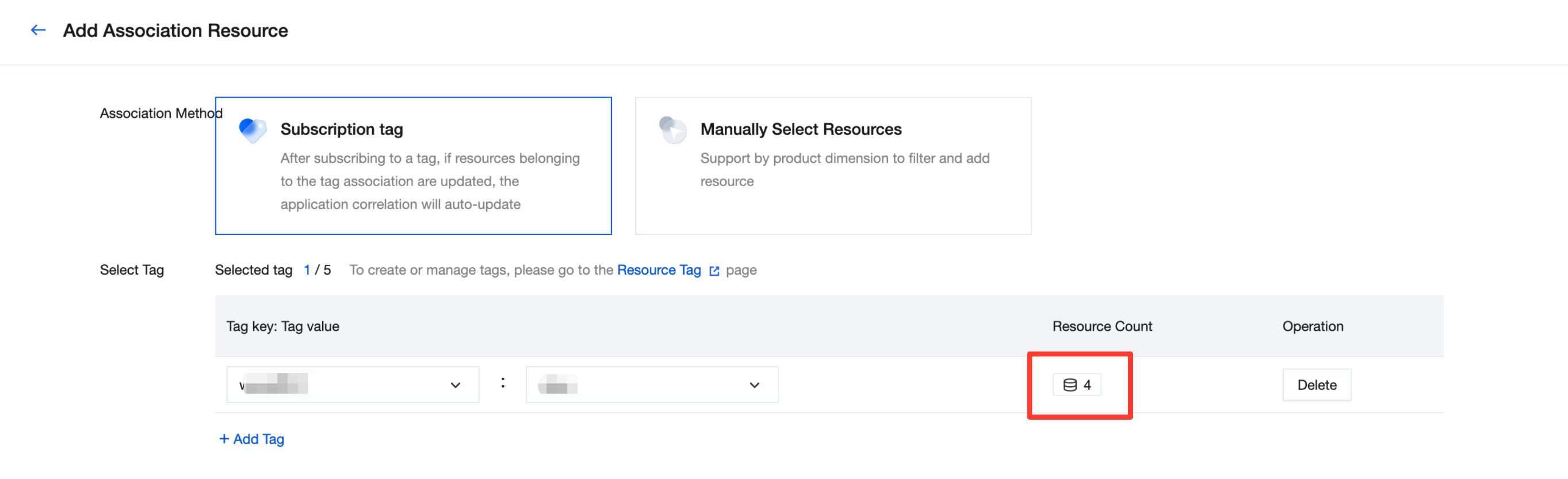 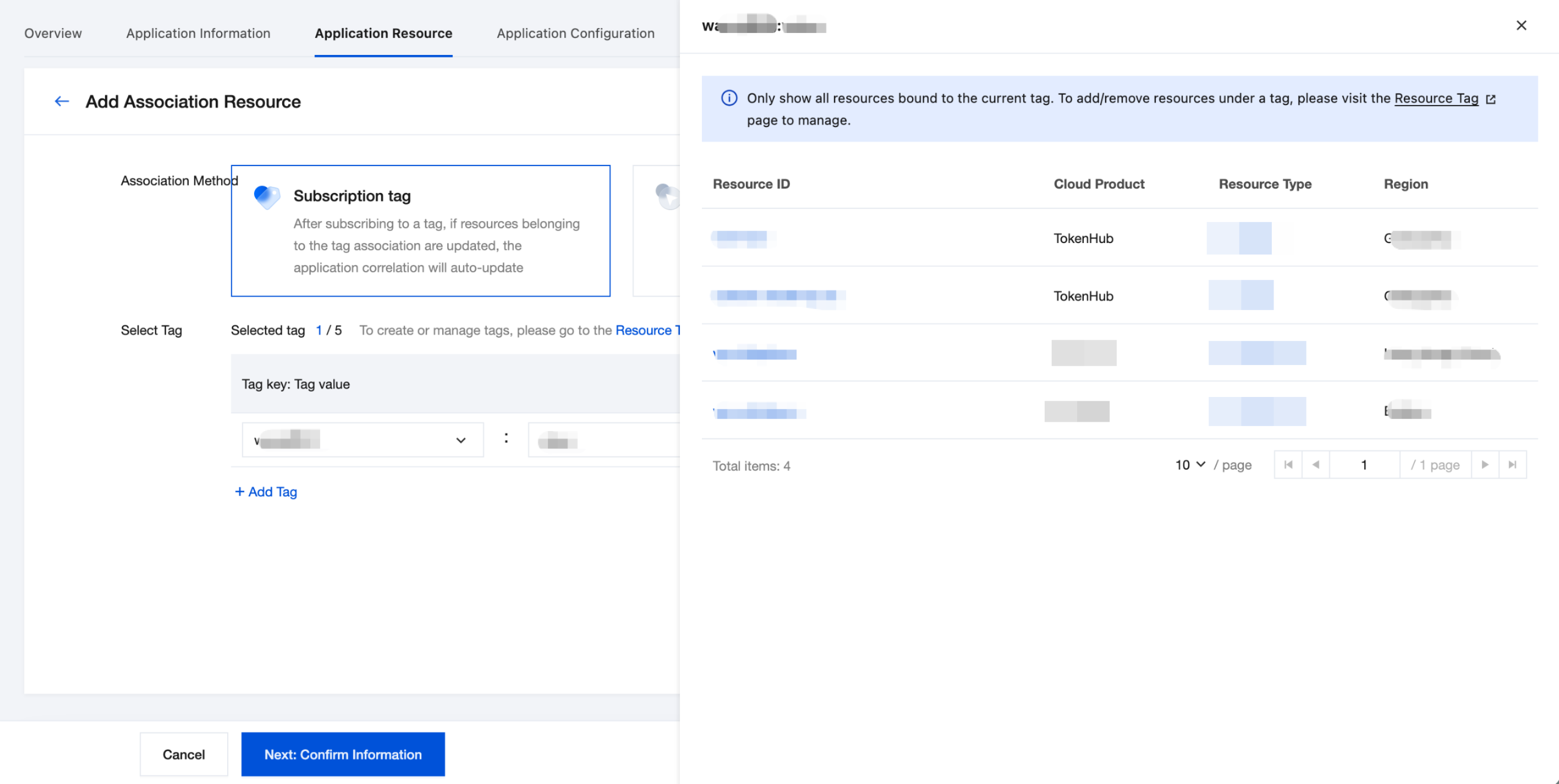 | 1. Click Add (or Add Resource in the upper-right corner) to open the resource selection dialog box. 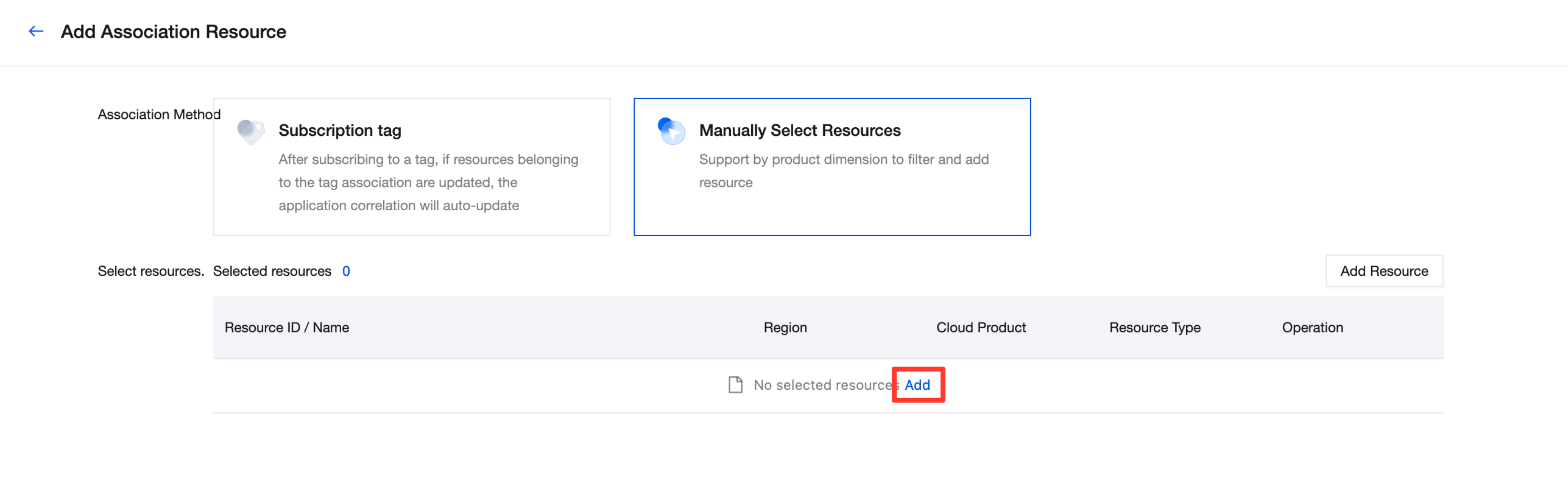 2. Select the cloud product and resource type in sequence, select the resources to be associated from the list, and confirm. You can search for resources and select them in batches. 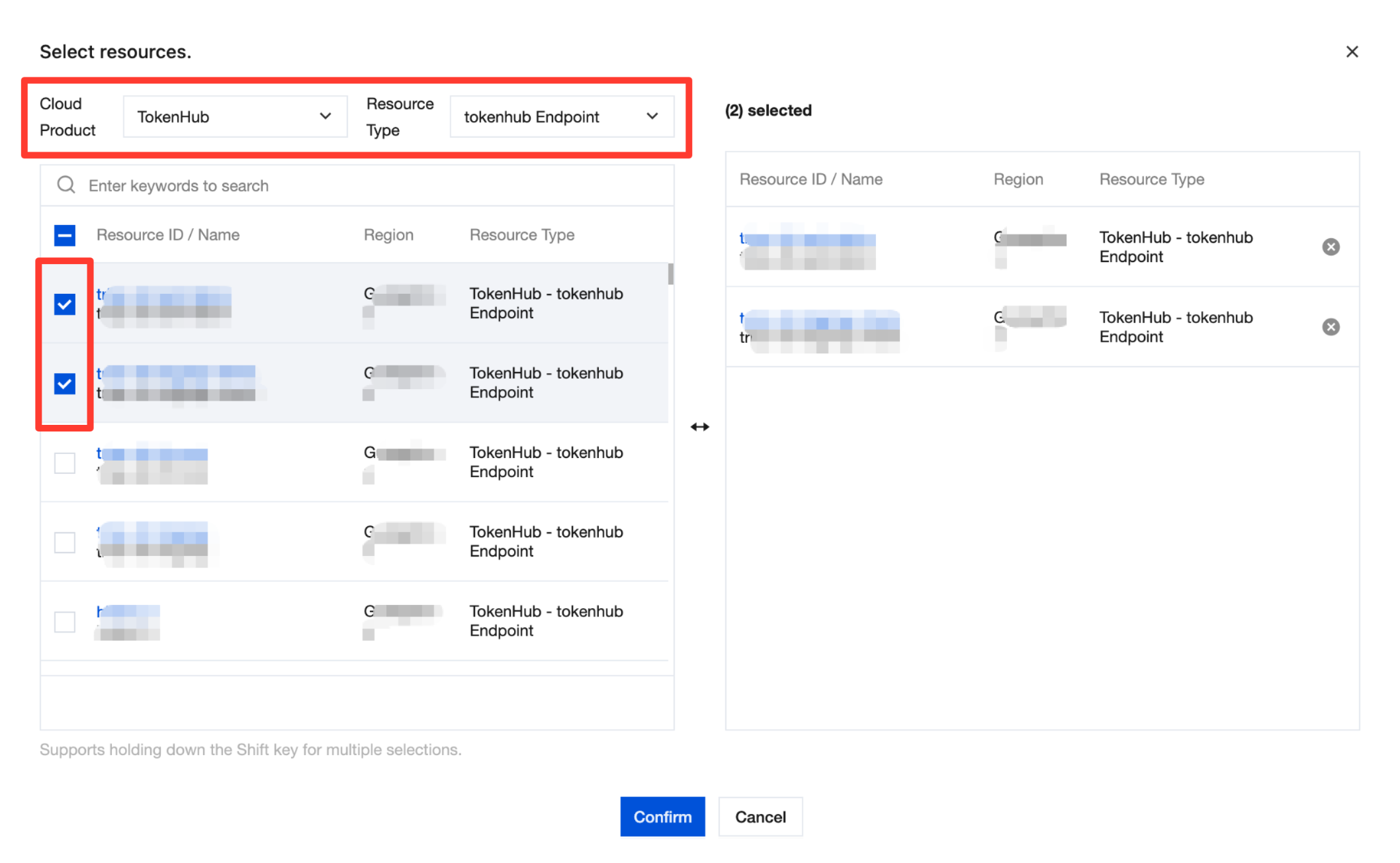 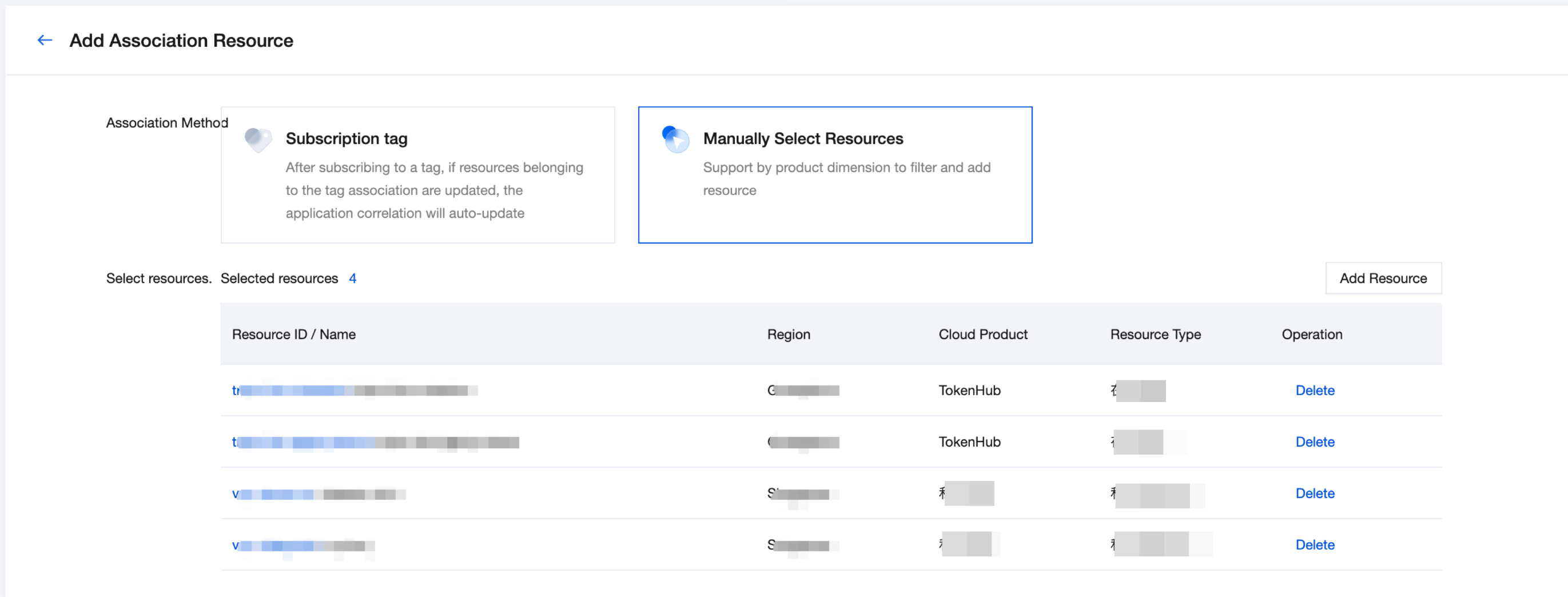 |
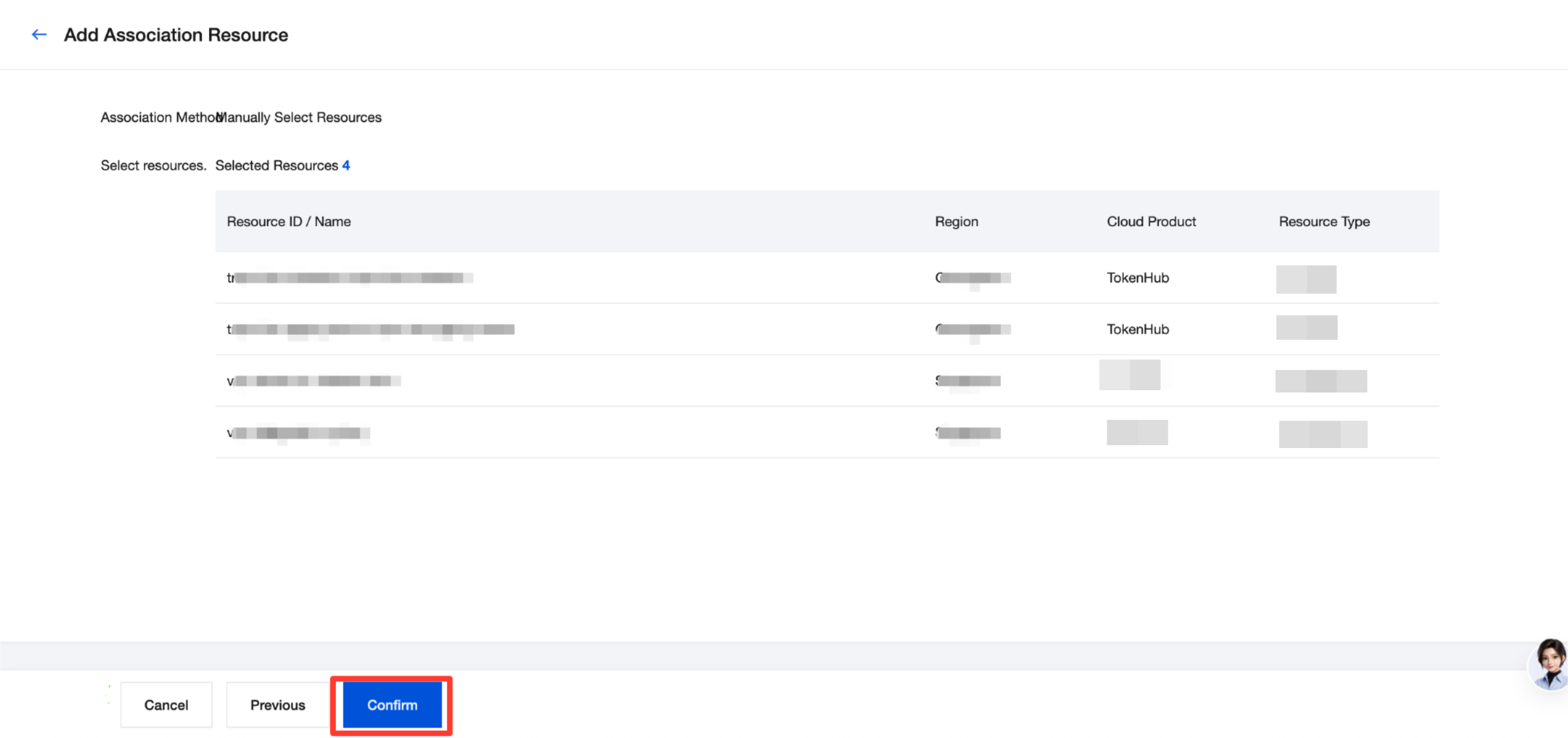
4. After selecting resources, click Next to go to the confirmation page. After verifying that the information is correct, click Confirm Association.
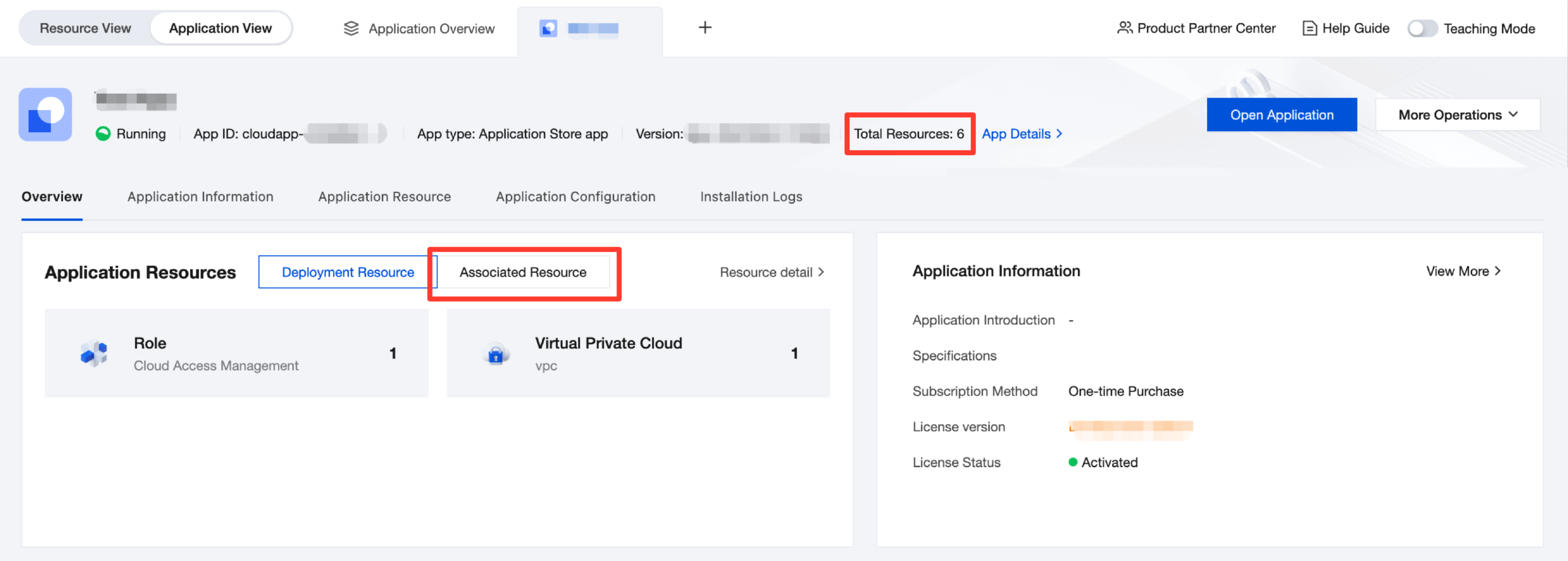
5. After the association is complete, the total number of resources at the top of the application details page will be updated to the sum of deployed resources and associated resources. If a newly associated resource duplicates an existing resource in the application, it will not be counted again.
In the Application Resources module, you can switch to the Associated Resources tab to view a summary of the types and number of associated resources.
Managing Associated Resources
After the association is successful, you can view and manage the associated resources in the Application Resource tab on the application details page. Management methods vary depending on the association method:
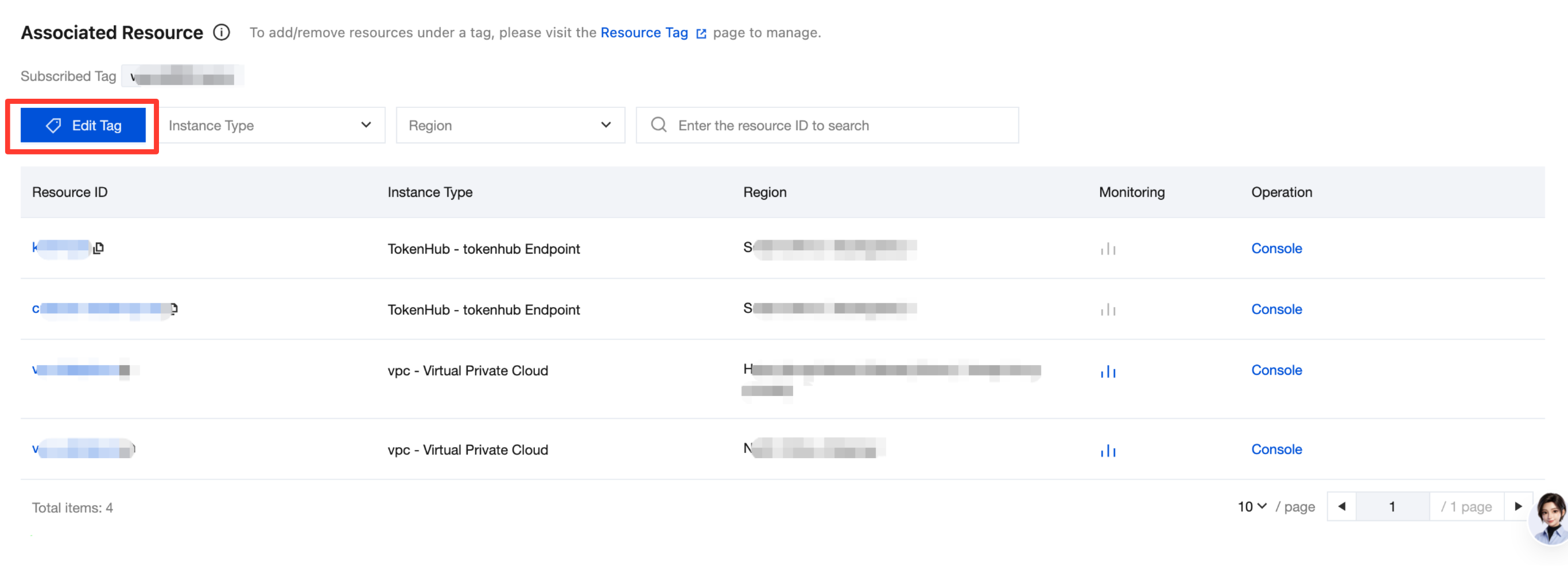
Subscribe by Tag: Click Edit Tags to add or remove subscribed tags (up to 5 tags can be subscribed). After tag adjustments, Marketplace automatically synchronizes the resources bound to the corresponding tags.
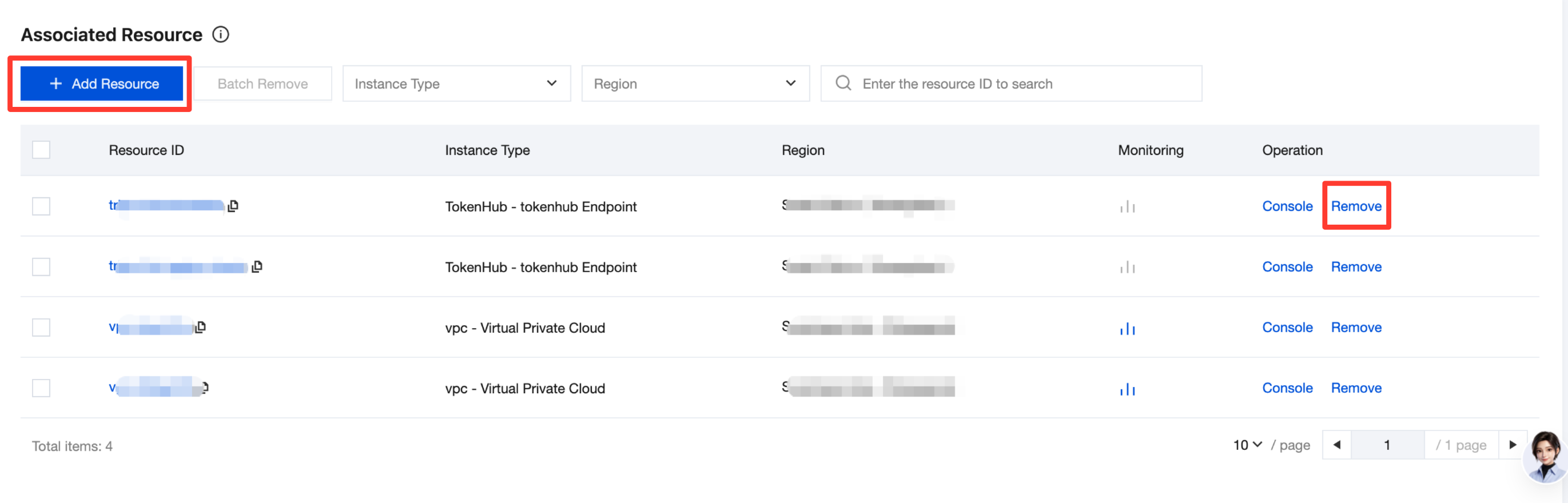
Select Resources Manually: Click Add Resource to continue associating new resources. Click Remove in the resource operation column to remove a single resource. Select multiple resources and click Batch Remove to remove them all at once.
Switching Association Methods: Subscribe by Tag and Manually Select Resources are mutually exclusive. To switch methods, first remove all subscribed tags or all associated resources under the current association method, and then re-enter the process of adding associated resources and select the other method.
Viewing Associated Resource Consumption
After adding associated resources, you can view their details and consumption on the application overview page.
Note:
Consumption data of cloud resources is displayed starting from the day after the association is completed (T+1). The consumption of the resource cannot be viewed on the day of association.
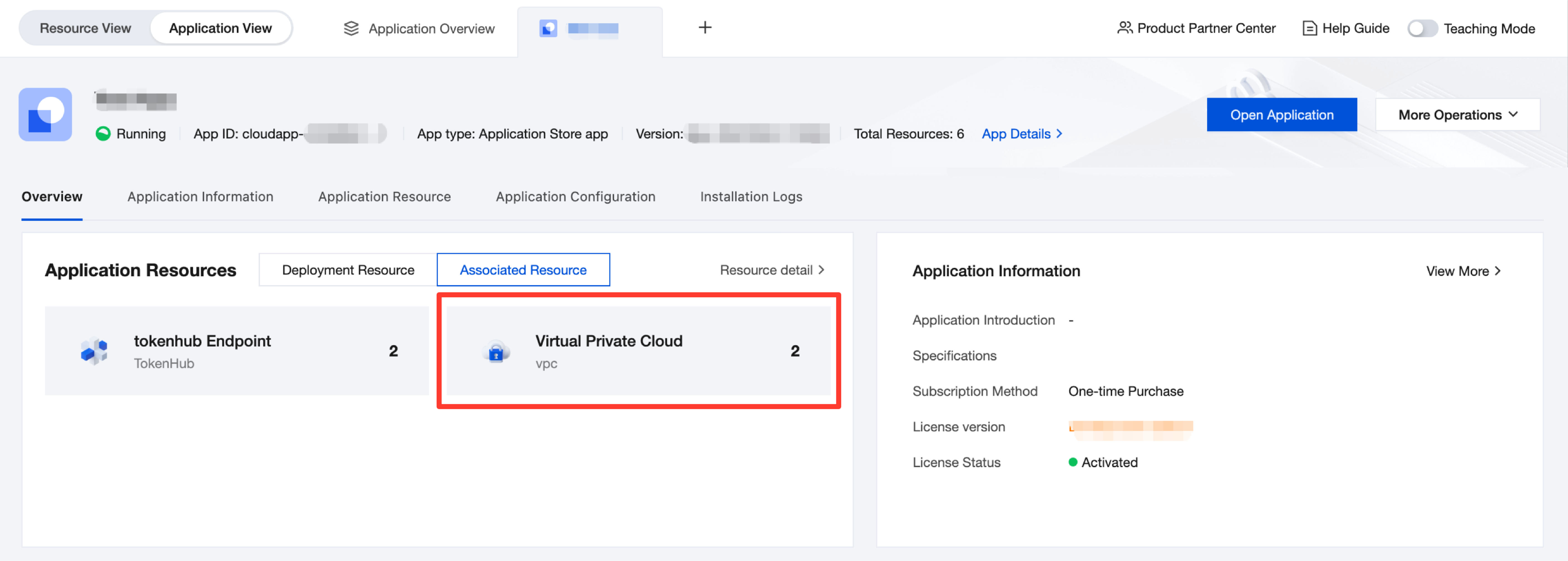
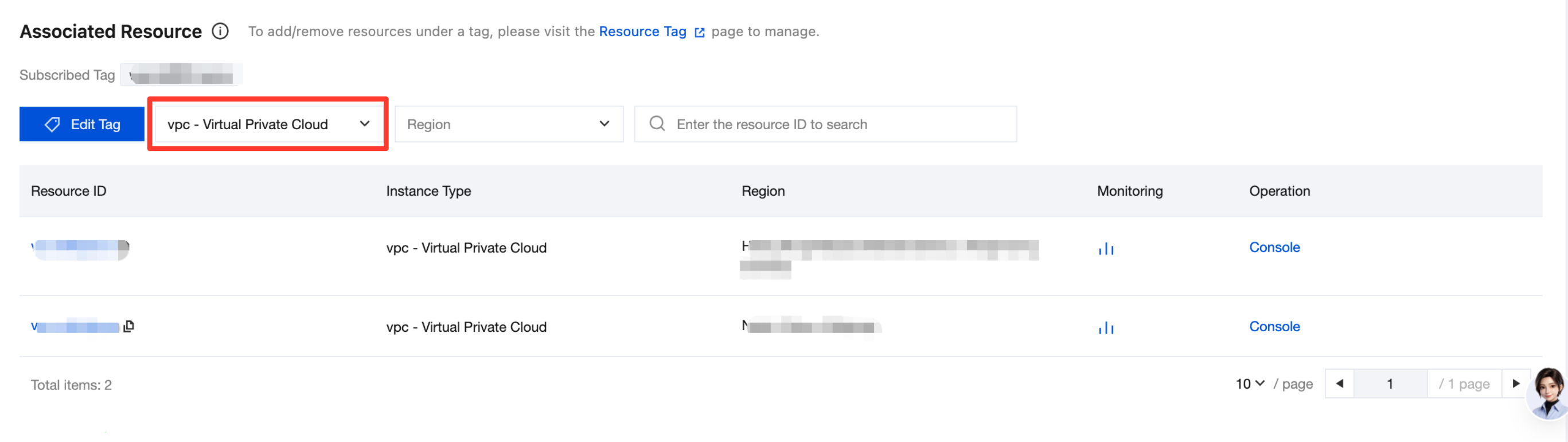
Application Resources: displays resources and their total number of resources by resource type. Click any resource type to view the resource details under that type.
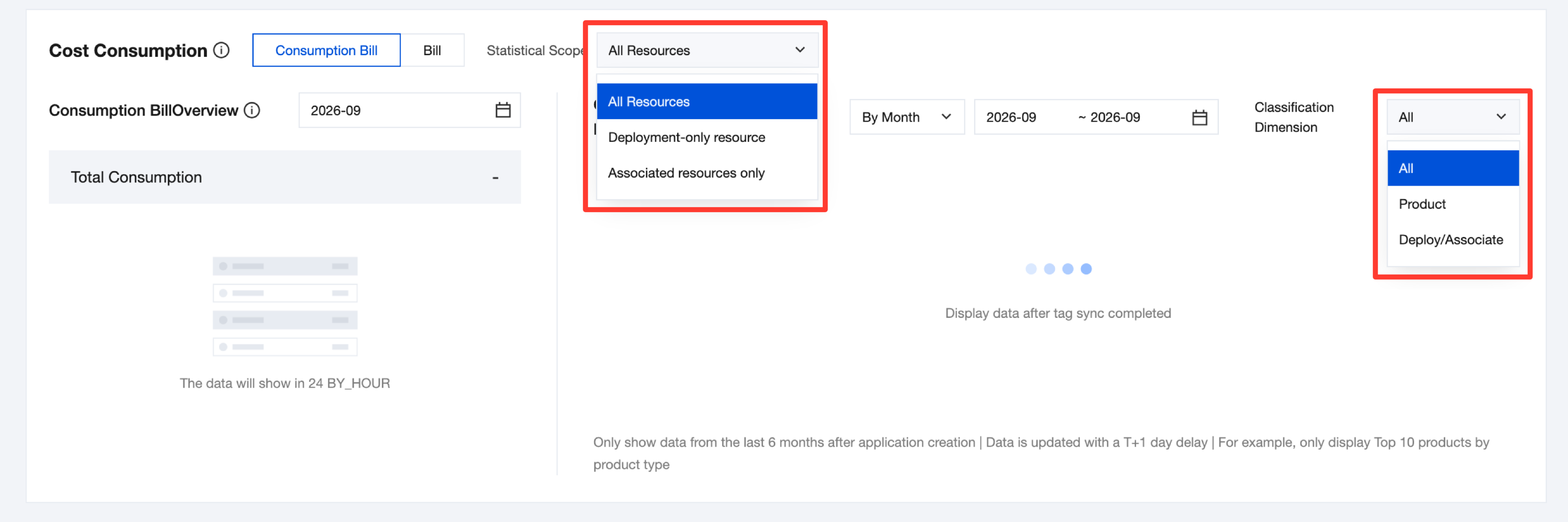
Cost Consumption: You can calculate consumption for all resources, only deployed resources, or only associated resources. Under each scope, you can view the consumption breakdown by the cloud product to which the resources belong. Under the all resources scope, you can also view consumption separately for deployed resources and associated resources.
Disassociating Resources When Uninstalling/Terminating an Application
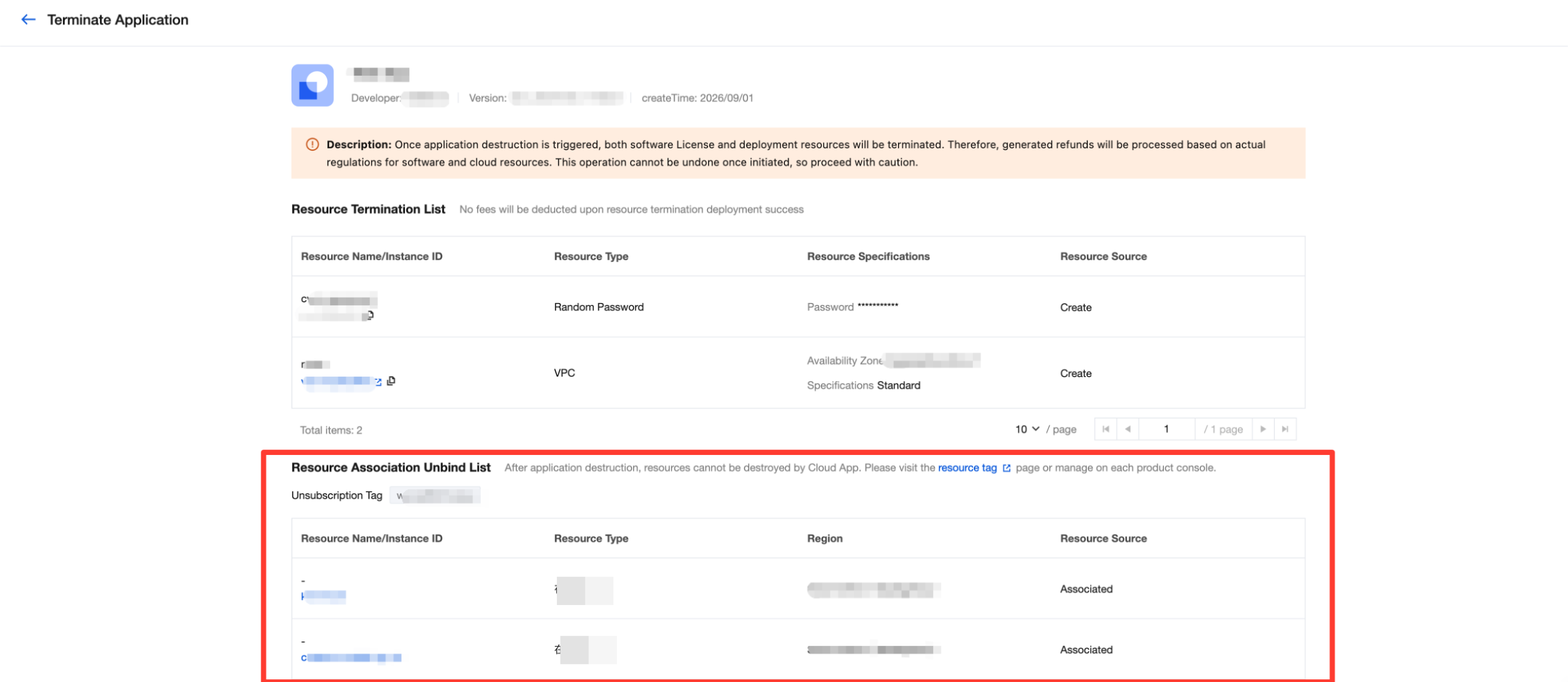
Associated resources are created and managed by you. Marketplace does not terminate these resources when you uninstall or terminate the application. It only automatically removes the associations.
When you uninstall or terminate an application, the page displays the resources associated with the application in the Resource Association Removal List, reminding you that these resources need to be managed in their corresponding locations.
If the application is reinstalled, associated resources are not automatically restored, and you need to associate them again.
FAQs
Can Applications Installed Earlier Still Be Associated with Resources?
Yes. Applications can be associated with resources at any time. However, cost consumption does not support retroactive calculation of historical bills and is only recorded from the month when the resources are associated.
Why Are Some Resources Not Counted as Associated Resources After Being Added?
If the selected resources duplicate existing resources in the application, the system will automatically deduplicate them, and they will not be counted repeatedly in the number of associated resources.
Why Can't Some Tags Be Subscribed To?
"CloudappId" and "云应用" are system-reserved tags in Marketplace and are used for internal resource identification. Therefore, resources cannot be subscribed to using these tags as associated resource tags.
Can the Same Resource Be Associated with Multiple Applications? How Is the Cost Calculated?
Yes. A cloud resource can be associated with multiple applications at the same time, and the cost of an application equals the sum of the costs of all its associated resources. When a resource is associated with N applications at the same time, the cost incurred by the resource is evenly distributed among the N applications. For example, if a CVM is associated with only one application, its entire cost is allocated to that application. If it is associated with three applications at the same time, one third of its cost is allocated to each application.
How Does Cost Calculation Change After Associated Resources Are Adjusted?
When the associated resources change (for example, resources are added or removed, or the association method is switched and causes resource changes), the cloud resource cost statistics of the application are updated accordingly and displayed starting from the next day (T+1). If associated resources are adjusted in the middle of a month, the final consumption for that month is determined based on the resources actually associated at the end of the month.
Will Associated Resources Be Terminated When Resources Are Removed or an Application Is Uninstalled/Terminated?
No. Whether you manually remove associated resources or the associations are automatically removed when you uninstall or terminate an application, only the association between the resources and the application is removed. The resources themselves are not terminated, and the resources and their data are not affected. To manage or terminate these resources, please go to the console of corresponding product.
Help and Support
Was this page helpful?
You can also Contact sales or Submit a Ticket for help.
Help us improve! Rate your documentation experience in 5 mins.
Feedback