WeCom AI Robot Integration Guide
Download
Focus Mode
Font Size
You can quickly integrate CodeBuddy Code into a WeCom smart robot by using the
/remote-control command to enable remote message-driven operations. It uses an active WebSocket persistent connection, requiring no public IP address and offering the simplest configuration.Prerequisites
A registered WeCom account
CodeBuddy Code is installed:
codebuddy --versionLogin authentication is complete: run
/login after codebuddy.1. Creating a WeCom AI Robot
1.1 Opening the Creation Page
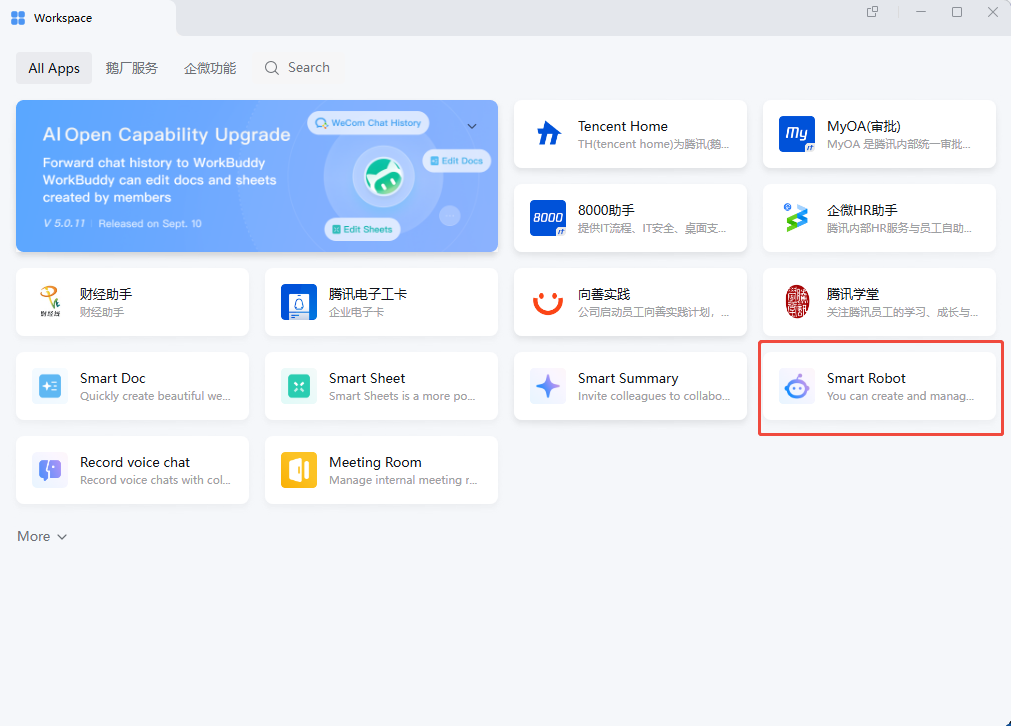
1.1.1 Open the WeCom client and go to "Workspace".
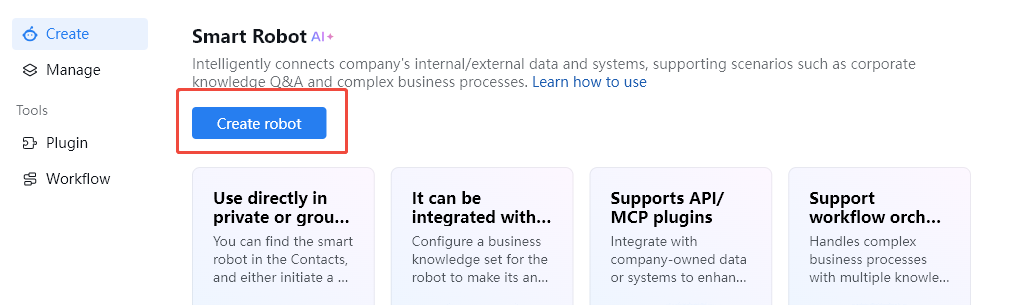
1.1.2 Choose Smart Robot > Create > and choose Manual Creation.
Note:
If you cannot find the "Smart Robot" entry in Workspace, update WeCom to the latest version.
1.2 Entering Basic Information
Enter basic information such as the robot name, avatar, and application description.
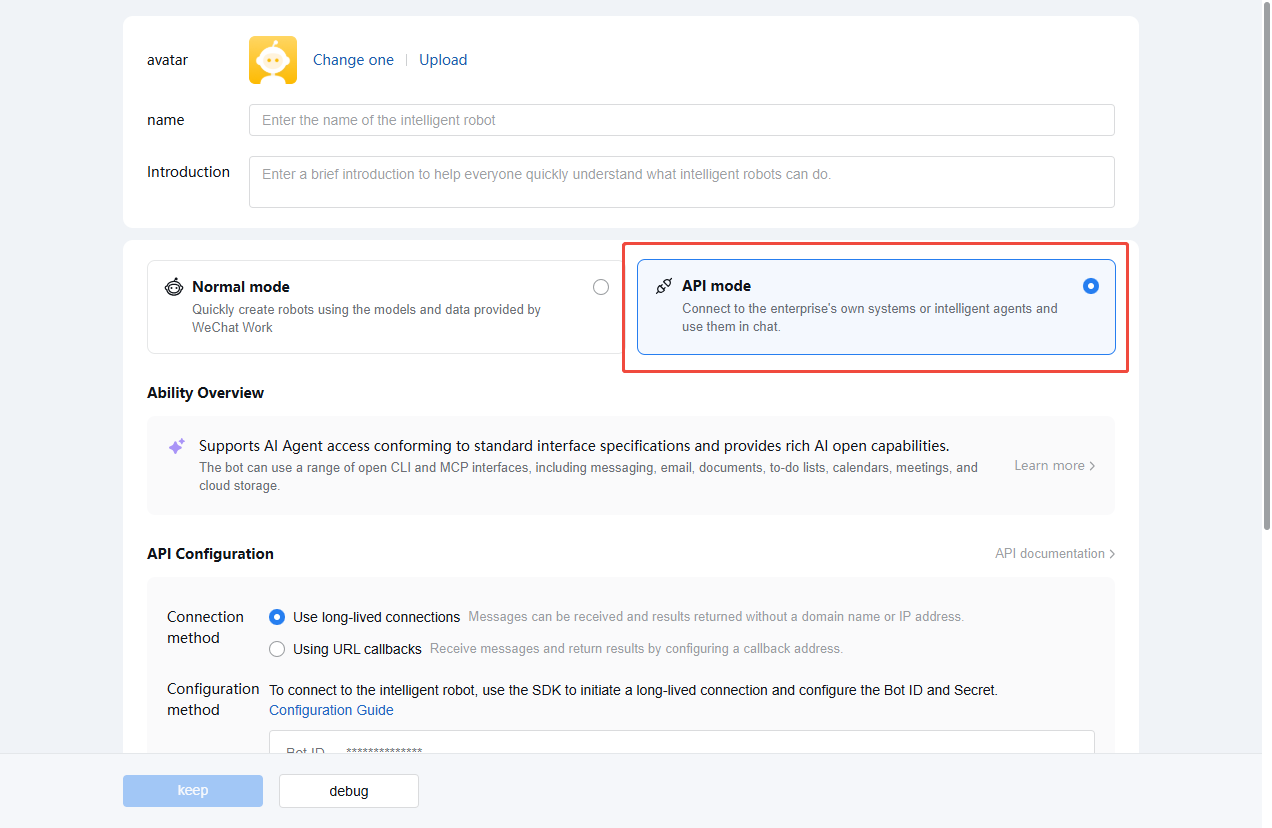
1.3 Switching to API Mode
Click "Create via API" at the bottom of the page.
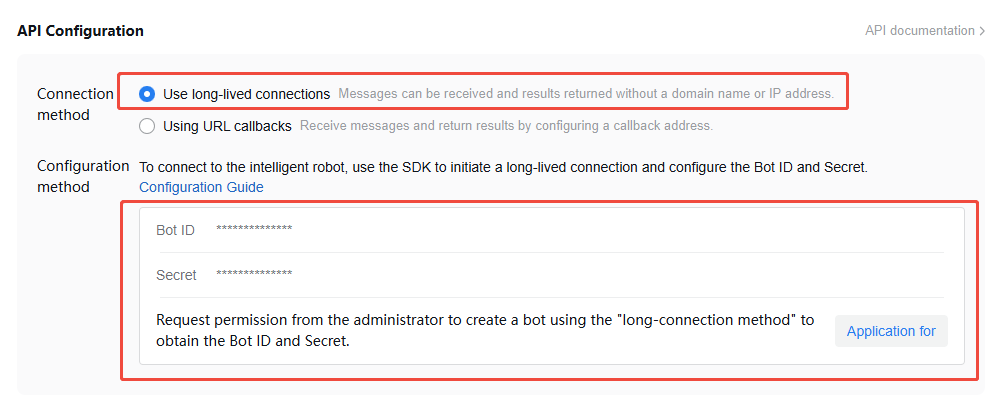
1.4 Selecting a Long Connection Mode
On the API mode creation page, locate the "API Configuration" section and set the connection method to "Use persistent connection".
1.5 Obtaining the Bot ID and Secret
In the "API Configuration" section, locate the following information and save it properly:
Bot ID: The unique identifier of the robot (example:
aibVGv7I...)Secret: Click "Get" or "Click to Get" to obtain the access key.
Note:
The Secret is displayed only once. If it is lost, you can regenerate it on the robot details page.
1.6 Saving the Bot
After confirming that the Bot ID and Secret have been recorded, click "Save" to complete the creation.
2. Configuring Environment Variables
Before starting CodeBuddy CLI, set the following environment variables:
export CODEBUDDY_WECOM_BOT_ID="<Your Bot ID>"export CODEBUDDY_WECOM_BOT_SECRET="<Your Bot Secret>"
Configuration Options
Environment Variable | Description | Default Value |
CODEBUDDY_WECOM_BOT_ID | AI Bot ID (required) | — |
CODEBUDDY_WECOM_BOT_SECRET | AI Bot Secret (required) | — |
CODEBUDDY_WECOM_BOT_WS_URL | WebSocket service address (used for private deployment) | wss://openws.work.weixin.qq.com |
Persistent Configuration (Optional)
Add the environment variables to your shell startup file so that they take effect automatically each time you start a session:
# ~/.zshrc or ~/.bashrcexport CODEBUDDY_WECOM_BOT_ID="<Your Bot ID>"export CODEBUDDY_WECOM_BOT_SECRET="<Your Bot Secret>"
3. Starting and Connecting CodeBuddy
3.1 Starting Interactive Mode
codebuddy
3.2 Opening the Remote Control Panel
/remote-control
This command opens an interactive panel that lists all available connection clients.
3.3 Connecting to wecom-bot
Use the arrow keys to select the
wecom-bot entry, and press Enter to initiate the connection:Remote Control Clients1. • wecom-bot [disconnected] (Press Enter to connect)2. • centrifugo [disconnected]3. Cancel
After a successful connection, the panel closes automatically. If the environment variables are not configured, the panel remains open and displays an error message.
3.4 Viewing Connection Status
Run
/remote-control again to view the connection status:1. • wecom-bot [connected] (Press Enter to disconnect)2. Cancel
Status description:
disconnected — Not connected. You can initiate a connection.connecting — Connecting. Please wait.connected — Connected. You can choose to disconnect.4. Panel Operation Guide
Operation | Description |
↑ / ↓ | Select a client entry. |
j / k | Vim-style navigation (equivalent to the up and down arrow keys) |
Enter | Connect (in the disconnected state) or disconnect (in the connected/connecting state). |
Esc | Exit the panel (no response while an operation is in progress). |
5. Verifying Integration
After the connection is established, you can verify whether the Bot is working properly in the following ways:
Method 1: Direct Conversation
1. Open the WeCom client (desktop or mobile).
2. Find the bot you created in the message list.
3. Send a test message (for example, "Hello") and confirm that the Bot replies.
Method 2: Group Conversation
1. Add the bot to a group chat.
2. Send a message in the group by @mentioning the bot.
3. The Bot responds to messages in which it is @mentioned.
6. Message Processing Flow and Status Indication
End-to-End Message Processing Flow
Processing flow after a user sends a message to the Bot:
A user sends a message in WeCom.↓ Messages are pushed in real time over a persistent WebSocket connection.CodeBuddy CLI receives messages.↓ Reply within 5 seconds (to meet the WeCom callback timeout requirement).Send a streaming message (stream finish=false): "Processing, please wait..."↓ The WeCom client displays the streaming message.The Agent is processing... (Processing may take from 1 second to 5+ minutes.)↓Processing complete. Send a streaming message (stream finish=true): Final result.↓ The WeCom client fully replaces "Processing..." with the final result.WeCom users see the final reply (only the final result is retained in the chat history).
Streaming Status Indication Mechanism
Leverage the full replacement feature of WeCom streaming messages (
aibot_respond_msg stream type):1. Reply immediately: After receiving a user message, immediately send a streaming message with
finish=false, containing "Processing, please wait...".2. In-place replacement: After the Agent finishes processing, send
finish=true + the final result using the same stream.id.3. After the WeCom client receives
finish=true, it replaces the previously displayed "Processing..." with the full content.Note:
Smart Robot Long Connection Documentation — stream.content contains the full content, and each send replaces the previous display.
User Experience
Phase | Chat Window Display | Description |
After a message is sent | Processing, please wait... | Streaming message placeholder, indicating that the Bot is processing. |
After processing is complete | Final response content | "Processing..." is replaced in place by the final result. |
Differences from Previous Solutions
Aspect | Legacy Solution (Text Message ack) | New Solution (Streaming Message Replacement) |
Processing... | Permanently retained in chat history | Replaced in place by the final result |
Chat history | 2 messages (ack + result) | 1 message (final result only) |
Status indication | Yes | Yes |
Timeout Handling
Streaming message timeout: 6 minutes (starting from the first stream send)
Safety timeout: 5 minutes (with a 1-minute buffer reserved)
Timeout fallback: If the Agent processes for more than 5 minutes, automatically fall back to asynchronous push (
aibot_send_msg, valid for 24 hours).Callback timeout: A reply must be sent within 5 seconds after the message callback is received (a streaming placeholder message meets this requirement).
7. How It Works
A WeCom user sends a message.↓WeCom server (WebSocket connection pool)↓ Real-time push over a persistent WebSocket connectionCodeBuddy CLI(WecomBotClient)↓CodeBuddy Agent processes the message and generates a reply.↓Reply with a message over the same WebSocket connection.↓A WeCom user receives a reply from the Bot.
Key Features
Connection Method: WebSocket persistent connection (initiated by the client, with no public IP address required)
Authentication Mechanism: On startup, send an
aibot_subscribe frame with bot_id + secret to complete authentication.Message Receiving: The WeCom server pushes user messages in real time through the
aibot_msg_callback frame.Message Reply: Return the Agent reply in streaming mode through the
aibot_respond_msg frame.Heartbeat Keepalive: Send a
ping frame every 30 seconds to keep the connection alive.Automatic Reconnection: After a connection is lost, the client automatically reconnects using an exponential backoff policy, with a maximum delay of 60 seconds.
8. FAQ
Q1: Environment Variables Not Configured
Symptom: An error is displayed after
wecom-bot is selected in the /remote-control panel.Error: WeChat Work AI Bot is not configured.Missing environment variables: CODEBUDDY_WECOM_BOT_ID, CODEBUDDY_WECOM_BOT_SECRET
Solutions:
1. Confirm that
CODEBUDDY_WECOM_BOT_ID and CODEBUDDY_WECOM_BOT_SECRET have been set.2. Run
echo $CODEBUDDY_WECOM_BOT_ID to verify whether the environment variable takes effect.3. Restart the CodeBuddy CLI.
4. Run
/remote-control again to attempt the connection.Q2: Connection Failure
Possible Causes and Troubleshooting:
1. Incorrect Bot ID or Secret
Confirm that the value copied from the WeCom admin console is exactly the same, and check whether there are trailing spaces.
Confirm that the AI Bot application is in a normal state and has not been disabled.
2. Network Connection Issues
Check whether
wss://openws.work.weixin.qq.com is accessible.If you are using a self-hosted deployment, confirm that
CODEBUDDY_WECOM_BOT_WS_URL is set correctly.Test the network connection in a browser:
curl -v wss://openws.work.weixin.qq.com3. Viewing CLI Logs
View the error logs output by the terminal.
After running
codebuddy, stay on the main interface and observe the output during the connection process.Q3: No Response After Connection
Troubleshooting Steps:
1. Run
/remote-control and confirm that the wecom-bot status is connected.2. If the status is
disconnected, reconnect.3. Check whether the CLI terminal logs contain any error messages.
4. Confirm that the CodeBuddy CLI process is still running and has not been interrupted or exited.
Q4: Reconnection Required After CLI Restart
The
/remote-control connection is temporary and is not persisted. After each restart of CodeBuddy CLI, you need to run /remote-control again and select wecom-bot to establish a connection.Automatic Connection (if you want to connect automatically on each startup):
Add the following content to the startup script or shell configuration file:
# ~/.zshrc or ~/.bashrcexport CODEBUDDY_WECOM_BOT_ID="<Your Bot ID>"export CODEBUDDY_WECOM_BOT_SECRET="<Your Bot Secret>"# Optional: Create an alias for quick startup and automatic connection.alias cbc-wecom='codebuddy -c "/remote-control"'
Note:
The
-c parameter indicates that the specified command is automatically executed at startup.Q5: App Prompts "Token Expired" or "Invalid Secret"
This usually indicates that the Bot Secret has expired or has been regenerated. To resolve this issue:
1. Log in to the WeCom admin console and go to the Bot details page.
2. Regenerate the Secret in the "API Configuration" section.
3. Update the
CODEBUDDY_WECOM_BOT_SECRET environment variable.4. Restart the CodeBuddy CLI and reconnect.
References
Remote Control - Learn about the full features of Remote Control and other clients.
Slash commands - Master all built-in commands.
Settings configuration - Learn about CodeBuddy configuration options.
Help and Support
Was this page helpful?
You can also Contact sales or Submit a Ticket for help.
Help us improve! Rate your documentation experience in 5 mins.
Feedback