Task Management
Download
Focus Mode
Font Size
1. Task List
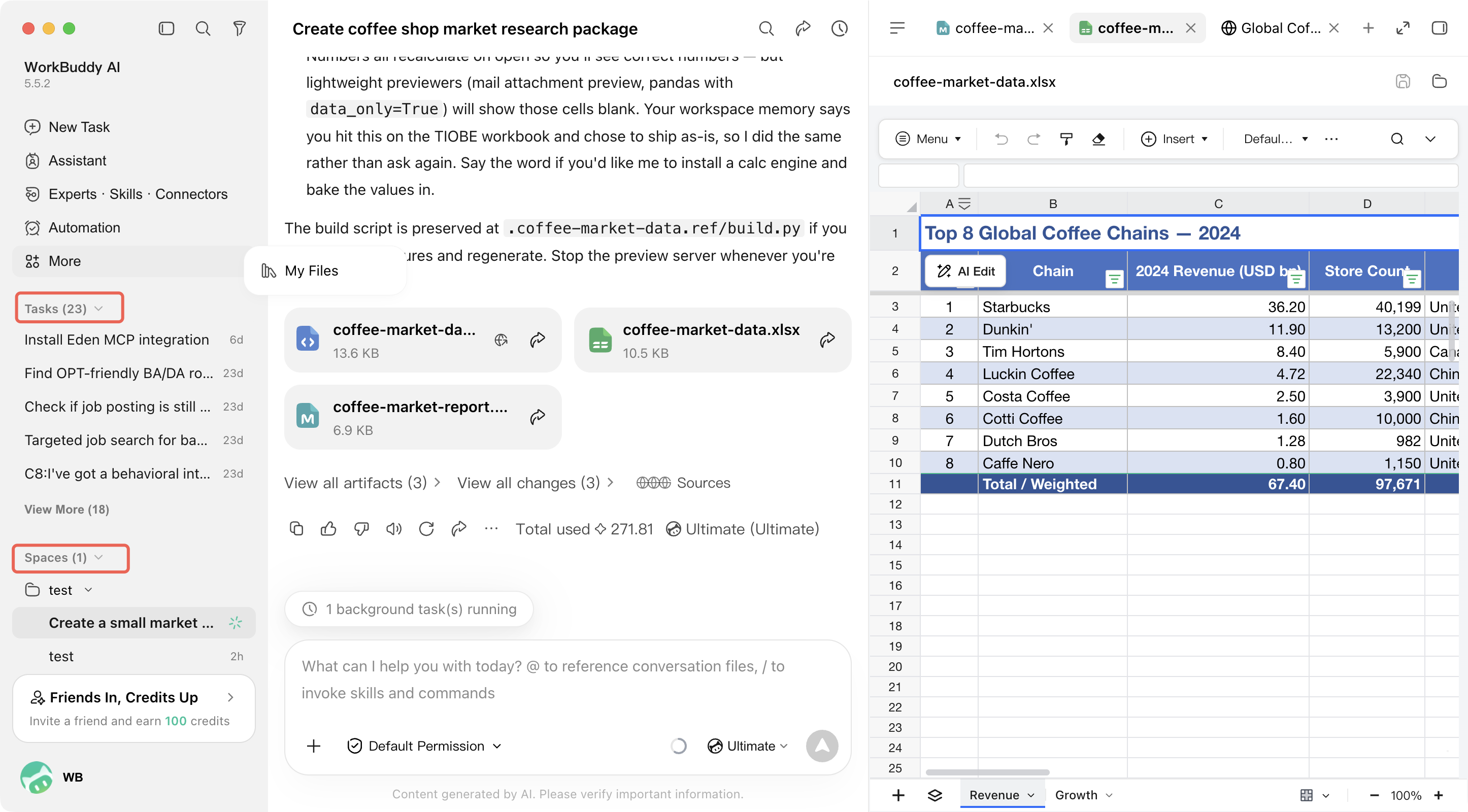
The left sidebar shows the tasks you have created, so you can revisit them, pick them up again, and switch context at any time.
The list has two sections:
Tasks: Shows recently accessed or updated tasks, with the number of tasks displayed to the right of the title. By default, the list shows only the most recent entries. Click View more at the bottom to expand the remaining tasks.
Spaces: tasks organized by workspace, so you can review the history of a single project in one place. Expand a workspace to see the tasks it contains
Each task card typically displays:
Task title
Current status
Last update time.
2. Search and Filter
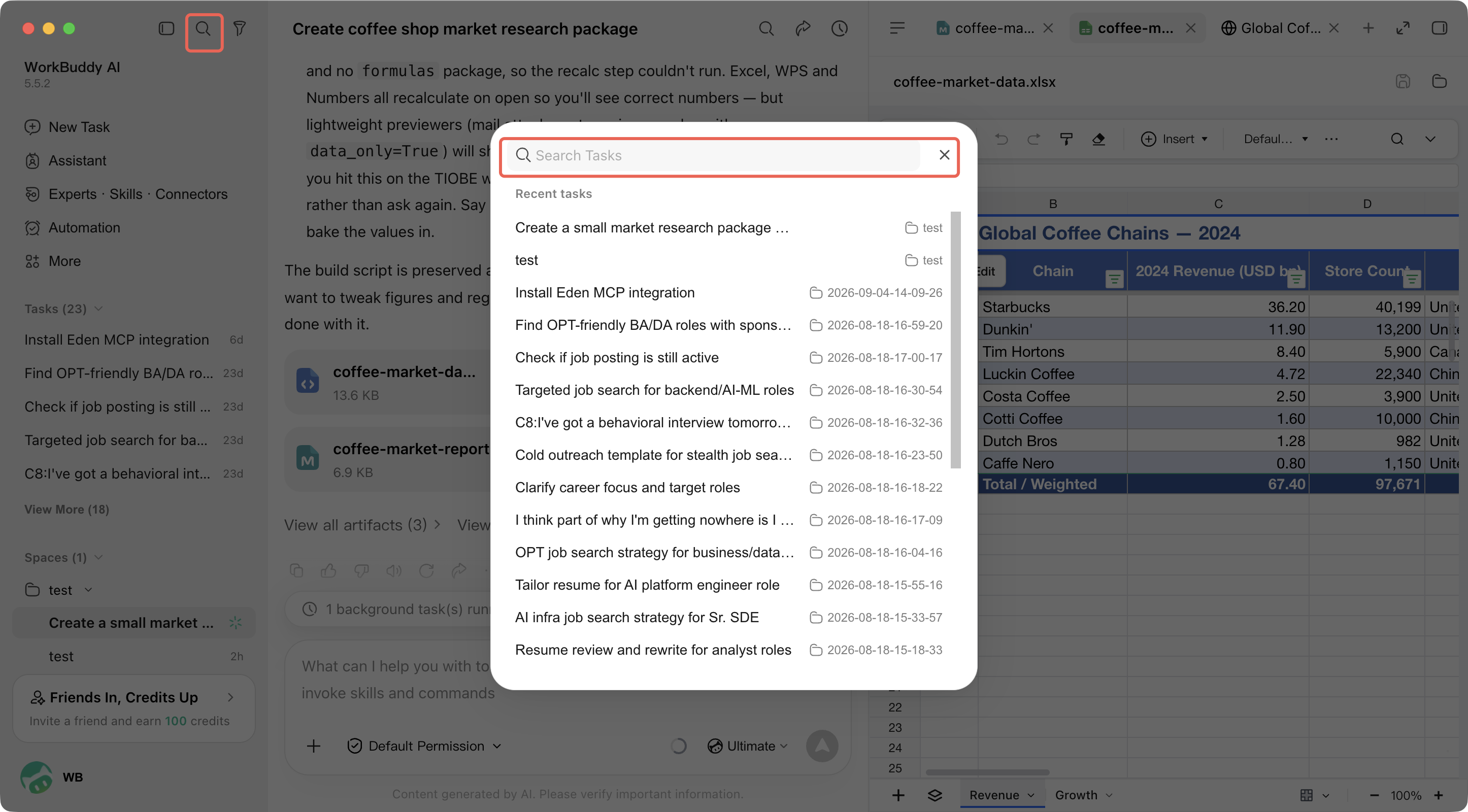
At the top of the sidebar, you can use search and filtering to find a task quickly:
Search button: Opens the search panel to quickly find tasks by task title. The panel lists recent tasks, with the workspace or creation time of each task displayed on the right.
Filter button: Opens the filter panel to filter tasks by status or time.
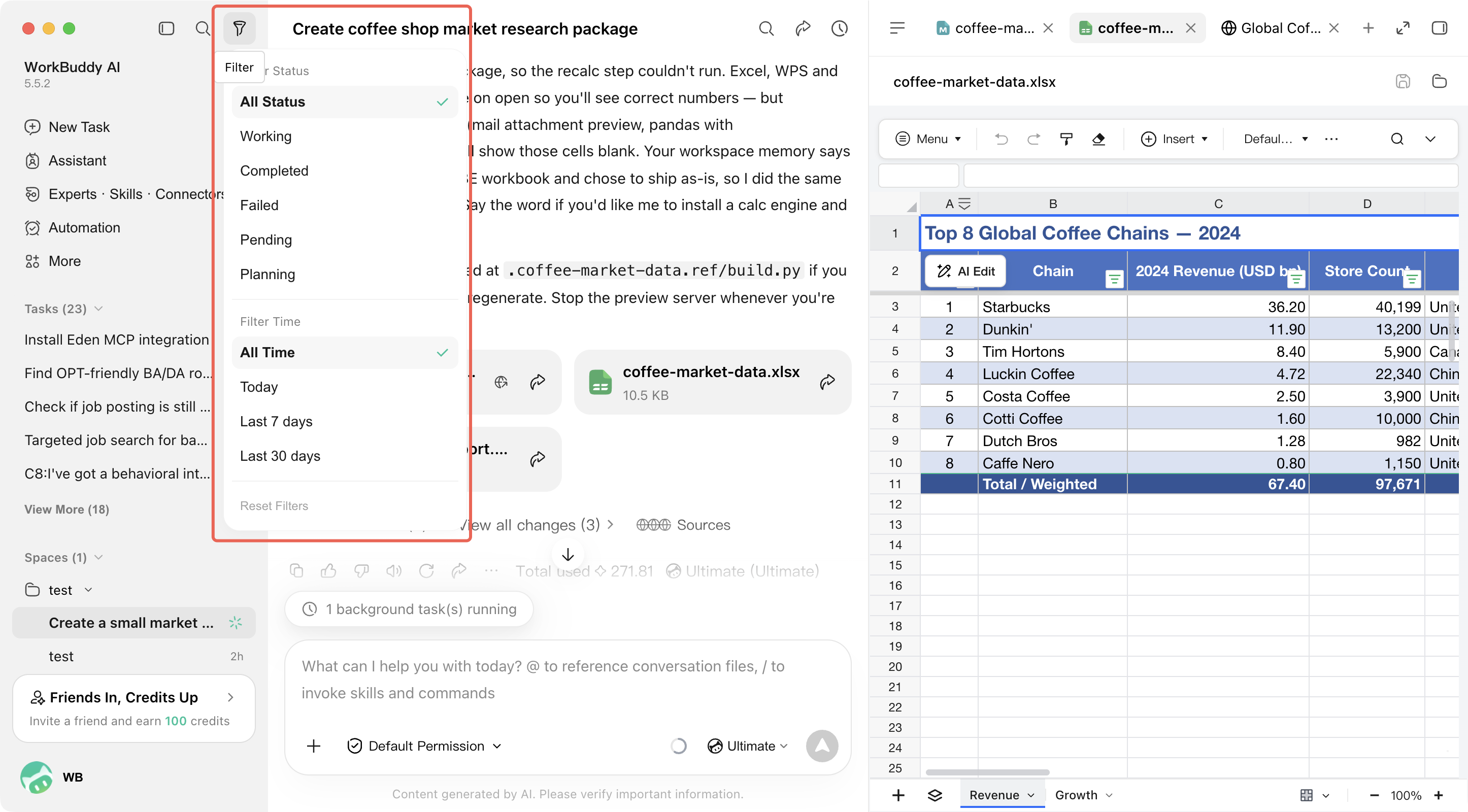
The filter panel provides two sets of conditions:
Filter status: All statuses, In progress, Completed, Failed, Pending, Planning.
Filter time: All time, Today, Last 7 days, Last 30 days.
At the bottom of the panel, Reset filters is provided to clear the current filter conditions and restore the view of all tasks.
3. Task Status
Tasks transition between different states as execution progresses. Common states on the current page include:
Status | Description |
In progress | WorkBuddy AI is executing the task. |
Completed | The task has been executed. |
Failed | An issue occurred during execution, and the task failed to complete. |
Pending | The task is waiting for further processing or input. |
Planning | WorkBuddy AI is analyzing requirements and organizing the execution plan. |
4. Common Actions
Task List
In the task list, you can perform the following operations:
Click a task card to go to the conversation and results page for that task.
Quickly find specific tasks by searching or filtering.
Continue sending messages in an existing task to have WorkBuddy AI continue processing based on the previous context.
Clean up tasks that are no longer needed.
Task
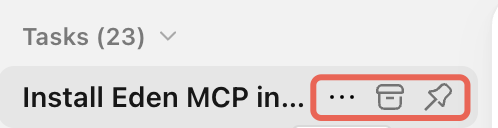
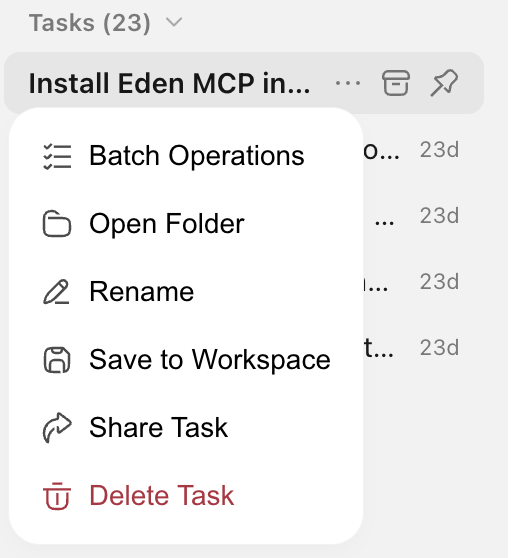
Hover over a task card, and three shortcut buttons appear on the right side of the card:
More (···): Expand the menu for more actions.
Archive: After a task is archived, you can view archived tasks in System Settings > Data Management.
Pin: Move the task to the top of the list.
Click More (
···) to expand the following actions:Operation | Description |
Batch operations | Enter multi-select mode to process multiple tasks simultaneously. |
Open folder | Open the folder containing the task. |
Rename | Rename task. |
Save to workspace | Enable multiple agents to collaborate simultaneously. Persistently save tasks in the task list. Open and view tasks in the IDE at any time. |
Share task | Share the task with others. |
Delete task | Delete the task from the list. The task will no longer be displayed. |
Performing Batch Operations
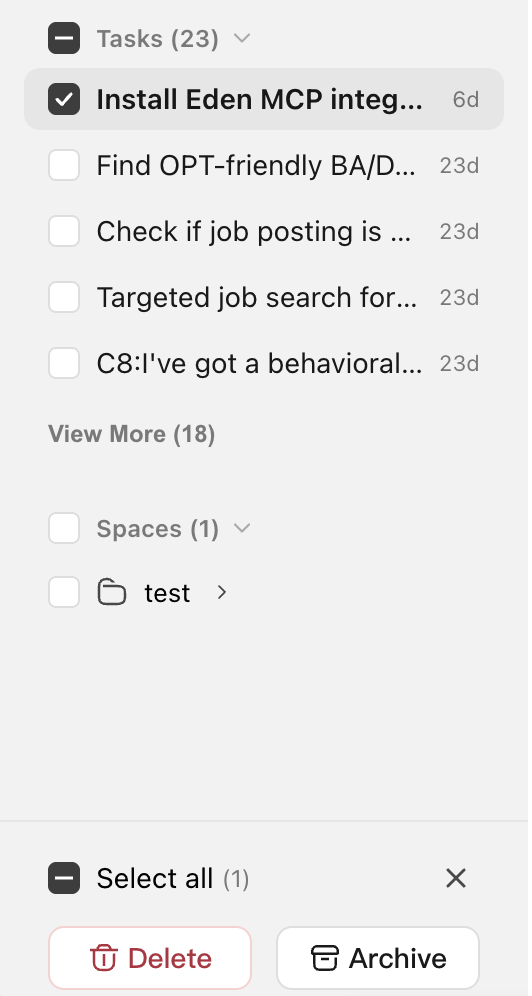
After Batch Operations is clicked, the list enters multi-select mode:
A checkbox appears before each task and workspace, and you can select multiple items.
The bottom action bar displays Select All and the number of currently selected items.
At the bottom, two batch operation buttons are provided: Delete and Archive.
Click the close button on the right side of the action bar to exit batch operation mode.
Workspace
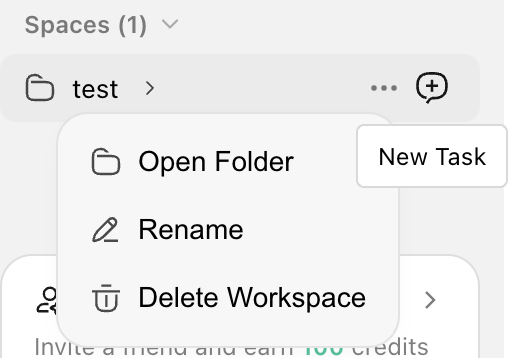
You can perform the following operations on a workspace:
Operation | Description |
Create task | Create a task in the workspace. |
Open folder | Open the folder containing the workspace. |
Rename | Modify the workspace name. |
Delete Workspce | Remove the workspace from the list. The workspace will no longer be displayed. |
5. Continuing with Existing Tasks
For tasks that are completed, failed, or temporarily interrupted, you can re-enter the task to continue adding messages. This allows you to build on the existing context instead of starting over from scratch.
Scenarios suitable for continued processing include:
If the first result of a task is not complete enough, you can continue to refine it.
After a task execution fails, you need to provide additional information and try again.
You want to continue expanding new requirements based on previous results.
Help and Support
Was this page helpful?
You can also Contact sales or Submit a Ticket for help.
Help us improve! Rate your documentation experience in 5 mins.
Feedback