SDK Integration Guide
Download
Focus Mode
Font Size
Environment Preparation
React Native version 0.84.0 or higher
Node.js version 22.11.0 or higher
Android Platform:
Android 7.0 (SDK API Level 24) or above
iOS Platform:
iOS 12.0 or higher
CocoaPods environment installed. If not yet installed, please click here to view the installation steps
SDK Download
The RT-Cube's LiteAVSDK_Player for React Native is currently provided for integration via source code. You may click here to download the resource package. After extraction, the directory structure is as follows:
sdk: SDK source code package, i.e., the react-native-superplayer source code.
example: Example project, containing comprehensive usage examples.
Quick Integration
Step 1: Integrate the SDK Source Code
Place the downloaded SDK source code into your React Native project directory (for example, under packages/react-native-superplayer in the project root). Then, add it as a local dependency in the project's package.json:
{"dependencies": {"react-native-superplayer": "file:./packages/react-native-superplayer"}}
After configuration, execute the following command to install the dependencies:
# yarnyarn install
iOS Platform:
Navigate to the iOS directory and install the CocoaPods dependencies.:
cd ios && pod install
Android Platform:
No additional configuration is required for Android, as Gradle will automatically handle dependencies.
Step 2: Add Native Configuration
Android Platform Configuration
1. Add the following configuration to the `AndroidManifest.xml` file for Android:
<!--Network Permissions--><uses-permission android:name="android.permission.INTERNET" />
Network Security Configuration Allows Apps to Send HTTP Requests
For security reasons, starting from Android P, Google requires that all app requests use encrypted connections. The Player SDK initiates a local server to proxy HTTP requests. If your app's targetSdkVersion is 28 or higher, you can enable HTTP requests to 127.0.0.1 by configuring the Network Security Configuration. Otherwise, a "java.io.IOException: Cleartext HTTP traffic to 127.0.0.1 not permitted" error will occur during playback, preventing video playback. The configuration steps are as follows:
1.1 Create a new file
res/xml/network_security_config.xml in the project and configure the network security settings:<?xml version="1.0" encoding="utf-8"?><network-security-config><domain-config cleartextTrafficPermitted="true"><domain includeSubdomains="true">127.0.0.1</domain></domain-config></network-security-config>
1.2 Add the following attribute to the application tag in the
AndroidManifest.xml file:<?xml version="1.0" encoding="utf-8"?><manifest ... ><application android:networkSecurityConfig="@xml/network_security_config"... >...</application></manifest>
iOS Platform Configuration
Attention:
Currently, the iOS version does not support debugging on simulators. It is recommended to conduct development and debugging on physical devices.
1. If your video source uses the HTTP protocol, you need to add the following configuration in the
Info.plist file for iOS:<key>NSAppTransportSecurity</key><dict><key>NSAllowsArbitraryLoads</key><true/></dict>
2. The SDK integrates the Premium version of the Player SDK by default, which is automatically managed via CocoaPods without requiring manual version specification.
3. In certain scenarios (e.g., when a new version is released), it may be necessary to force an update of the iOS Player dependency. This can be done by executing the following command in the iOS directory:
rm -rf Podsrm -rf Podfile.lockpod update
4. Picture-in-Picture Configuration
If the project requires support for picture-in-picture, the following configurations must be implemented:
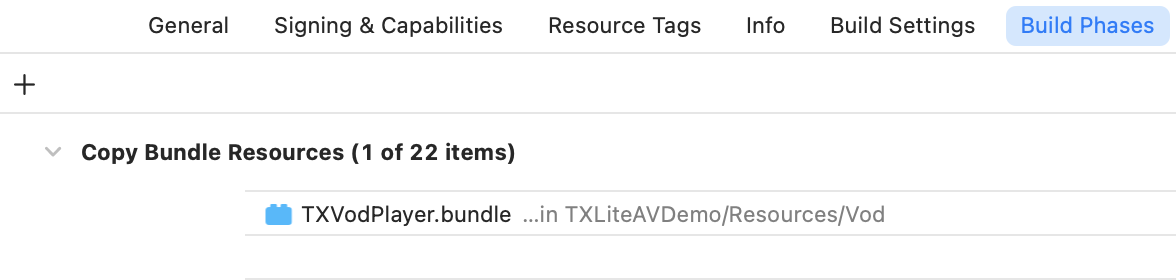
4.1 Import the PiP Bundle Resources
The PiP module within the SDK relies on the built-in resources from `TXVodPlayer.bundle`. It is essential to manually add this bundle to the Xcode project before compilation. Do not modify the bundle name or any of its internal resource names, as this may cause the picture-in-picture switch to fail.
Resource Download Link: TXVodPlayer.bundle.zip
Operational Illustration:
4.2 Enable Background Mode
For iOS, whether Picture-in-Picture (PiP) is used within the app or outside of it, the app must declare audio/PiP background capabilities:
In Xcode, select the corresponding Target → Signing & Capabilities → Background Modes, and check Audio, AirPlay, and Picture in Picture.

Integrated Player License
If you have obtained the relevant License authorization, you need to retrieve the License URL and License Key from the Console:
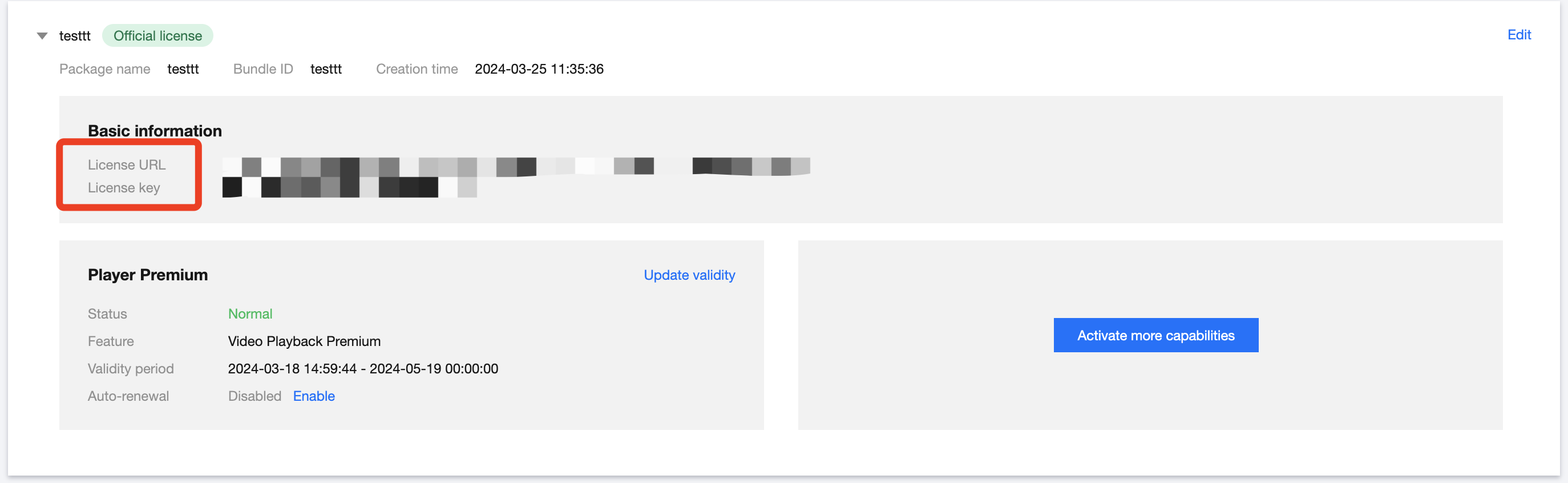
If you have not yet obtained a License authorization, please refer to the Adding and Renewing a License to acquire the necessary authorization.
Before integrating the player, you need to register a Tencent Cloud account. Once registered, apply for a player License, and then proceed with the integration as described below. It is recommended to perform this integration during application startup (for iOS, this can be done after the initial network permission is granted, or when the network connection is successfully established in your business logic).
Failure to integrate the License may result in unexpected issues during playback.
import { SuperPlayerEnv, LogLevel } from 'react-native-superplayer';// config licenseconst initLicense = async () => {const result = await SuperPlayerEnv.setLicense('your_license_url', // License URL'your_license_key' // License Key);if (result.result === 0) {console.log('License success');} else {console.error('License failed:', result.reason);}};// log levelSuperPlayerEnv.setLogLevel(LogLevel.INFO);
Log Level Specifications:
Level | Value | Description |
VERBOSE | 0 | Output logs of all levels. |
DEBUG | 1 | Output DEBUG level and above. |
INFO | 2 | Output INFO level and above. |
WARN | 3 | Output WARNING level and above. |
ERROR | 4 | Output ERROR level and above. |
FATAL | 5 | Output only FATAL level. |
NULL | 6 | Do not output any SDK logs. |
Guidelines for Advanced Custom Development
The Tencent Cloud Player SDK React Native plugin encapsulates the capabilities of the native player. For advanced custom development, the following approaches are recommended:
For video-on-demand playback, the core class is
TXVodPlayer. Custom development can be based on this class. An example project is provided in the repository, and you can refer to the sample code within.The player view component
SuperPlayerViewComponent provides a video rendering container. You can build custom UI interactions on top of this component.Frequently Asked Questions
How to Extract the Runtime Logs of the Player SDK?
The Player SDK outputs runtime logs to local files by default. These logs are essential for troubleshooting and analyzing issues.
On Android, logs are stored in the directory:
/sdcard/Android/data/packagename/files/log/tencent/liteav.On iOS, logs are stored in the directory:
sandbox/Documents/log.How to Reduce Console Log Output?
You can set the log output level using
SuperPlayerEnv.setLogLevel(). The supported levels are: VERBOSE(0), DEBUG(1), INFO(2), WARN(3), ERROR(4), FATAL(5), NULL(6). Setting the level to NULL will suppress all SDK log output.Additional Features
You can experience the full functionality by running the example project. Instructions for running the example are as follows:
cd exampleyarn installcd ios && pod install && cd ..# Androidyarn android# iOSyarn ios
Help and Support
Was this page helpful?
You can also Contact sales or Submit a Ticket for help.
Help us improve! Rate your documentation experience in 5 mins.
Feedback