iOS
다운로드
포커스 모드
폰트 크기
Developer Environment Requirements
Development tool: Xcode 11 or later.
Device requirements: iPhone 5 or later. For iPhone 6 and earlier, the front camera supports up to 720p only and does not support 1080p.
System requirements: iOS 12.2 or later.
Importing the SDK
The Tencent Effect SDK supports CocoaPods, Swift Package Manager, and manual local integration.
1. Install CocoaPods
Enter the following command in the terminal (skip this step if CocoaPods is already installed):
sudo gem install cocoapods
2. Create a Podfile
Go to your project directory and run the following command. A Podfile will be created in the project directory.
pod init
3. Edit the Podfile
Select the version that matches your package and edit the Podfile:
#Run pod install for the library that matches your package.#For example, if your package is "all", you only need pod 'TencentEffect_All'.#For example, if your package is "S1-04", you only need pod 'TencentEffect_S1-04'.pod 'TencentEffect_All'#pod 'TencentEffect_A1-00'#pod 'TencentEffect_A1-01'#pod 'TencentEffect_A1-02'#pod 'TencentEffect_A1-03'#pod 'TencentEffect_A1-04'#pod 'TencentEffect_A1-05'#pod 'TencentEffect_A1-06'#pod 'TencentEffect_S1-00'#pod 'TencentEffect_S1-01'#pod 'TencentEffect_S1-02'#pod 'TencentEffect_S1-03'#pod 'TencentEffect_S1-04'#pod 'TencentEffect_S1-05'#pod 'TencentEffect_S1-06'#pod 'TencentEffect_S1-07'#pod 'TencentEffect_X1-01'#pod 'TencentEffect_X1-02'
4. Update and install the SDK
Enter the following command in the terminal to update the local libraries and install the SDK:
pod install
5. In Build Settings, add -ObjC to Other Linker Flags.
6. Change the Bundle Identifier to match the test license you have applied for.
Starting from version 4.2.0.21, the Tencent Effect SDK supports integration with Swift Package Manager (SPM).
1. Choose a Package repository
The SDK is split into two SPM repositories by package. Choose the one that matches the package you purchased:
Package | SPM Repository URL |
A1-00, A1-01, S1-00 | |
A1-02 to A1-06, S1-01 to S1-07, X1-01, X1-02, All |
2. Add the Package
Open your Xcode project, select File > Add Package Dependencies..., paste the URL of the corresponding repository into the search box, wait for it to load, and then click Add Package.
3. Choose a version
In Choose Package Options, set the Dependency Rule. It is recommended to select Up to Next Major Version to automatically get the latest compatible version.
4. Choose a package
In Choose Package Products, select the Product to integrate and the target. Each package provides three Product variants:
Product suffix | Description |
No suffix, (e.g. TencentEffect_S1-07) | Includes the SDK binary libraries and the resource bundle (XMagicResources). |
_nobundle (e.g. TencentEffect_S1-07_nobundle) | Includes only the SDK binary libraries, without the resource bundle. |
_nolibpag (e.g. TencentEffect_S1-07_nolibpag) | Excludes libpag but includes the resource bundle. |
5. Post-integration configuration
In Build Settings, add
-ObjC to Other Linker Flags.Change the Bundle Identifier to match the test license you have applied for.
Add the camera usage description to Info.plist (Privacy - Camera Usage Description).
If your package includes animated effects and filters, you still need to download and import the bundle assets under motionRes as described in the "Importing Assets" section. The SPM resource bundle only provides the resources required by the SDK at runtime, such as LightCore.
1. Download and unzip the SDK and beauty resources. The frameworks folder contains the SDK, and the resources folder contains the beauty bundle assets.
1.1 Open your Xcode project and add the frameworks in the frameworks folder to the actual project.
1.2 Select the target to run, select the General tab, expand Frameworks, Libraries, and Embedded Content, and click the "+" icon below to add the dependent libraries.
1.3 Add the downloaded
XMagic.framework, YTCommonXMagic.framework, libpag.framework, TEFFmpeg.framework (renamed to TECodec.framework after version 3.0.0) and their required dependency libraries MetalPerformanceShaders.framework, CoreTelephony.framework, JavaScriptCore.framework, VideoToolbox.framework, and libc++.tbd. As needed, also add other utility libraries: Masonry.framework (layout library) and SSZipArchive (unzipping library).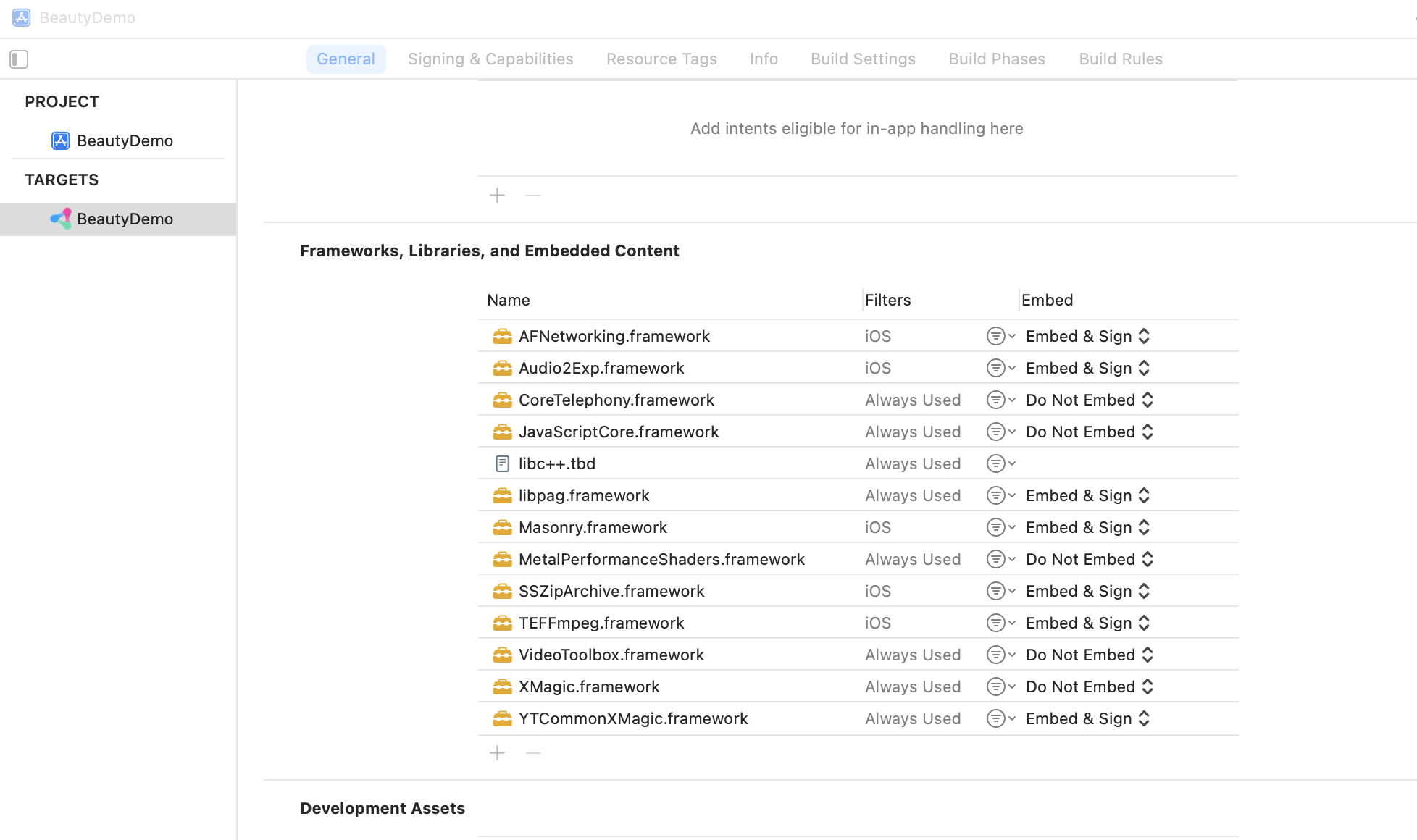
2. In Build Settings, add
-ObjC to Other Linker Flags.3. Change the Bundle Identifier to match the test license you have applied for.
Importing Assets
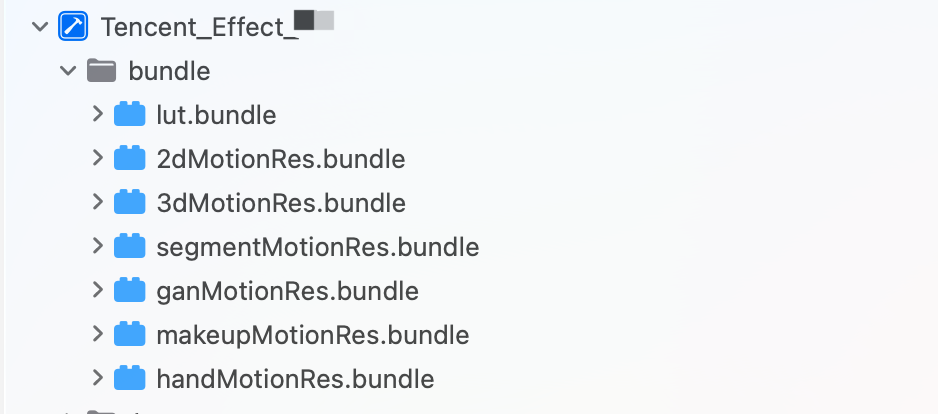
If your package includes animated effects and filters, you need to download the corresponding package from the SDK download page, unzip it, and import the bundles under the resources/motionRes folder into any directory of your main project as needed, as shown below:
Configuring permissions
Add permission descriptions in the
Info.plist file. If you don’t do so, the application will crash on iOS 10. Grant the application camera access in Privacy - Camera Usage Description.Directions
Step 1. Authenticate
1. Apply for a license and get the
LicenseURL and LicenseKEY, refer to Activate the Service.2. Set the URL and key in the initialization code of your business module to download the license. Avoid downloading it just before use. You can also trigger the download in the
didFinishLaunchingWithOptions method of AppDelegate (the values of LicenseURL and LicenseKey are generated when you bound the license in the console).If your SDK version is earlier than 2.5.1, you can find
TELicenseCheck.h in XMagic.framework; if your SDK version is 2.5.1 or later, TELicenseCheck.h is in YTCommonXMagic.framework. The SDK can only be used after successful authentication.[TELicenseCheck setTELicense:LicenseURL key:LicenseKey completion:^(NSInteger authresult, NSString * _Nonnull errorMsg) {if (authresult == TELicenseCheckOk) {NSLog(@"Authentication successful");} else {NSLog(@"Authentication failed");}}];
Authentication error codes:
Error Codes | Description |
0 | Successful. |
-1 | The input parameter is invalid; for example, the URL or KEY is empty. |
-3 | Download failed. Check the network settings. |
-4 | Unable to obtain any Tencent Effect authentication information from the local system, which may be caused by an I/O failure. |
-5 | The VCUBE TEMP license file is empty, which may be caused by an I/O failure. |
-6 | The JSON field in the v_cube.license file is incorrect. Please contact Tencent Cloud team for help. |
-7 | Signature verification failed. Please contact Tencent Cloud team for help. |
-8 | Decryption failed. Please contact Tencent Cloud team for help. |
-9 | The JSON field in TELicense is incorrect. Please contact Tencent Cloud team for help. |
-10 | The Tencent Effect authentication information parsed online is empty. Please contact Tencent Cloud team for help. |
-11 | Failed to write Tencent Effect SDK authentication information to the local file, which may be caused by an I/O failure. |
-12 | Download failed, and failed to parse local assets. |
-13 | Authentication failed. |
Others | Please contact Tencent Cloud team for help. |
Step 2. Initialize and use the SDK
The following is the process of using the Tencent Effect SDK:
1. Initialize the Tencent Effect SDK.
/// root_path: Pass in the directory where LightCore.bundle is located.NSDictionary *assetsDict = @{@"core_name" : @"LightCore.bundle",@"root_path" : [[NSBundle mainBundle] bundlePath]};self.xMagicApi = [[XMagic alloc] initWithRenderSize:previewSize assetsDict:assetsDict];
2. The SDK processes each frame of data and returns the results.
/// Take the device camera data output as an example/// sampleBuffer:Data output by the device camera-(CMSampleBufferRef)didProcessCPUData:(CMSampleBufferRef)sampleBuffer{CVPixelBufferRef pixelBuffer = CMSampleBufferGetImageBuffer(sampleBuffer);YTProcessInput *input = [[YTProcessInput alloc] init];input.pixelData = [[YTImagePixelData alloc] init];input.pixelData.data = pixelBuffer;input.dataType = kYTImagePixelData;YTProcessOutput *output = [self.xMagicKit process:input];if (output.pixelData.data != nil) { //output.pixelData.data:Data processed by Beauty Effect SDKCMSampleBufferRef outSampleBuffer = [self sampleBufferFromPixelBuffer:output.pixelData.data];return outSampleBuffer;}return nil;}/// PixelBuffer to sampleBuffer- (CMSampleBufferRef)sampleBufferFromPixelBuffer:(CVPixelBufferRef)pixelBuffer{CFRetain(pixelBuffer);CMSampleBufferRef outputSampleBuffer = NULL;CMSampleTimingInfo timing = {kCMTimeInvalid, kCMTimeInvalid, kCMTimeInvalid};CMVideoFormatDescriptionRef videoInfo = NULL;OSStatus result = CMVideoFormatDescriptionCreateForImageBuffer(NULL, pixelBuffer, &videoInfo);result = CMSampleBufferCreateForImageBuffer(kCFAllocatorDefault, pixelBuffer, true, NULL, NULL, videoInfo, &timing, &outputSampleBuffer);CFArrayRef attachments = CMSampleBufferGetSampleAttachmentsArray(outputSampleBuffer, YES);CFMutableDictionaryRef dict = (CFMutableDictionaryRef)CFArrayGetValueAtIndex(attachments, 0);CFDictionarySetValue(dict, kCMSampleAttachmentKey_DisplayImmediately, kCFBooleanTrue);CFRelease(videoInfo);CFRelease(pixelBuffer);return outputSampleBuffer;}
3. Release the Tencent Effect SDK.
/// Called where SDK resources need to be released[self.xMagicApi deinit]
Note:
After completing the above steps, you can control the display timing and other device environment parameters as needed.
피드백