Codebuddy FAQs
다운로드
포커스 모드
폰트 크기
CodeBuddy IDE
Login Issues
Stuck on the Login Page and Unable to Log In
1. Select Open in Browser to try launching the login verification window again.
2. Select Copy Link and open your browser. Then press Ctrl + V or right-click to paste the link into the browser to complete login verification.
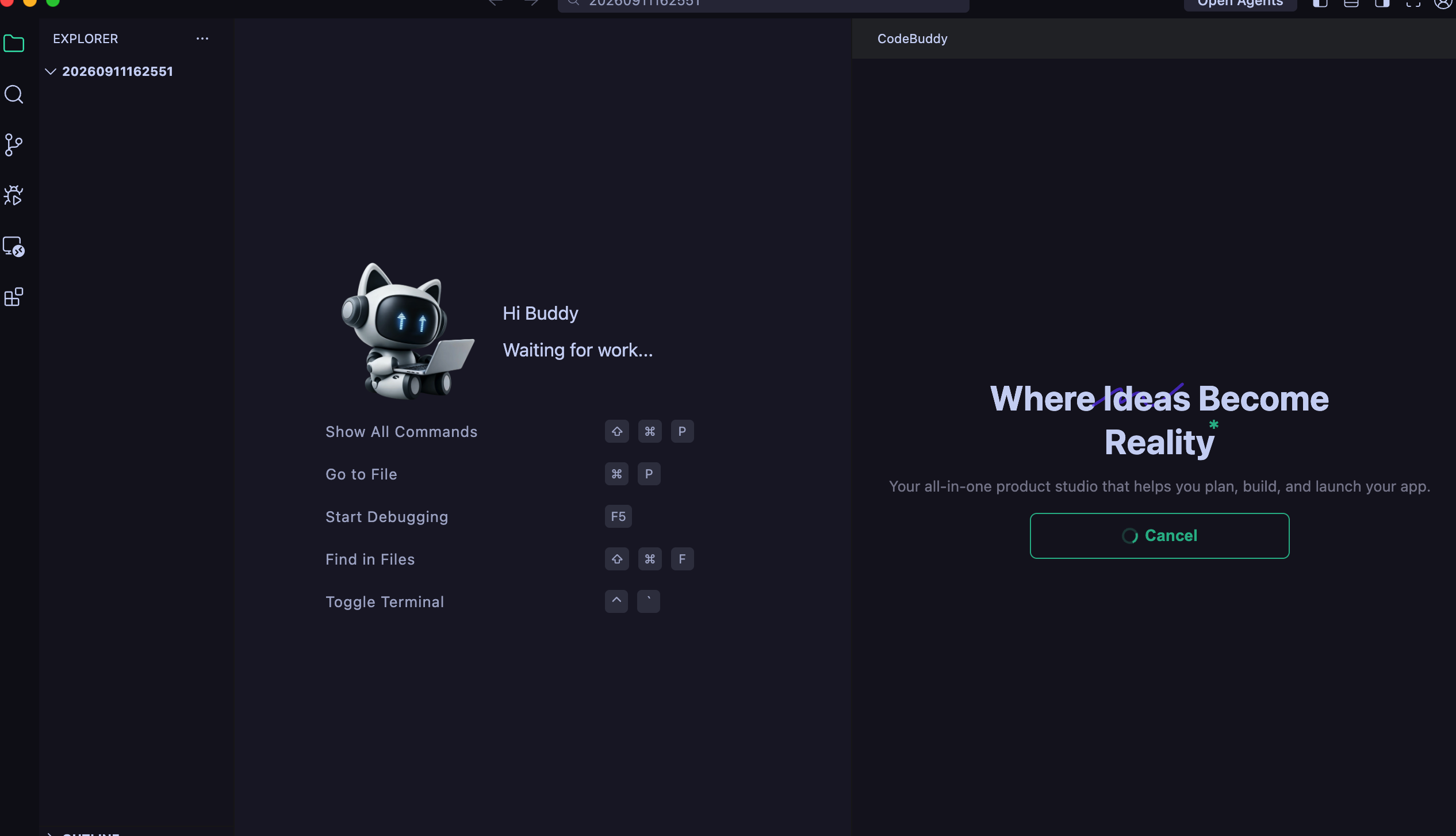
"User Project Directory Detected in the Application Installation Directory" Prompt During Update
Common cause: CodeBuddy upgrades use full overwrite, which removes the old content in the installation directory and then writes new files. If your personal files (documents, projects, screenshots, and so on) exist in the directory, they will be deleted during the overwrite and cannot be recovered.
Recommended Action:
1. Right-click the CodeBuddy icon > Open file location.
Common installation directory paths:Windows: C:\\Users\\{username}\\AppData\\Local\\Programs\\CodeBuddymacOS:/Applications/CodeBuddy.appThe installation directory typically contains the following folders: bin, locales, resources, tools, and _.
2. Delete the empty log directory and the _ directory under the directory.
3. Open the IDE and click Help > Check for Updates at the top. Then wait for the installation package to finish downloading.
4. Click the installation prompt in the lower-left corner and restart the IDE to upgrade to the latest version.
Account Issues
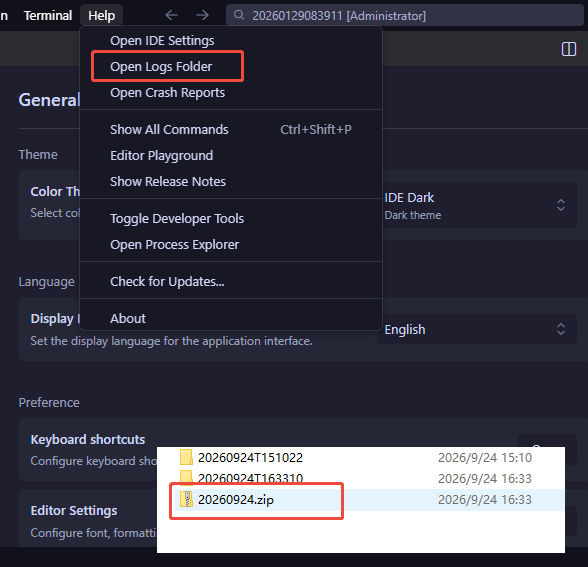
How to View Local Logs?
Click Help > Open Logs Folder to open the local folder, and find a log zip package from the current day to send.
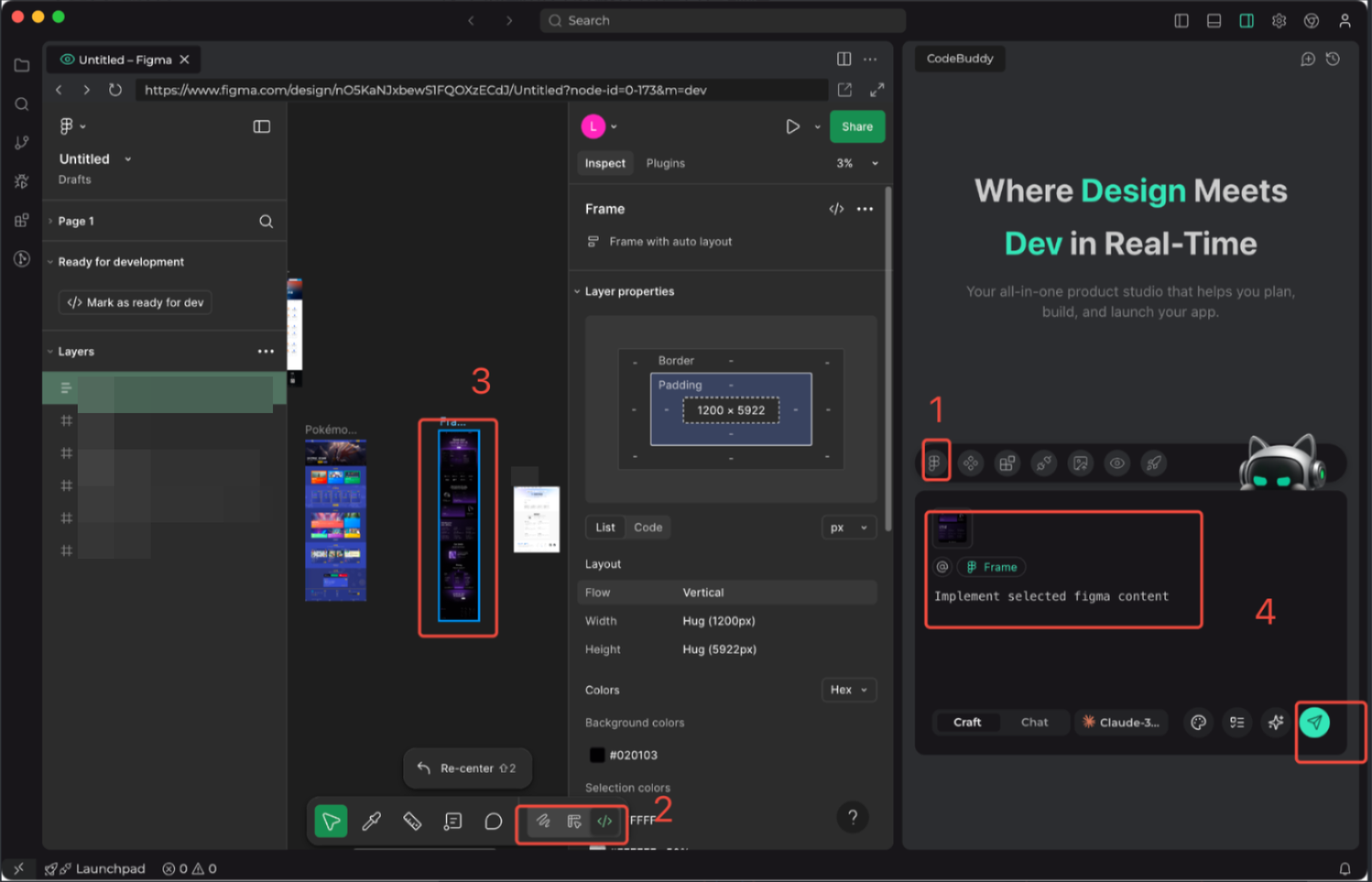
How to Import Figma Designs into the IDE?
Developers must first apply for Figma access permissions. Then they can click the corresponding image, which requires logging in with a Tencent WeCom email. The image operations during use are as follows:
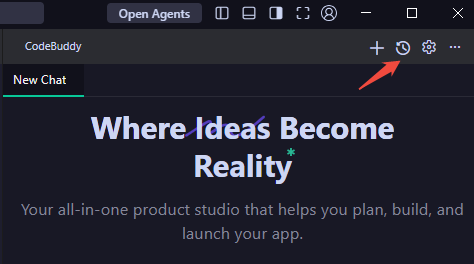
How to Create a New Conversation or View Conversation History?
Click the + icon on the left to start a new conversation. The right side shows the conversation history.
How to Resolve Version Incompatibility When Installing Plugins from the Plugin Marketplace?
In IDE Settings, search for gallery, then configure
https://marketplace.visualstudio.com, and restart the IDE.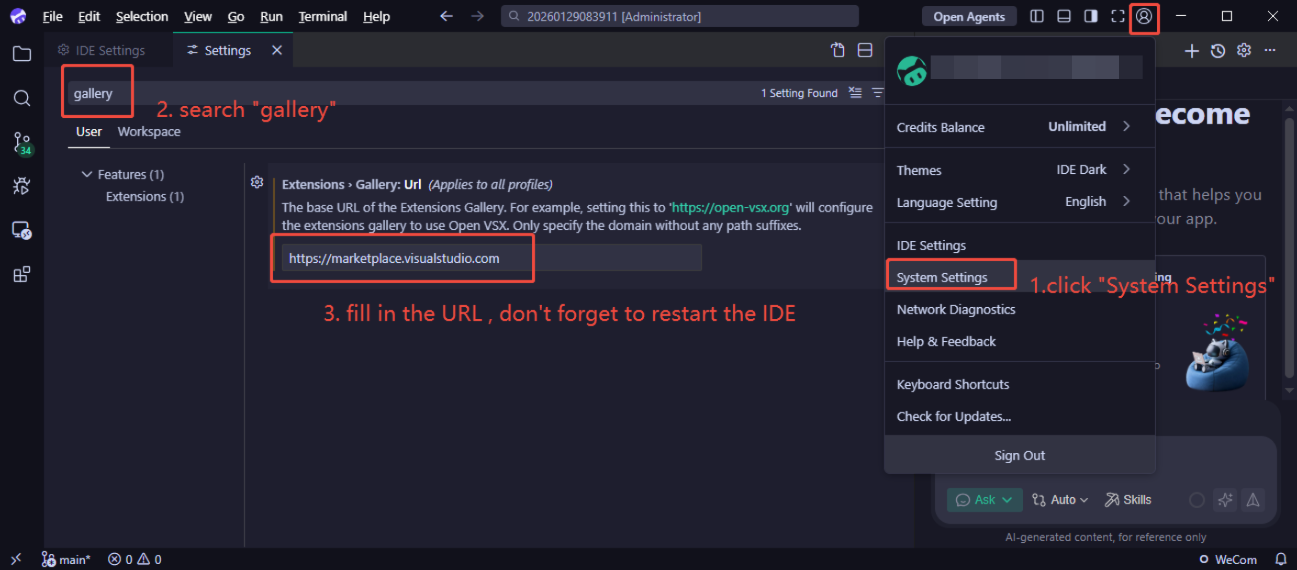
Why Can't the Terminal Execute Commands?
Symptom
The error message is as follows, indicating that the shell integration switch needs to be set to Enable.
CodeBuddy cannot display command output directly. To improve your experience, follow these steps to enable this feature:Step 1: Upgrade to the latest version.Step 2: Open IDE Settings, enable "Terminal > Integrated > Shell Integration: Enabled", and then restart the IDE.If the issue persists, click the button below to view more information.
Solution
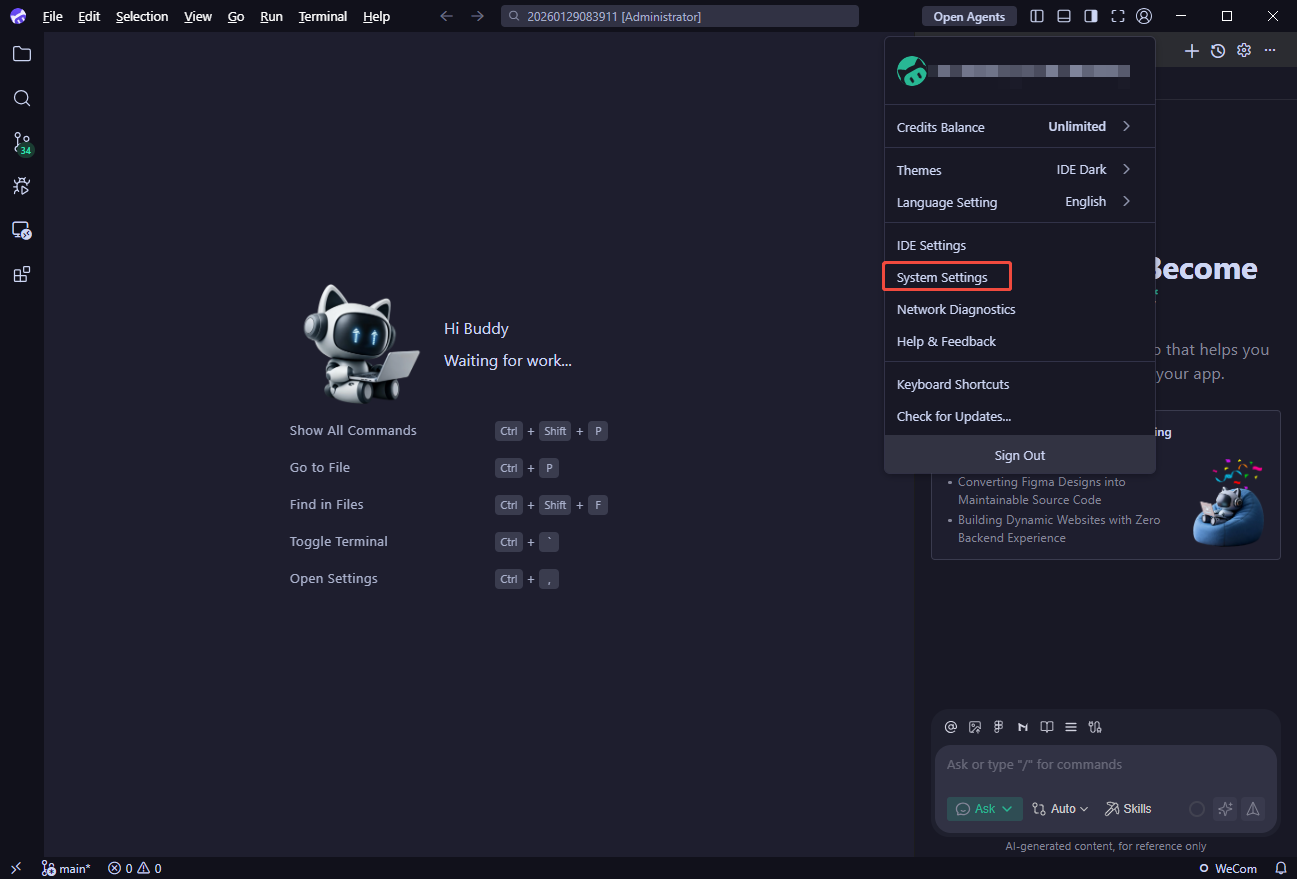
1.1 Click File in the upper-left corner, then go to Preferences and open Settings.
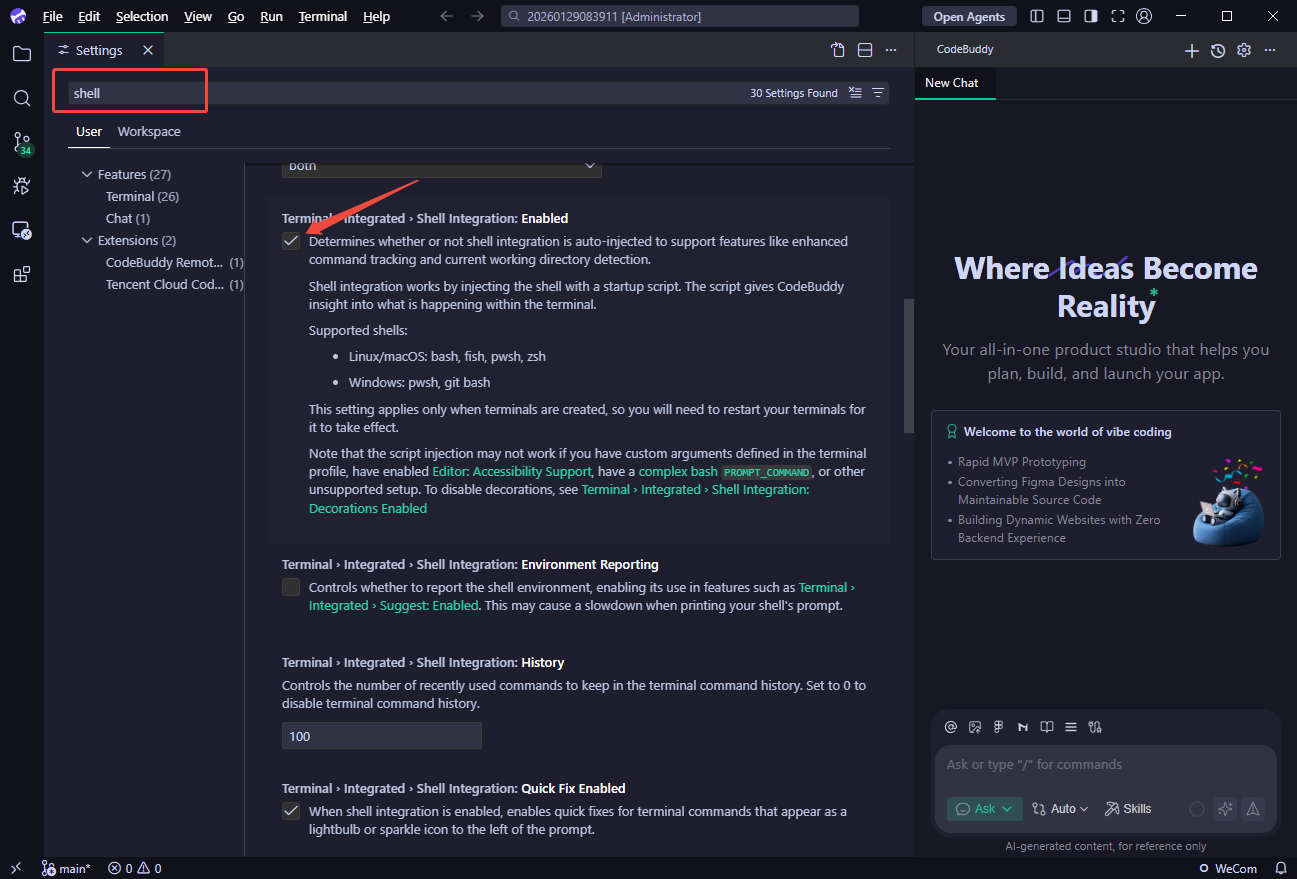
1.2 In Settings, search for "shell" and set Terminal > Integrated > Shell Integrated to Enable.
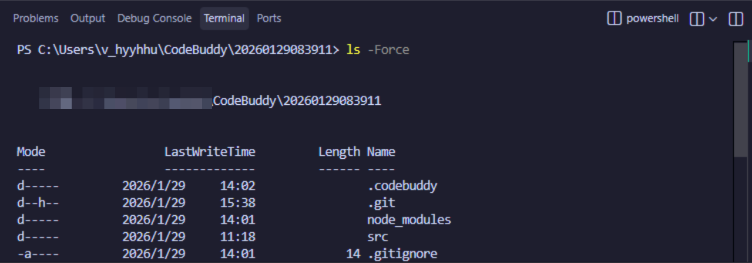
Verify the result.
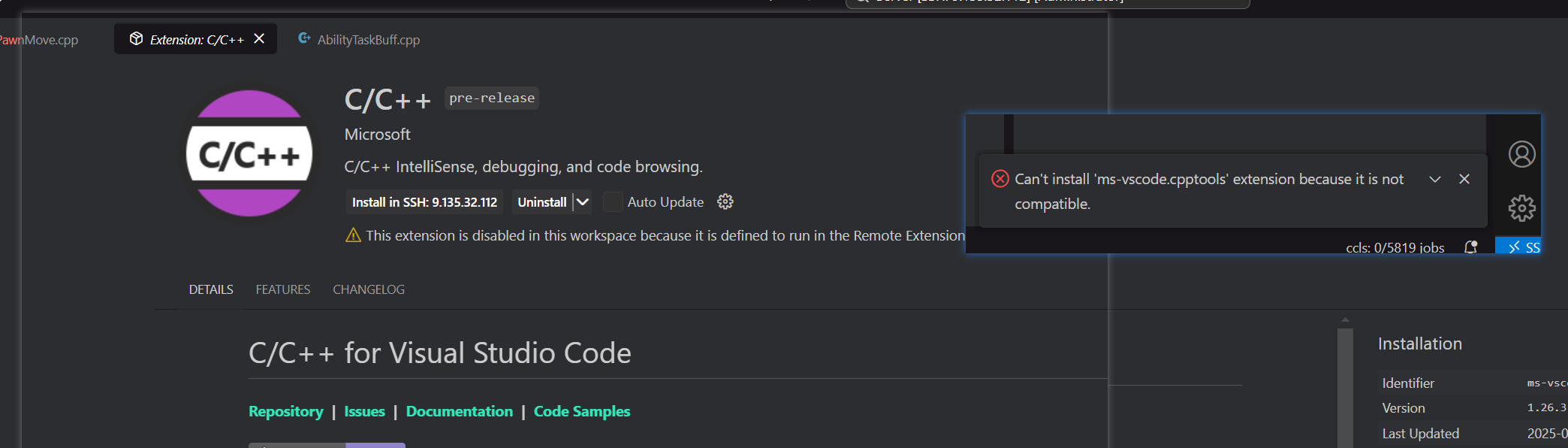
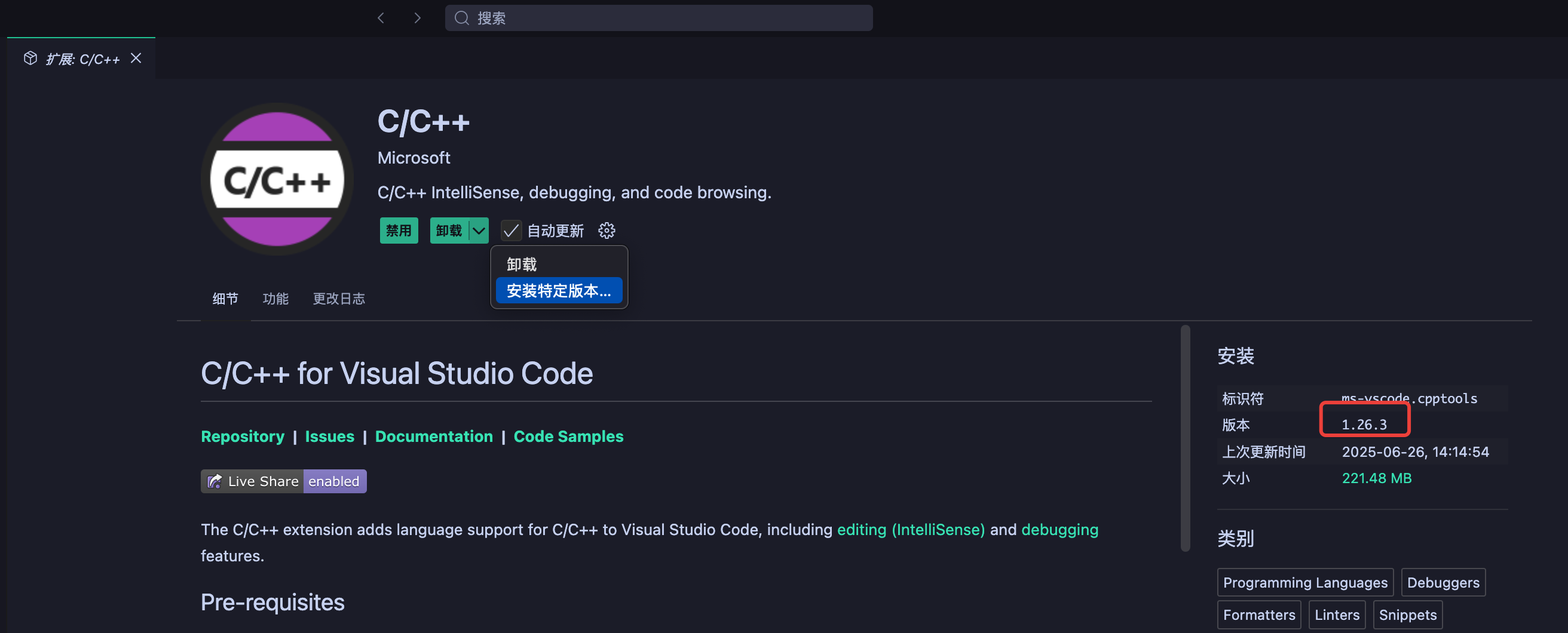
Why Can't I Install the C/C++ Plugin?
Symptom
Solution
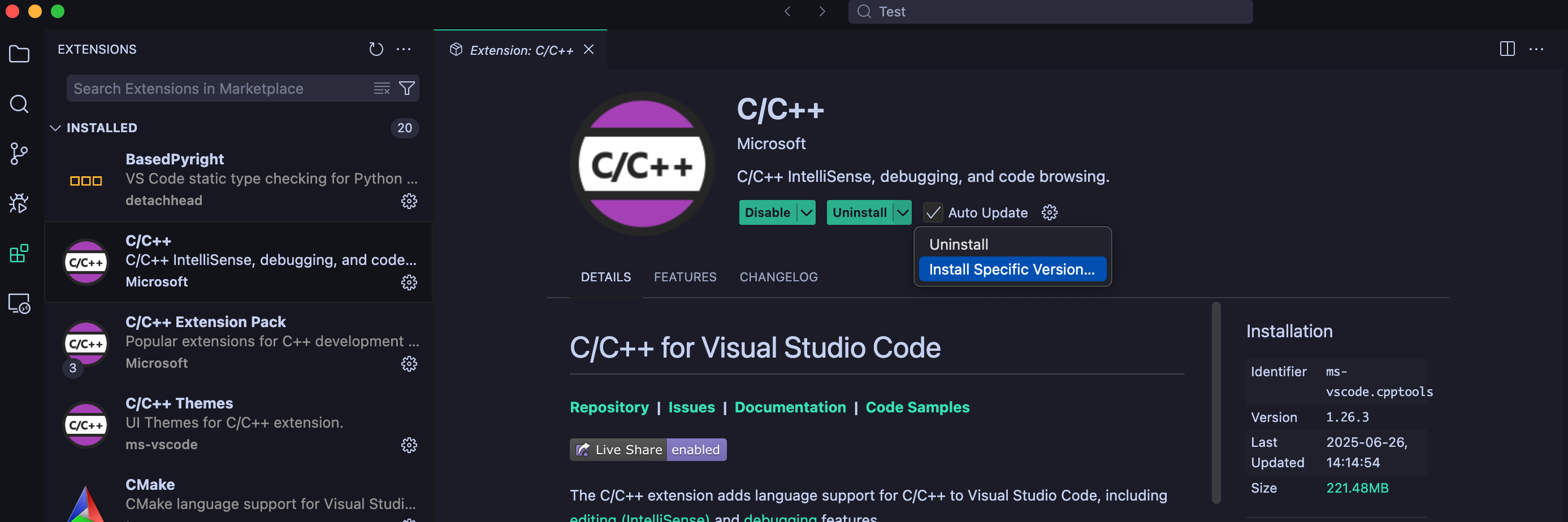
Install a specific earlier version:
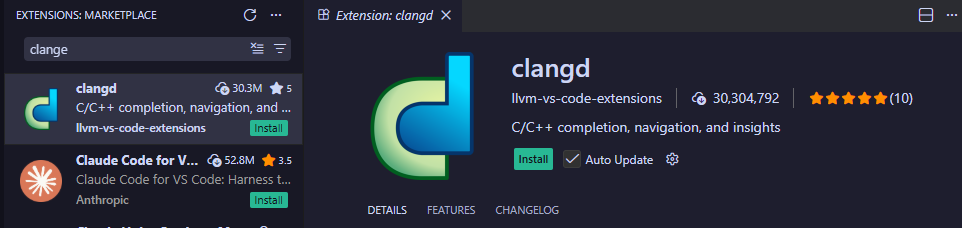
Or install a clangd version:
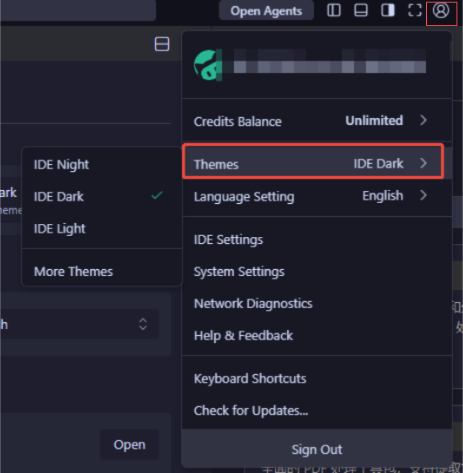
How to Configure a Theme?
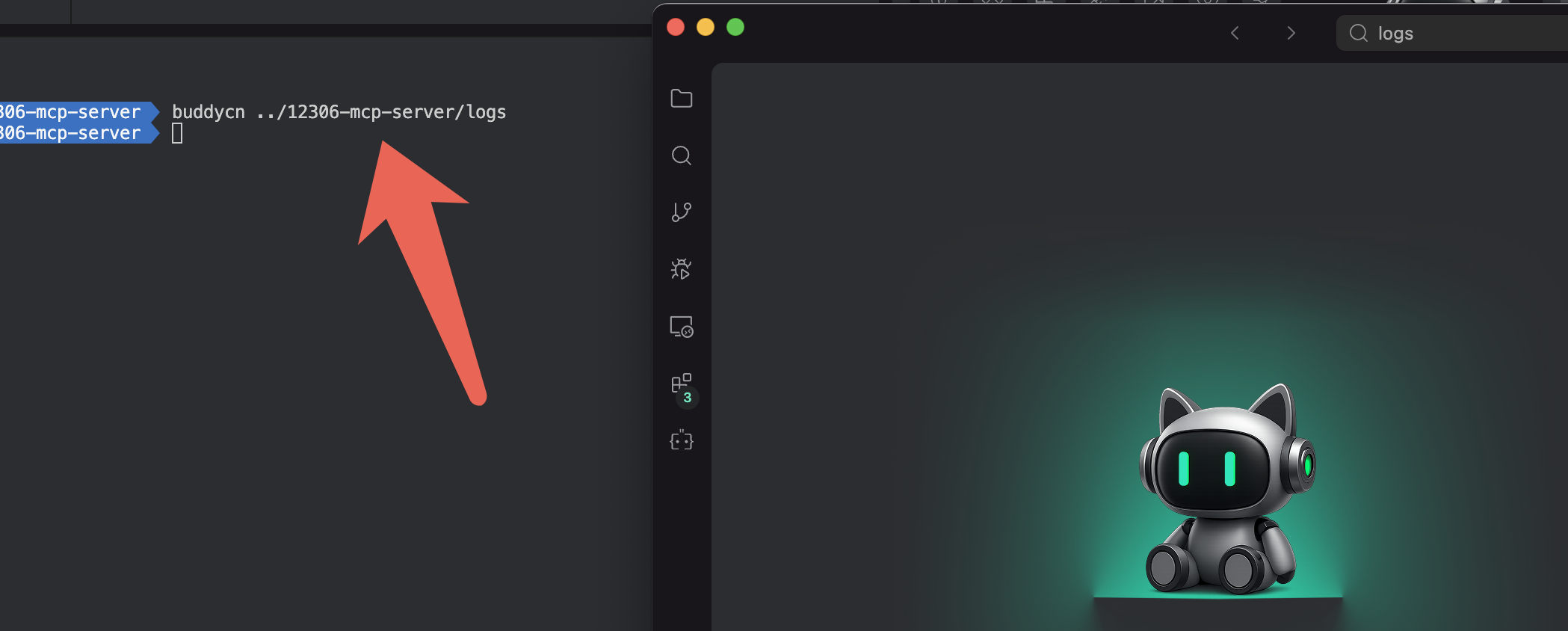
How to Open the IDE Development Window via a Shortcut Command in the Terminal?
1. Press ↑ + Command + P to open the installation window.

2. After the installation is complete, run the following command in the terminal.
# Call the terminal window below.buddycn ../12306-mcp-server/logs
CodeBuddy Plugin
Common Issues with the Plugin
Plugin Download and Installation Issues
This issue is usually caused by installing an incorrect version of the plugin locally or by plugin migration. Choose one of the following two solutions to implement:
Solution 1:
1.1 Uninstall the plugin.
1.2 Clear the cache vsix: help > open Logs Folder > go back to the parent directory > the cachedVSIXs folder;
(~/Library/Application\\ Support/CodeBuddy\\ CN/CachedExtensionVSIXs)Clear local plugins and delete
.codebuddycn/extensions/${plugin id}.1.3 Go to the plugin marketplace and reinstall the plugin.
Solution 2:
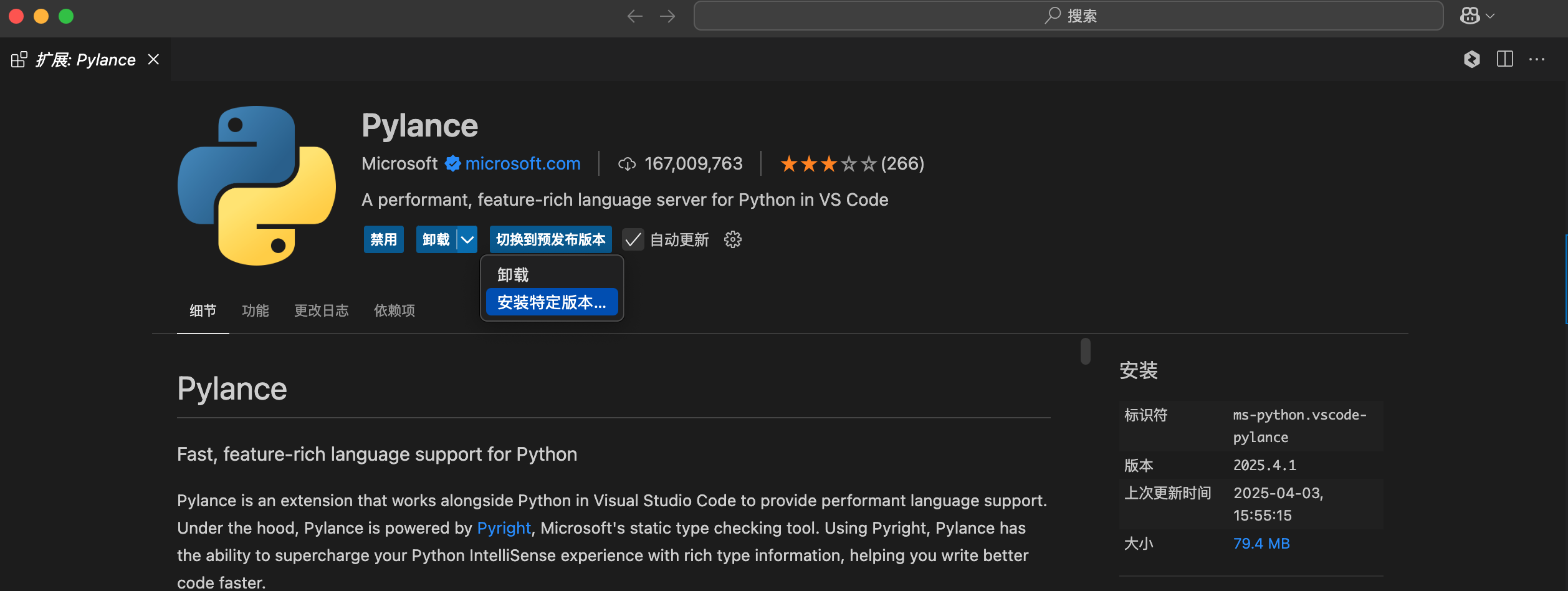
Uninstall the plugin, query the plugin version corresponding to Vscode 1.100.0, and install the specified version of the plugin.
Plugin Login Issues
How to Solve a Network Exception During Plugin Login?
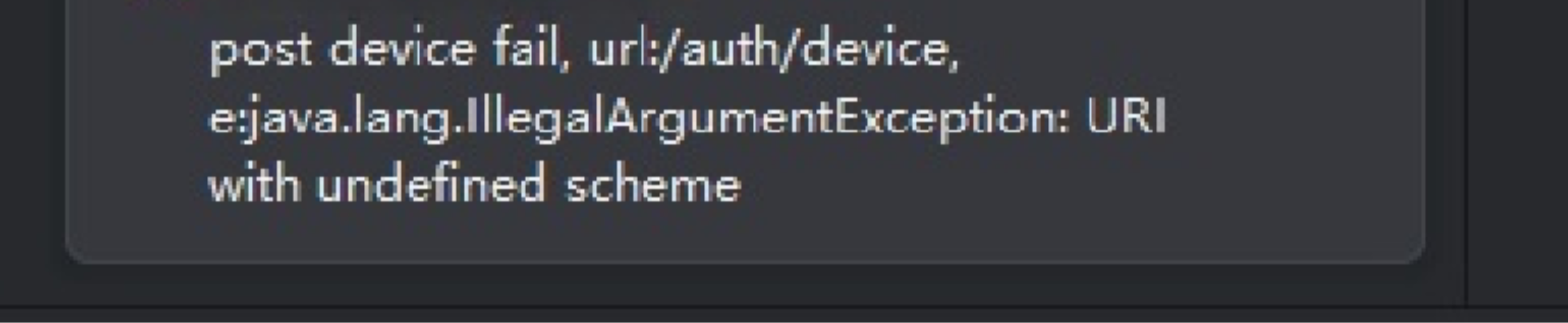
Exception: A network communication exception occurred. The device failed to connect to the domain name of Tencent Cloud CodeBuddy (CodeBuddy).
Possible cause
The service endpoint is resolvable, but the HTTP request is intercepted, times out, or fails the handshake.
The request failed due to certificate chain issues, corporate gateway, or proxy authentication.
Short-term network fluctuations cause intermittent failures.
Troubleshooting Guide
1.1 Verify service reachability in the terminal:
China edition:
curl -v https://copilot.tencent.comInternational edition:
curl -v https://www.codebuddy.ai1.2 Then perform timeout verification:
China edition:
timeout 30s curl -v https://copilot.tencent.comInternational edition:
timeout 30s curl -v https://www.codebuddy.ai1.3 If it fails, check the error keywords, such as
timeout, certificate, proxy, and connection refused, and continue troubleshooting in the corresponding direction.Plugin Usage Issues
How to Solve a Feature Exception (Example: An Exception of the Chat Feature)?
Trigger the feature again.
Check network connections.
How to Solve a Chat or Completion Generation Exception?
Completion generation exception:
Exception: Repeated code completion, poor quality of code completion, generation of hallucinatory code, security risks in the completed code, including vulnerabilities and sensitive information, and abnormal brackets in the completed code.
Solution: Collect error messages and provide feedback to improve the model. Refer to Collecting Error Messages from Different Terminals.
Chat generation exception:
Exception:
Un-highlighted code of returned results: PlainText was marked on the upper-left corner. The model incorrectly returned the pseudo-code without specifying the code format.
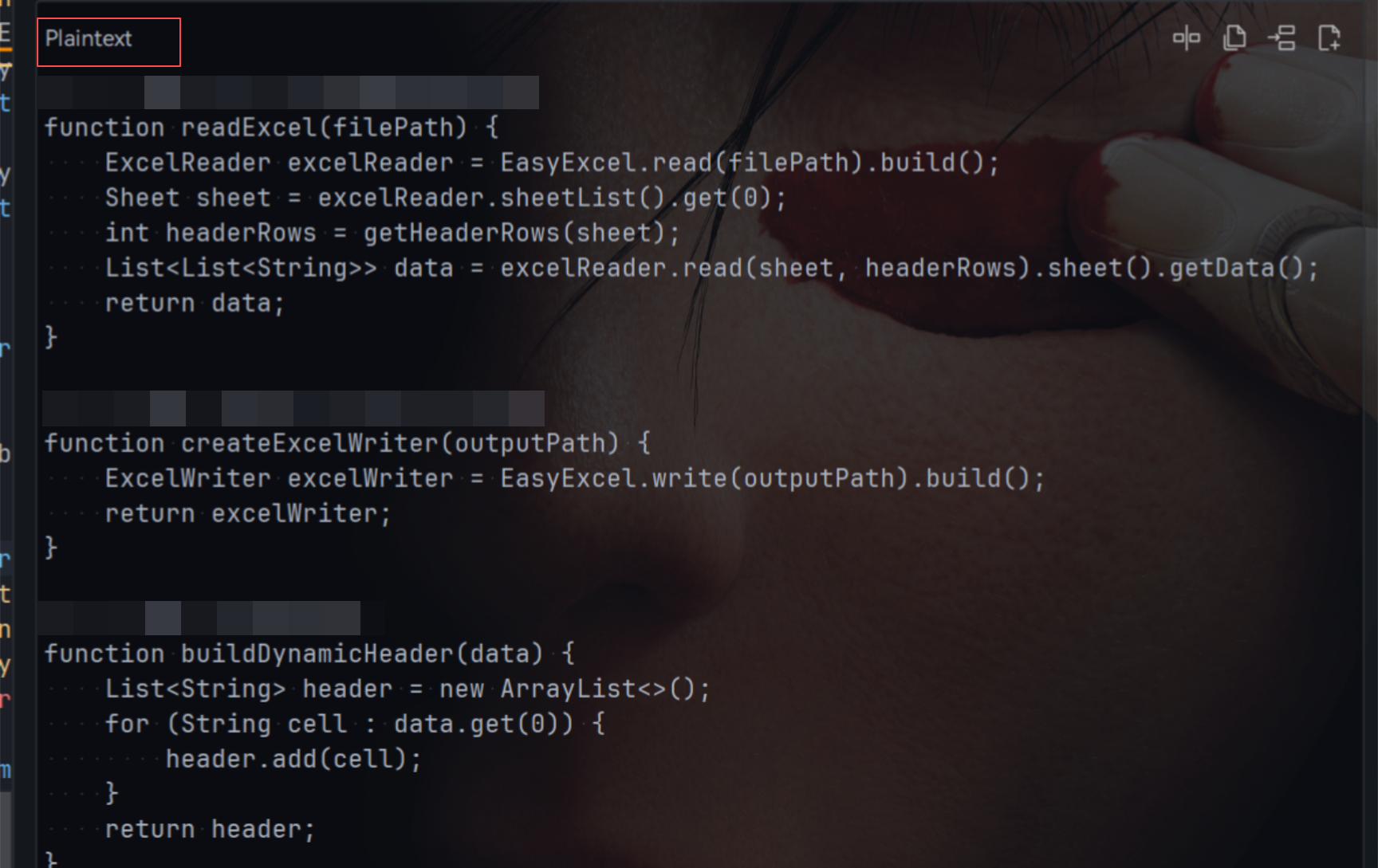
Poor result quality: Dissatisfactory chat results, which cannot meet the business requirements.
Security issue: The chat returns non-programming results and harmful content that contradicts socialist core values and endangers national, social, and personal physical and mental health. The returned code also poses security and compliance risks.
Feature exception: The commands in the sidebar chat box were invalid, and features including copying the generated result, applying the result to code, and creating a file were also disabled.
Solution: Collect error messages and provide feedback to improve the model. See Collecting Error Messages from Different Terminals below.
Plugin Upgrade Issues
How to Solve a Plugin Upgrade Exception?
Solution:
Auto-update is not active. Click the product icon in the IDE and manually click Check for Updates to trigger a manual upgrade.
Check whether other features are working properly. Check whether there is a network issue or a proxy interference.
Earlier versions of JetBrains IDE plugins cannot be automatically upgraded. You need to manually download the plugin package for updates.
Check whether the plugin extension is globally disabled.
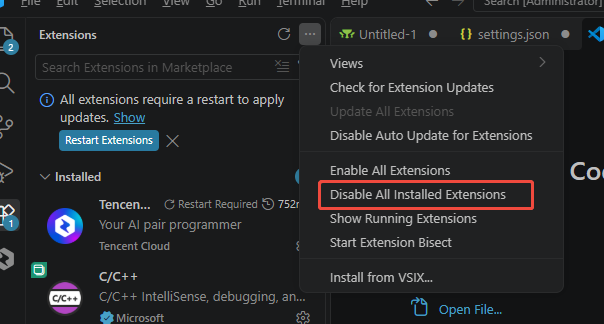
If plugin extensions are globally disabled, select Enable All Extensions to restart the extensions.
How to Solve a Review Change Failure?
Exception: When the code review change feature is used, the system prompts "Git model not found".
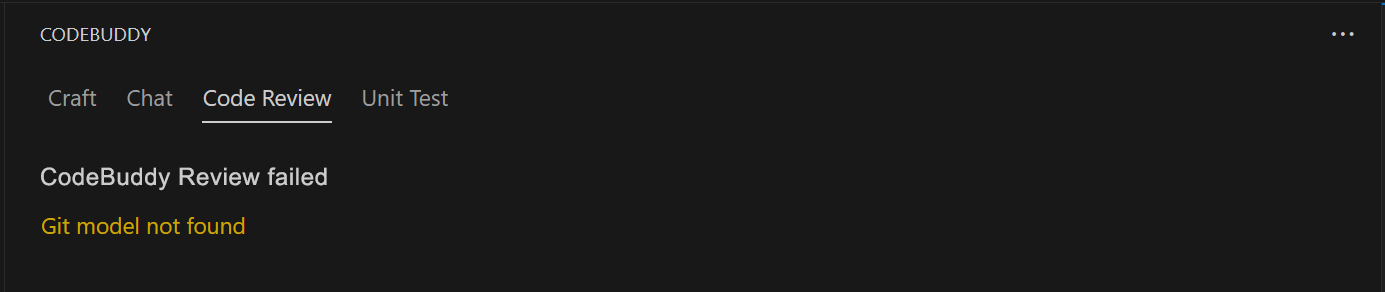
Solution: Select Install Git based on your operating system, and then try again.
Remote Environment Installation Issues
Background
Users who need to use AnyDev cloud development must install the CodeBuddy plugin in the cloud development environment. Otherwise, the CodeBuddy plugin cannot be used normally. For example:
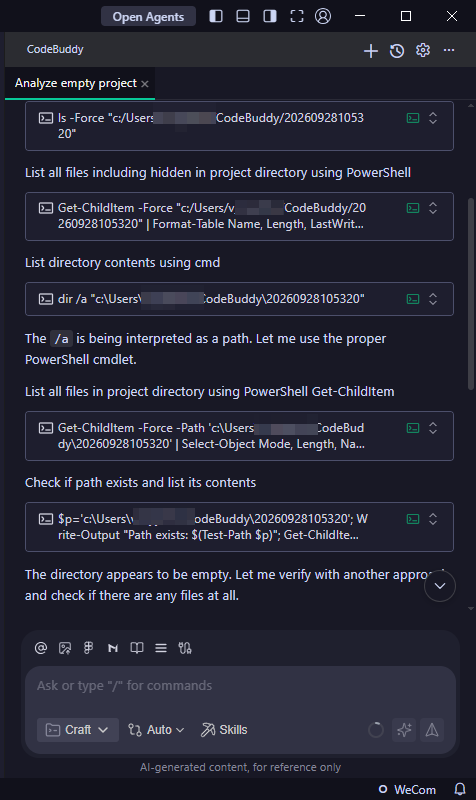
When CodeBuddy analyzes the project and scans the workspace directory, it scans the local directory instead of the remote machine directory, causing the analysis to fail.
Remote Plugin Installation
Prerequisites
You need to activate Personal CVM or Dev Container in AnyDev cloud development.
Installation
Method 1: Install JetBrains Gateway
Step 1: In the activated Personal CVM or Dev Container cloud development environment, select the corresponding IDE to connect. Path: iOA > Cloud Development > Choose the activated cloud development environment > Choose the corresponding IDE to connect. The system automatically launches Gateway to deploy and connect the IDE backend on the remote server.

Step 2: The plugin is synchronized to the remote machine or installed directly in the remote path.
After connecting to the IDE backend, install directly in the IDE backend.
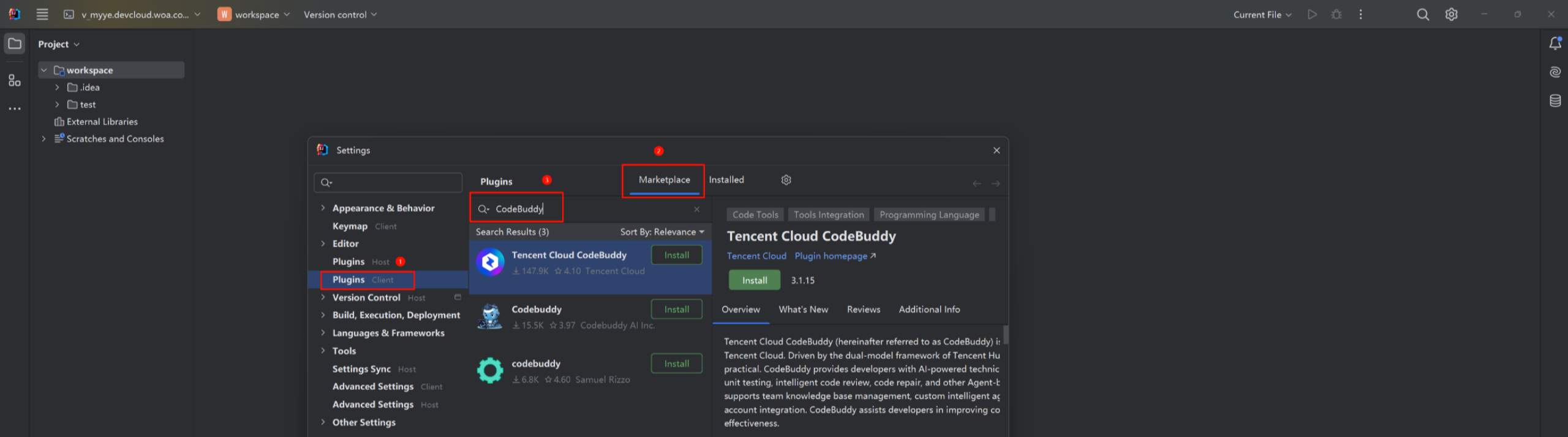
Note:
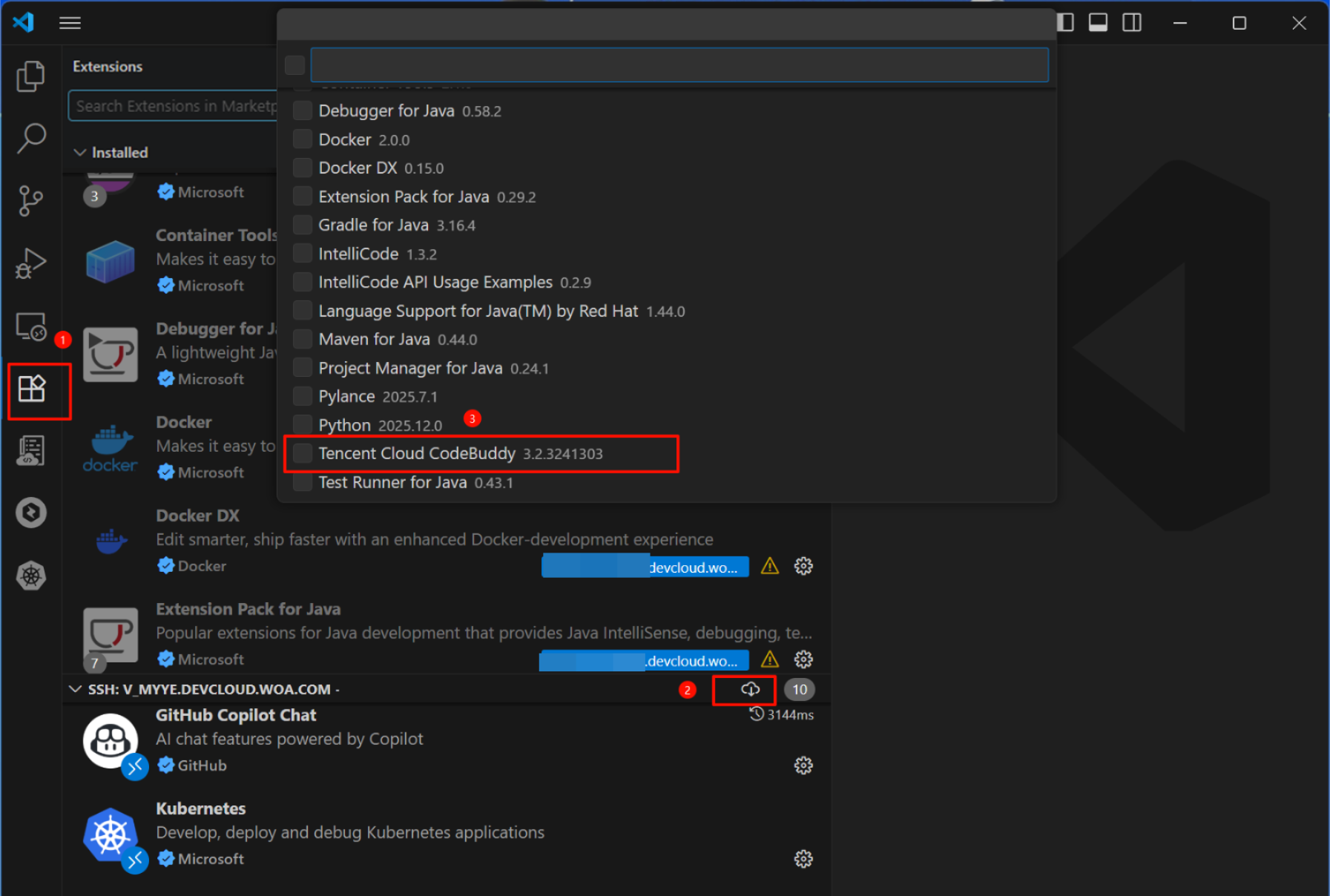
In cloud development, the plugin must be installed on the Client.
Use local VSCode to enter the AnyDev cloud development environment. In the cloud development environment section of the Extensions page, click the Download button shown in the following figure, and then select the Tencent Cloud CodeBuddy plugin from the pop-up plugin menu to synchronize the local plugin to the cloud development environment.
Method 2: Connect local VS Code via SSH
Step 1: In local VS Code, use the SSH command to create a remote connection. Command format:
ssh hello@microsoft.com -p port, where hello is the username of the remote server, microsoft.com is the domain name of the remote server, and port is the port number. You can also obtain the SSH connection command directly in iOA.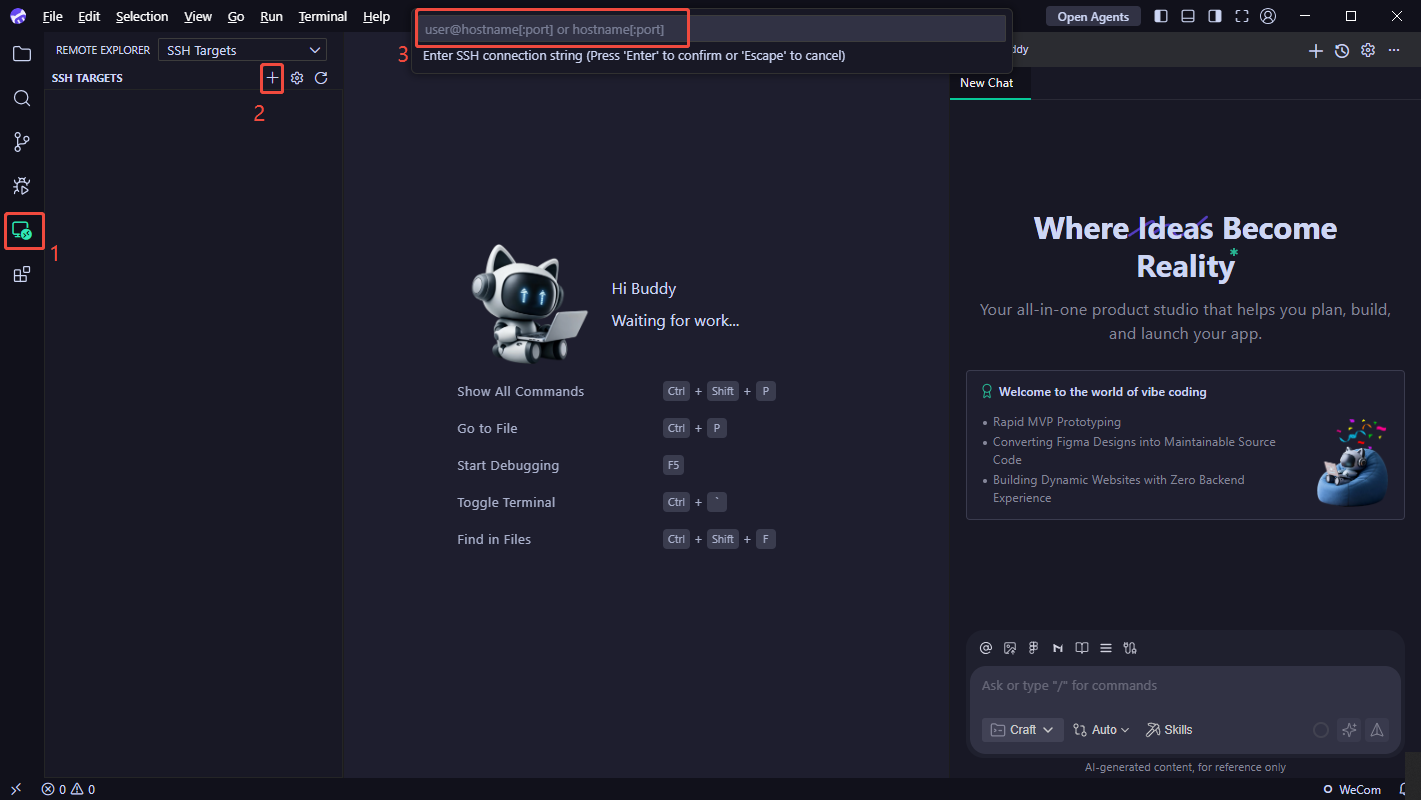
Step 2: The plugin is synchronized to the remote machine or installed directly in the remote path, same as Method 1.
VS Code Plugin Issues
Plugin Login Issues
How to Solve the Exception When VS Code Login Plugin Failed to Access the Browser?
Expected result: Clicking Log In prompts to open an external website.
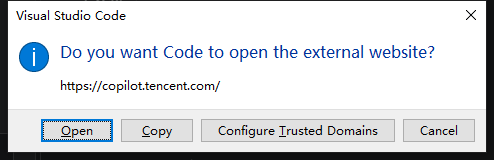
Solution:
Troubleshooting in Visual Studio Code.
Search for
@id:workbench.externalBrowser in settings.Set the default browser to Chrome.
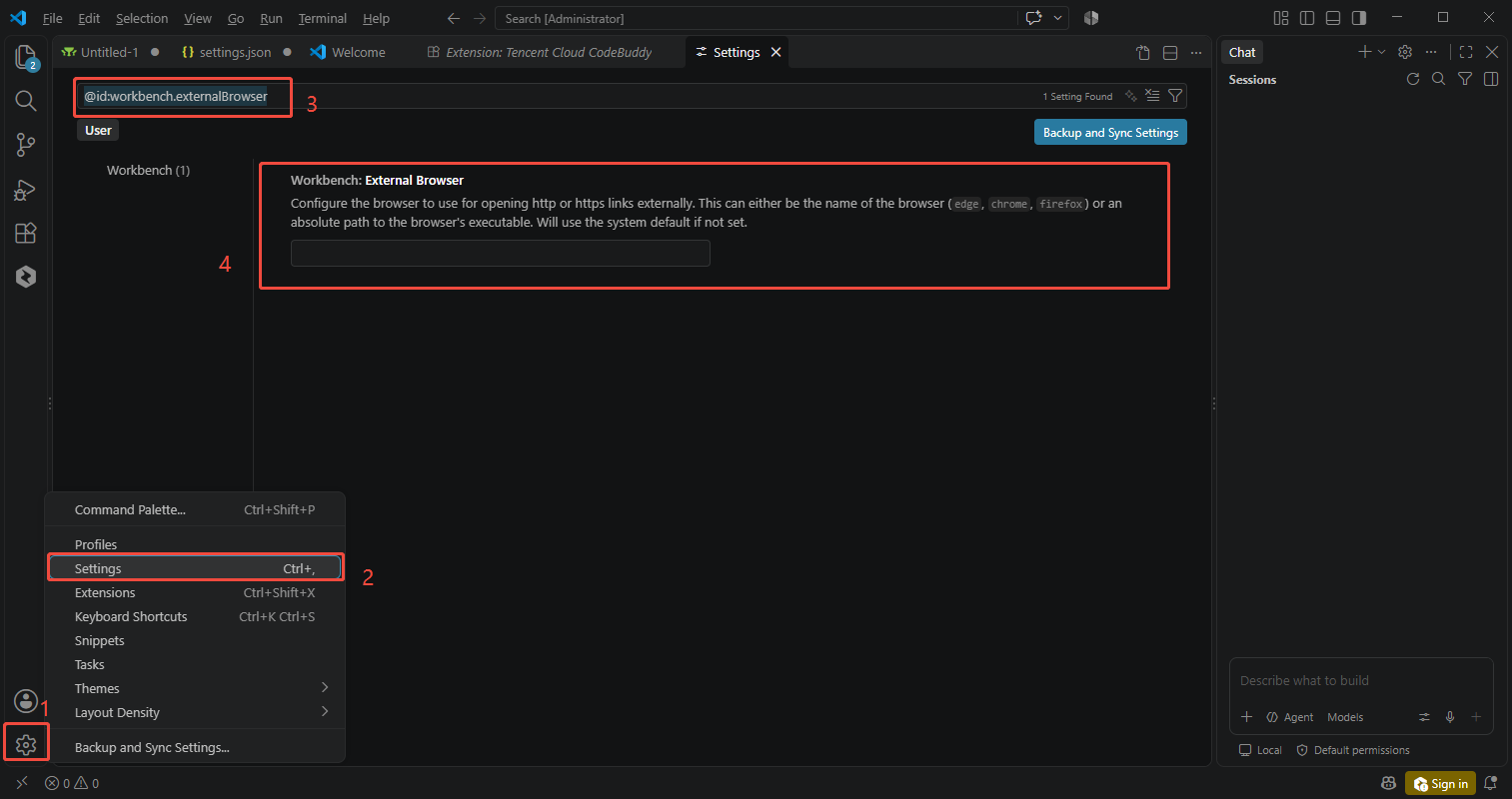
Restart the IDE after the settings are completed, and log in again.
Check the default browser issues of the system.
Windows: In settings, search for the default HTTPS application, set it to Chrome, and try again.
Mac: In settings, set the default web browser to Chrome and try again.
What Should I Do If Login Authentication Fails?
Abnormal phenomenon: The plugin reports an error during login, with the message: timeout of 30000ms exceeded.
Solution:
1.1 Enter
>show out in the top search box and select Show Output Channel.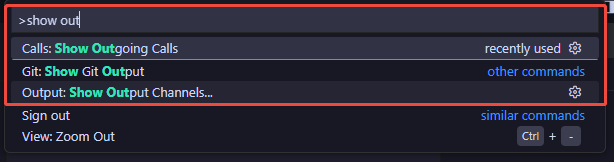
1.2 Then select CodeBuddy as the output channel.
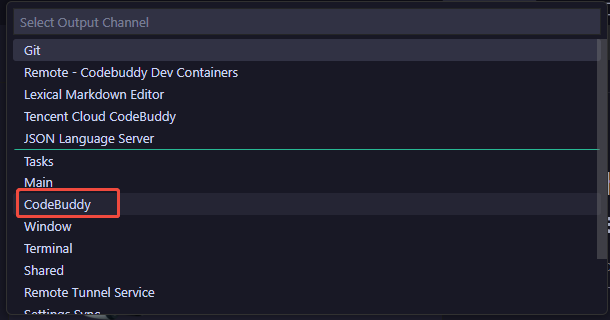
1.3 Copy the link at the corresponding position in the image below and open it in a browser to log in by scanning the QR code.

MCP Server Installation Issues
What Should I Do If One-Click Installation of MCP Server from the MCP Market Fails?
npx or Node.js is not installed.Exception:

Solution: First, ensure that the dependency environment for installing
MCP Server is ready, as follows:Windows: Installing
npx requires npm 5.2.0 or later. Refer to the following documentation to install npx and uvx:npx:nvm-windows
uvx:uv
Mac: Refer to the following documentation to install
npx and uvx: npx:nvm
uvx:uv
After the dependency environment is installed, try reinstalling
MCP Server.npx is not installed correctly or the environment variables are not configured.Exception:
Node.js and npx are installed, but the following error occurs when MCP Server is installed: spawn npx ENOENT.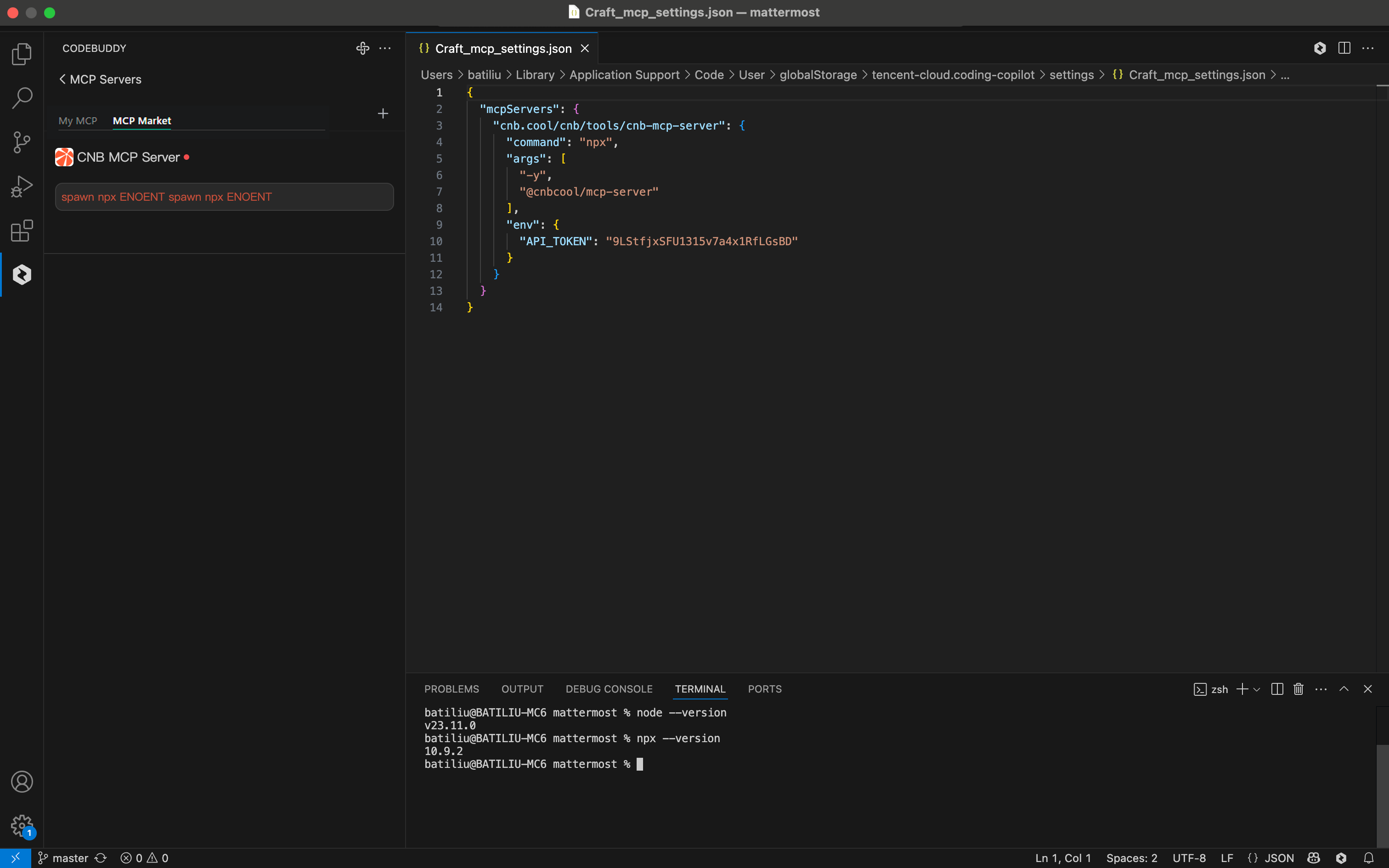
Solution: Restart the IDE and try installing
MCP Server again.What Should I Do If Error 32000 Occurs When MCP Server Is Installed?
Exception: The following error occurs when MCP Server is installed: MCP error -32000: Connection closed.
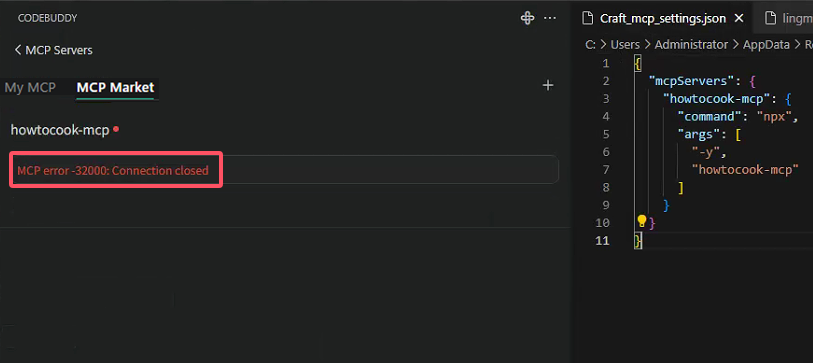
Note:
The following solution applies only to the howtocook-mcp example. If you encounter the same error when installing other MCPs, refer to the following method to troubleshoot.
Solution:
1.1 Try running the command manually in the terminal:
npx -y howtocook-mcp.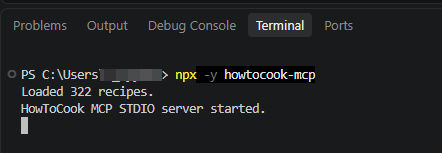
1.2 To prevent VS Code from failing to recognize npx in its environment variables, restart VS Code. After upgrading node.js to a later version, try reconnecting to MCP.
If the error persists after the above steps are performed, try the following methods:
1.2.1 Clear the logs and reconnect to MCP.
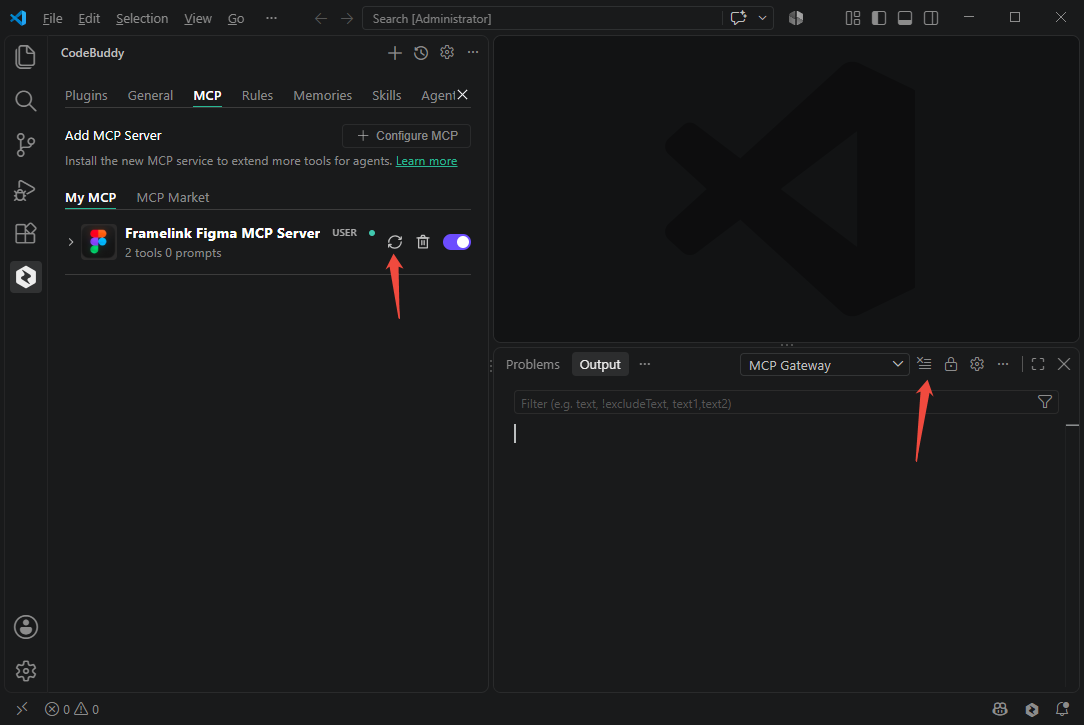
1.2.2 Copy the following configuration content and replace it. Then run the command in the terminal:
npm install -g howtocook-mcp. Reconnect to MCP afterwards."howtocook": {"command": "howtocook-mcp","args": []}
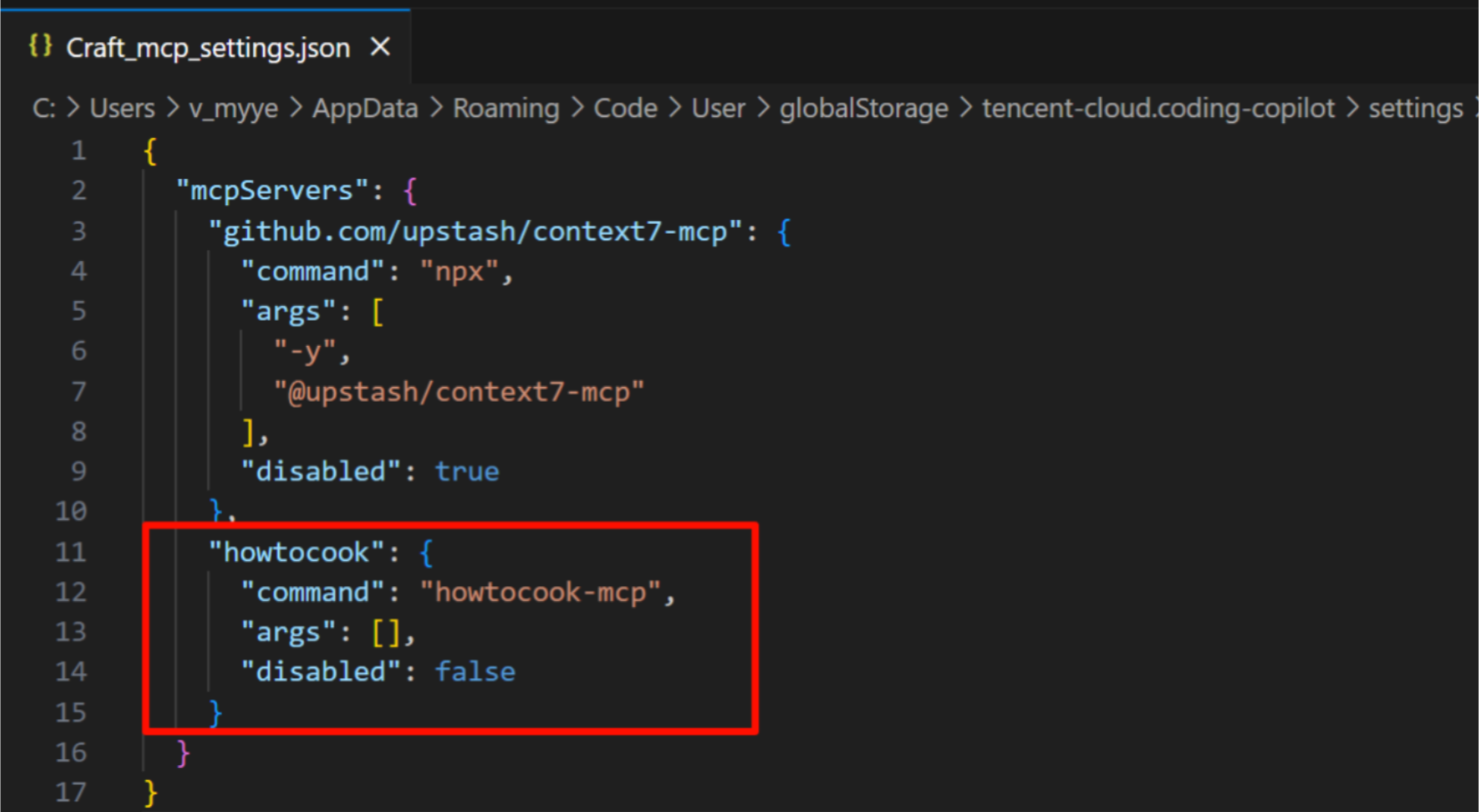
Plugin Issues in JetBrains IDEs
Plugin Installation or Upgrade Issues
What Should I Do If the Plugin Cannot Be Upgraded Properly on Windows?
Exception: An error occurred during a plugin upgrade.

Solution:
Solution 1: When this window appears, do not click Restart Now. Instead, manually close the IDE and then manually open it.
Solution 2: Do not handle the popup for now. Open Task Manager, and click Details. Locate the language-server-win-x64.exe process and right-click to end the task. Then click Restart Now.
Plugin Uninstallation Issues
How to Uninstall the Plugin from the Windows System?
Solution:
Solution 1: First, disable the plugin and manually turn off the IDE. Manually restart the IDE. Then, keep the plugin disabled and uninstall the plugin. Restart the IDE later.
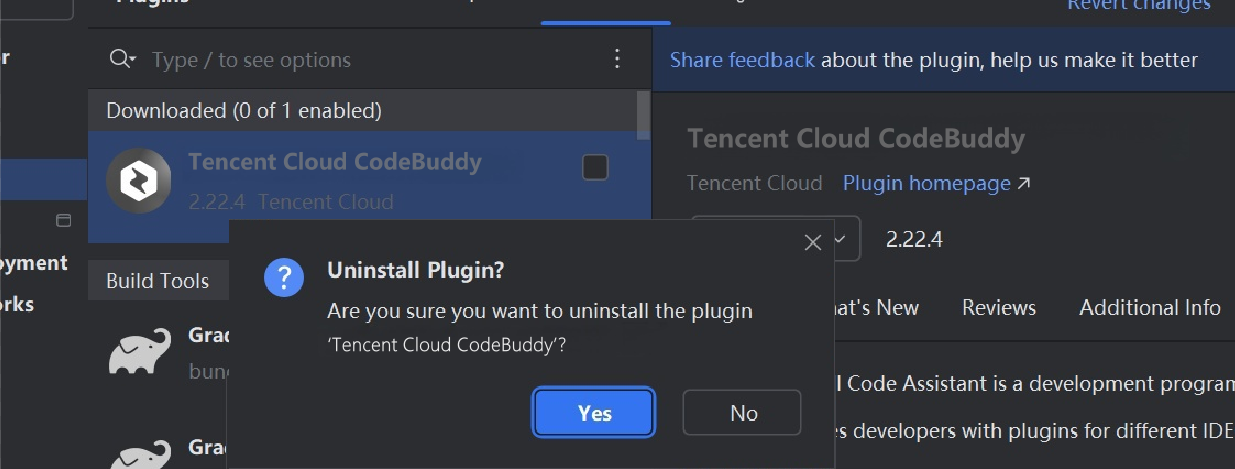
Solution 2: The operations are the same for a plugin update scenario. Open Task Manager, and click Details. Locate the language-server-win-x64.exe process and right-click to end the task. Afterwards, uninstall the plugin in the plugin marketplace.
Plugin Usage Issues
Why Is the Plugin Page Blank and Showing "Initializing" in Version 3.1.12?
Exception: After login, the plugin page is blank and displays "Initializing".
Solution: Update to version 3.1.13.
What Should I Do If the Model Output from Craft Is Garbled?
Exception: The model outputs garbled text when Craft is used.
See the figures below:
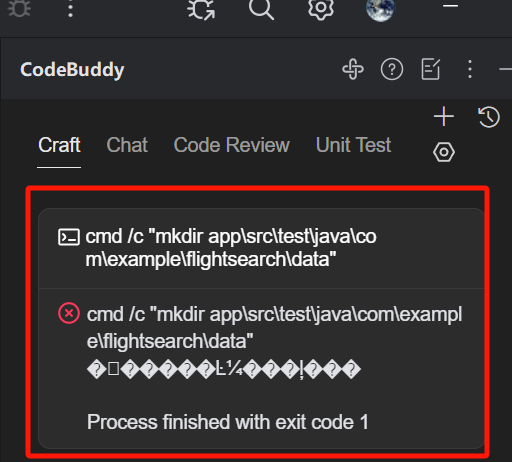
See the figures below:
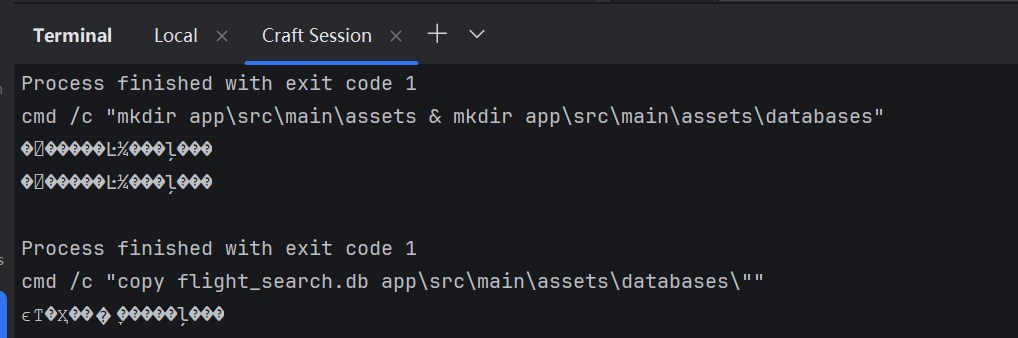
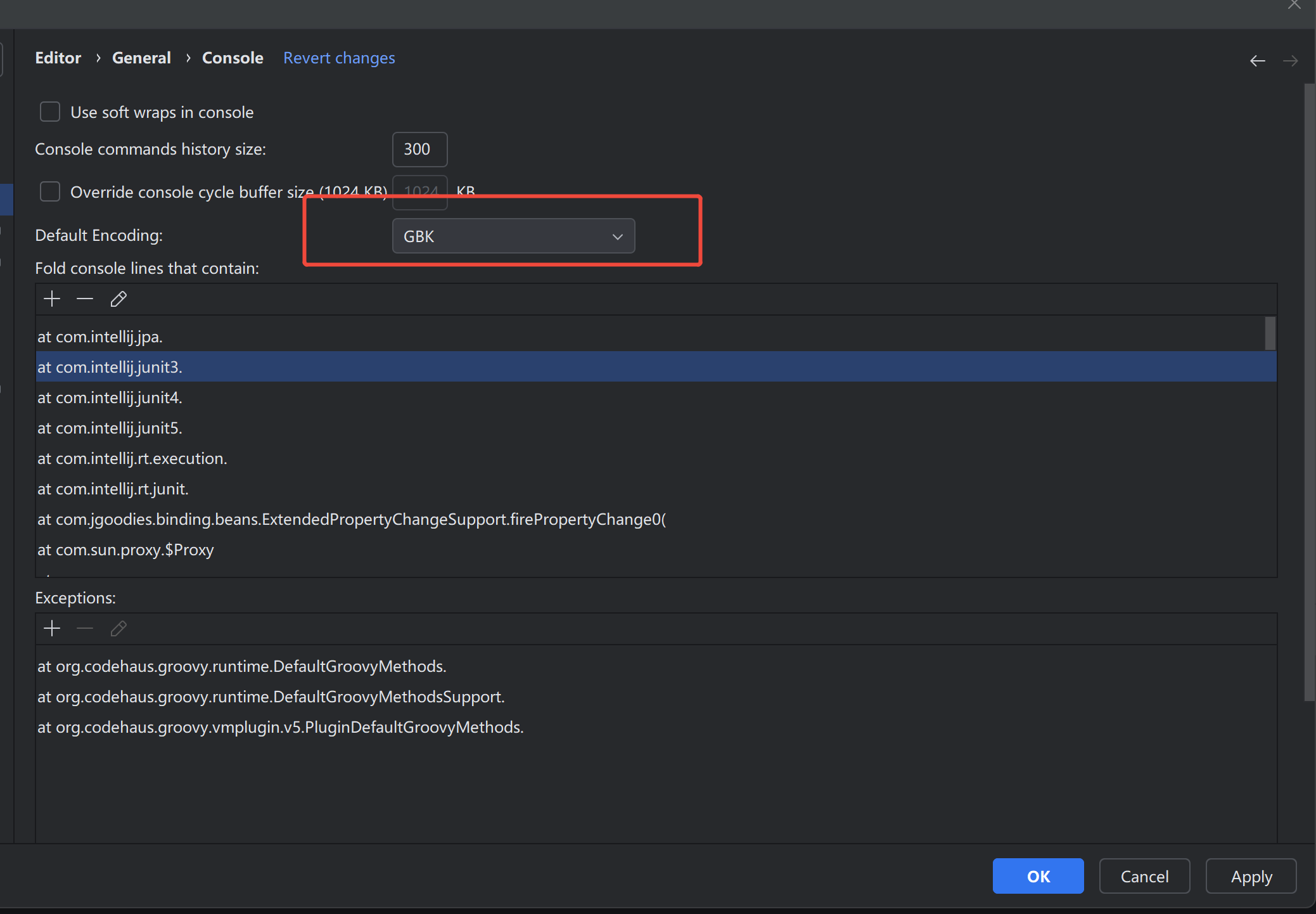
Solution: Set Default Encoding under Editor › General › Console to GBK.
Android Studio Plugin Issues
Craft Usage Issues
For Android Studio users, you need to manually install JCEF before you can use the Craft feature. Refer to the following steps for installation.
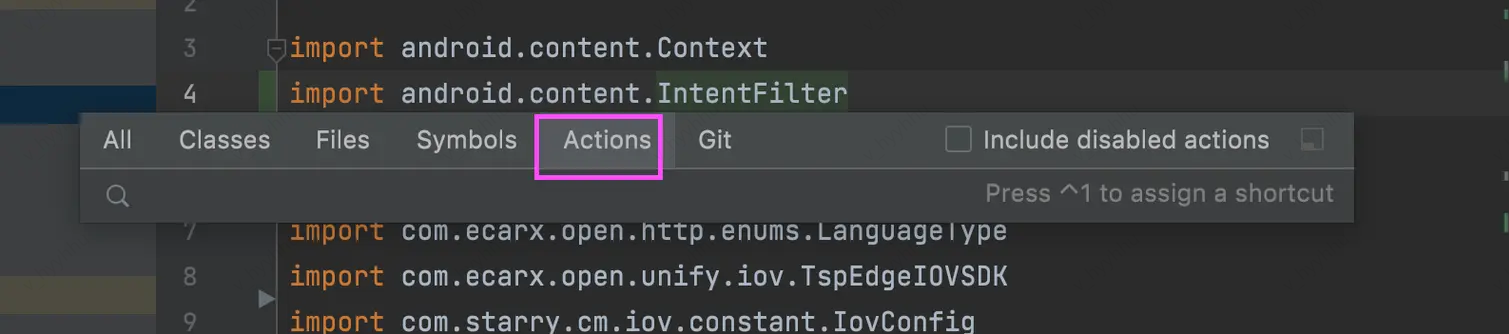
1. In Android Studio search, select Actions.
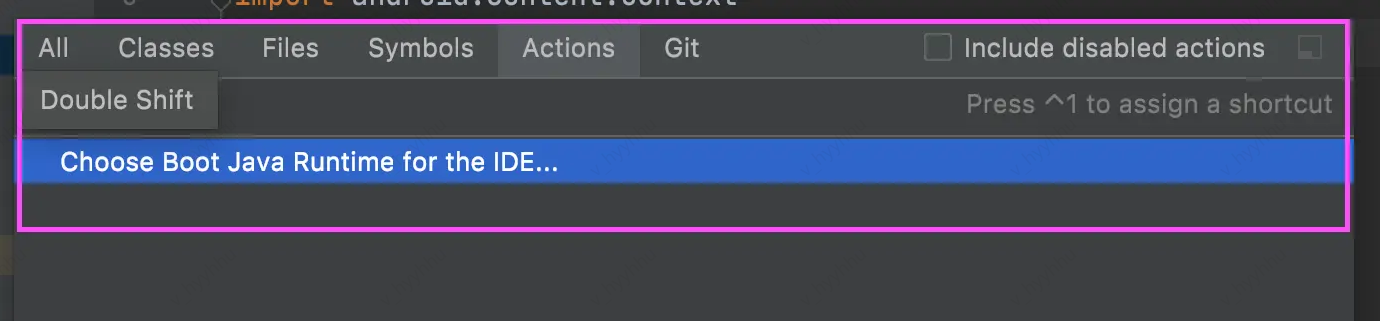
2. In the input box, enter and search for choose boot java runtime for the IDE....
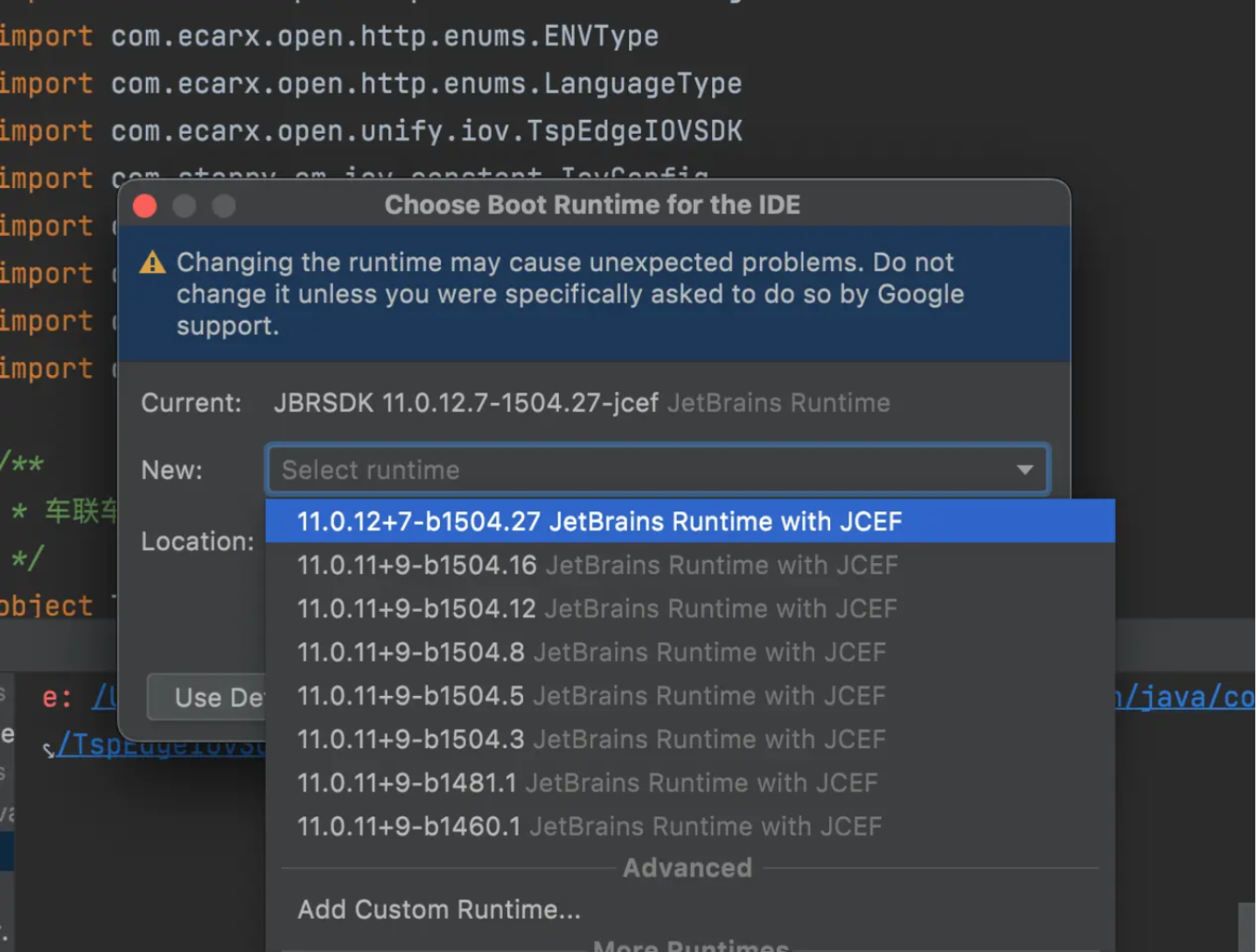
3. Select a version that matches your current IDE and includes JCEF.
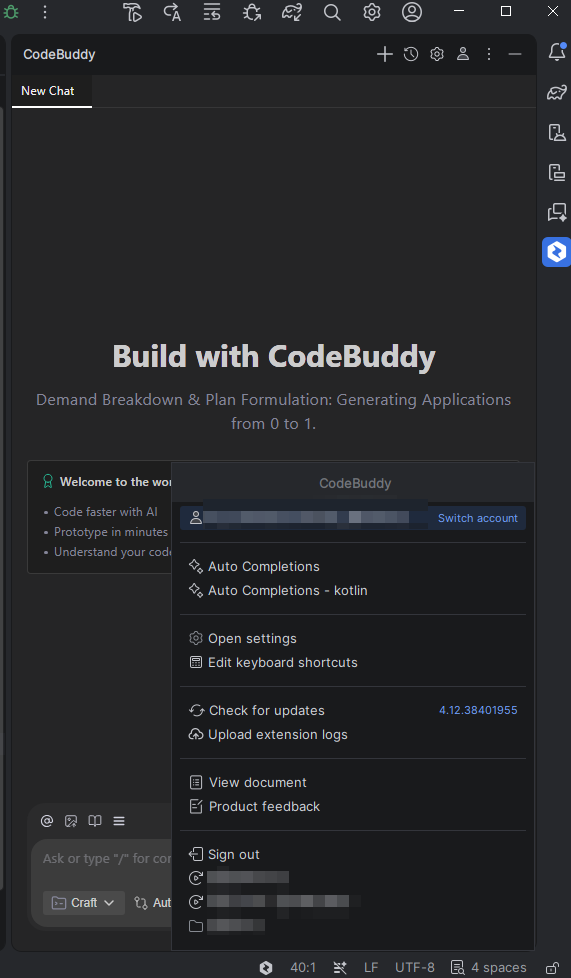
4. Restart the IDE and reload the plugin window to use it normally, as shown in the following figure.
Web Issues
Why Does a Login Exception Occur?
404 Not Found.
Exception: Error code 404 was returned for the login address.
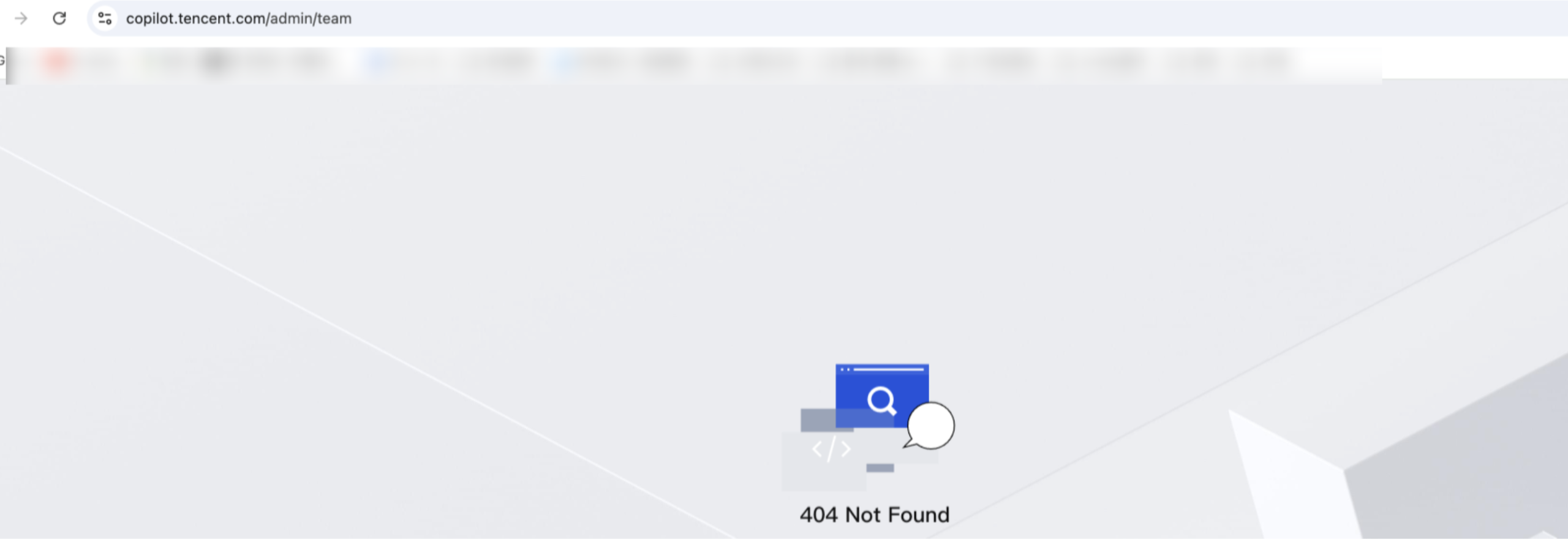
Solution: You can replace the address with a new one:
https://copilot.tencent.com/admin.How to Open the Invitation Link Properly?
Exception: The invitation link could not be opened properly.
Solution: Open it directly in WeChat.
How to Solve a Data Exception?
Exception: The data viewed on the enterprise management backend was abnormal, including abnormal metrics data, active data, and authorization data.
Solution: Data synchronization takes 15 minutes. Check if the exception is caused by unsynchronized data.
Collecting Error Messages from Different Terminals
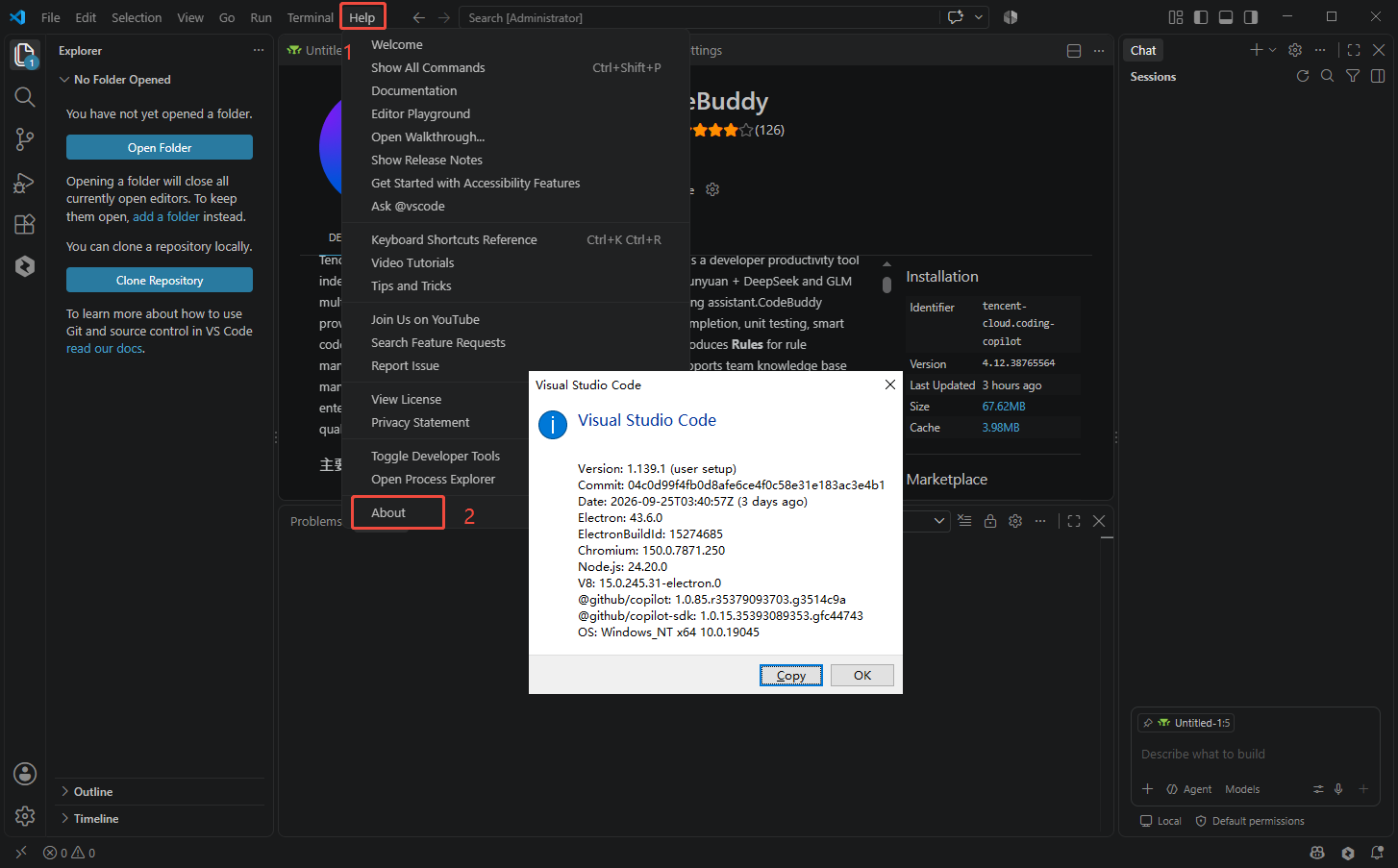
System environment information: Mac/Windows/Linux. For other information, refer to the following based on the client:
VS Code
1. IDE Environment and Version Information
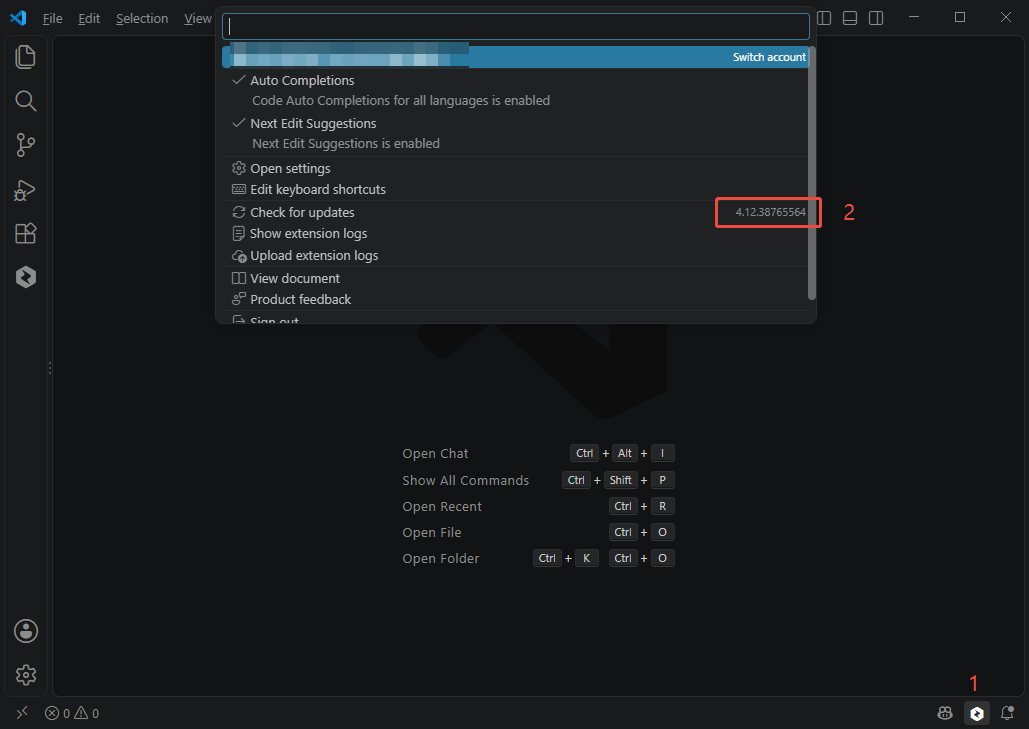
2. Plugin Version Information
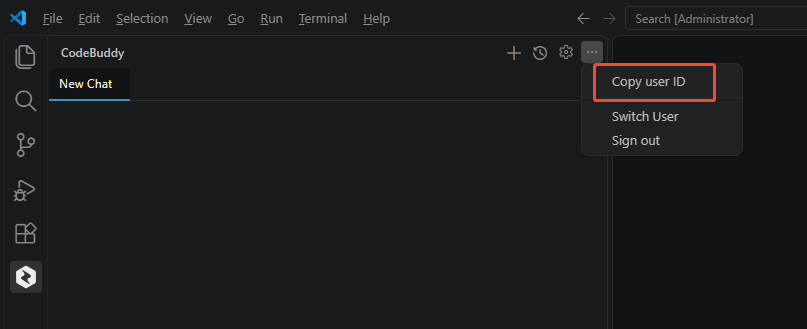
3. User ID Information
4. Error Log Information
Local client log retrieval:
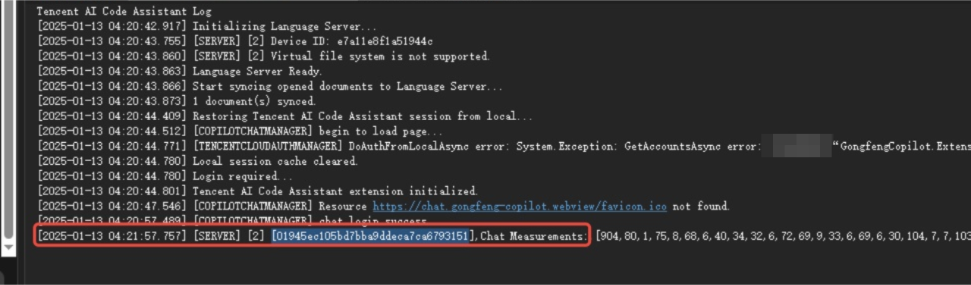
1. Click the plugin logo in the bottom status bar, and then click View Logs.
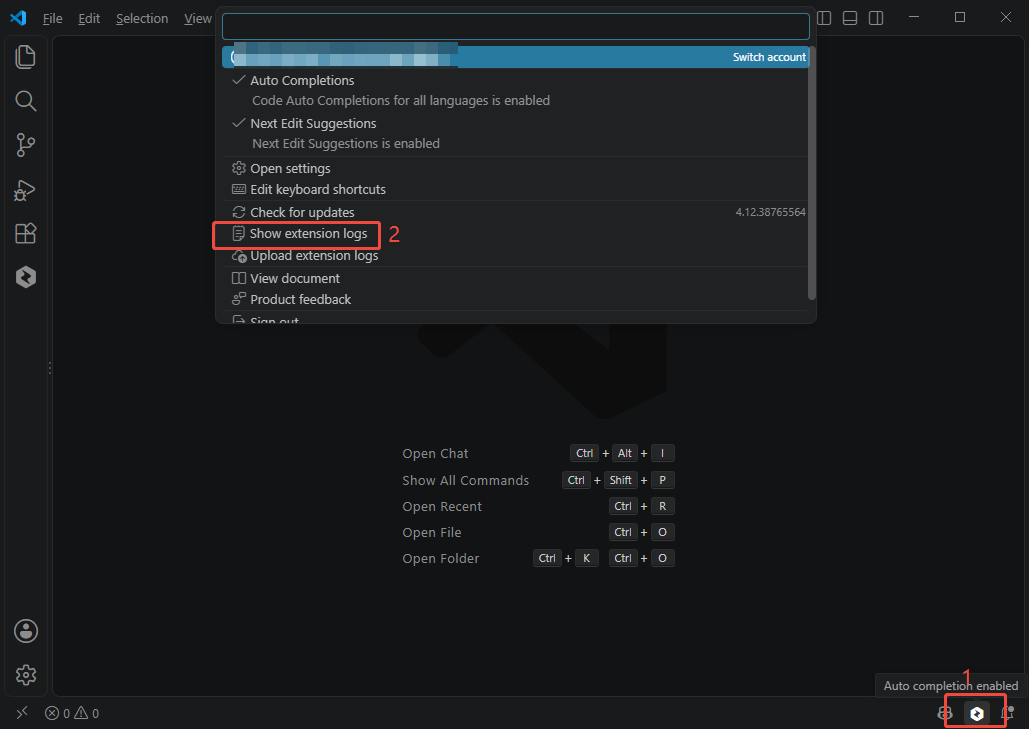
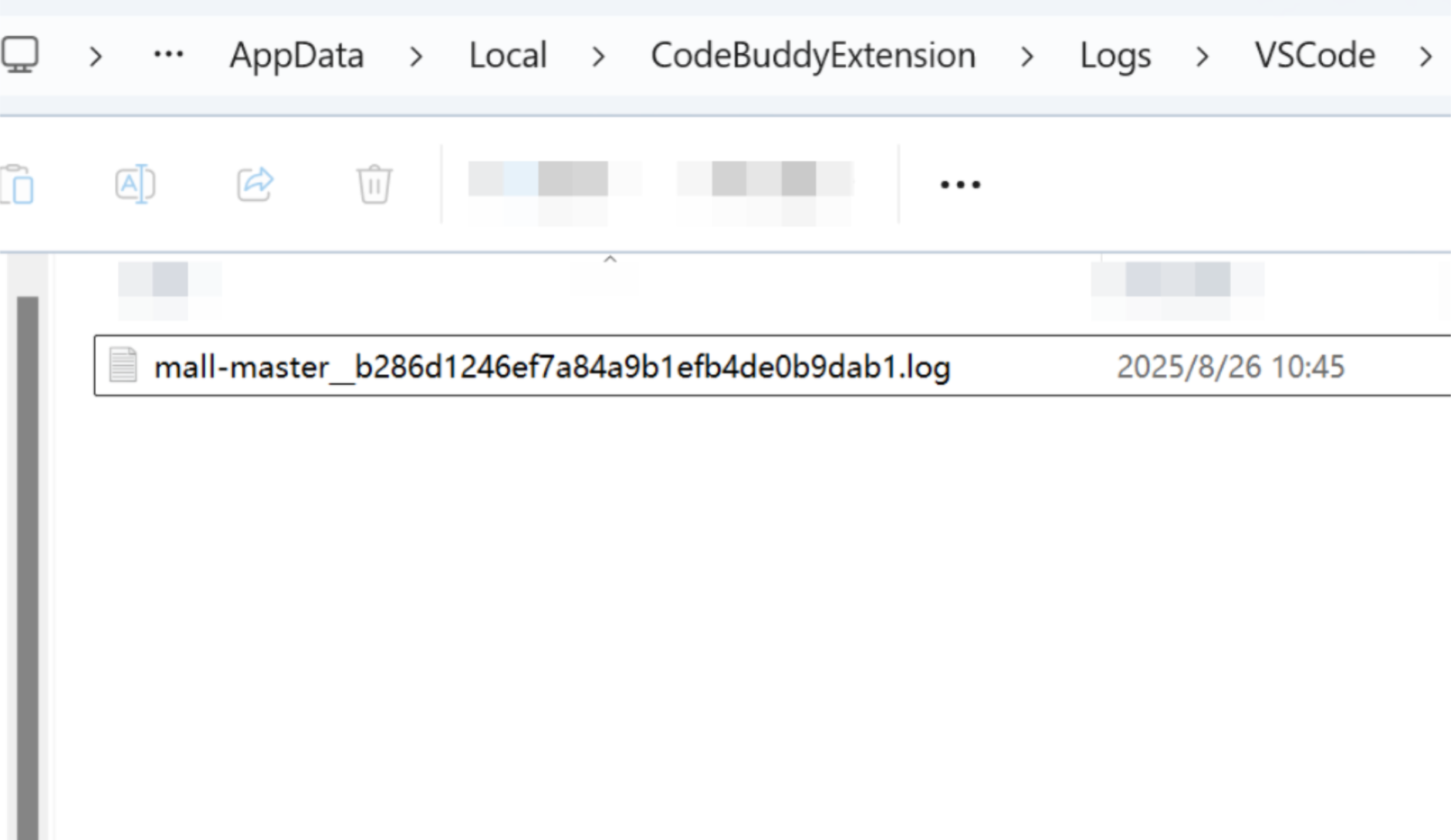
2. The log file displayed in the pop-up window is the plugin log for the current project on that day.
JetBrains IDE (Taking IDEA as an Example)
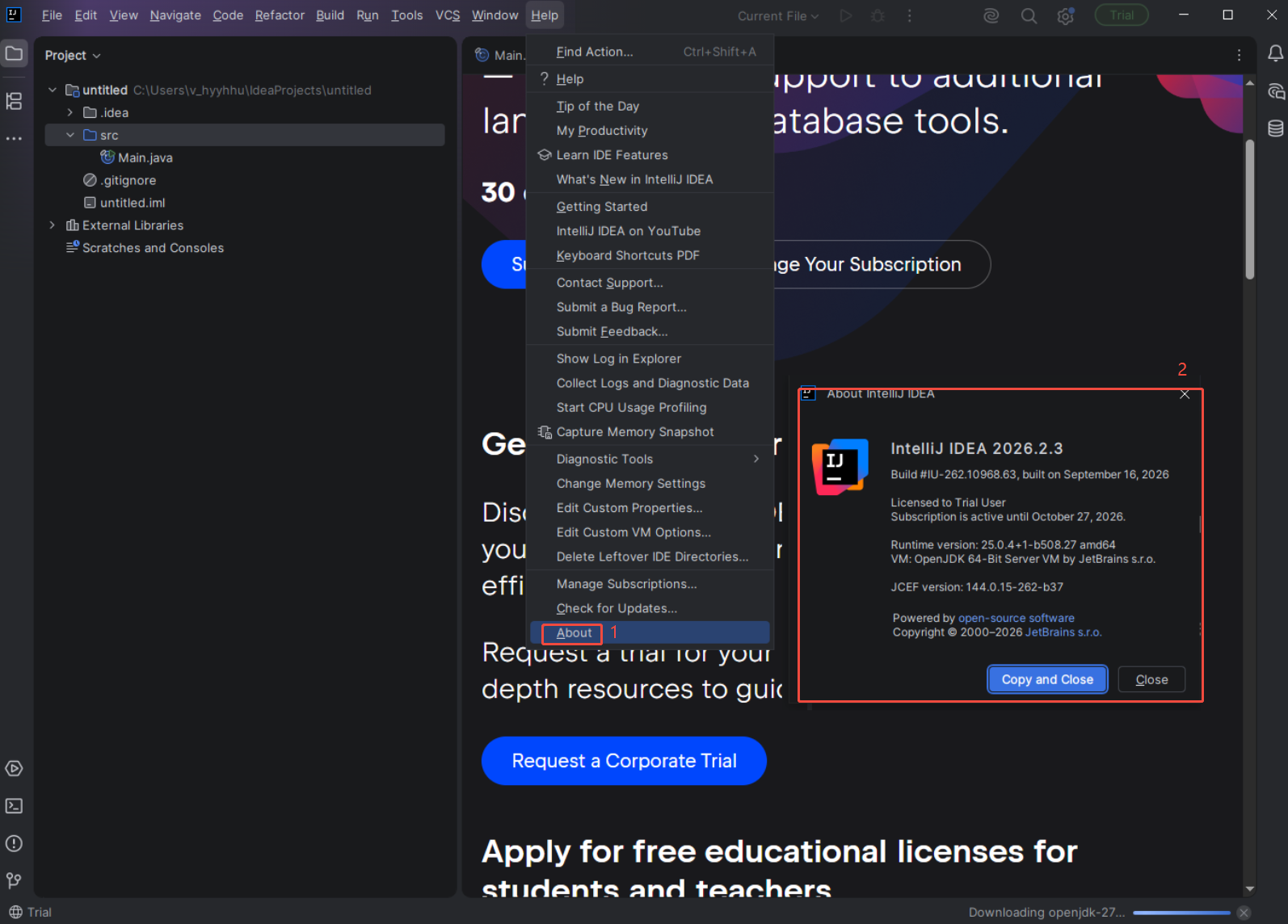
1. IDE Environment and Version Information
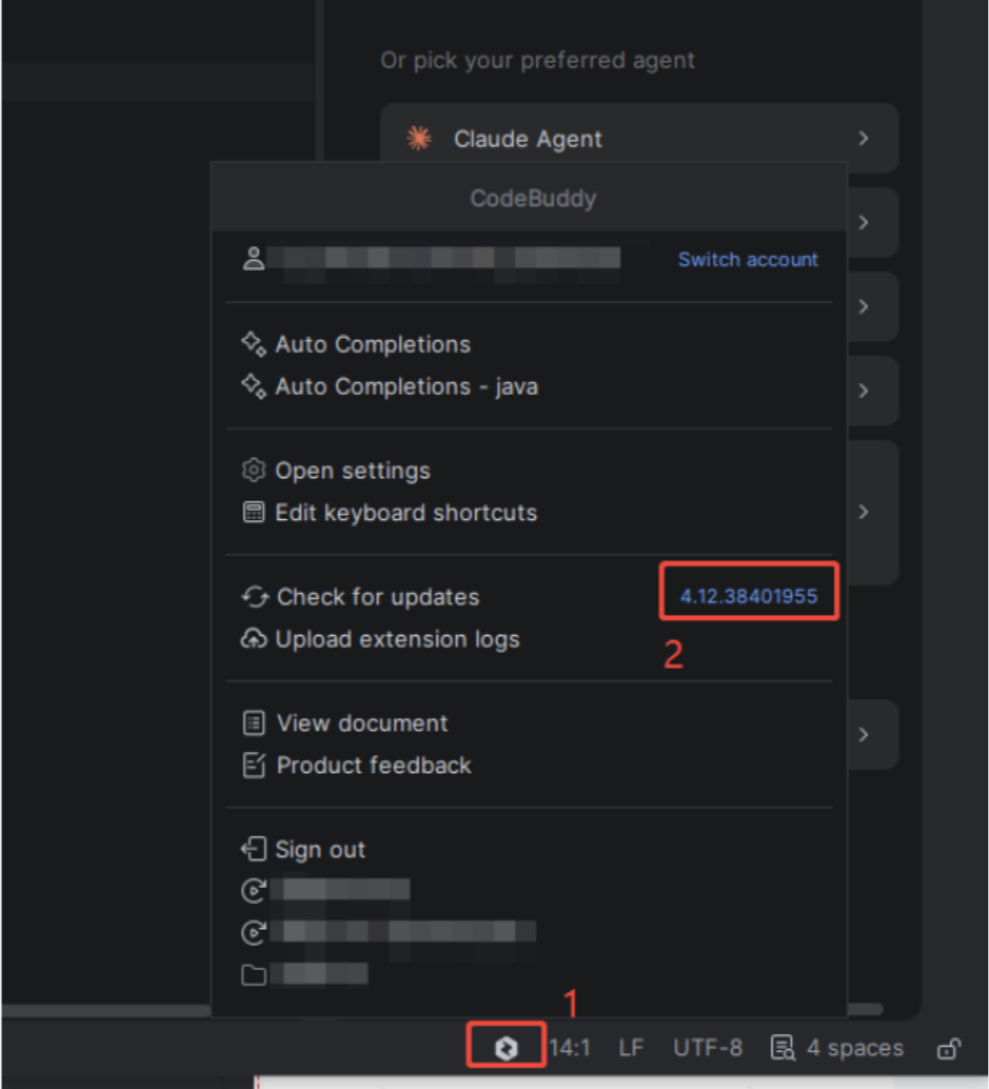
2. Plugin Version Information
3. User ID Information
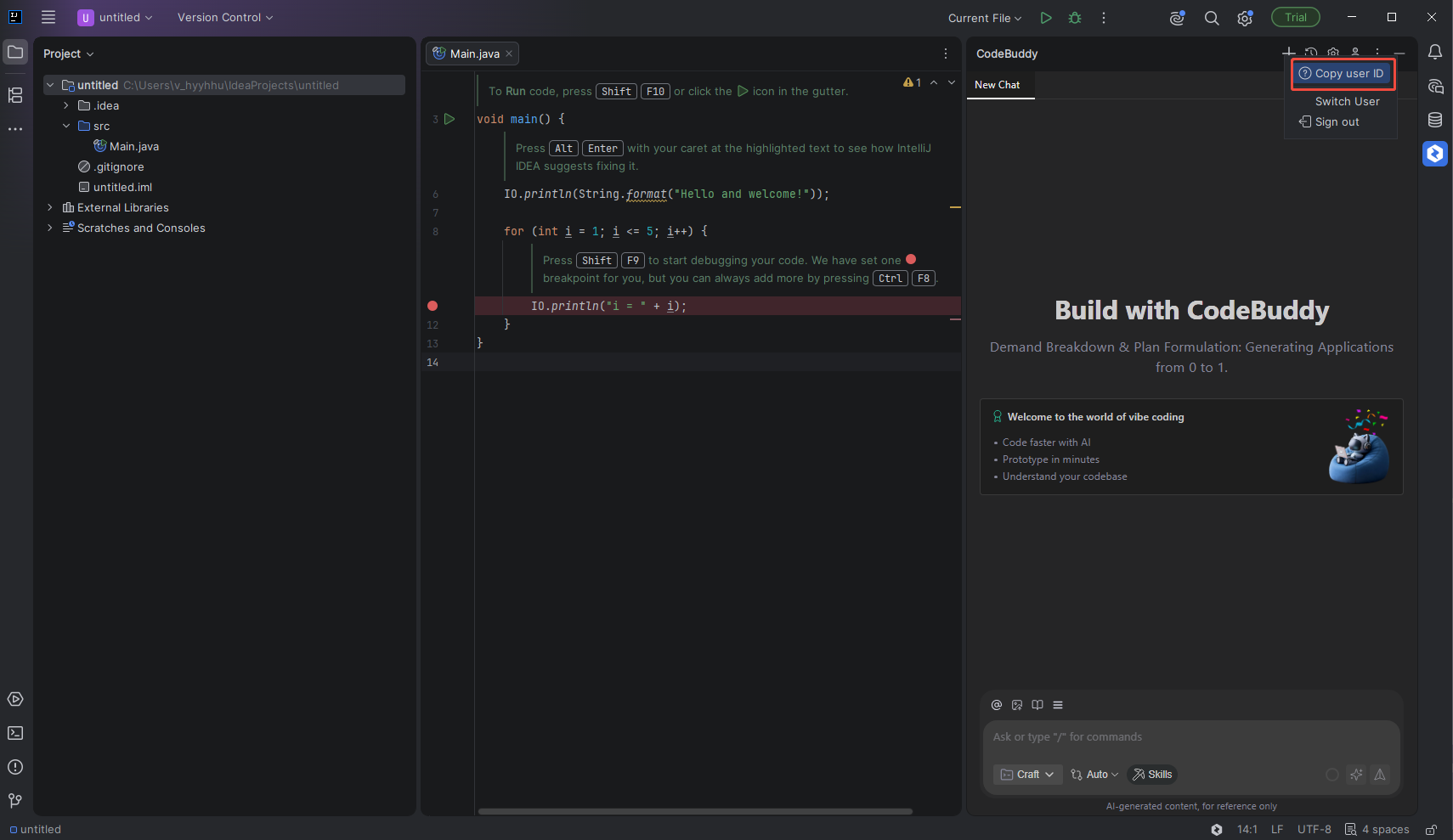
4. Obtaining Error Logs from the Local Client
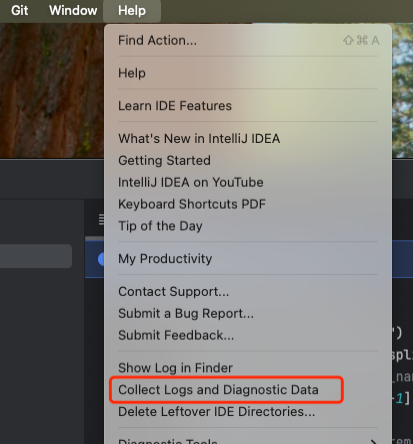
1. In the Help area of the top menu in JetBrains, locate Collect Logs and Diagnostic Data and click to start automatic collection of IDE logs.
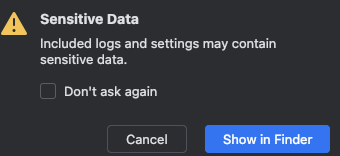
2. A warning confirmation pop-up window appears after the collection of sensitive data is completed. Select Show in Explorer (Win) or Show in Finder (Mac) to locate the collected log files in Explorer or Finder.
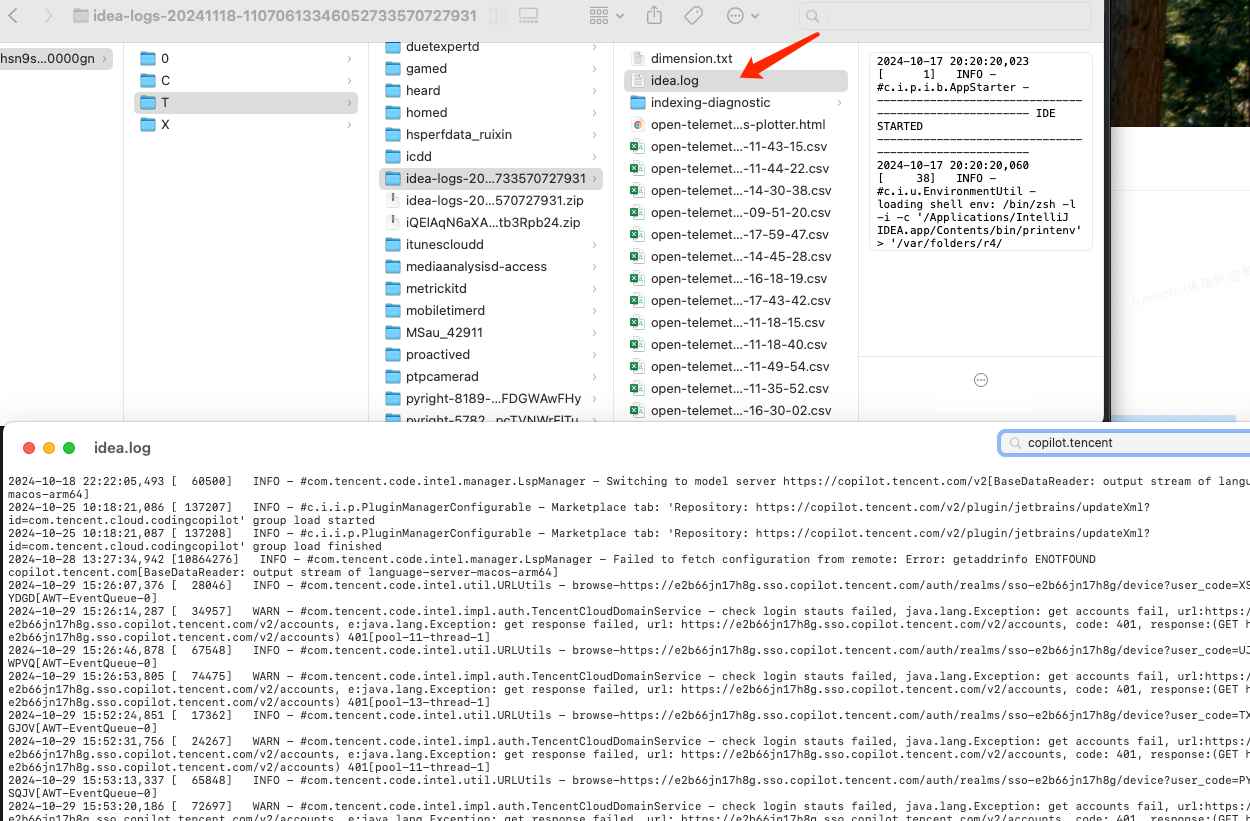
3. The selected idea-logs-xxxxxx.zip in Explorer or Finder is the plugin log, which provides the idea.log file.
Android Studio
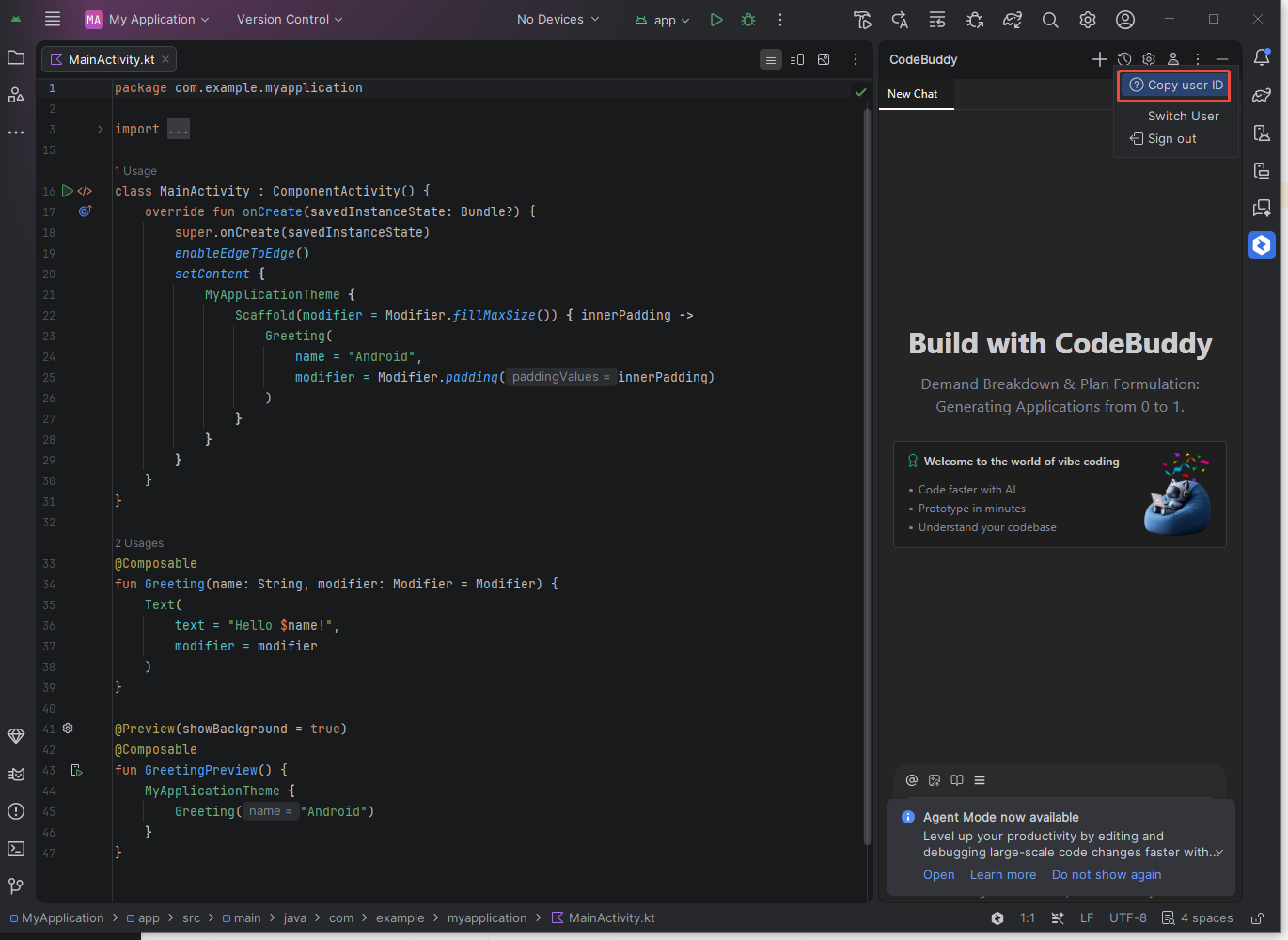
1. User ID Information
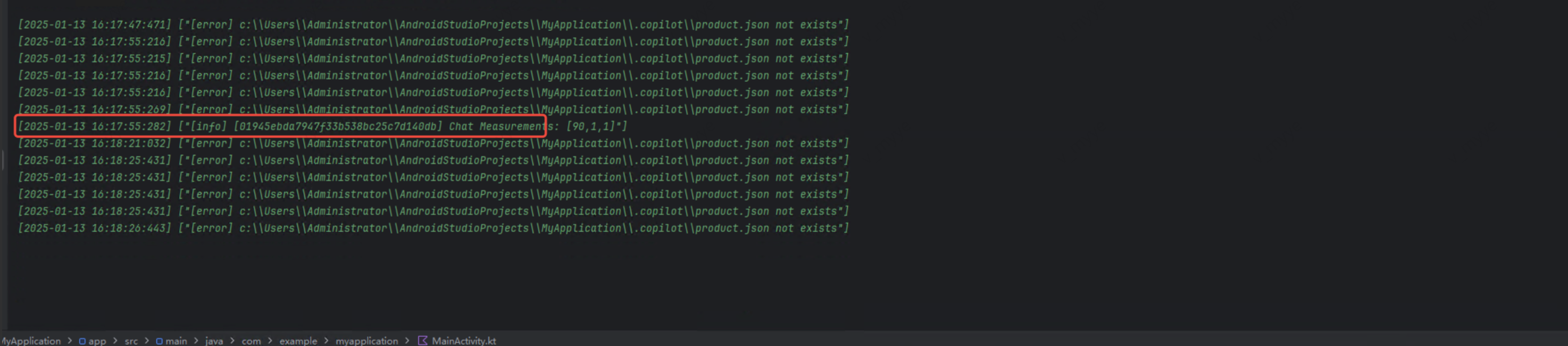
2. Local Client Error Logs
Visual Studio
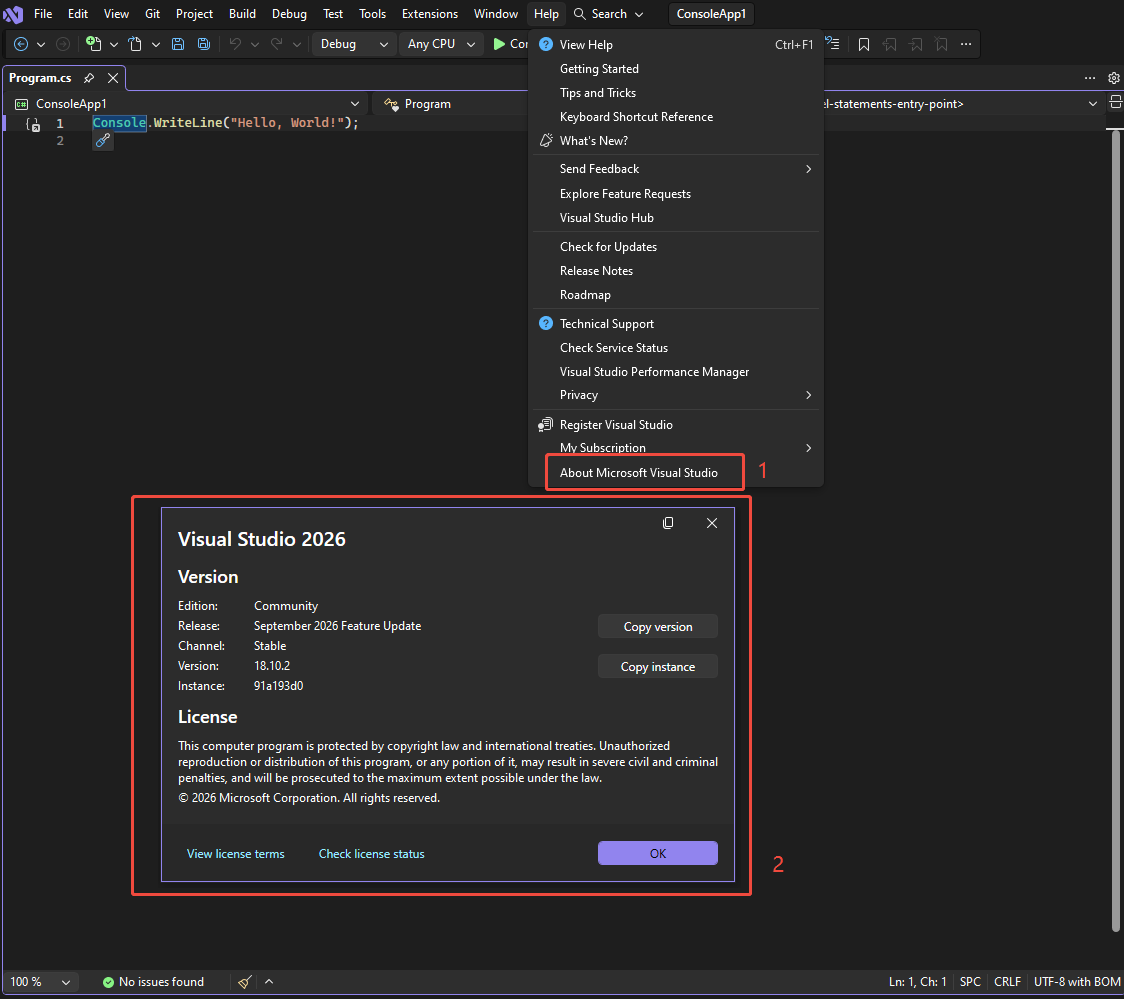
1. IDE Environment and Version Information
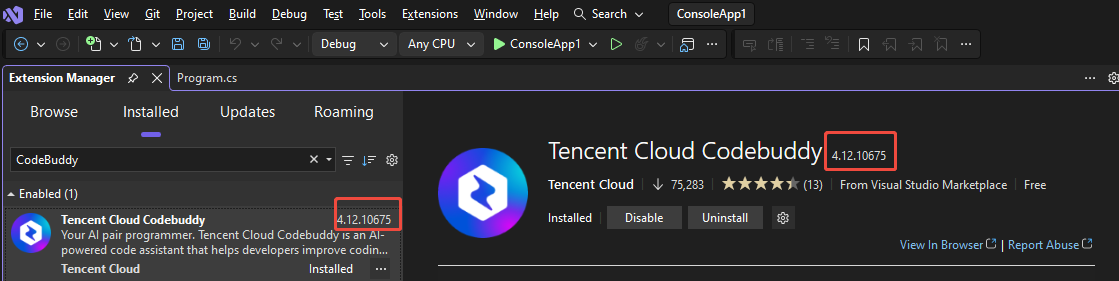
2. Plugin Version Information
3. Local Client Logs
피드백