Verify in the test environment and then release to the production environment
Download
Focus Mode
Font Size
This document describes how to verify configurations in the test environment after a new version is created and then release them to the production environment.
Note:
This feature only supports sites linked to Standard and Enterprise Edition packages.
Overview
Assuming your current domain is
www.example.com, the current effective version of the Layer 7 acceleration configuration group is Version 0. Now, you need to change it to Version 1. You should first verify the configuration in the test environment before releasing it to the production environment.Note:
The information in the following text and images is sample data. Do not use it.
Prerequisites
1. Add the site
example.com according to the Quick Start guide and purchase the EdgeOne Enterprise package.2. Version management has been successfully enabled. For how to enable version management, see Enabling Version Management.
3. Add the domain
www.example.com according to Adding A Domain Name for Acceleration without switching CNAME.4. Version 1 has been created. For how to create a version, see Create A Version.
Directions
Step 1: Releasing Version 1 to the Testing Environment
1. Log in to the Tencent Cloud EdgeOne console, enter Service Overview in the left menu bar, and click the site to be configured under Website Security Acceleration.
2. On the site details page, click Version Management in the left navigation.
3. On the Testing Environment page, click Change Version.

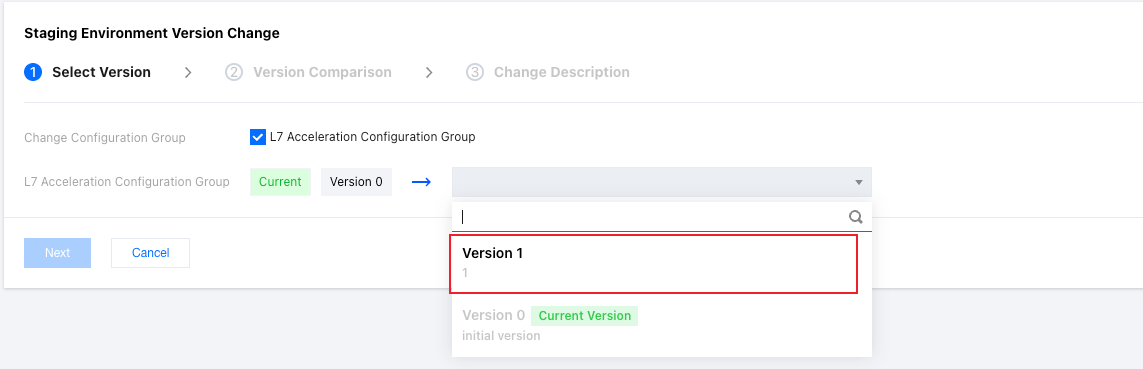
4. Select the Version 1 you want to change, and click Next.
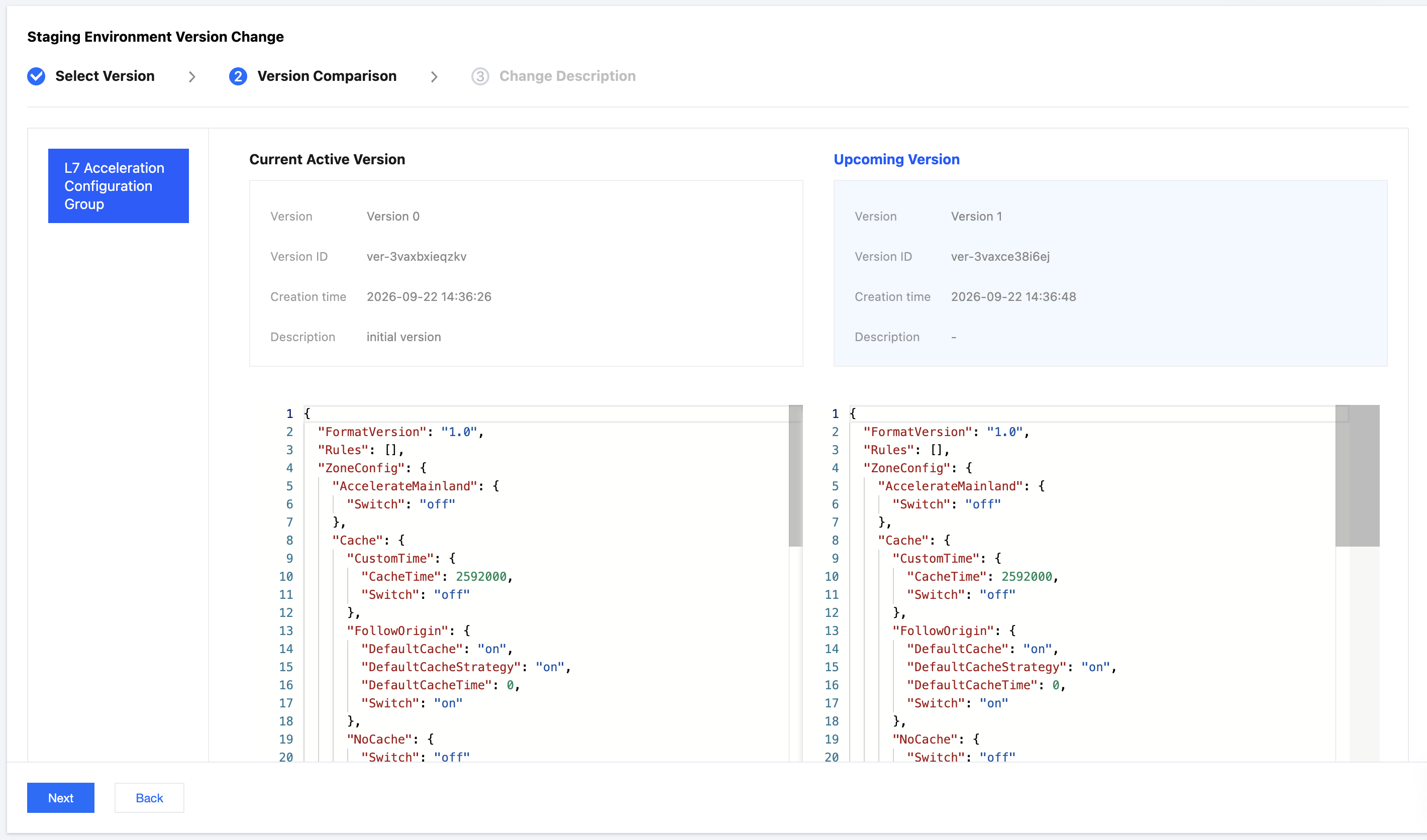
5. You can view the differences between the new version and the original version on the version comparison page to confirm whether the changed configuration meets your expectations. After confirming that it is correct, click Next.
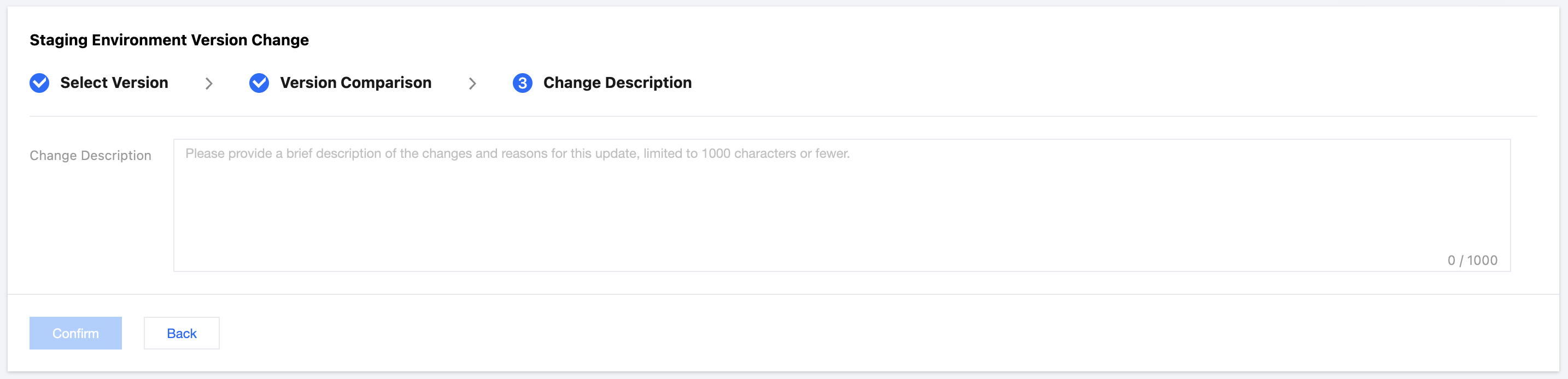
6. You need to enter a change description, limited to 1,000 characters. After completing the description, click Confirm Change.
7. On the Test Environment Version Change History page, if you see that the release is successful, the configuration of Version 1 has taken effect in the test environment.

Step 2: Conducting Simulated Access Testing
1. Click Version Management in the top navigation to return to the environment page. The effective CNAME address of the test environment is displayed on the test environment page. You can obtain the access IP address binding of the CNAME and modify the HOST file to bind the IP address for simulated access testing.

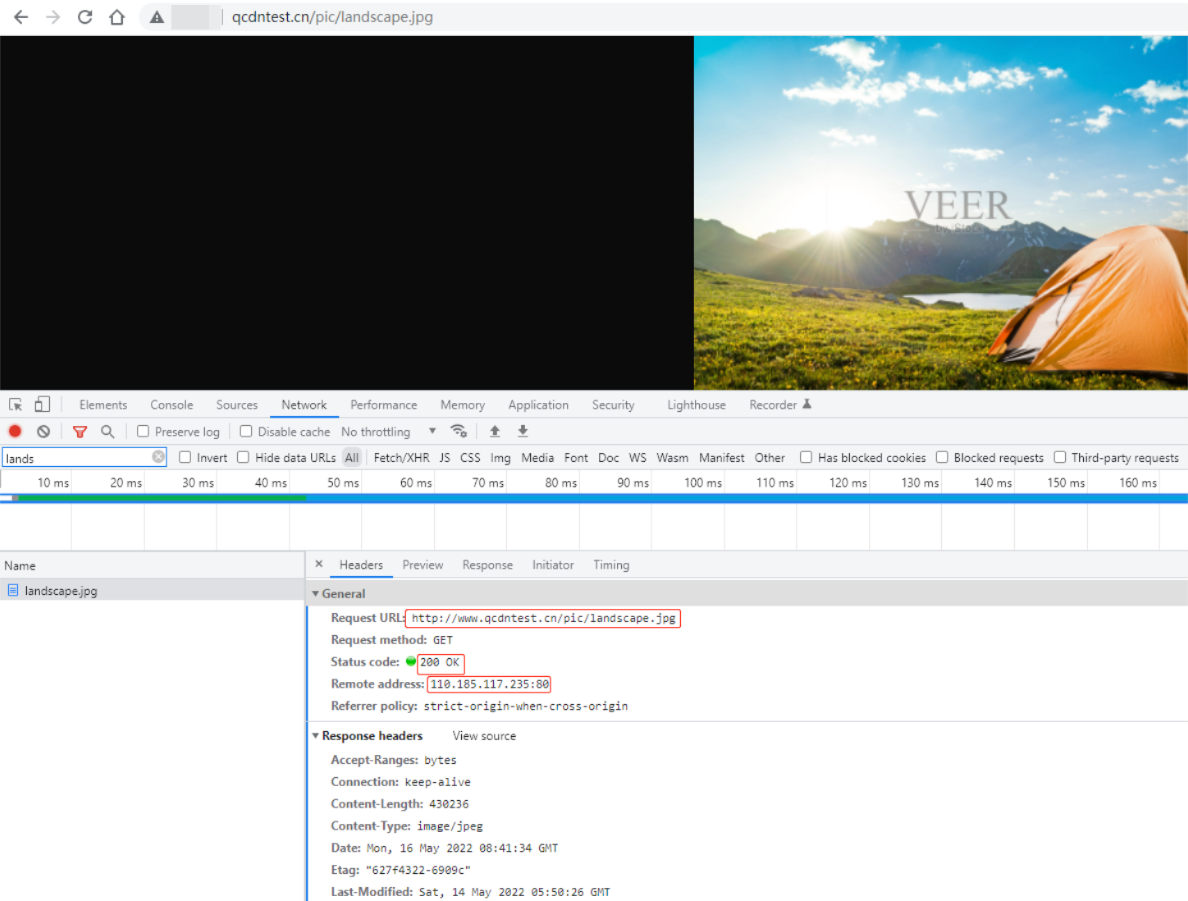
2. According to the current assigned test environment CNAME address, you can refer to Verify Business Access, steps 4-5 in the document, to obtain and bind the test environment IP address to your local machine. When accessing the domain from your local machine, it will point to the test environment.
3. Perform a simulated access test. If the response is normal and consistent with expectations, the test environment configuration is correct.
Step 3: Releasing Version 1 to the Production Environment
1. After verifying the test is correct, release the version to the production environment. On the Production Environment page, click Change Version.

2. Refer to steps 4-7 in Step 1 to complete the version change in the production environment, and then you can release Version 1 to the production environment.
Help and Support
Was this page helpful?
You can also Contact sales or Submit a Ticket for help.
Help us improve! Rate your documentation experience in 5 mins.
Feedback