2. In the left sidebar, select Permission Mgmt > Access Permission.
3. On the access permissions page, click Create access permission and follow the steps to configure access permissions.
4. On the Set Basic Information page, enter the Permission name and Validity period, then click Next: Select user.
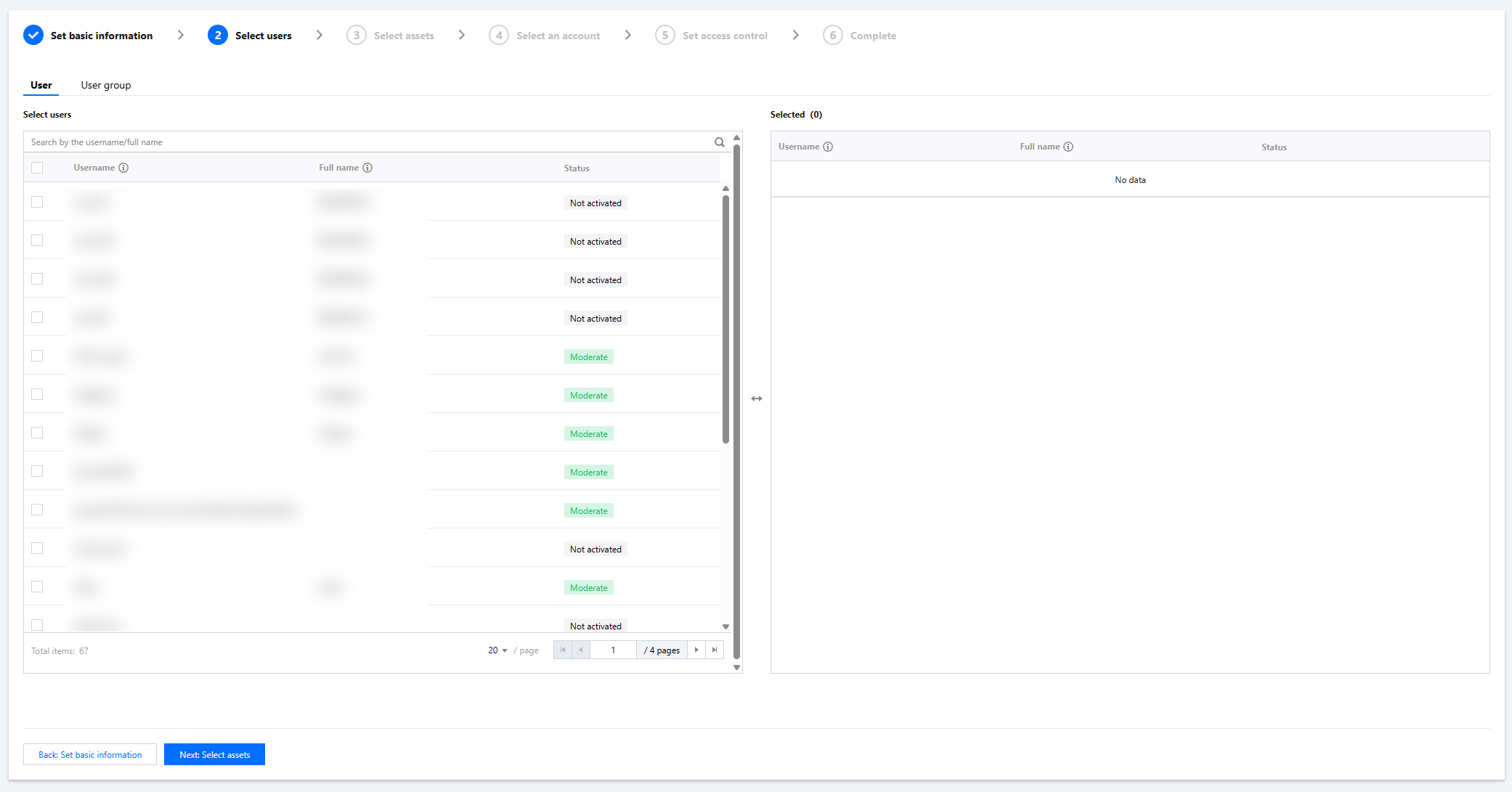
5. On the Select User page, select the users to whom this access permission will be granted, and filter based on department information, then click Next: Select asset.
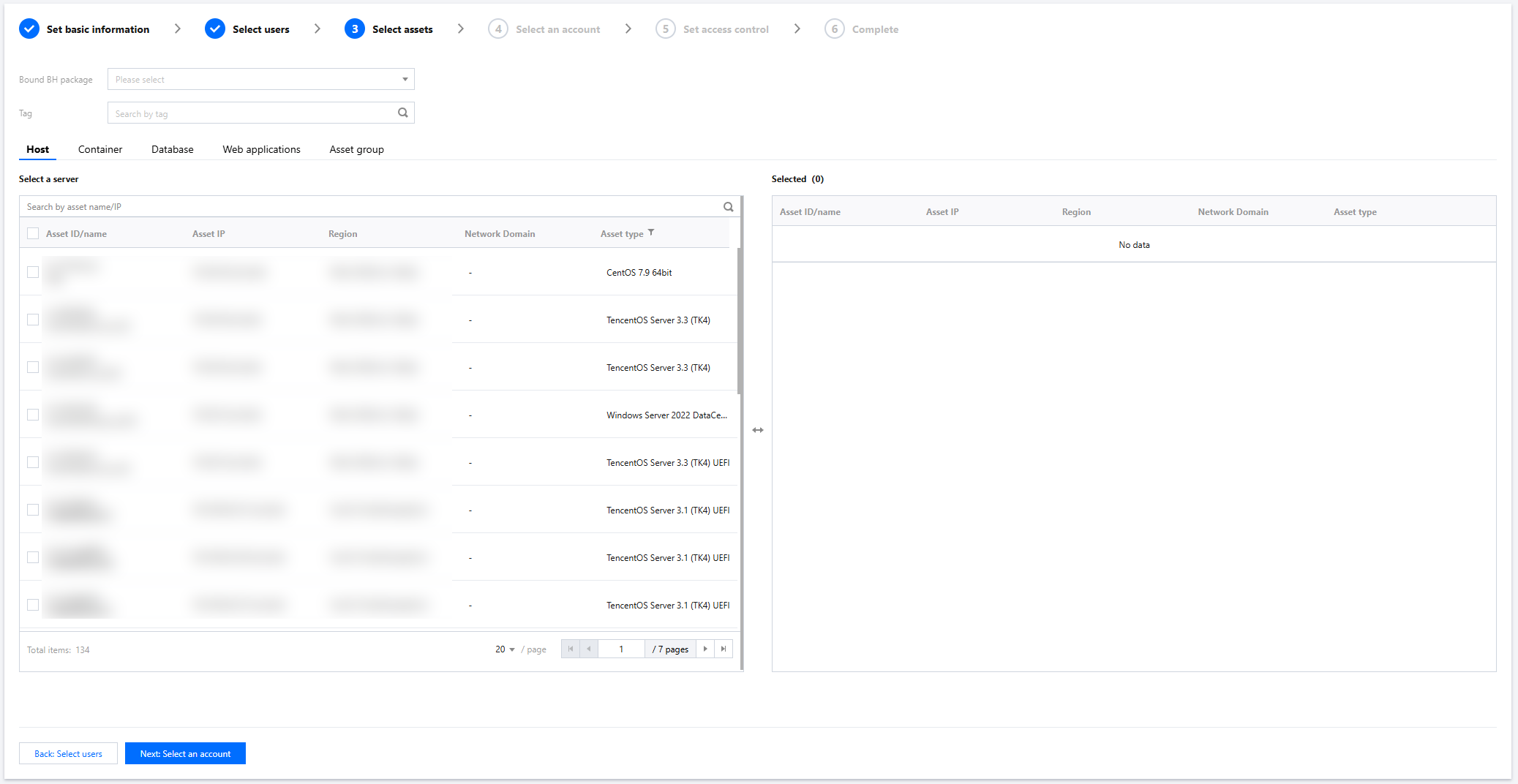
6. On the Select Asset page, select the host assets, database assets, Web application assets, or asset groups that users can access, and filter based on department, BH service, or Tag, then click Next: Select an account.
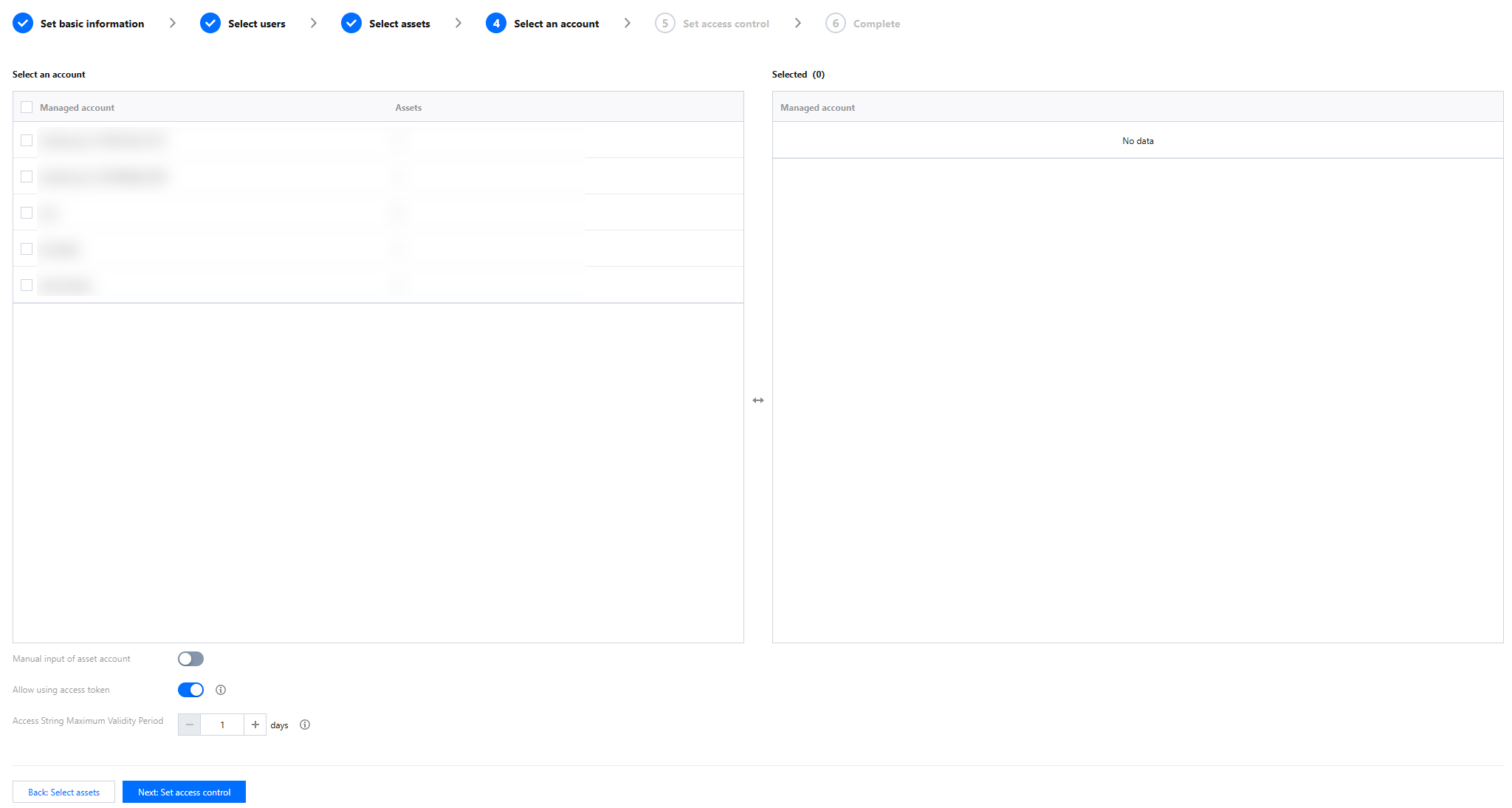
7. On the Select Account page, select the accounts associated with the selected assets, then click Next: Set access control.
Note:
Currently, the database can only be accessed through a connection string.
You can set a maximum validity period for access strings. After the validity period is modified, it only takes effect for newly created access strings or operations that update the expiration time of access strings.
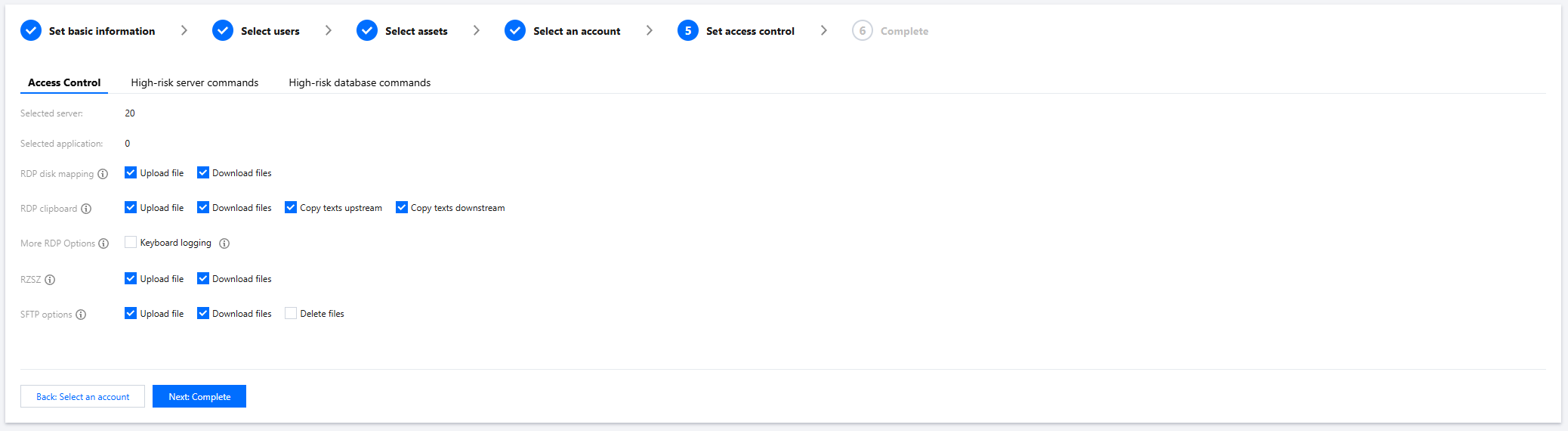
8. On the Set Access Control page, configure host access control, host high-risk command control, and database access control, then click Next: Complete.
Host Access Control Configuration Item
Configuration Item Content
RDP disk mapping
Upload file.
Download files.
RDP clipboard
Upload file.
Download Files.
Copy texts up stream.
Copy texts downstream.
More RDP Options
Keyboard logging (Enabling keyboard logging may record sensitive information.)
When remotely connecting from a Mac to a Windows host, pressing fn+F5 records the F5 key event but not the fn key press event. Pressing fn alone is also not recorded.
In a Windows terminal MSTSC connection, pressing the Menu key next to the Win key does not record that event.
In a Windows terminal Web connection, pressing the PrintScreen key does not record that event.
In a Windows terminal, when a Windows host is connected to over the Web, pressing Ctrl+N opens a new browser locally and records only the Ctrl key event.
In a Windows terminal, when a Windows host is connected to over the Web, pressing Win+M minimizes the entire browser locally and records only the Win key event.
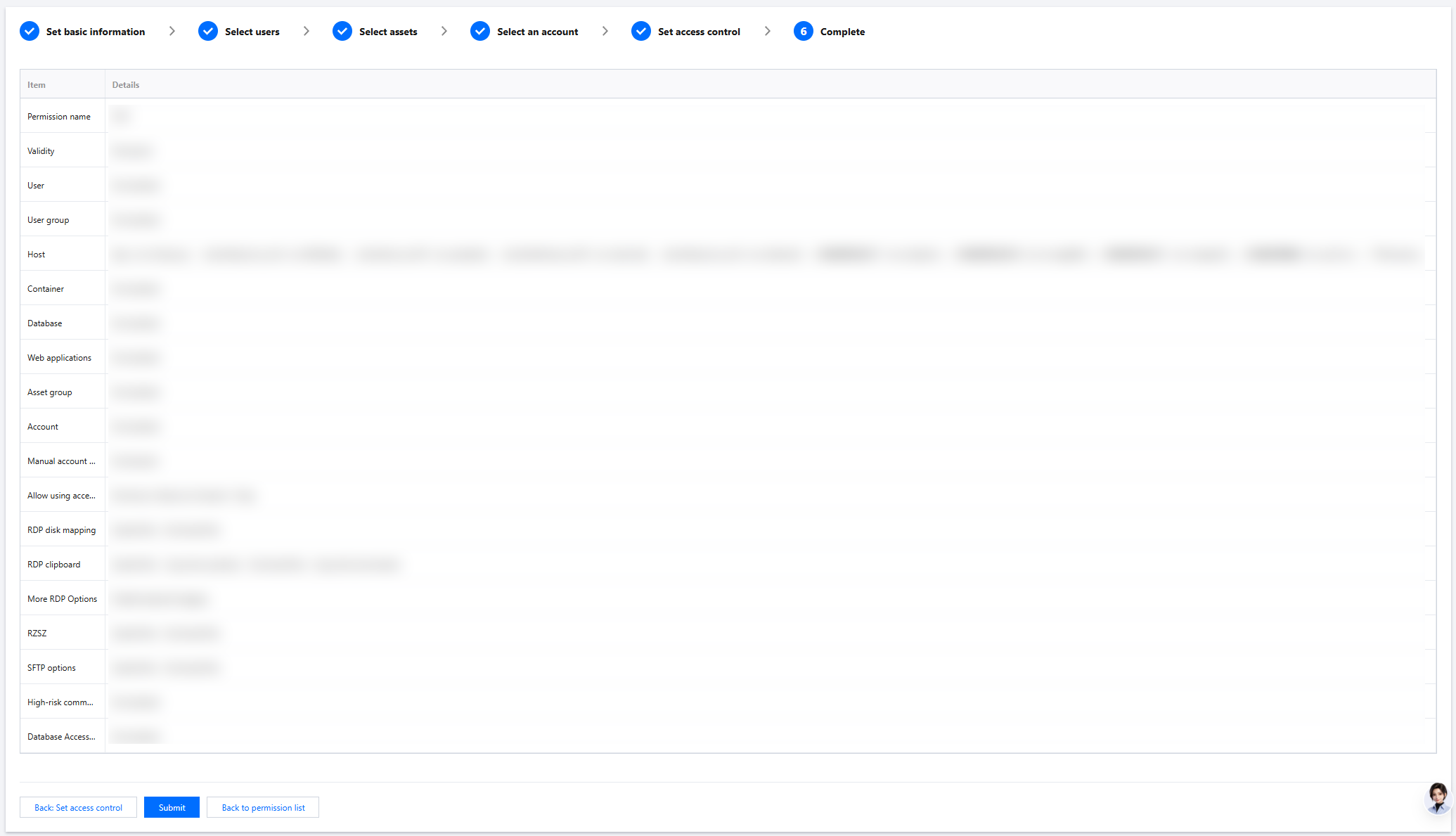
9. In the Permission Information Confirmation page, after confirming that the permission configuration is correct, click Submit to create access permissions. Then, when Ops personnel log in to the Ops page, they will be able to see the accessible hosts.