Grayscale Release
Download
Focus Mode
Font Size
Scenarios
A canary release is a common deployment method in the software release process. It involves directing a specific portion or proportion of traffic to the version under validation during the release, in order to observe the online performance of the new version. Compared to a full release, a canary release is a more cautious deployment approach. When the online call chain is complex, a full-link canary release can isolate each online service into a separate runtime environment. The canary release feature is only supported in the Professional edition.
By leveraging the grayscale policy capability of the Cloud Native Intelligent Gateway, you can visually configure grayscale rules without modifying any business code, enabling easy-to-use, full-link grayscale releases in the cloud. This document describes how to configure a grayscale release policy on the Cloud Native Intelligent Gateway console, covering the following two scenarios:
Configuring parameter-based routing to forward requests based on request features (such as header, query, cookie, path, and method)
Configuring percentage-based routing to forward requests to different services based on the ratio
Prerequisites
The cloud-native intelligent gateway instance has been purchased. The canary release feature is only supported in the Professional edition. For details, see Operation Documentation.
The backend service (Service) and route (Route) have been configured.
Operation Steps
Step 1: Update the Routing Plugin
Before a grayscale release policy is configured, ensure that the tse-route (route forwarding) plugin is upgraded to the latest version.
1. Log in to the TSF console.
2. Click Cloud Native Gateway > Instance List in the left sidebar, click the target instance ID to go to its details page, and then click Plugin Management on the left.
3. Click the System Plugins tab to check whether the plugins are updated to the latest version. If not, click the plugin name to go to the plugin details page, and click Install Latest Version on that page.
Step 2: Create a Global Configuration (Optional).
Note:
If Logical Relationship is set to IN or NOT IN for the grayscale release policy, Parameter Value can be set to Global configuration. In this case, a global configuration needs to be created in advance.
1. In the left sidebar, choose the Service & Route > Global Configuration tab, and then click New.
2. On the Create Configuration page, enter the configuration name and configuration content. You can click Import File to import the configuration content.
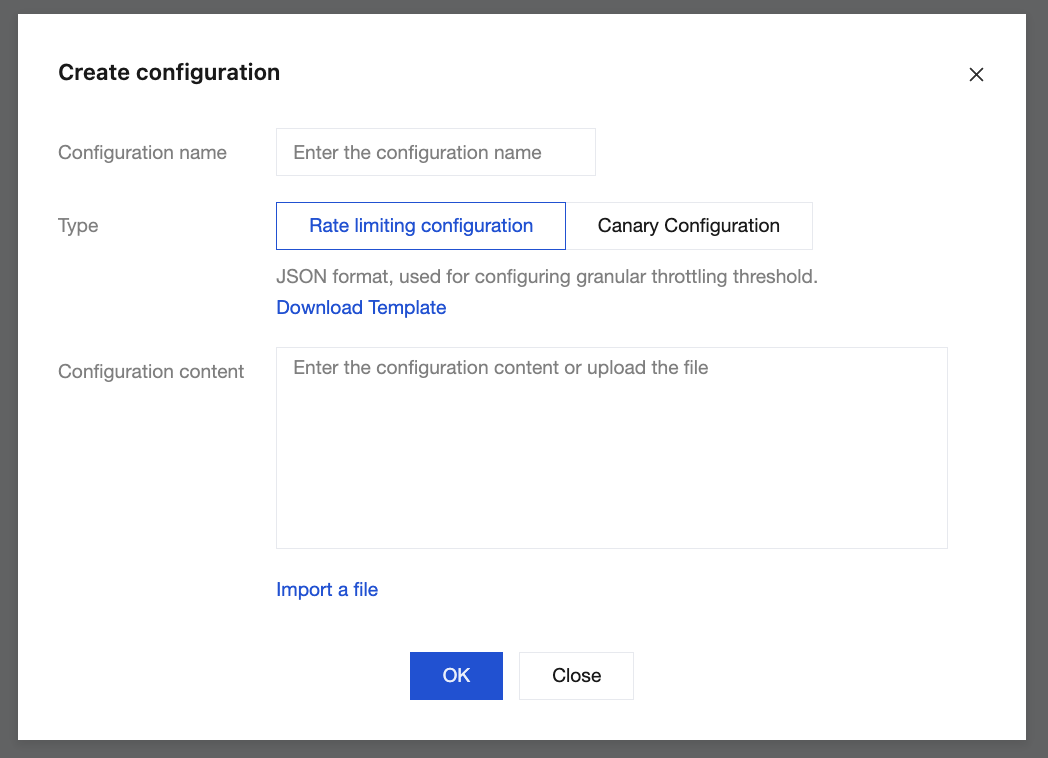
3. Click Submit to complete the creation.
Step 3: Configure a Grayscale Policy
1. In the left sidebar, choose the Service & Route > Service tab, click the service name, and go to the service details page.
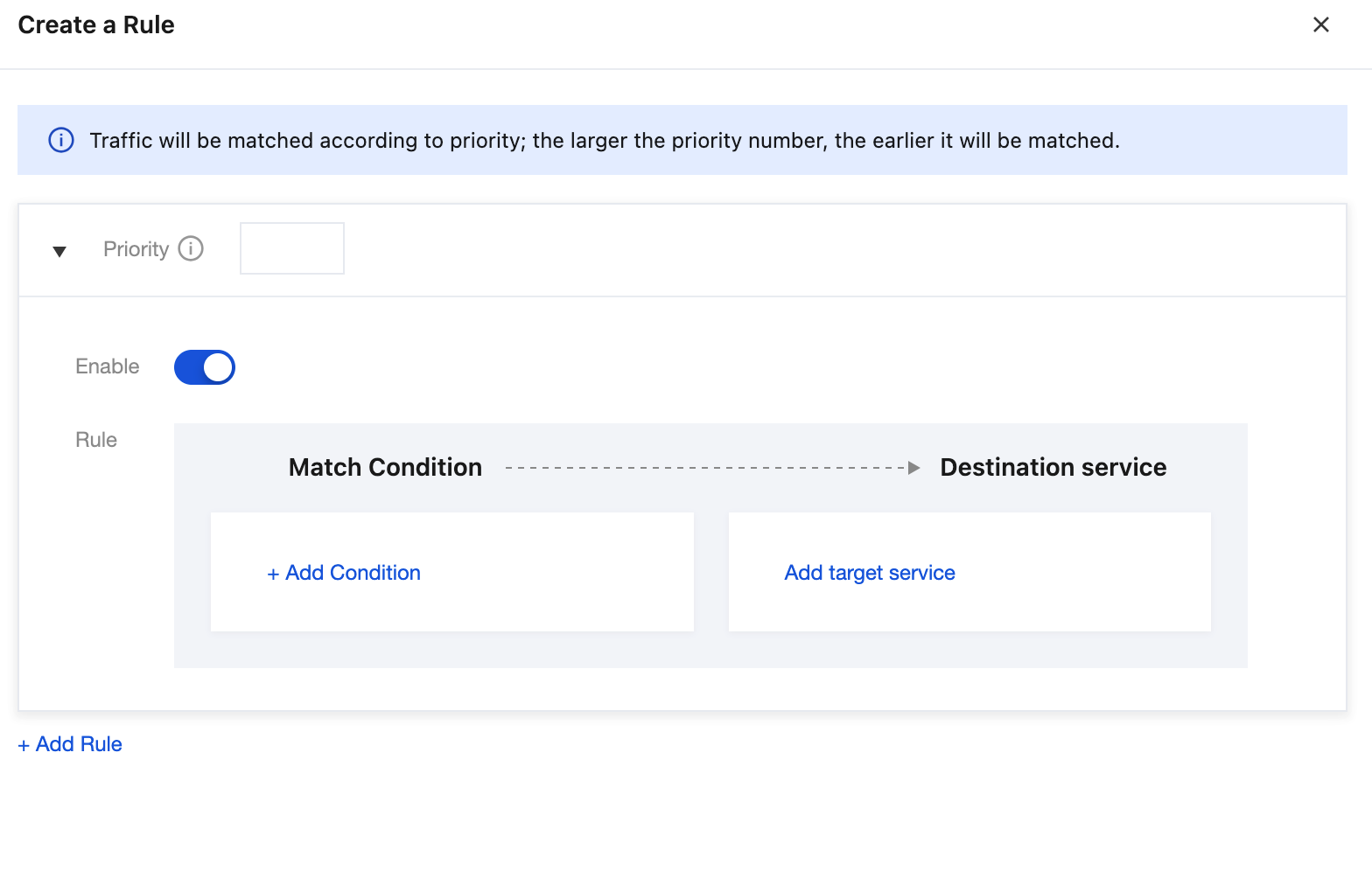
2. Select the Grayscale Policy tab, choose the standard grayscale rule, click Create Rule, and configure the rule information.
Priority: The value range is 0 to 100. A larger value indicates a higher priority. The priority of each rule should be unique. Multiple rules can be configured, and the gateway matches rules by priority. Once a rule is matched, the gateway forwards requests to the target backend service.
Enable: Once enabled, the created grayscale policy takes effect.
Matching conditions: Multiple conditions within a routing rule have a logical AND relationship. That is, requests are forwarded to the corresponding backend service only when all conditions in a routing rule are met.
Parameter | Description |
Parameter Type | Select the parameter type. The supported parameter types are described as follows: Request parameters in specific locations: Currently, only the Header, Path, Body, Query, and Cookie parameters are supported. Attention: Body parameters refer to the parameters in the request JSON. They are supported only when the content-type is application/json. Body parameters are parsed only at the first level of the JSON. If duplicate keys exist, the later parameter value is selected. Request method matching: Only one method in the array needs to be matched. Constant parameters: STRING: string type, enclosed with single or double quotes, for example, "Hello" and 'hello'. NUMBER: number type, for example, 0.1, 100.0, and 1. System parameters: domain: domain name of a request. clientIp: IP address of the client. httpScheme: request protocol, which can be HTTP, HTTPS, WS, or WSS. clientUa: UserAgent field uploaded by the client. |
Parameter Name | Enter the parameter name. |
Logical Operator | Select the logical relationship. Supporting existence and regular expressions Supporting operators less than (<), less than or equal to (<=), greater than (>), greater than or equal to (>=), equal to (==), and not equal to (!=) IN and NOT IN are supported. Binary operations are not supported. Mathematical operations are not supported. |
Parameter Value | Enter the parameter value. When Logical Relationship is set to IN or NOT IN, Parameter Value can be manually entered or set to the global configuration. If no global configuration exists, create a global configuration by referring to Global Configuration. |
Target service: the backend service to which requests are routed after all conditions in a routing rule are met. It supports one or more backend services, and the sum of the percentages for all backend services must be 100%.
3. Click Confirm to complete the rule creation.
Step 4: Verify Whether the Policy Takes Effect
Send a backend service access request. The gateway dynamically routes the request to the target backend service based on request parameters.
Help and Support
Was this page helpful?
You can also Contact sales or Submit a Ticket for help.
Help us improve! Rate your documentation experience in 5 mins.
Feedback