Viewing Gateway Details
Download
Focus Mode
Font Size
This document describes how to view the basic information and access address of a gateway instance after it is created.
Operation Steps
1. Log in to the Microservices Platform console. In the left sidebar, click AI Gateway > Instance List.
2. On the instance list page, click the ID of the newly created instance to go to the gateway instance basic information page, where you can view the instance's basic information.
Instance Information: In the Basic Information area, you can perform the following operations:
Click Edit in the upper right corner of the Basic Information module to modify the instance name and description.
Click the edit icon next to Public Network Billing Mode to modify the public network billing mode.
Click the edit icon next to Tag to modify the bound tag information of the gateway instance.
Node Configuration:
Node Specification: the specification of each node in the gateway instance.
Node quantity: the number of nodes in the gateway instance.
Network Configuration:
Access Port: the access port of the AI Gateway.
Force HTTPS Redirect: an instance-level configuration of the AI Gateway. When an HTTP request is received and this configuration is enabled, the request is forcibly redirected to HTTPS.
Internal Management Port: the management port of the AI Gateway. The management port has no access control and can only be accessed via a private network Private Link.
Private Link: the private network address of the AI Gateway. Clients can access the gateway nodes of the AI Gateway via the private network node address.
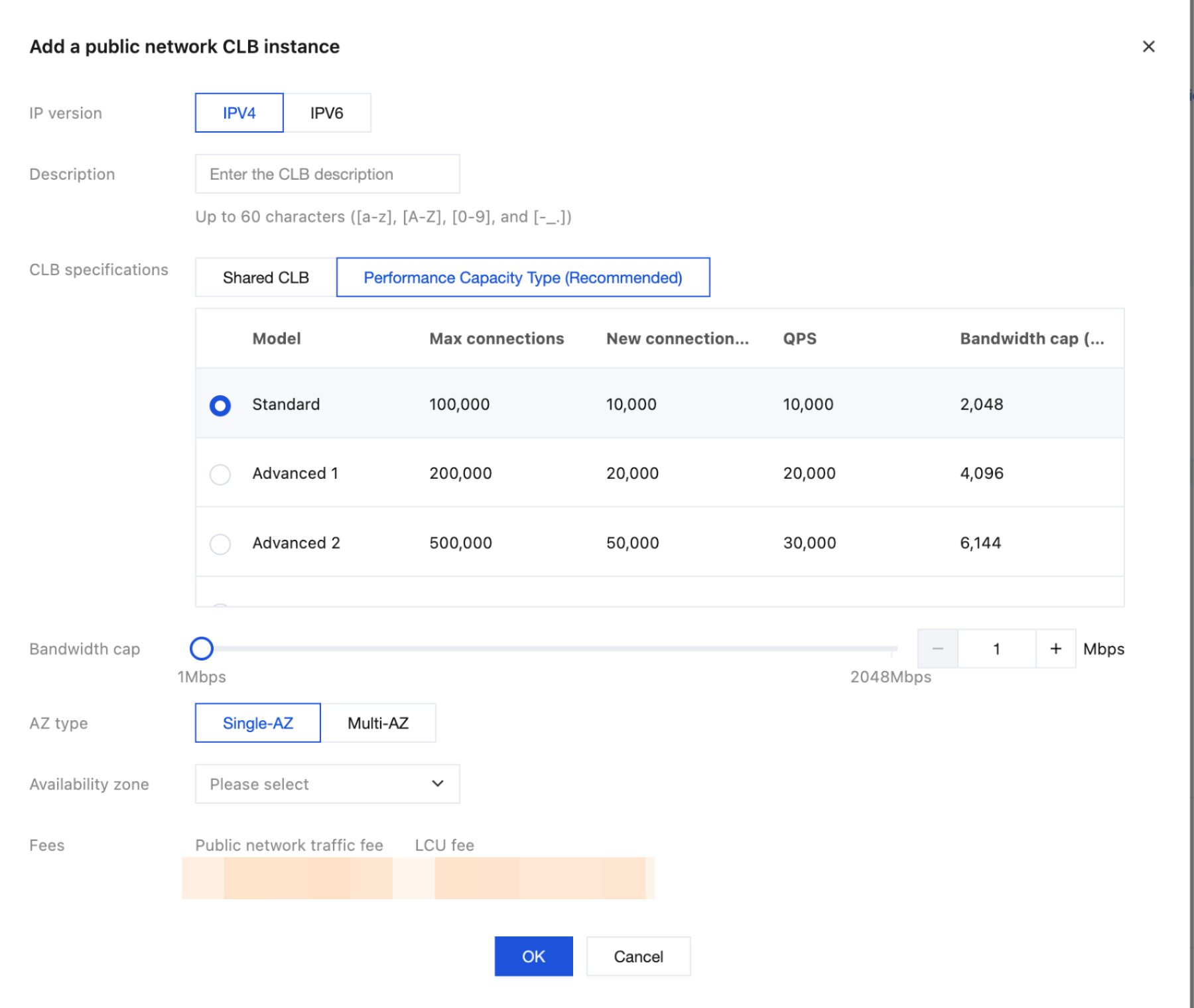
Public Load Balancer: public load balancer instance configured for the gateway instance. You can modify the public network bandwidth and configure access policies. You are advised to set access security policies for public network access.
Note:
You can select the CLB specification for Private Link and Public Load Balancer. Click Add, set the CLB specifications, and click Confirm.
3. On the instance details page, click the Deployment Architecture tab to view the status and AZ information of the gateway nodes.
Click to switch the view to the deployment architecture diagram, which displays the deployment of the access layer (CLB) and gateway nodes.
Help and Support
Was this page helpful?
You can also Contact sales or Submit a Ticket for help.
Help us improve! Rate your documentation experience in 5 mins.
Feedback