Service Tag Filtering
Download
Focus Mode
Font Size
Scenarios
Tag-based routing enables flexible service selection by binding Key-Value pairs as Tags to model services and then dynamically filtering available model services based on Tag conditions within the model API. This method applies to the following scenarios:
On-demand Filtering: It automatically filters eligible services from a large batch of models based on Tag conditions, eliminating the need for manual selection one by one.
Multi-cloud Hybrid Management: It assigns Tags to model services from different cloud service providers and regions, enabling flexible composition based on business requirements.
Canary Release and Version Management: It filters services for specific versions or environments using Tags such as
version and env.Prerequisites
1. The AI gateway instance has been created and is in a running state.
2. Multiple model services have been created.
3. Tags (Key-Value pairs) have been configured on the model service.
Operation Steps
Step 1: Configuring Tags for the Model Service
Tags must be configured when a model service is created or edited, as they form the basis for subsequent routing filtering.
Configuring Tags When a Model Service Is Created or Edited
1. Log in to the Microservices Platform console. In the left sidebar, click AI Gateway > Instance List.
2. On the instance list page, click the ID of the gateway instance you want to configure to go to its basic information page.
3. In the left sidebar, click Model Management, and then click the Model Service tab.
4. Click New or edit an existing service.
5. In the Service Tag area under Basic Information > Advanced Configuration, configure Tag key-value pairs.
Tag Configuration Description:
Parameter | Description | Example |
Tag Key | Classification identifier. It is recommended to use keys with business meaning. | region,provider,env,tier,team |
Tag Value | The value corresponding to the key | singapore,openai,production,vip |
6. Common Tag templates are built-in. You can quickly add a Tag by clicking on it.
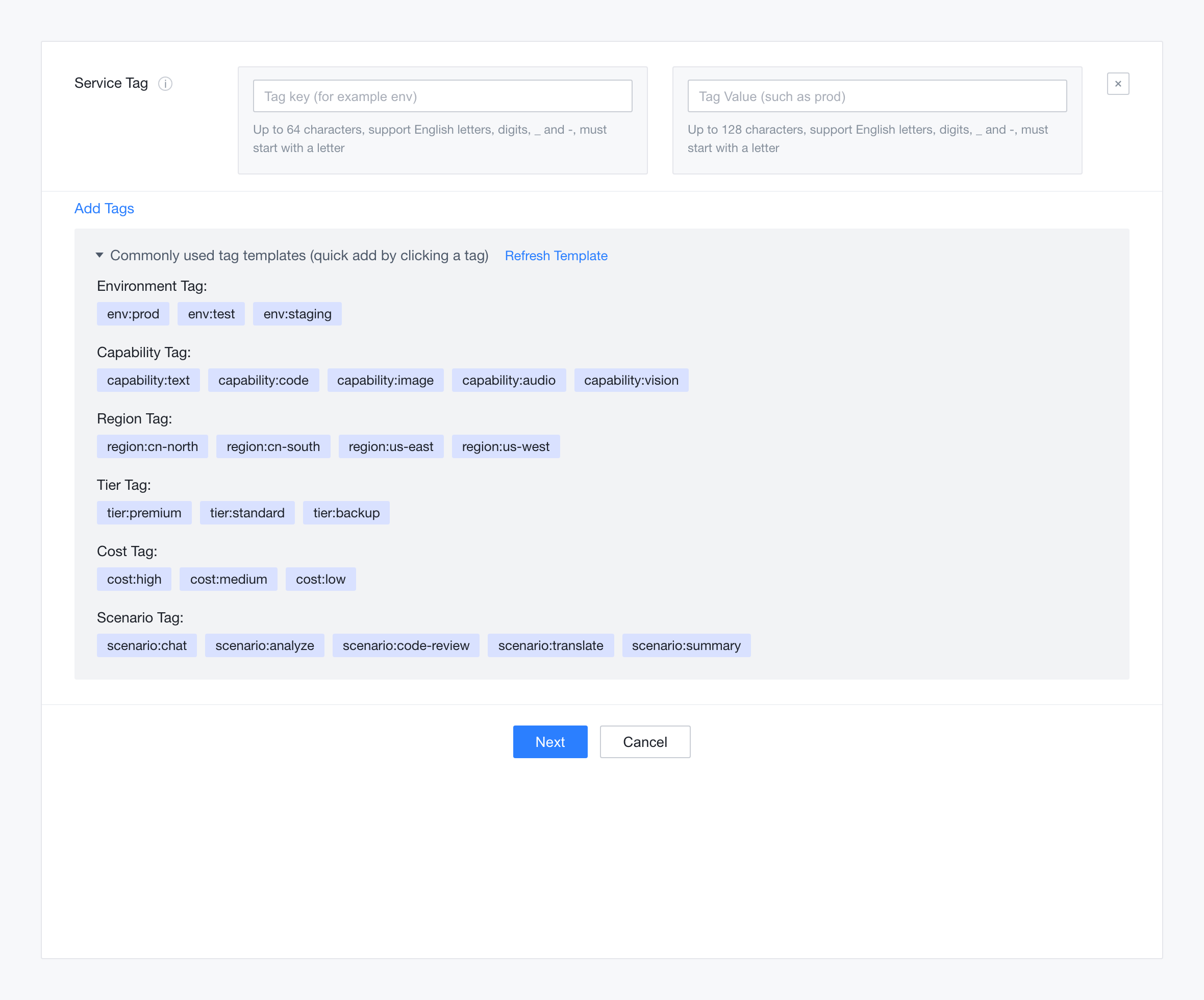
Step 2: Configuring Tag Filtering in the Model API
After completing the Tag configuration for a model service, you can filter services by Tag conditions when creating or editing a model API.
1. Go to the Model API Configuration Page
1.1 Choose Model Management > Model API in the left sidebar.
1.2 Click New Model API or edit an existing API.
1.3 After completing the basic information configuration, go to Step 2: Select Model Service.
2. Configuring Tag Filtering Conditions
In the Tag Filter area, configure the filter criteria and matching mode:

Configuration Parameter Description:
Parameter | Required | Description | Example |
Match Mode | Yes | The combination logic of tag conditions | AND or OR |
Tag Key | Yes | The key name of the model service tag | region |
Tag Value | Yes | The expected tag value to match | singapore |
Matched Services | Automatic | The list of services automatically filtered based on conditions | OpenAI-Singapore-Prod, and so on |
3. Configuring Subsequent Routing Policies
After Tag filtering is complete, select the matched services. You can then choose a subsequent routing policy (such as model name routing or weighted routing) to allocate traffic to these services with finer granularity.
4. Saving the Configuration
Click OK to save the Model API configuration. The Tag routing rule takes effect immediately.
Help and Support
Was this page helpful?
You can also Contact sales or Submit a Ticket for help.
Help us improve! Rate your documentation experience in 5 mins.
Feedback