Figma
Download
Focus Mode
Font Size
Feature Overview
CodeBuddy IDE provides a powerful design-to-code conversion feature. With the built-in Figma2Code feature, you can generate high-quality production code directly from Figma design files. This feature supports precise design restoration and significantly improves development efficiency.
Prerequisites
Important: To use this feature, the following conditions must be met:
Figma account permissions: You must have edit or development permissions for the Figma design file.
File access permissions: Ensure that you have access to the Figma design file to be imported.
Team collaboration permissions: For team projects, you need to obtain the corresponding collaboration permissions.
If you do not have the required permissions, contact the owner of the design file or the team administrator to obtain access authorization.
Operation Steps
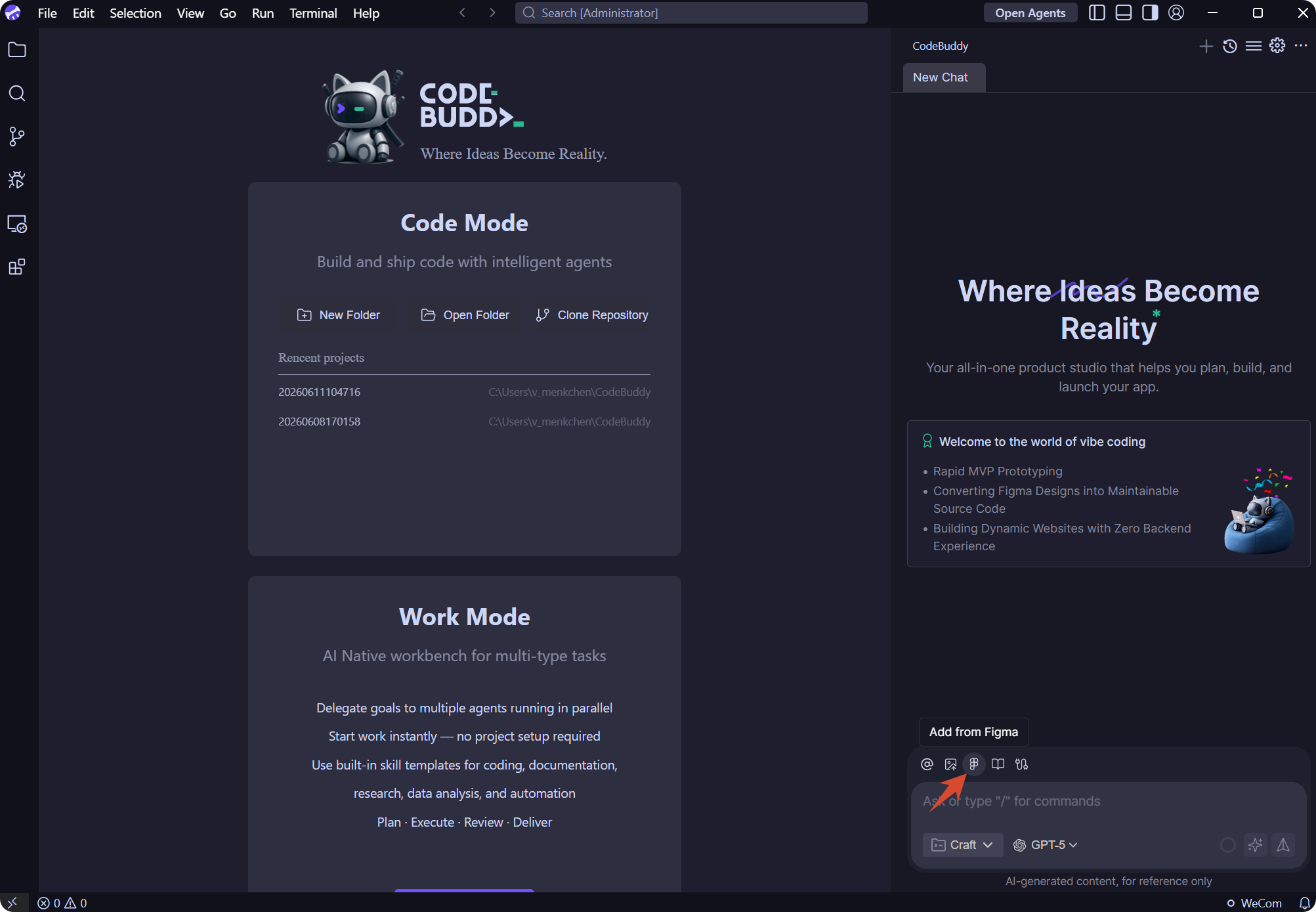
Step 1: Start Figma Integration
In the Craft Agent page, click the Figma button to start the import process.
Step 2: Authorize Figma Login
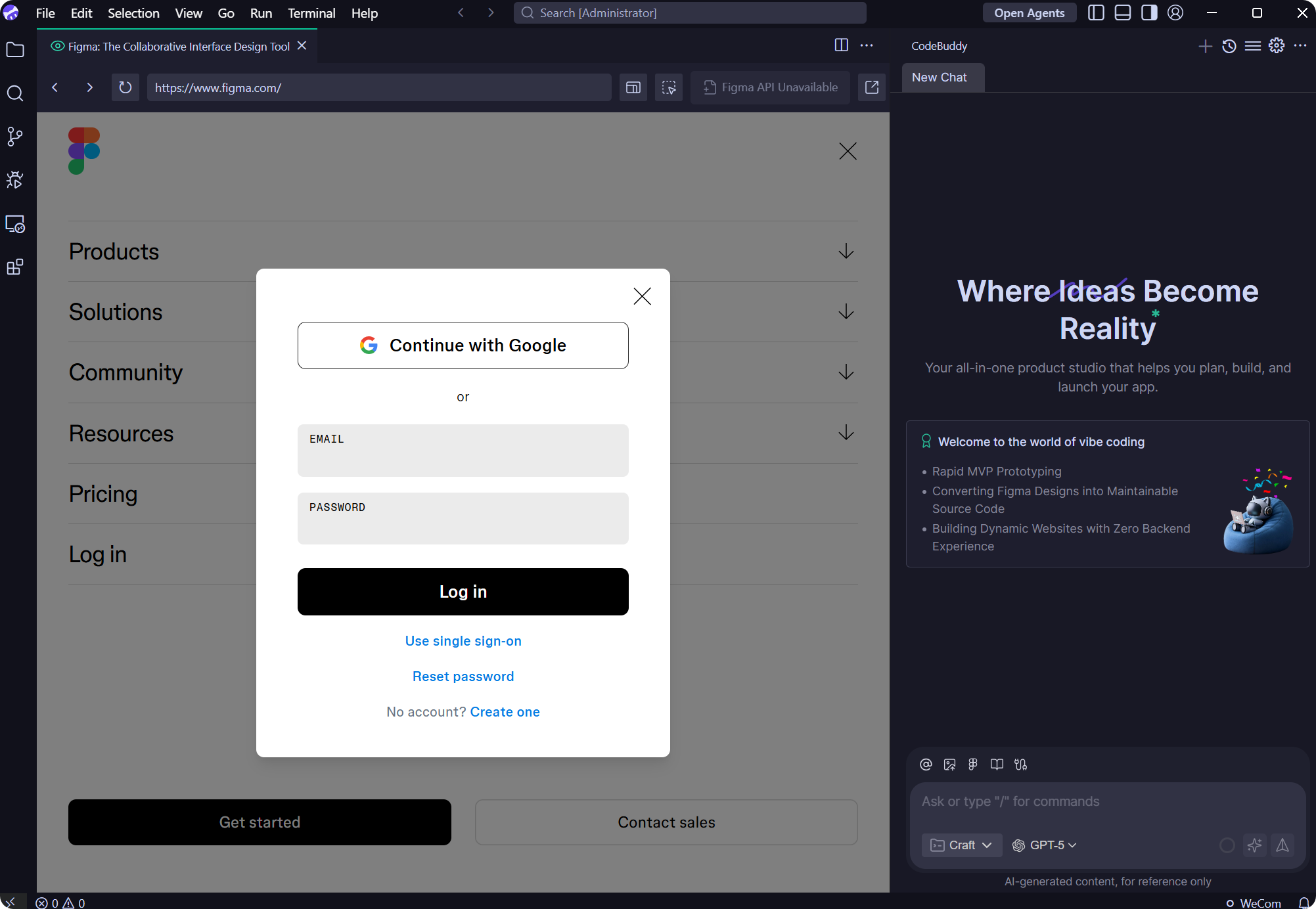
The system will redirect to the official Figma website. Use your Figma account to log in and authorize.
Step 3: Confirm Authorization Success
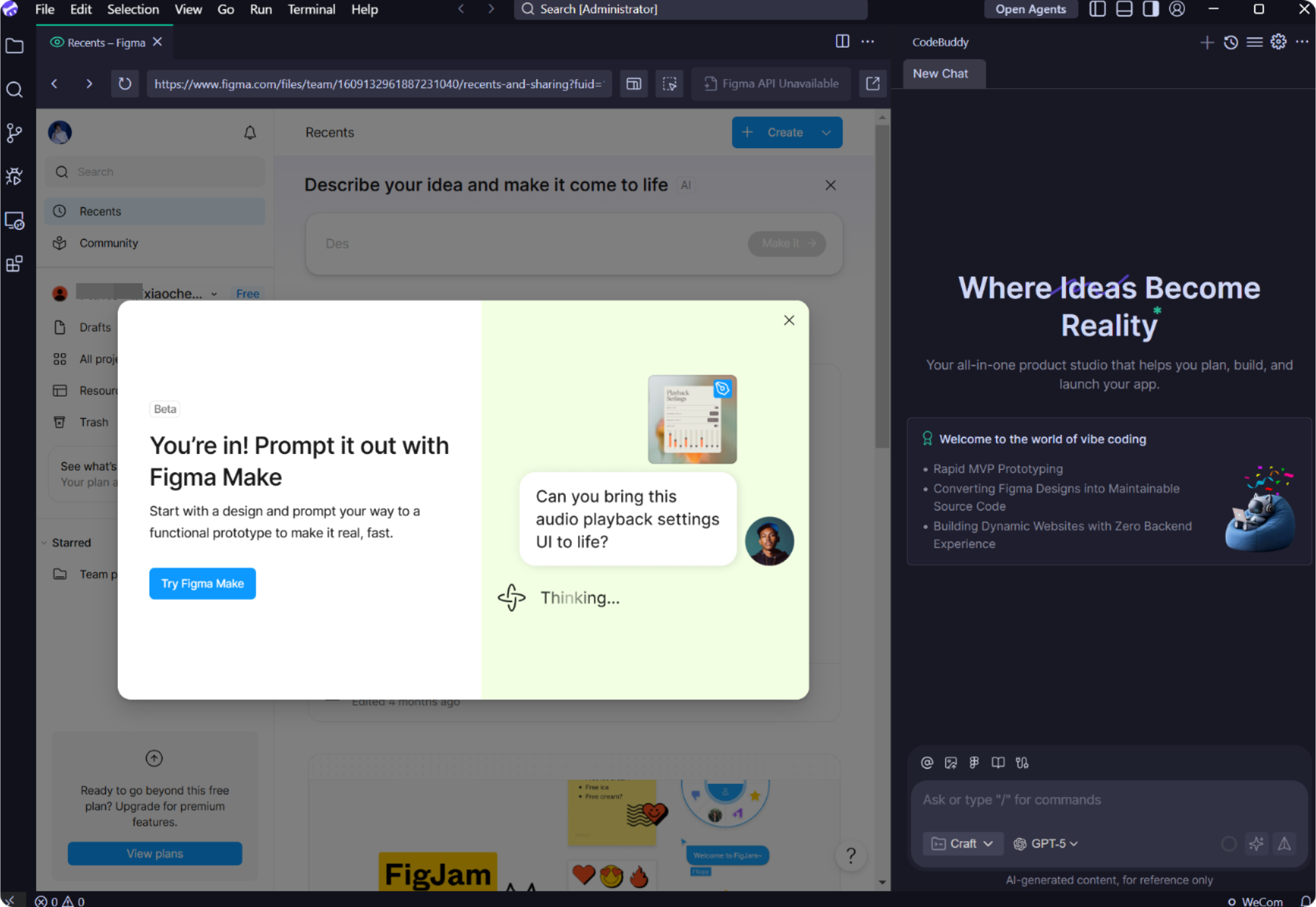
After login is complete, you will see a confirmation page indicating successful authorization.
Step 4: Select a Design File
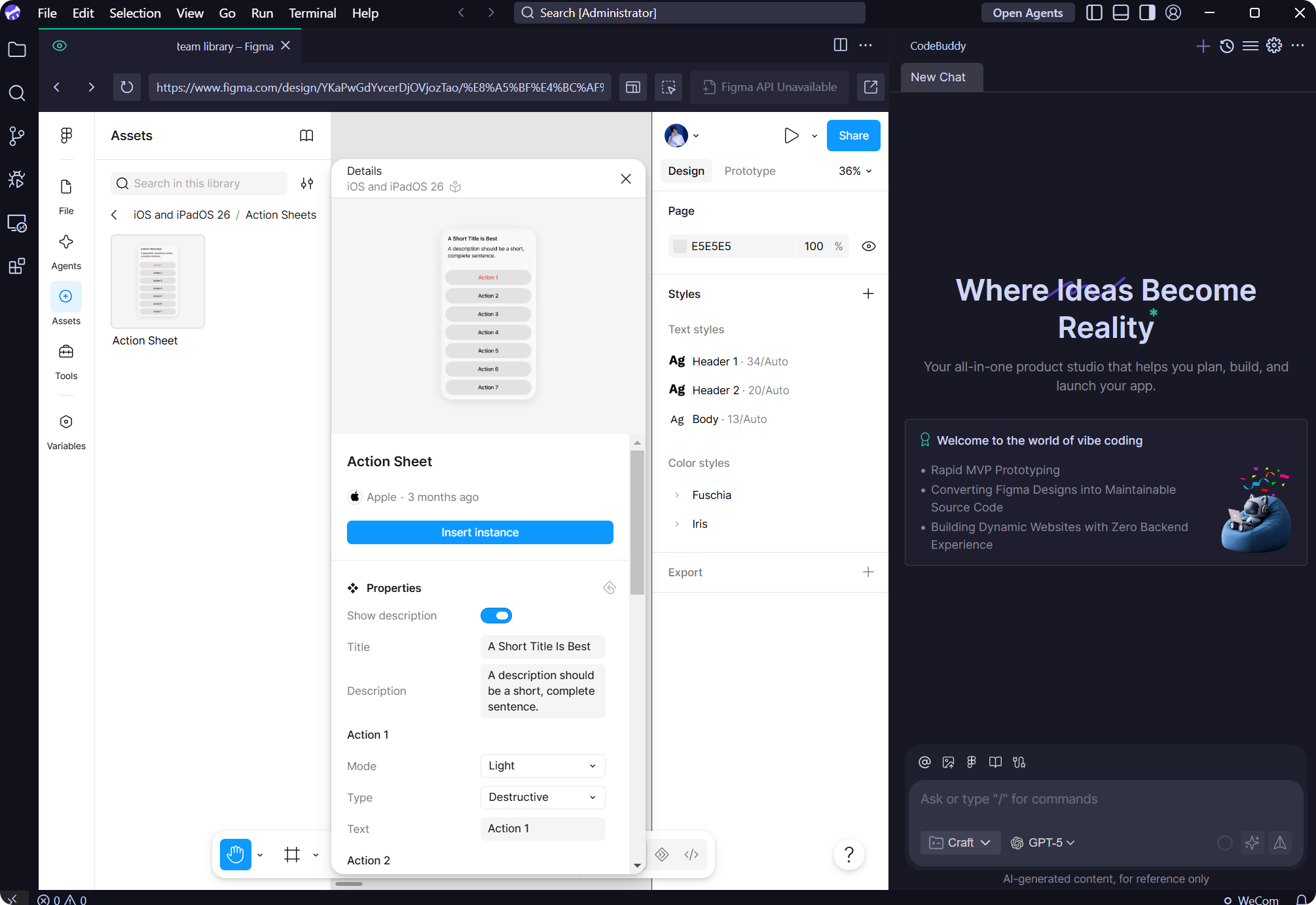
Select the desired design file from your Figma workspace, and click Open to enter the editing page.
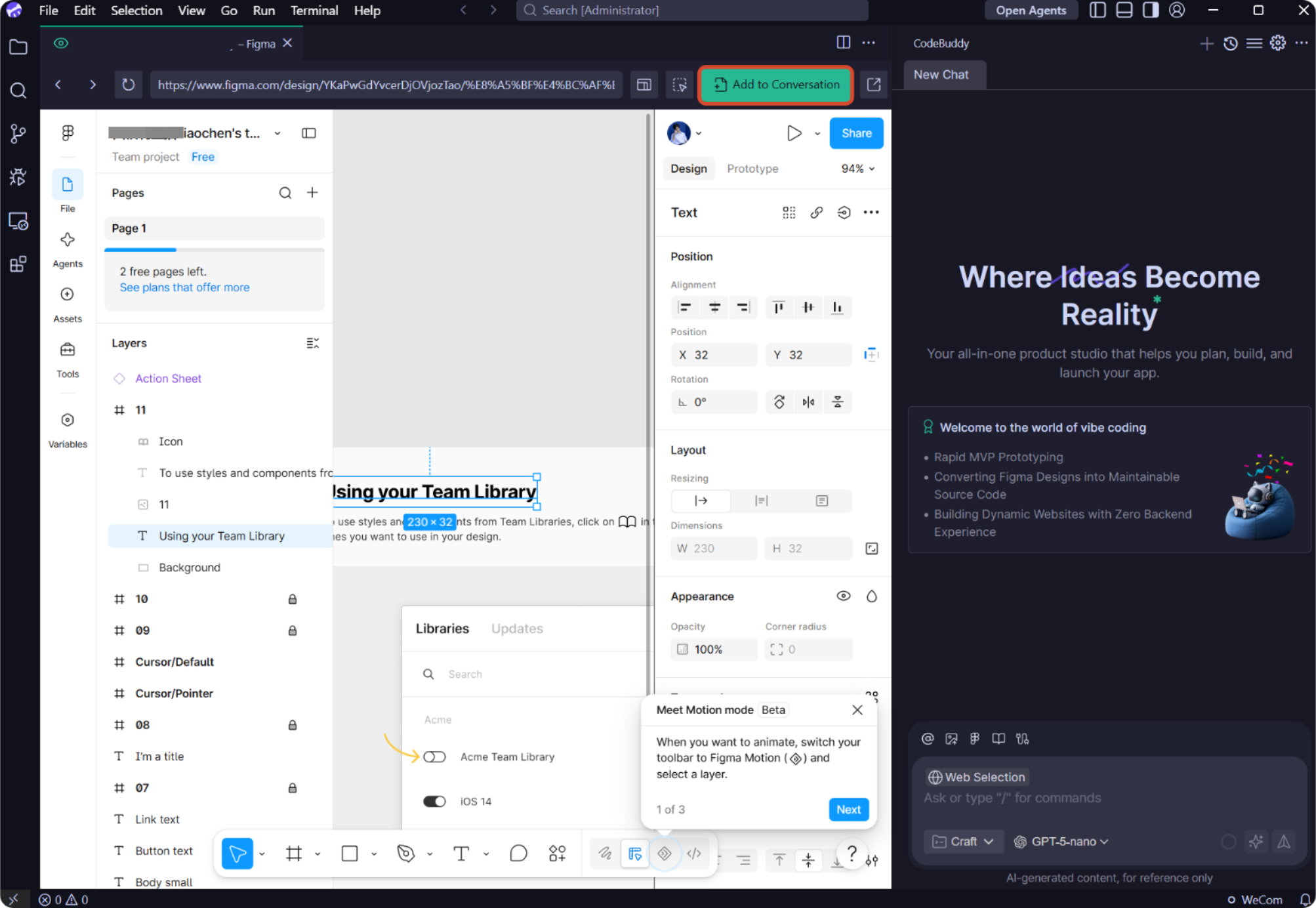
Step 5: Select Design Components
In the Layers panel of Figma:
Select the component or design area that you want to convert.
Click the Add to Conversation button in the upper-right corner.
The selected design will be imported into CodeBuddy IDE.
Step 6: Start Code Generation
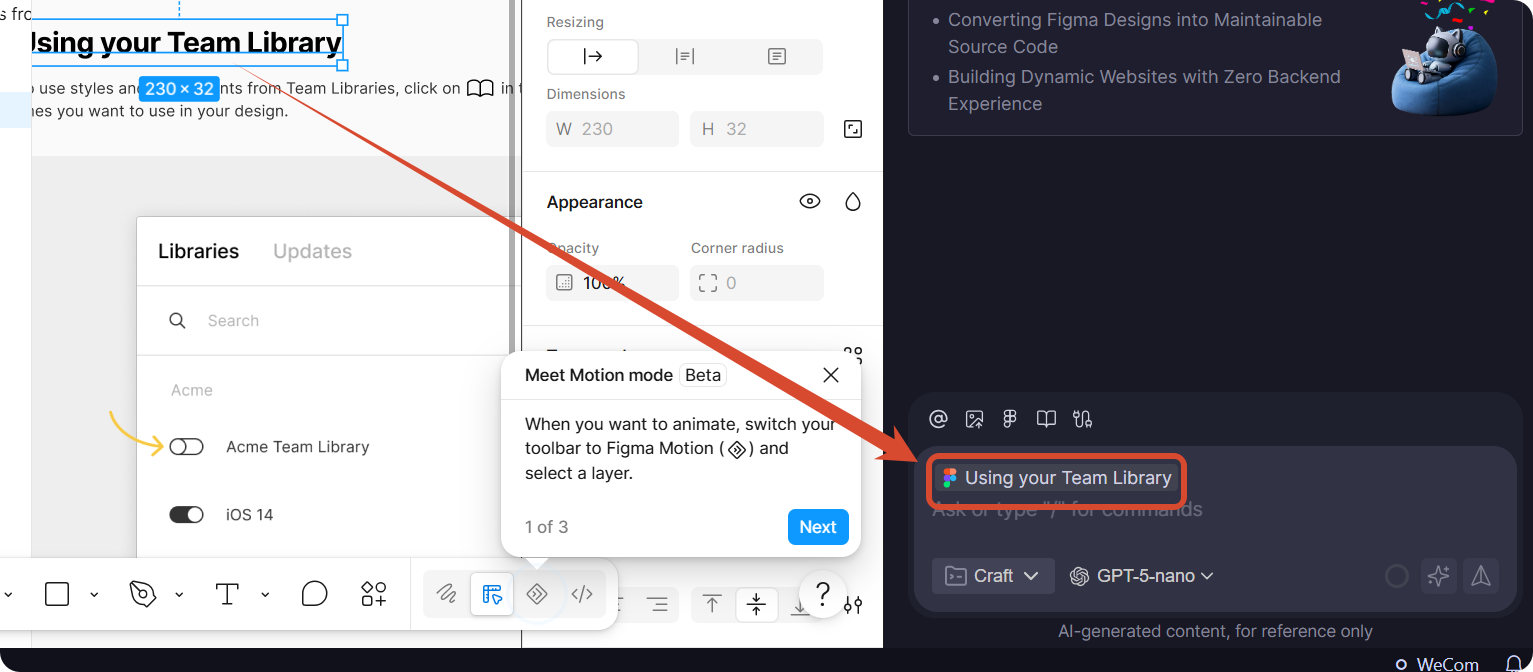
After the design is successfully imported, it will be displayed in the IDE dialog. Now you can:
Describe your specific development requirements in the input box.
AI will automatically generate the corresponding code based on the design.
Step 7: Preview Generated Results
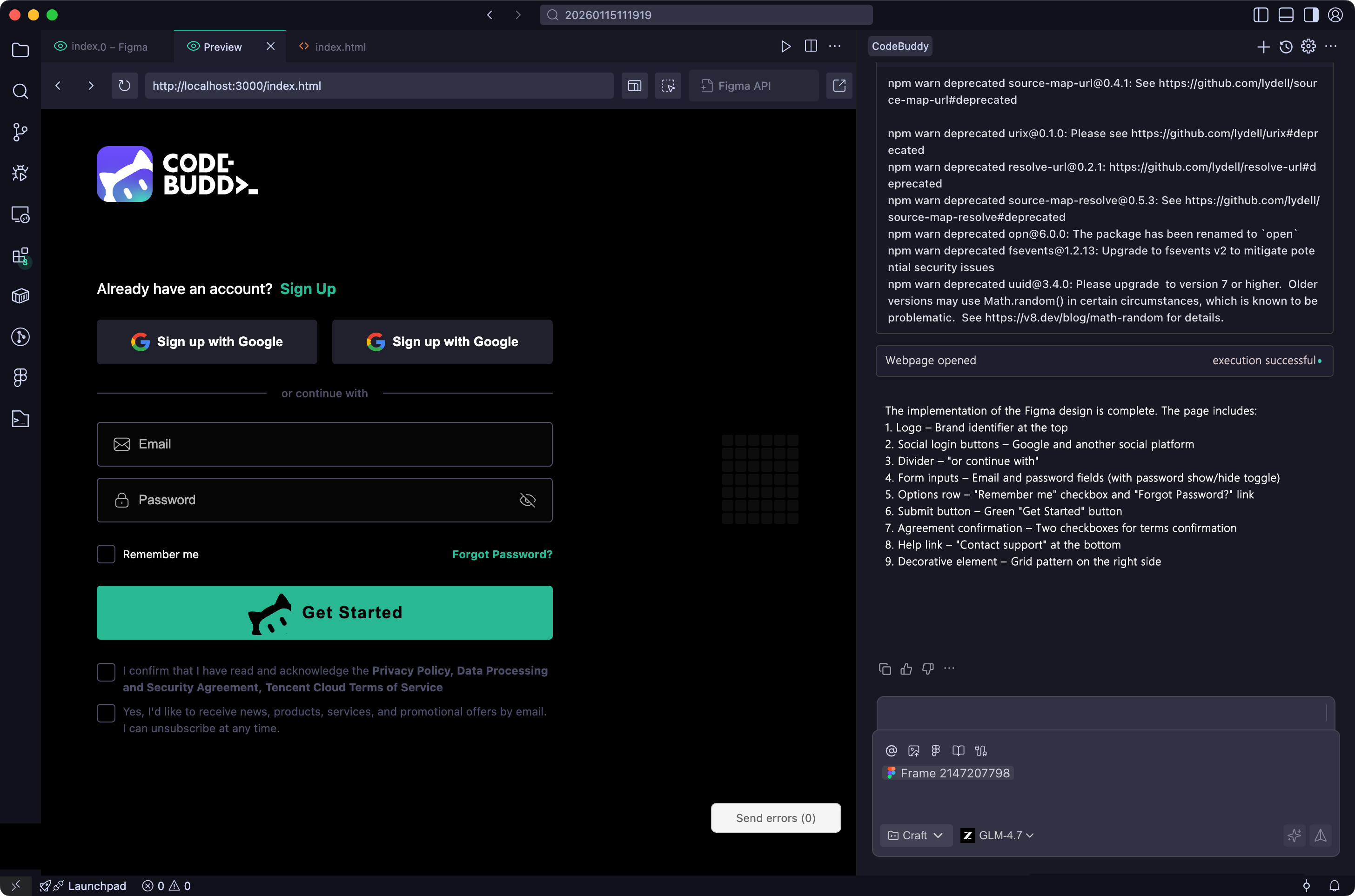
After code generation is complete, you can view the result in the Preview panel. As shown in the figure, the generated code maintains a high degree of fidelity to the original design.
Tips
Precise selection: When selecting components in Figma, select complete design modules to achieve better conversion results.
Describe your requirements: When code is generated, provide detailed functional requirements and technology stack preferences so that AI can generate code that better meets your expectations.
Iterative optimization: You can continue conversing with AI based on the generated code to refine features and adjust styles.
With the Figma integration feature, designers and developers can collaborate seamlessly and quickly turn design concepts into runnable code.
Help and Support
Was this page helpful?
You can also Contact sales or Submit a Ticket for help.
Help us improve! Rate your documentation experience in 5 mins.
Feedback