Code Completion
Download
Focus Mode
Font Size
CodeBuddy IDE provides intelligent code completion as you write code, helping you code faster and more efficiently.
About Code Completion
CodeBuddy provides inline completions as you code. By analyzing the current code content and project context, it offers multi-line code completions to help you write code more efficiently.
CodeBuddy supports a wide range of programming languages and frameworks, including Python, JavaScript, TypeScript, Java, C/C++, Go, Ruby, and more.
Triggering Code Completion
Automatic Triggering
Code completion is automatically triggered as you type. When you:
Start a new line.
Enter after indentation.
Enter parentheses or other delimiters.
Move the cursor to the end of the line.
CodeBuddy analyzes your context and generates appropriate completions.
Manual Triggering
You can manually trigger code completion using keyboard shortcuts:
Platform | Shortcut Keys |
macOS | Option + \\ |
Windows/Linux | Alt + \\ |
Accepting a Completion
When a completion appears, you have the following options:
Accepting All Completions
Press the
Tab key to accept the full completion.Accepting Line by Line
Only accept the next line that has been completed:
Platform | Shortcut Keys |
macOS | Cmd + Down |
Windows/Linux | Ctrl + Down |
Accepting Word by Word
Only accept the next word that has been completed:
Platform | Shortcut Keys |
macOS | Cmd + Right |
Windows/Linux | Ctrl + Right |
Canceling a Completion
To cancel a completion without accepting it, press the
Escape key.Next Edit Suggestion (NES)
Next Edit Suggestions is an advanced feature that predicts your potential next edit operations based on your edit history and context. Unlike traditional inline completions which only continue writing from the cursor position, NES can suggest edits at various locations within the code.
How NES Works
Analyze your recent editing patterns.
Predicts the content you may want to edit next.
Displays suggestions that may span multiple lines or affect different parts of the code.
Manually Triggering NES
Platform | Shortcut Keys |
All Platforms | Ctrl + Shift + Enter |
Accepting an NES Suggestion
When an NES suggestion appears, press the
Tab key to accept it. Press the Escape key to cancel.Enabling/Disabling NES
NES is enabled by default. To toggle it:
1. Open the command palette (
Cmd/Ctrl + Shift + P).2. Search for "CodeBuddy: Quick Settings".
3. Toggle "Next Edit Suggestions".
Or configure it in the settings:
1. Open Settings (
Cmd/Ctrl + ,).2. Search for
codingcopilot.enableNextEditSuggestions.3. Toggle this setting.
Switching Completion Models
You can switch between different AI models for code completion:
1. Open the command palette (
Cmd/Ctrl + Shift + P).2. Search for "CodeBuddy: Change Completions Model".
3. Select the model you want to use.
Or access it via Quick Settings:
1. Click the CodeBuddy icon in the status bar.
2. Select "Change Completions Model".
Configuring Code Completion
Globally Enabling/Disabling Auto Completion
1. Open Settings (
Cmd/Ctrl + ,).2. Search for
codingcopilot.enableAutoCompletions.3. Toggle this setting.
Or use Quick Settings:
1. Open the command palette (
Cmd/Ctrl + Shift + P).2. Search for "CodeBuddy: Quick Settings".
3. Toggle "Auto Completions".
Enabling/Disabling for Specific Languages
You can control code completion for specific programming languages:
1. Open Settings (
Cmd/Ctrl + ,).2. Search for
codingcopilot.enableCompletionLanguage.3. Configure settings for specific languages.
Configuration example in
settings.json:{"codingcopilot.enableCompletionLanguage": {"python": true,"javascript": true,"markdown": false,"plaintext": false}}
You can also toggle completion for the current file's language via Quick Settings.
Generation Preferences
Control the style of code completion:
1. Open Settings (
Cmd/Ctrl + ,).2. Search for
codingcopilot.generationPreference.3. Select:
Intelligent Mode: Provides multi-line completions based on context.
Single-Line Mode: Limits completions to a single line.
IDE Settings Configuration
You can also configure code completion via the IDE Settings panel:
1. Click the CodeBuddy icon in the sidebar or status bar.
2. Open Settings.
3. Navigate to the Tab section.
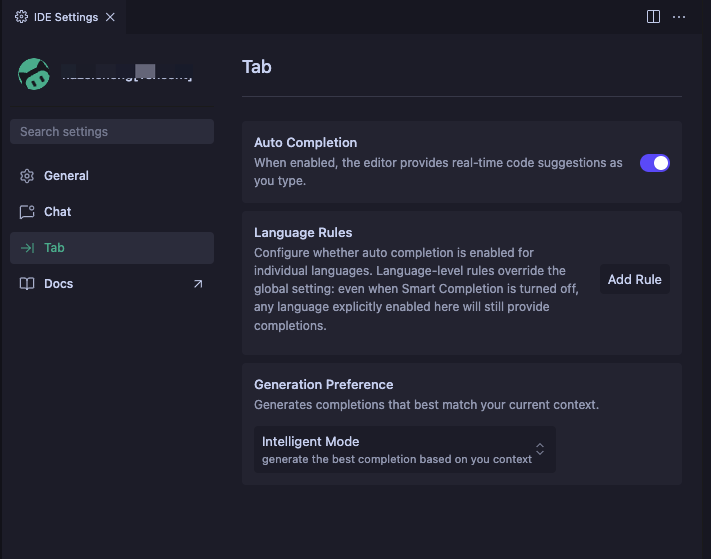
The Tab Settings page provides:
Auto Completion: Toggle the switch to enable/disable real-time code completion.
Language Rules: Configure whether to enable auto-completion for each language. Language-level rules override global settings. Even if Auto Completion is disabled, languages explicitly enabled here will still provide completions.
Generation Preference: Select Intelligent Mode (provides multi-line completions based on context) or Single-Line Mode.
Keyboard Shortcuts Reference
Operation | macOS | Windows/Linux |
Trigger completion | Option + \\ | Alt + \\ |
Accept all | Tab | Tab |
Accept a line | Cmd + Down | Ctrl + Down |
Accept a word | Cmd + Right | Ctrl + Right |
Cancel | Escape | Escape |
Trigger NES | Ctrl + Shift + Enter | Ctrl + Shift + Enter |
Help and Support
Was this page helpful?
You can also Contact sales or Submit a Ticket for help.
Help us improve! Rate your documentation experience in 5 mins.
Feedback