Inline Chat
Download
Focus Mode
Font Size
Inline Chat is a feature that embeds an input box in the code editor, allowing users to directly enter requirements or invoke commands to generate code and insert it at the current cursor position. This approach greatly enhances code generation capabilities during coding.
Features
In-place Editing: Chat with AI directly in the code editor without switching windows.
Enabling an Inline Chat
In CodeBuddy IDE, the Inline Chat feature is enabled by default, requiring no additional configuration.
Using an Inline Chat
Invocation Methods
Method | Operation Description |
Menu method | After selecting the code block, click the Edit button in the pop-up menu. |
Shortcut method | Use the shortcut key to invoke it directly. |
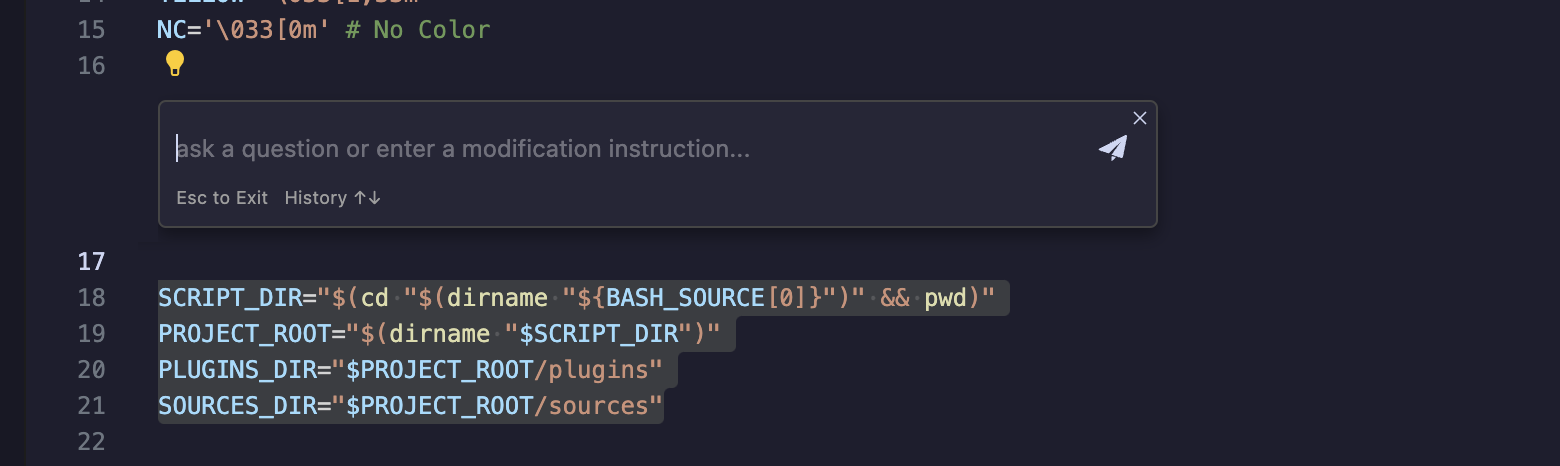
Usage Process
1. Invoke the Input Box: Open Inline Chat by using a keyboard shortcut or menu option.
2. Enter Requirements: Directly enter requirements described in natural language.
3. AI Processing: AI will help you edit the selected code or generate new code.
4. Processing Results: Accept or reject the generated code individually or in batches.
Shortcut Keys
System | Operation | Description |
Windows | Ctrl + I | Quickly open the inline chat input box. |
Mac | Command + I | Quickly open the inline chat input box. |
General | Escape | Exit/close the inline chat input box. |
Typical Scenarios
After invoking Inline Chat, you can enter requirements described in natural language as a quick scenario.
Typical use cases include:
Quickly Generate Code Templates: Quickly generate or insert common code templates, such as functions, classes, and configurations.
Code Refactoring and Optimization: Refactor, rename, and logically optimize existing code.
Code Diagnostics and Fixes: Provides real-time code diagnostics and fix suggestions, such as type checking and security detection.
Rapid Implementation of Requirements: When developing new features, quickly turn ideas into reality through natural language.
FAQs
Q1: Why Can't Inline Chat Be Invoked?
Please check the following points:
Check whether the shortcut keys conflict with other features.
Try restarting the IDE.
Q2: Why Is the Generated Code Not as Expected?
Try providing a more detailed description of your requirements.
You can try multiple times and select the best result.
Q3: How to Undo Accepted Code?
Use the IDE's undo feature (
Ctrl + Z / Command + Z) to undo accepted code modifications.Help and Support
Was this page helpful?
You can also Contact sales or Submit a Ticket for help.
Help us improve! Rate your documentation experience in 5 mins.
Feedback