Introduction to Built-in Slash Commands in CodeBuddy
Download
Focus Mode
Font Size
Overview
It includes 7 efficient Slash Commands designed for the full code development workflow, helping developers quickly complete core development tasks such as project initialization, code review, test generation, and issue fixing.
Usage:
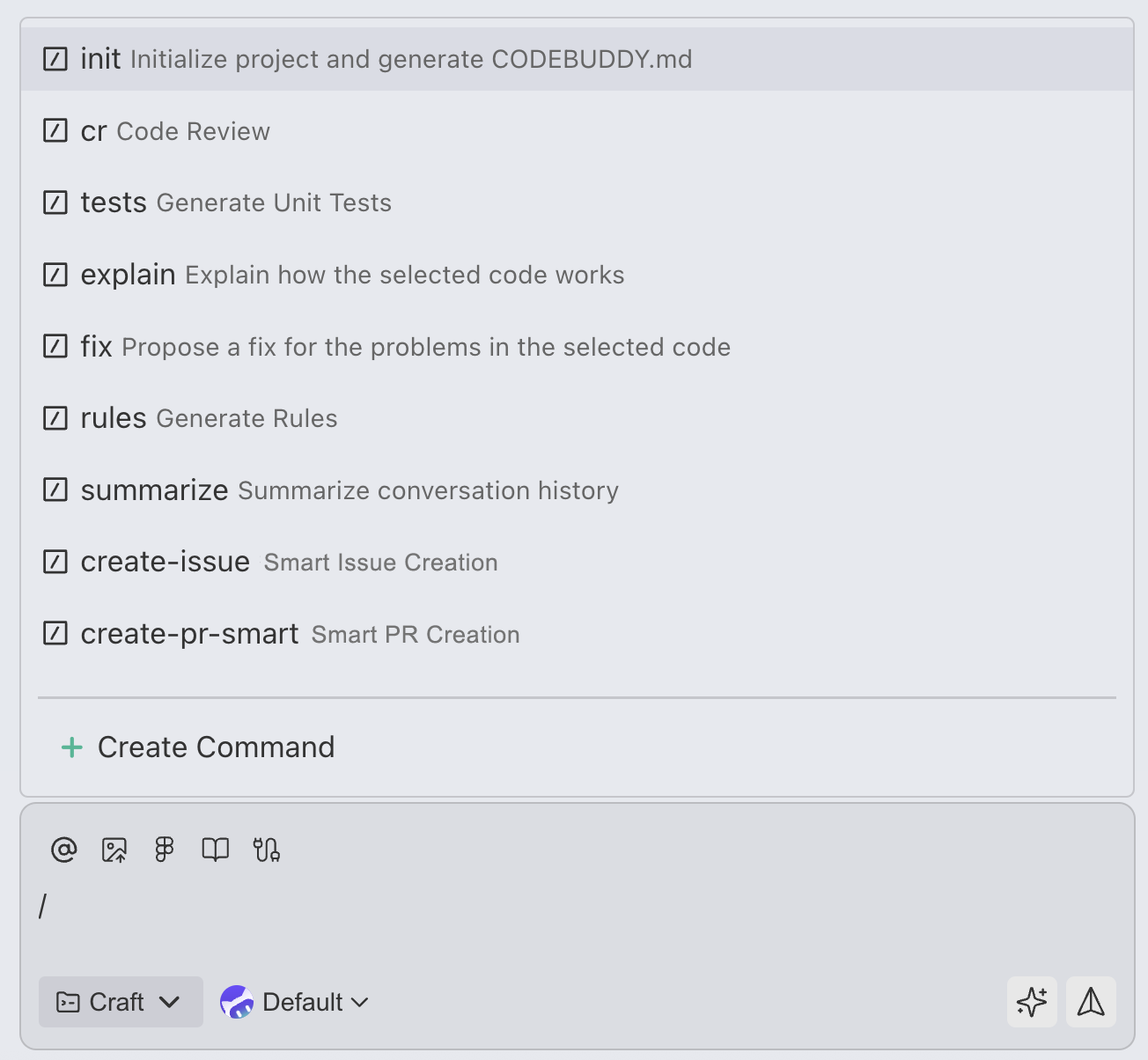
Manually enter
/ in the dialog box, and the system automatically displays a list of slash commands for you to choose from. The list includes:Built-in Slash Commands: 7 commonly used commands preset by the system
Custom Slash Commands: personalized commands created by users
You can select the desired command from the list, and then enter the relevant parameters as prompted.
Note:
It appears and becomes selectable only when the dialog input box is empty.
Each message can contain only one
/command, and multiple commands cannot be combined.Custom commands are created at the project level. (User-level commands compatible with CodeBuddy Code are supported at
~/.codebuddy/commands/, and an entry point for creating user-level custom commands will be added in future IDE versions.)Built-in Slash Commands in Detail
/init - Initializing a Project and Generating CODEBUDDY.md
Feature description: quickly initializes the project structure and automatically generates the CODEBUDDY.md configuration file.
Applicable scenarios:
Quickly scaffold the project structure when creating a new project.
Add CodeBuddy configuration to an existing project.
Standardize project documentation and configuration management.
Usage examples:
/init
/summarize - Compressing Conversation Context
Feature description: when a conversation becomes too long, an AI-driven summarization mechanism compresses the lengthy chat context to ensure efficient conversation flow.
Applicable scenarios:
Manually triggered when the conversation becomes too long to manage context.
Continue working efficiently without losing important information.
You need to continue the conversation in the same session, but the context window is about to reach its limit.
When a conversation grows and exceeds the model's context window limit, make room for new conversations.
Usage recommendations:
To ensure model performance and control credit consumption, keep the context window below 100K. When the context approaches or exceeds this limit, use the
/summarize command to compress the conversation.Working principle:
When a conversation grows and exceeds the model's context window limit, the system automatically or manually summarizes older messages:
When the limit is exceeded, the latest messages are truncated because the context window has been exceeded.
After summarization, older messages are compressed into a "summary" to make room for new conversations.
Usage:
Manual trigger: Enter the
/summarize command in the chat.Automatic trigger: Summarization is automatically performed when the conversation exceeds the context window limit.
Note:
The model output is only a summary display. The compressed information actually retained in the backend is more detailed and structured than the output summary, ensuring that subsequent conversations can continue from the previous context.
Usage examples:
/summarize
/rules - Automatically Generating Rule Files
Feature description: Automatically generate rule files such as code specifications, lint rules, and development guides based on project requirements.
Applicable scenarios:
Establish coding standards at the early stage of the project.
Unify code style across team collaboration.
Generate configurations for ESLint, Prettier, and other tools.
Create a code review checklist.
Automated Quality Management
Rule types to generate:
Code Style Rules
Naming Specifications
File Organization Rules
Git Commit Guidelines
Project Best Practices
Usage examples:
Use /rules to generate TypeScript code standards.Use /rules to create Git commit guidelines.Use /rules package.json to generate an ESLint configuration based on project dependencies.
/explain - Explaining How Code Works
Feature description: Analyze code logic in depth and have CodeBuddy explain how the code works and the design ideas behind it in plain language.
Applicable scenarios:
Understand complex code logic.
Learn a new codebase.
Quickly understand the implementation during code review.
Technical sharing and documentation.
Explanation:
Overall code architecture
Core algorithm logic
Data flow process
Key design decisions
Usage examples:
/explain test.py/explain src/utils/algorithm.ts Explain the implementation principle of this algorithm./explain UserService.java Explain the responsibilities of this service class.
/fix - Fixing Code Issues
Feature Description: Automatically identifies and fixes bugs, errors, and issues in code.
Applicable scenarios:
Quickly fix compilation errors.
Resolve runtime exceptions.
Fix lint errors.
Handle type errors.
Resolve logic bugs.
Fix capabilities:
Syntax Error
Type Error
Logic Error
Performance Issues
Security Vulnerabilities
Usage examples:
Use /fix main.py to fix Python syntax errors.Use /fix components/Button.tsx to resolve TypeScript type errors.Use /fix login.js to fix the null pointer exception in the login logic.
/tests - Generating Unit Tests
Feature Description: Automatically generates comprehensive unit test cases for code to improve code test coverage.
Applicable scenarios:
Quickly generate test cases for new features.
Improve project test coverage.
Add missing boundary condition tests.
TDD (Test-Driven Development) practices
Generate content:
Normal scenario testing
Boundary condition testing
Exception scenario testing
Usage examples:
Generate test cases for utility functions in /tests/utils.js.Generate complete unit tests for /tests/UserController.java.Add test coverage for the authentication module in /tests/src/api/auth.ts.
/cr - Code Review
Feature Description: Conduct a comprehensive code review to check code quality, potential issues, performance optimization opportunities, and adherence to best practices.
Applicable scenarios:
Code self-review before submitting a Pull Request
Quality assessment before code refactoring
Learn best practices from others' code.
Identify potential bugs and security risks.
Review dimensions:
Code compliance
Performance Issues
Security Vulnerabilities
Maintainability
Usage examples:
/cr app.py Review Python code quality./cr src/components Review the entire component directory./cr database.js Focus on checking for security issues such as SQL injection.
Custom Slash Commands
In addition to built-in slash commands, CodeBuddy also supports creating custom slash commands. You can package frequently used prompts, workflows, or specific tasks into reusable custom commands based on your workflow needs.
Creating Custom Commands
In the command list that appears after
/ is entered, select "Custom Slash Command" to go to the custom command creation page. You can:Define the command name and description.
Set a trigger prompt or an execution script.
Configure command parameters and input formats.
Specify the applicable working directory or file type.
Use Cases
Package team-specific code generation templates.
Create project-specific quick action commands.
Define a standardized code review process.
Automate repetitive development tasks.
With custom slash commands, you can significantly improve development efficiency by codifying personal or team best practices into reusable commands.
Help and Support
Was this page helpful?
You can also Contact sales or Submit a Ticket for help.
Help us improve! Rate your documentation experience in 5 mins.
Feedback