Context
Download
Focus Mode
Font Size
@ Mentions
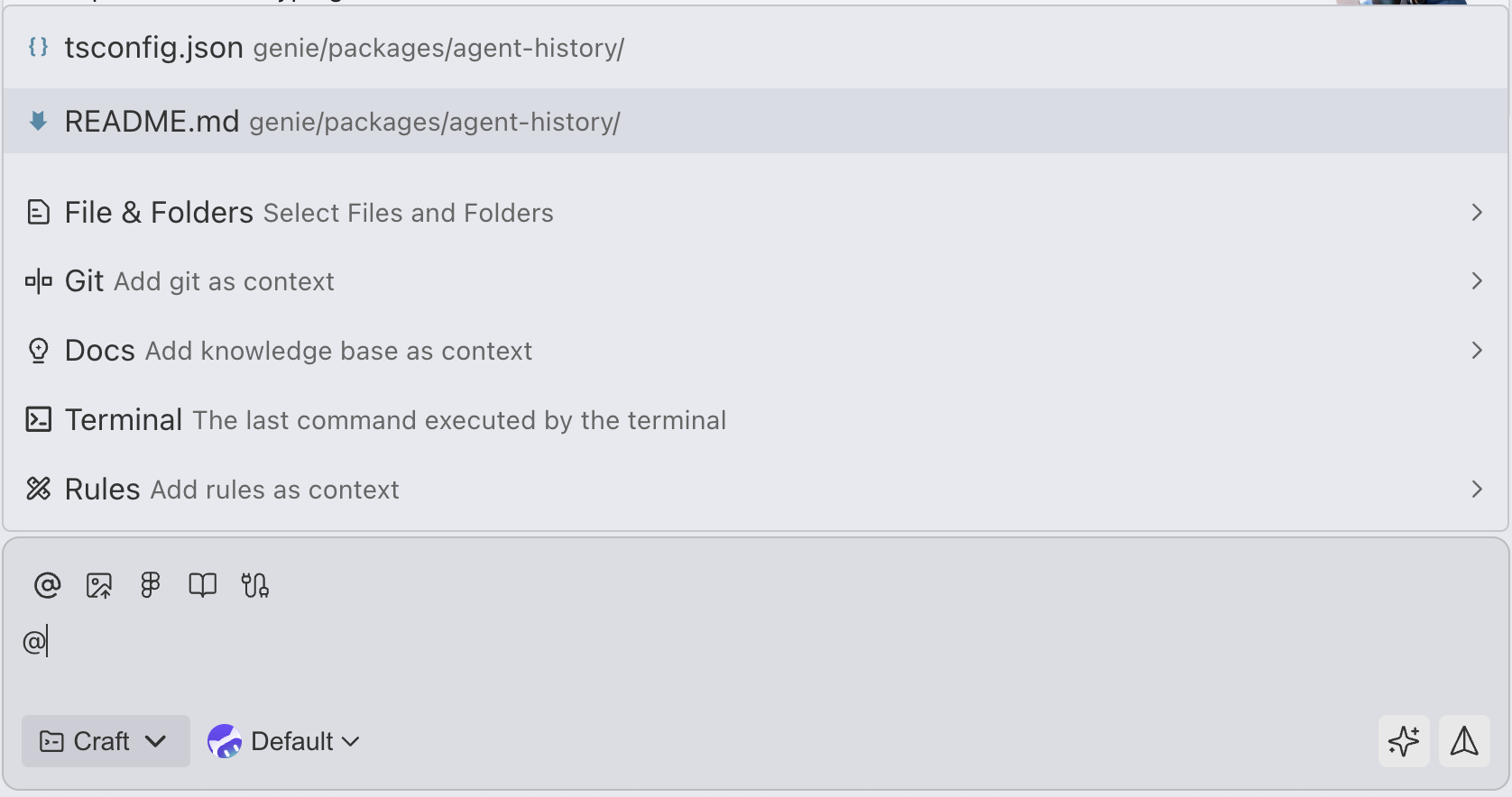
You can use the @ symbol to quickly reference various types of context. After you enter
@ or click @, the system displays a list of available context types.Usage
1. Enter
@ in the dialog box, or click @.2. Use the Up/Down arrow keys to browse through suggestions.
3. Press
Enter to select.4. If a category item is selected (such as Files & Folders), the list is filtered to show the most relevant items in that category.
Note:
After you @ a file or code block, its content remains in the conversation context. The model can continuously see the content you previously sent, so you do not need to @ the same file in every message. Using this feature wisely can effectively save token consumption.
@Files & Folders - Files and Folders
@Single File
To reference an entire file as context:
1. Enter
@ in the dialog box.2. Select @Files & Folders.
3. Enter a file name to search.
4. Select the target file.
Shortcut: You can also drag files directly from the sidebar into the dialog box, or right-click and select "Add to CodeBuddy Conversation" to quickly add them as context.
Example Usage Scenarios
@src/components/Button.tsx Please add a hover effect to this button component.
@Folder
When you use
@Folders to reference a folder, CodeBuddy provides the folder path and an overview of its contents, helping the AI understand the project structure and available resources.Navigate to subfolders:
After selecting a folder, enter
/ to go to the next level directory.Browse and select a folder.
Example Usage Scenarios
@src/components/ Please refactor all components in this component folder using a unified style system.
@Code - Code Snippets
You can use the
@Code symbol to reference specific code snippets, providing finer-grained control than @Files & Folders.Features
Precisely reference specific functions, classes, or code blocks.
Avoid introducing irrelevant code from the entire file.
Supports referencing multiple code snippets across files.
Usage
Select the code block you want to include as context, then choose "Add to Conversation" from the pop-up menu, or right-click and select "Add to CodeBuddy Conversation".
Example Usage Scenarios
@handleSubmit:10-20 This submit function needs form validation logic.
@Code vs @Files & Folders
Feature | @Code | @Files & Folders |
Granularity | Precise to the function/class level | An entire file or folder |
Context size | Smaller, containing only the selected snippet | Larger, containing complete file content |
Scenario | Targeted modification and refactoring of specific features | Understanding the overall structure and batch modification |
@Docs - Documentation
The
@Docs feature allows you to reference technical documentation to assist with coding. CodeBuddy includes built-in documentation for common frameworks and libraries, and you can also add custom documentation.Using Existing Documentation
1. Enter
@Docs in the dialog box.2. Browse the list of available documents.
3. Select the relevant framework or library documentation.
Built-in Documentation Examples
CodeBuddy includes some commonly used documentation:
WeChat Pay
WeChat Mini Program
WeChat Mini Game
TencentCloud API
Example Usage Scenarios
@WeChat Mini Program How do I create a Mini Program?
Adding Custom Documentation
To add documentation that is not currently available:
1. Select
@Docs.2. In "Add Knowledge Base as Context"
3. Enter the knowledge base name.
@Git
@Git allows you to reference Git-related context, helping AI understand code change history and the current modification status.Referenced Git Content
1. Uncommitted Changes
Reference uncommitted file changes in the current workspace:
@Git:uncommitted Please review these changes and check for potential issues.
2. Specific Commits
Reference historical commits:
1.1 Select
@Git.1.2 Select Workspace Changes or Historical Commits.
@Git:commit:abc123 Please explain the main changes in this commit.
@Terminal - Terminal Commands
@Terminal allows you to reference the output and execution information of terminal commands as context.Usage
1. Run the command in the terminal.
2. Enter
@Terminal in the dialog box.3. Select the most recently executed command or its output.
Example Usage Scenarios
@Terminal:npm-test The test failed. Please help me analyze the cause of the error and fix it.
@Rules - Coding Standards
@Rules allows you to reference project coding standards and conventions, ensuring that AI-generated code complies with team standards. Currently, only @manual rules are supported.Feature Description
Rules are guidance documents provided for AI and can include:
Coding style specifications (such as naming conventions and code formatting)
Architectural Design Principles
Framework Usage Preferences
Security Regulations
Project-specific conventions
Usage
1. Enter
@Rules2. Select the applicable specification document.
3. AI follows these specifications when generating code.
Example Usage Scenarios
@Rules:coding-style Rewrite this function according to our coding standards.
@Rules:architecture Implement this new feature based on our architectural design principles.
Tips
1. Precise References Without Redundancy
Not Recommended:
@Entire project folder Please help me modify the login feature.
Recommended:
@src/auth/login.ts @src/components/LoginForm.tsx Please help me modify the login feature.
2. Combining Multiple Contexts
Combine different types of context to provide more complete information:
@Files:config.ts @Docs:Express @Rules:api-design Please help me implement a RESTful API route.
3. Making Precise Modifications with @Code
When you only need to modify a specific function, use
@Code instead of the entire file:@Code:calculateTotal This calculation function has a precision issue. Please fix it.
4. Referencing Git Changes for Code Review
Use Git context to perform a self-review before committing:
@Git:uncommitted Please review these changes and check for performance issues or security risks.
Help and Support
Was this page helpful?
You can also Contact sales or Submit a Ticket for help.
Help us improve! Rate your documentation experience in 5 mins.
Feedback