Rules
Download
Focus Mode
Font Size
Rules provide AI Agents with system-level instructions and contextual information. They package prompts, workflows, coding standards, and other content together, making it easier to manage and share best practices within teams.
CodeBuddy IDE supports a multi-level rule system that allows you to define AI Agent behavior in different scopes:
Project rules: Stored in the
.codebuddy/rules directory of the code repository, managed under version control, and shareable with team members.User rules: applied globally and used across all projects.
How Rules Work
Large language models do not automatically retain memory across different conversation turns. The rule system addresses this limitation by providing persistent, reusable context at the prompt level.
When a rule is applied, its content is automatically added to the beginning of the context information sent to the model. This ensures that AI Agents receive consistent guiding principles and behavioral standards when generating code, understanding editing intent, or assisting with workflows.
Note:
Because rules are only added to the beginning of each session, you need to start a new conversation session after creating or modifying rules for them to take effect. The current session does not automatically load newly added or updated rules.
Rule Type
Both project rules and user rules support three application types:
Rule Type | Description | Context Loading Method |
Always | Applies to every chat session and is suitable for core coding standards, architectural constraints, and security requirements. | Always load the original text of the rule. |
Agent request | Automatically applies when the Agent determines its relevance based on the description, and is suitable for documentation, user guides, and reference materials. | Only load the name and description of the rule, and read the original text when the model determines it is needed. |
Manual | Applies when mentioned with @ in a conversation (for example, @my-rule), and is suitable for development guides for specific features and optional best practices. | Not automatically loaded |
Project Rules
Project rules are located in
.codebuddy/rules. Each rule corresponds to a folder containing a RULE.mdc file and is placed under version control. Rules can have their scope limited by path patterns, be triggered manually, or be automatically introduced based on relevance.You can use project rules to:
Capture domain knowledge related to your codebase.
Automate project-specific workflows or templates.
Unify style or architecture decisions.
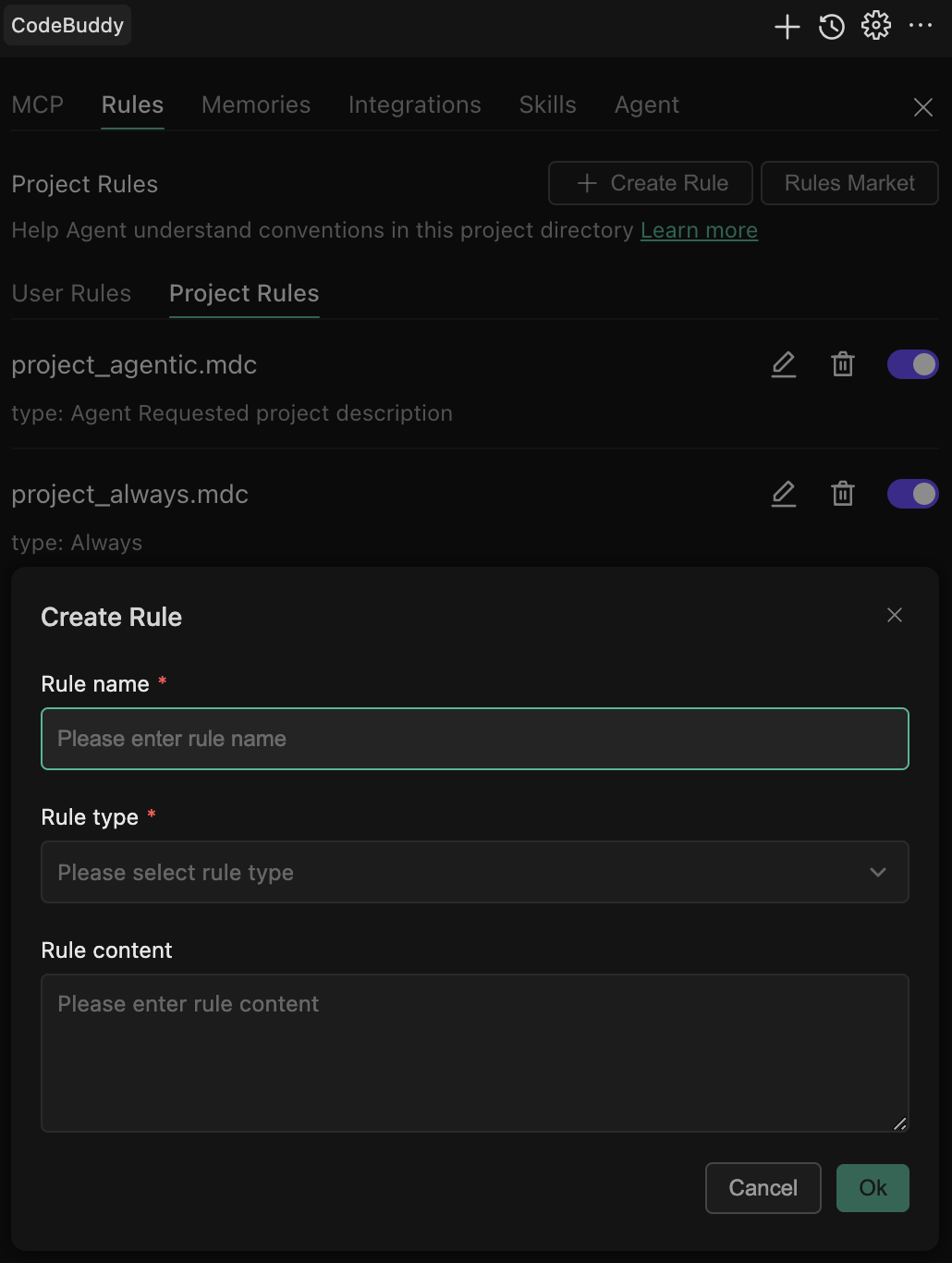
Creating a Project Rule
1. Open the CodeBuddy IDE settings page.
2. Find the Rules button at the top of the dialog box.
3. Click Create Rule.
4. Select Project Rules.
5. Enter the rule name, type, and content.
Rule File Format
Rule files use Markdown format. The following is an example:
---description: project descriptionalwaysApply: falseenabled: trueupdatedAt: 2026-01-13T12:03:50.791Zprovider:---...rest of the rule content
User Rules
User rules take effect globally in the local CodeBuddy IDE and are used across all projects. They are suitable for defining personal coding preferences and work habits.
Creating a User Rule
1. Open the CodeBuddy IDE settings page.
2. Find the Rules button at the top of the dialog box.
3. Click Create Rule.
4. Select User Rules.
5. Enter the rule name, type, and content.
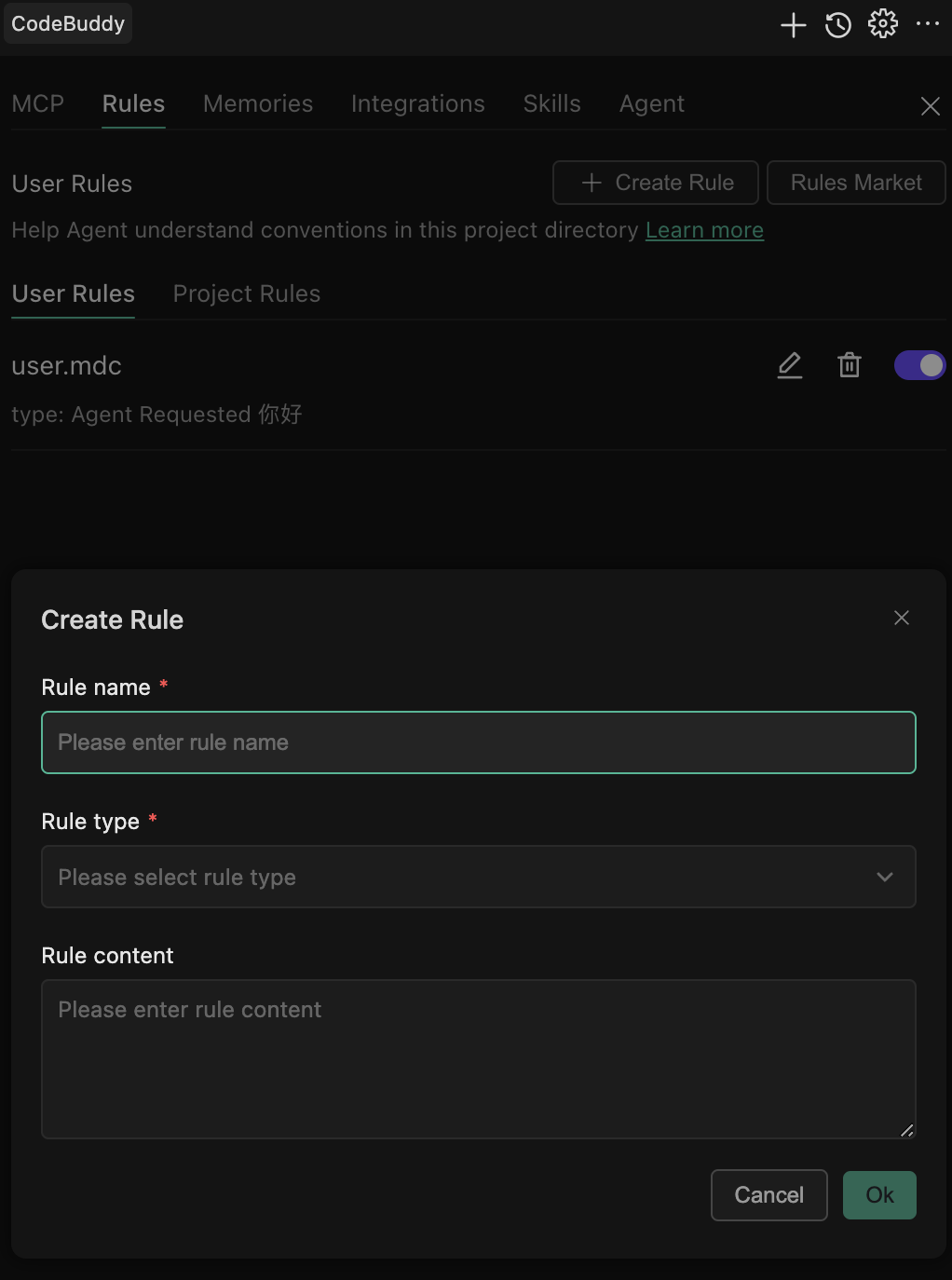
User rules are stored in the user directory and are not tracked by the version control system.
Example: Personal Code Style Rules
---description: My personal coding preferencesalwaysApply: true---# Personal Coding Style## General Preferences- Use 4-space indentation (do not use tabs)- Maximum line length: 100 characters- Use single quotes instead of double quotes unless necessary.- Add a semicolon at the end of each statement.## Comment Style- A JSDoc comment is required above each function.- Add inline comments to explain complex logic.- Write comments in Chinese.## Error Handling- Always wrap code that may throw errors in a try-catch block.- Record detailed error logs.- Display a user-friendly error message.
CODEBUDDY.md
CODEBUDDY.md is a Markdown file that helps AI quickly understand the current project.
Unlike project rules,
CODEBUDDY.md is a plain Markdown file without metadata or complex configuration. It is an ideal choice for projects that only need simple, readable instructions without the extra overhead of structured rules.
CodeBuddy supports the CODEBUDDY.md file in the project root directory and includes the full original text in the context by default.Note:
Compatibility with
AGENTS.md: For backward compatibility, when AGENTS.md exists in the project root directory but CODEBUDDY.md does not, CodeBuddy automatically loads the full content of AGENTS.md into the conversation context.Tips
Good rules should be focused, actionable, and clearly scoped.
Keep rules within 500 lines.
Split large rules into multiple composable rules.
Provide specific examples or reference files.
Avoid vague guidance. Write rules as you would write clear internal documentation.
Reuse existing rules when repeatedly using prompts in a chat.
FAQs
Q1: Do Too Many Rules Affect Performance?
CodeBuddy IDE intelligently loads rules. Only rules with alwaysApply: true are always loaded, while other rules are loaded on demand. Recommendations:Set core rules to
always (3-5 rules).Set other rules to
manual or requested.Q2: Can Rule Content Reference External Files?
You can reference file paths in rules, and AI reads these files as needed:
## Architecture DesignSee the project architecture documentation: `docs/architecture.md`.
Q3: How to Debug Whether Rules Take Effect?
Ask AI in the conversation, "Which rules are currently applied?" AI lists all rules loaded in the current session.
Q4: Can Rules Define Custom Commands?
Rules are primarily used to guide AI behavior. To customize commands, use the custom command feature of CodeBuddy.
Help and Support
Was this page helpful?
You can also Contact sales or Submit a Ticket for help.
Help us improve! Rate your documentation experience in 5 mins.
Feedback