View Results
Download
Focus Mode
Font Size
1. The results panel
While a task is running, the results panel on the right lets you review the files, code changes, and previews that WorkBuddy AI produces. You can follow the conversation and check the results side by side, without leaving the task.
Click the view switch button in the upper-left corner of the result area to switch between the three types of content.
Overview: View the files and deliverables generated by the task.
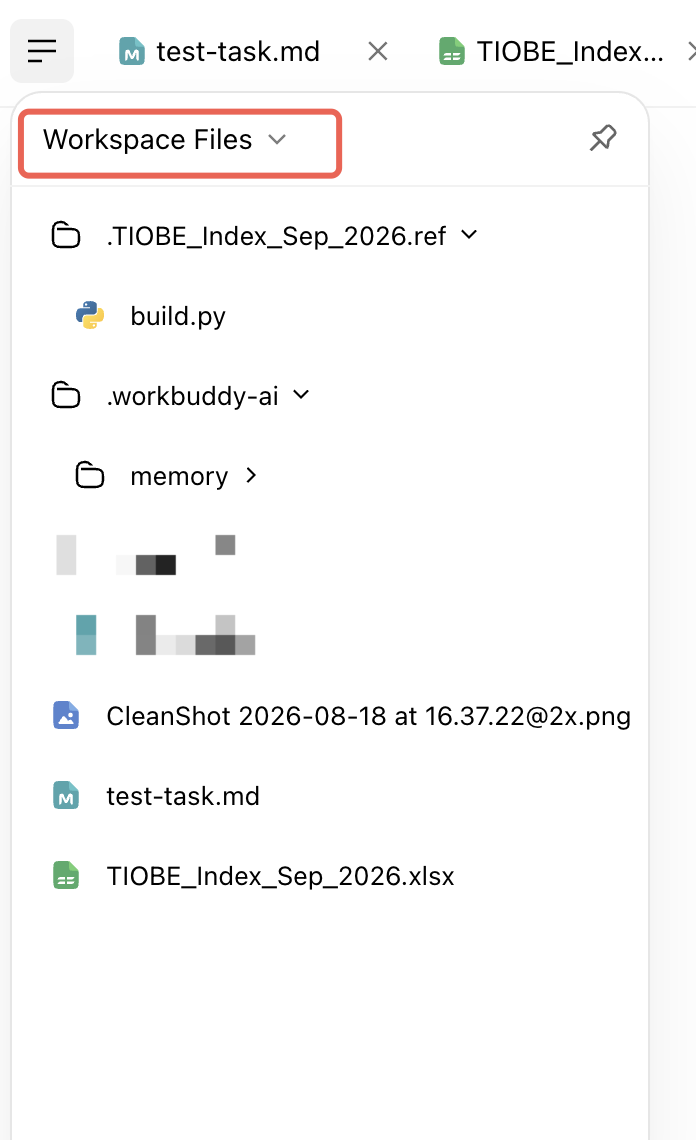
Workspace Files: View the file contents in the current workspace.
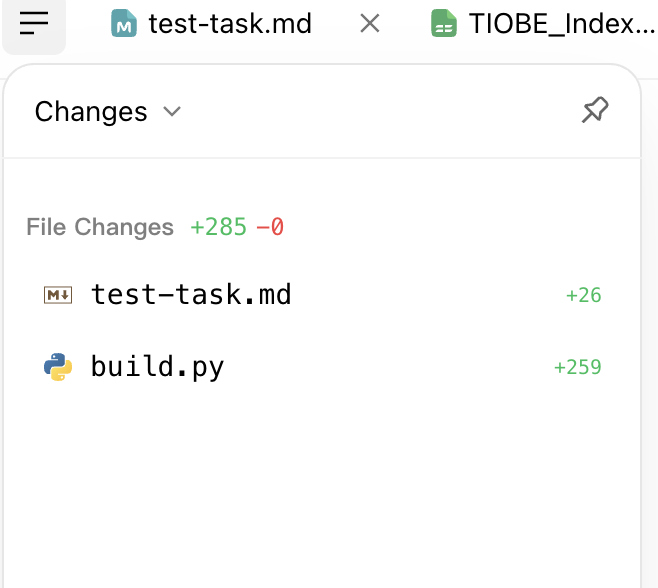
Changes: View the file modifications brought by this task.
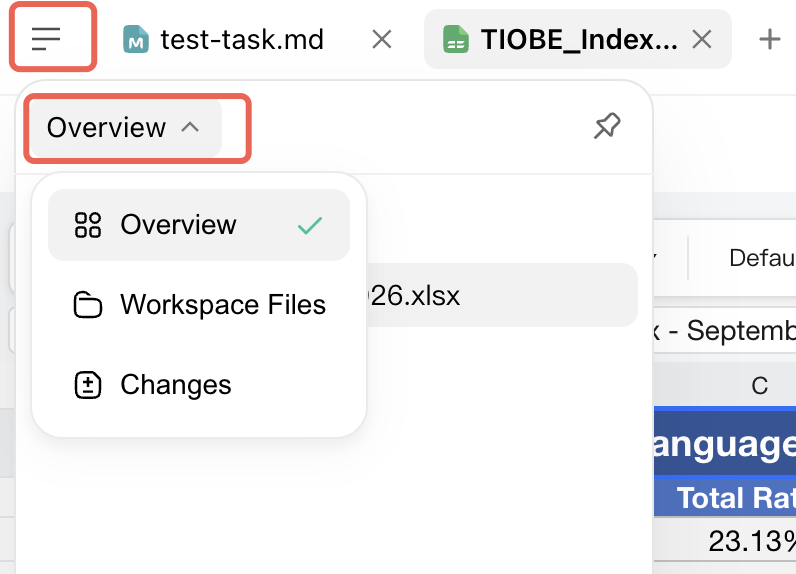
Generated files appear as tabs at the top of the panel; click the + next to the tabs to open more files. Keeping everything in one area makes it easy to switch back and forth and compare.
The upper-right corner of the panel and the file title bar provide these actions:
Fullscreen: Enlarge the result area to fullscreen for viewing.
Collapse Panel: Hide the result area to let the conversation area fill the window.
Share: Share the current file. For details, see Section 6 of this page.
Open Folder: Open the directory containing the file in the system file manager.

2. Artifacts
When a task generates files, tables, documents, or other deliverables, you can view and share them all in Overview.
Content suitable for viewing here includes:
Document results (Word, Markdown, PDF, and so on)
Tabular results (Excel, CSV, and so on)
Presentations (PPT)
Analysis Report
Automatically generated deliverables
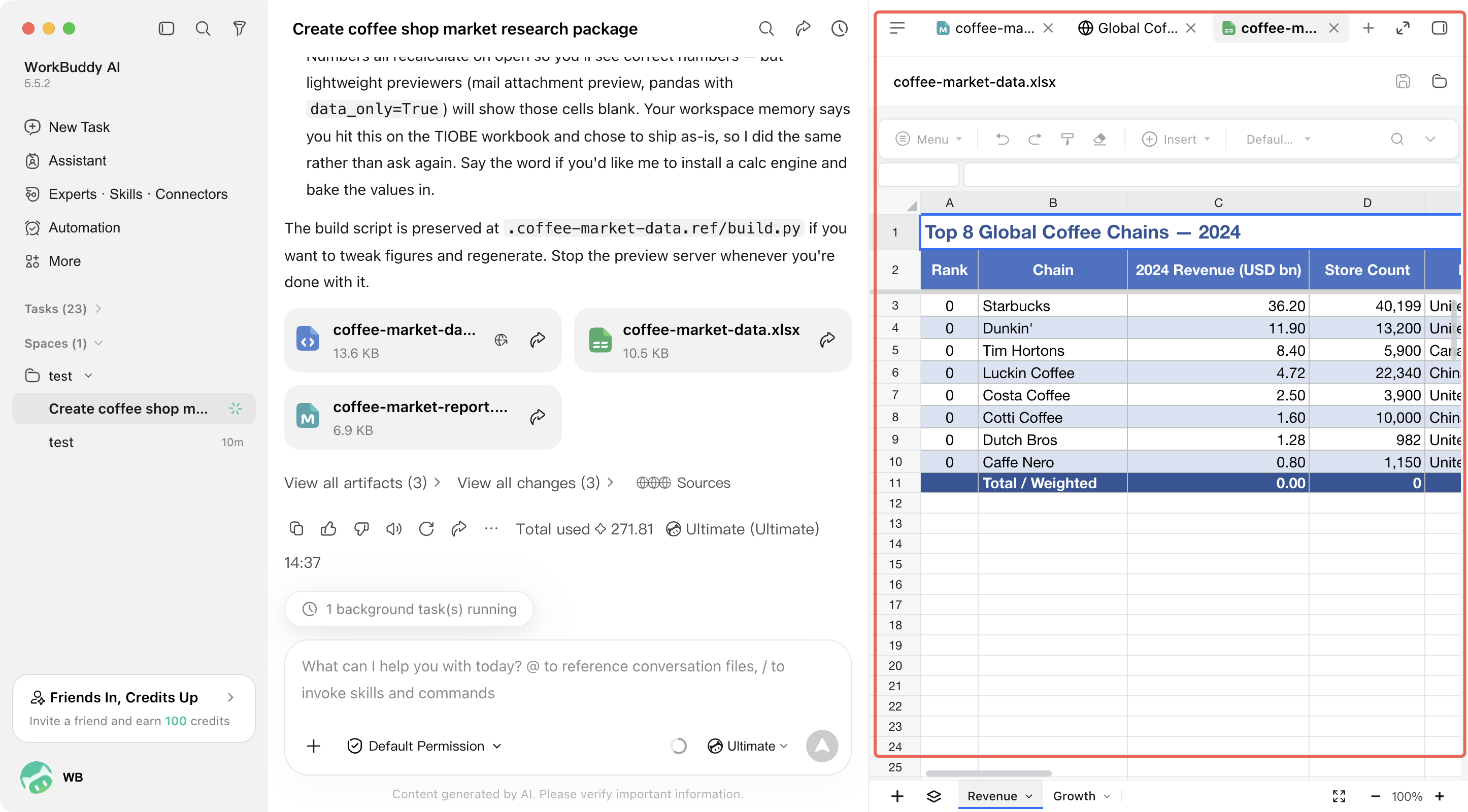
1) Table Preview
If the task generates a spreadsheet file, you can open and view it directly in the result area without downloading it first and opening it with an external tool.
This approach is more suitable for quick verification:
Is the header correct?
Is the data complete?
Does the layout and formatting meet expectations?
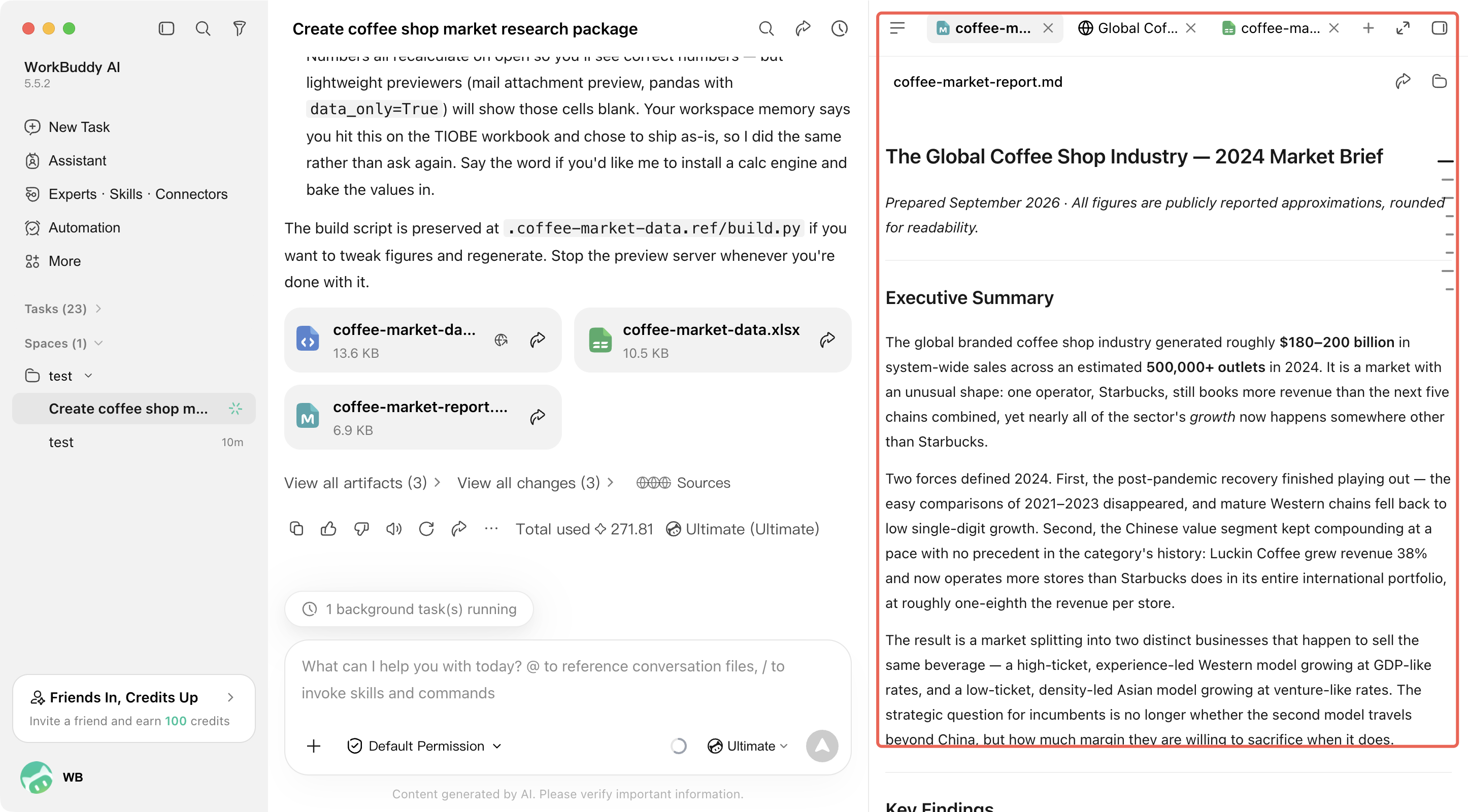
2) Document Preview
If the task generates a document file, you can also view its content directly in the result area. This allows you to quickly check whether the layout, headings, and body content meet expectations before delivery.
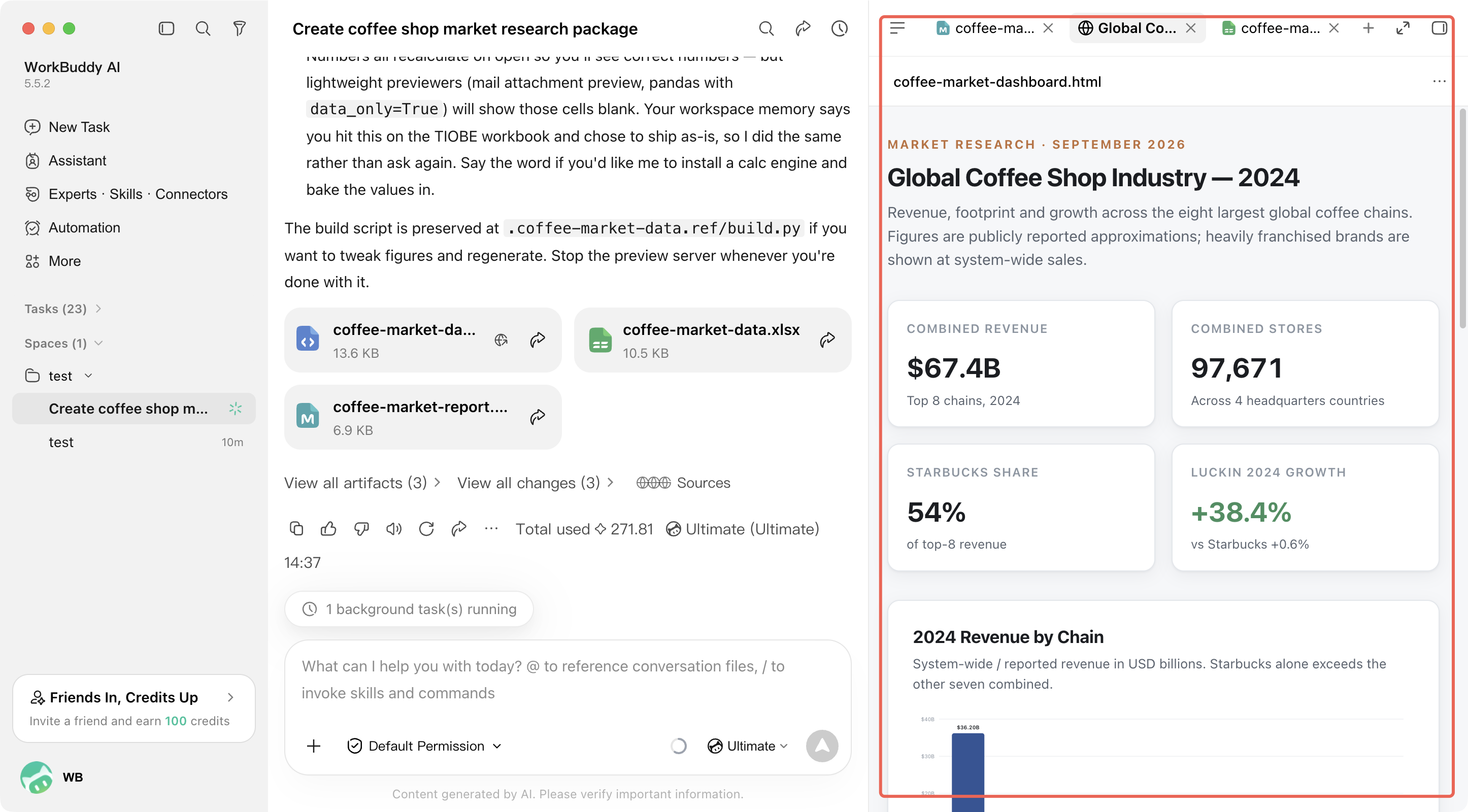
3. Web Preview
If the task generates a webpage, a page prototype, or a locally running Web application, you can view the result directly in the result area.
The preview area typically provides the following:
Current page URL
Refresh entry point
Real-time viewing of page content
This is suitable for confirming whether the page structure, styles, and interaction results meet expectations.
4. Workspace Files
Workspace Files is used to view the file contents in the current workspace, making it suitable for browsing generated files directly without leaving the task.
This view typically includes the following:
File list or file tree on the left
File content area on the right
Tab bar for open files at the top
Suitable for:
Quickly view the full content of a generated file.
Compare the relationships between different files.
Check whether the task was written to the correct location.
5. Changes
The Changes view is used to view the file modifications brought by the current task, allowing you to perform a review before accepting the results.
This view typically displays the following:
List of files involved in this modification
Changes in each file
Specific changes after a file is selected
If a task involves code development, script generation, or configuration adjustments, it is recommended that you first verify the changes here to ensure they meet expectations.
6. Sharing Artifacts
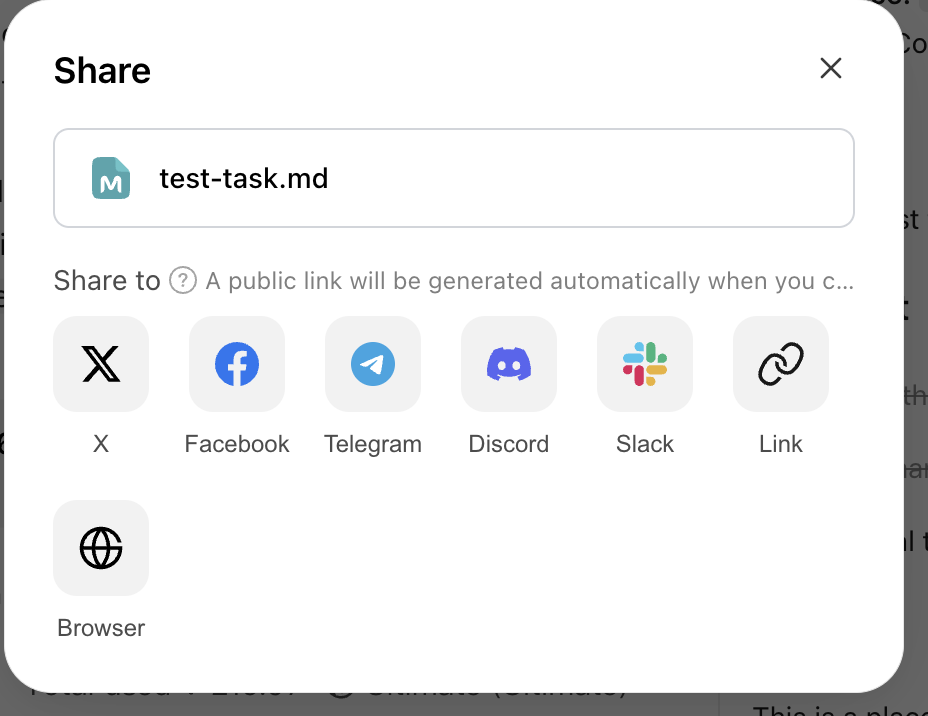
Artifact files generated by a task can be shared with others. Click the share icon on the right side of the file title bar to open the share dialog.
The dialog displays the name of the file to be shared and provides the following sharing destinations:
X
Facebook
Telegram
Discord
Slack
Link: Copy the share link.
Browser: Open in browser.
Note:
When you select a sharing method, the system automatically generates a public link. Anyone with the link can access the file content. Before sharing, make sure the file does not contain sensitive information.
Help and Support
Was this page helpful?
You can also Contact sales or Submit a Ticket for help.
Help us improve! Rate your documentation experience in 5 mins.
Feedback