Connector
Download
Focus Mode
Font Size
Connectors are used to integrate Tencent WorkBuddy with external services, enabling data interoperability and capability expansion. By configuring a connector, you can allow the AI assistant to directly access and operate third-party services.
1. What Is a Connector?
A connector serves as the bridge between Tencent WorkBuddy and external systems. It introduces the capabilities of external services into AI workflows based on standardized protocols such as MCP, allowing you to complete cross-platform operations without manually switching tools.
Scenario | Description | Example |
Querying data | Obtain information from external data sources | Query databases and search documents |
Calling services | Call third-party APIs to complete operations. | Send emails and create schedules. |
Managing files | Access cloud storage and file systems. | Read cloud drive files and upload attachments. |
Message notification | Integrate with instant messaging tools. | Send WeCom/Feishu messages. |
2. Accessing Connector Management
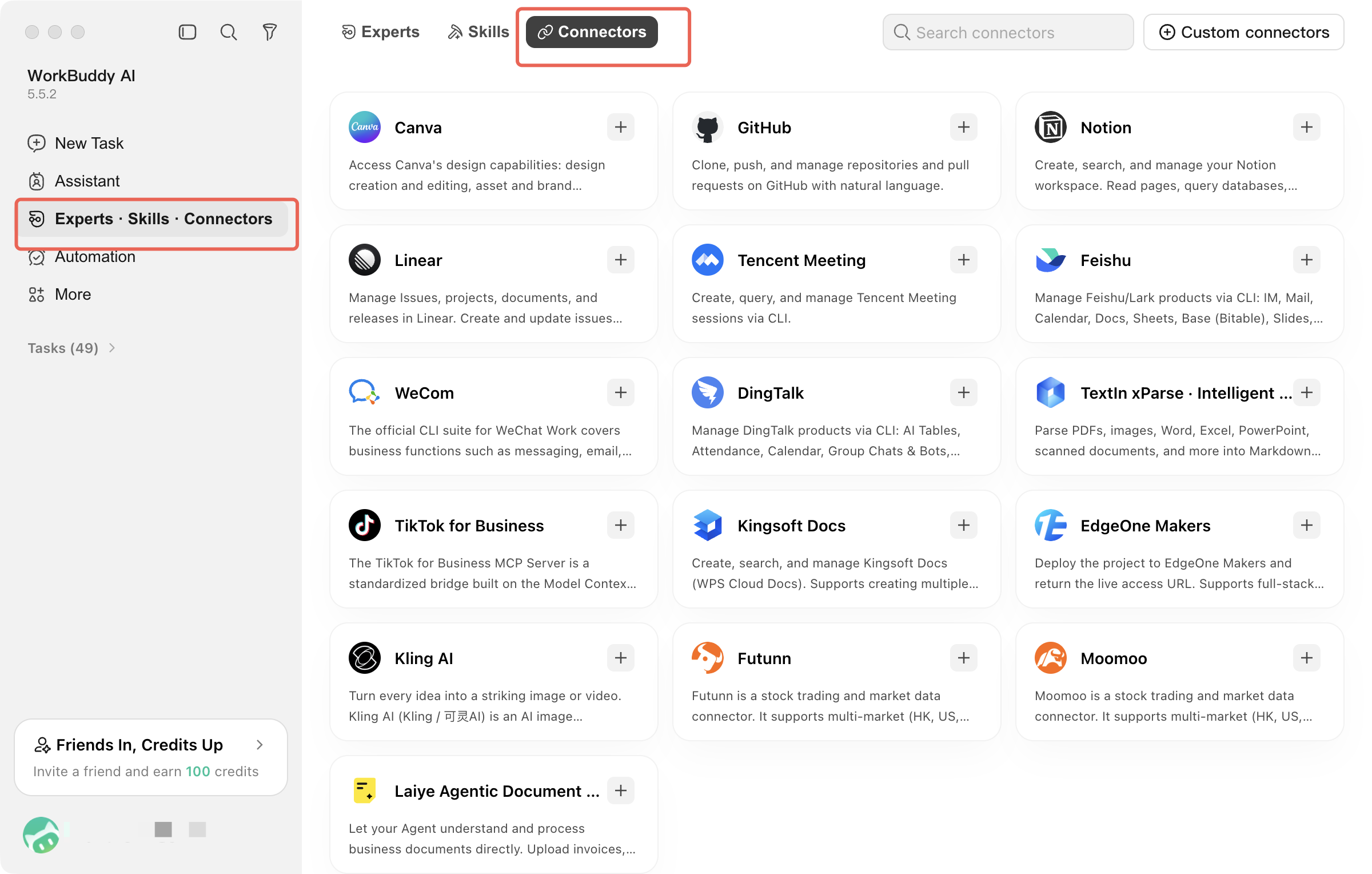
Click Connectors in the left sidebar to go to the connector management page. The page displays all available connectors, currently supporting QQ Mail, Tencent LearnShare, Tencent Docs, TAPD, and Weiyun, as well as custom connectors.
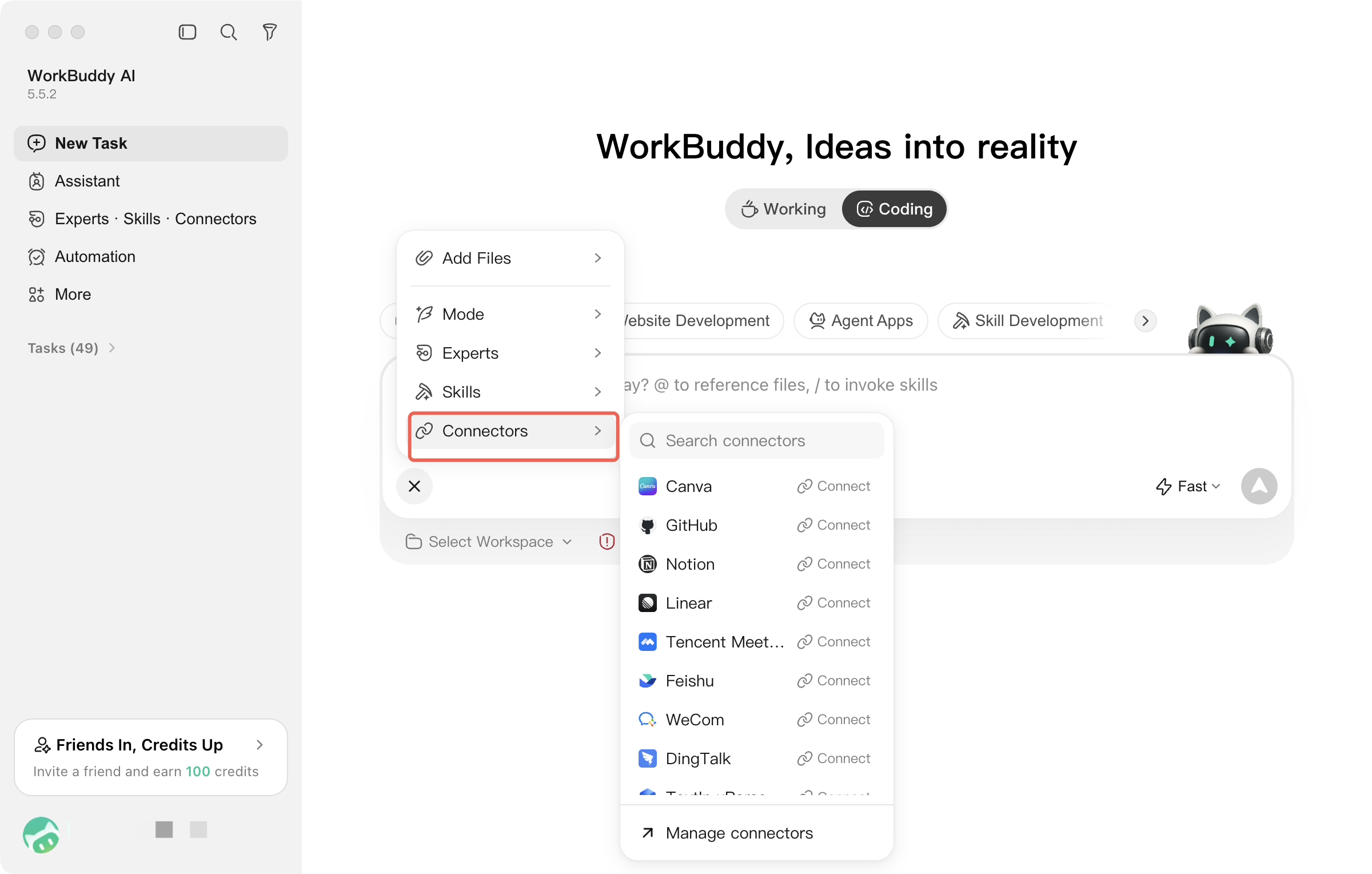
Quick connector management is supported in the message box:
3. Custom Connector
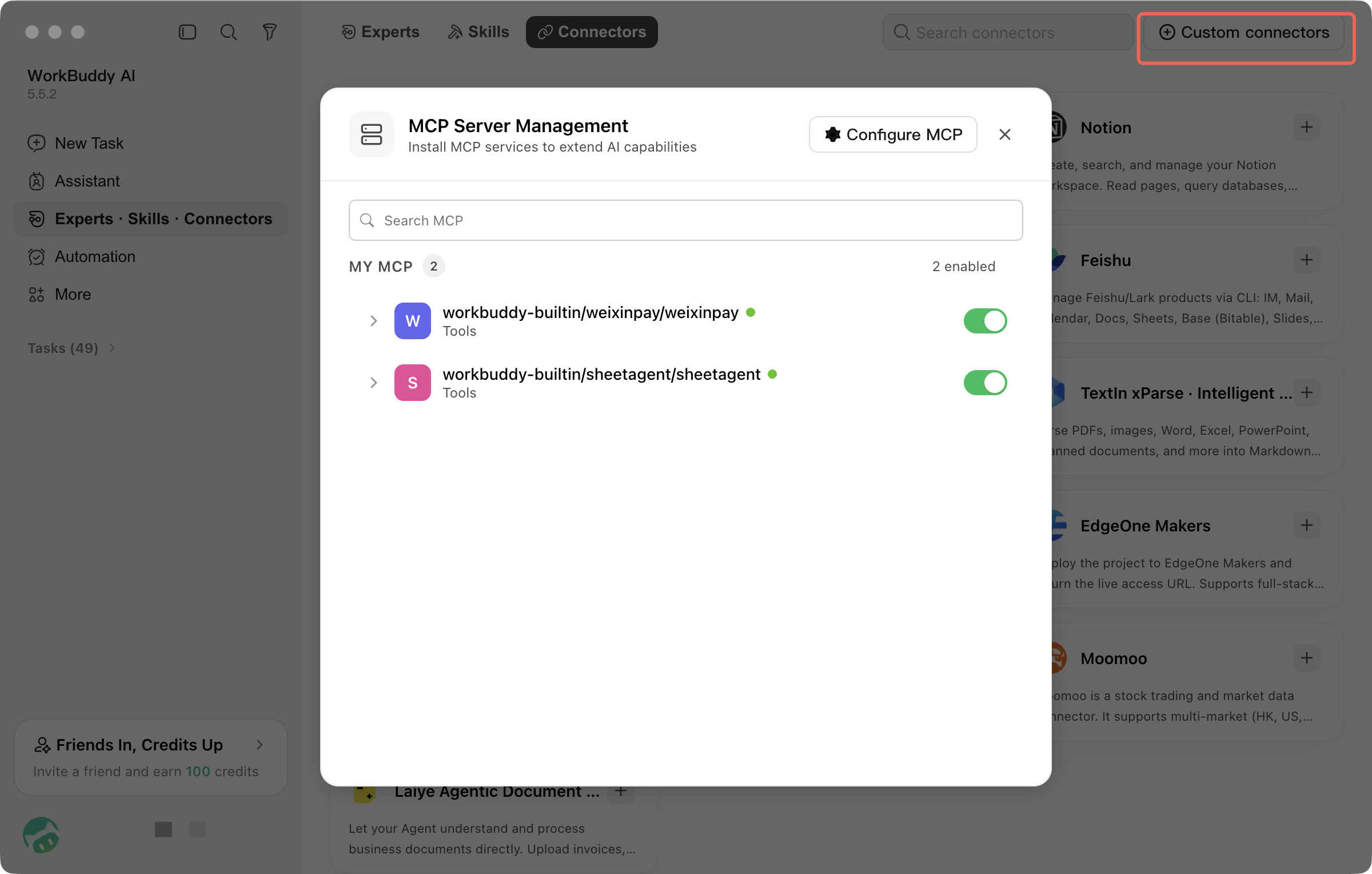
To integrate other external services, click Custom Connector in the upper-right corner of the connector management page and follow the instructions to configure a custom MCP connector.
4. Disconnecting
To disconnect a connected connector, follow these steps:
1. Click the Switch
On the connected connector card, click the enable/disable toggle on the right.
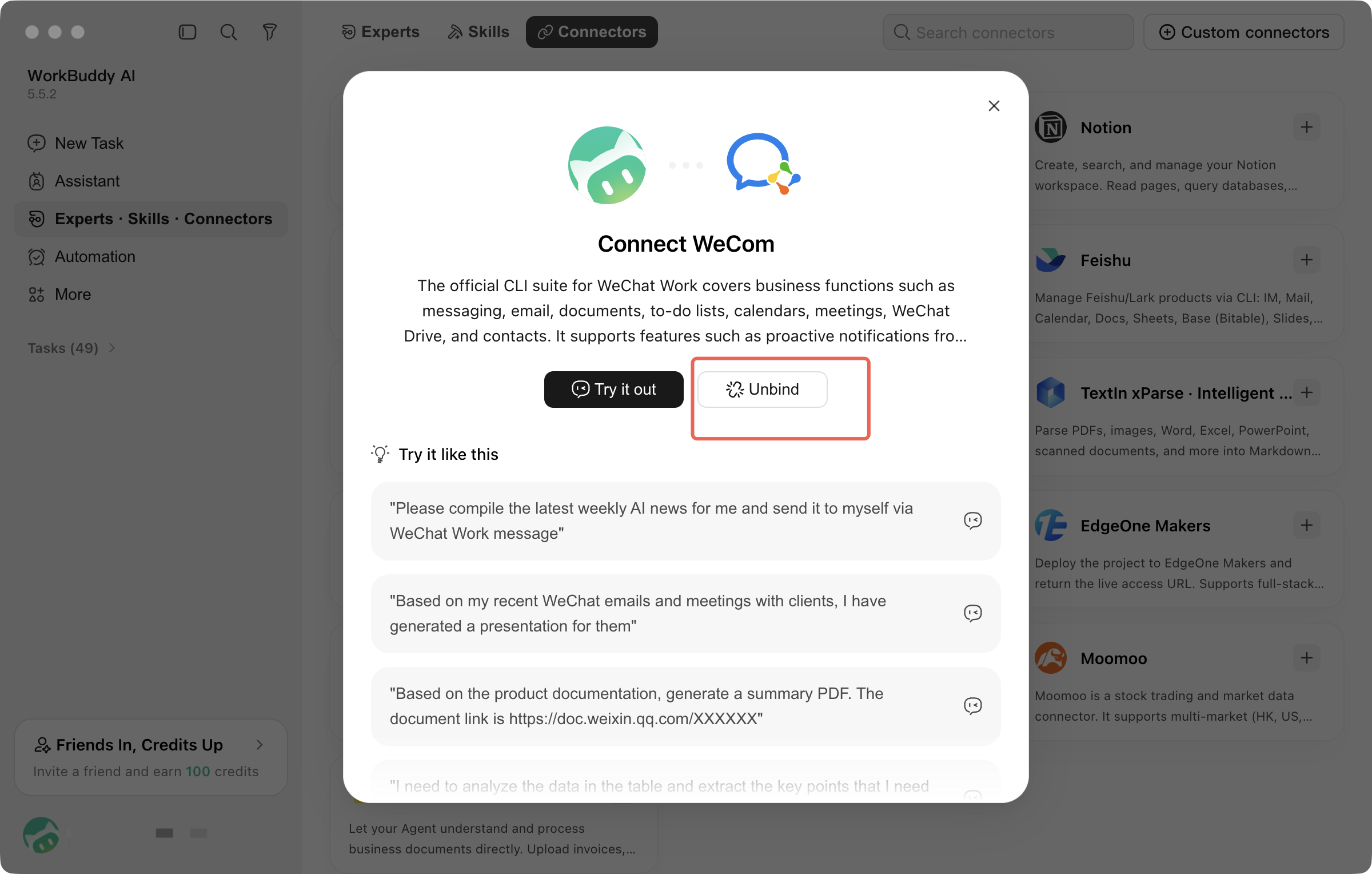
2. Disconnected
The system prompts Disconnected, and the connector returns to the disconnected state.
V. Precautions
A connector requires access permissions for the corresponding service. Make sure the authorization information is correct.
After authorization, you can disable or disconnect a connector at any time using the toggle.
To revoke QQ Mail authorization, go to Settings > Account > Security Management > App Authorization in the QQ Mail app.
We recommend checking connector status regularly to ensure services run properly.
Help and Support
Was this page helpful?
You can also Contact sales or Submit a Ticket for help.
Help us improve! Rate your documentation experience in 5 mins.
Feedback