Right Sidebar
Download
Focus Mode
Font Size
The right sidebar is the task details panel of WorkBuddy AI, allowing you to view delivered artifacts, browse workspace files, check recorded file changes, and preview supported content within the current task.
After entering a task, click Expand Right Sidebar in the upper-right corner of the conversation area to open the panel. Click it again to collapse it.
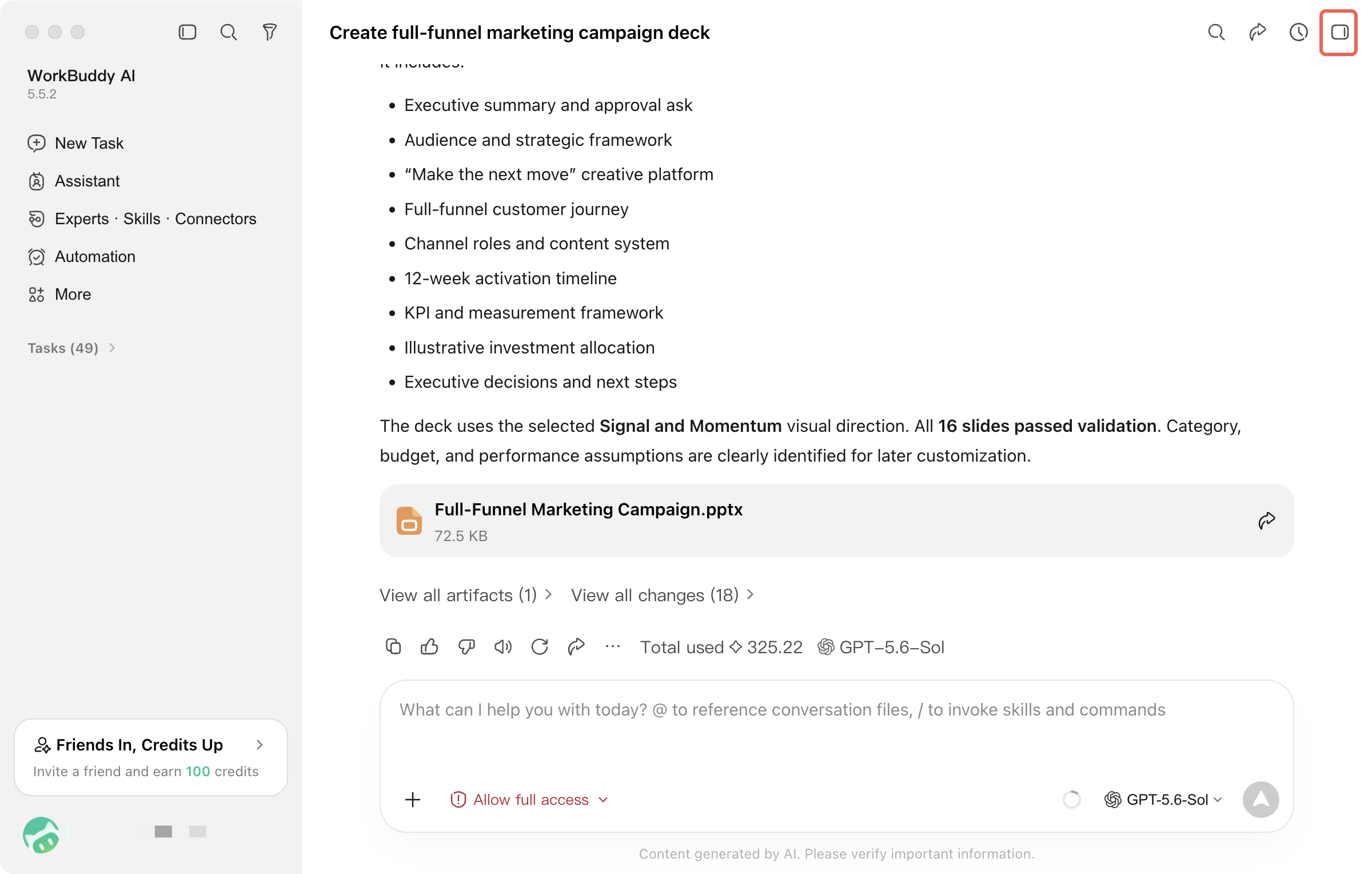
The expanded interface is as follows:
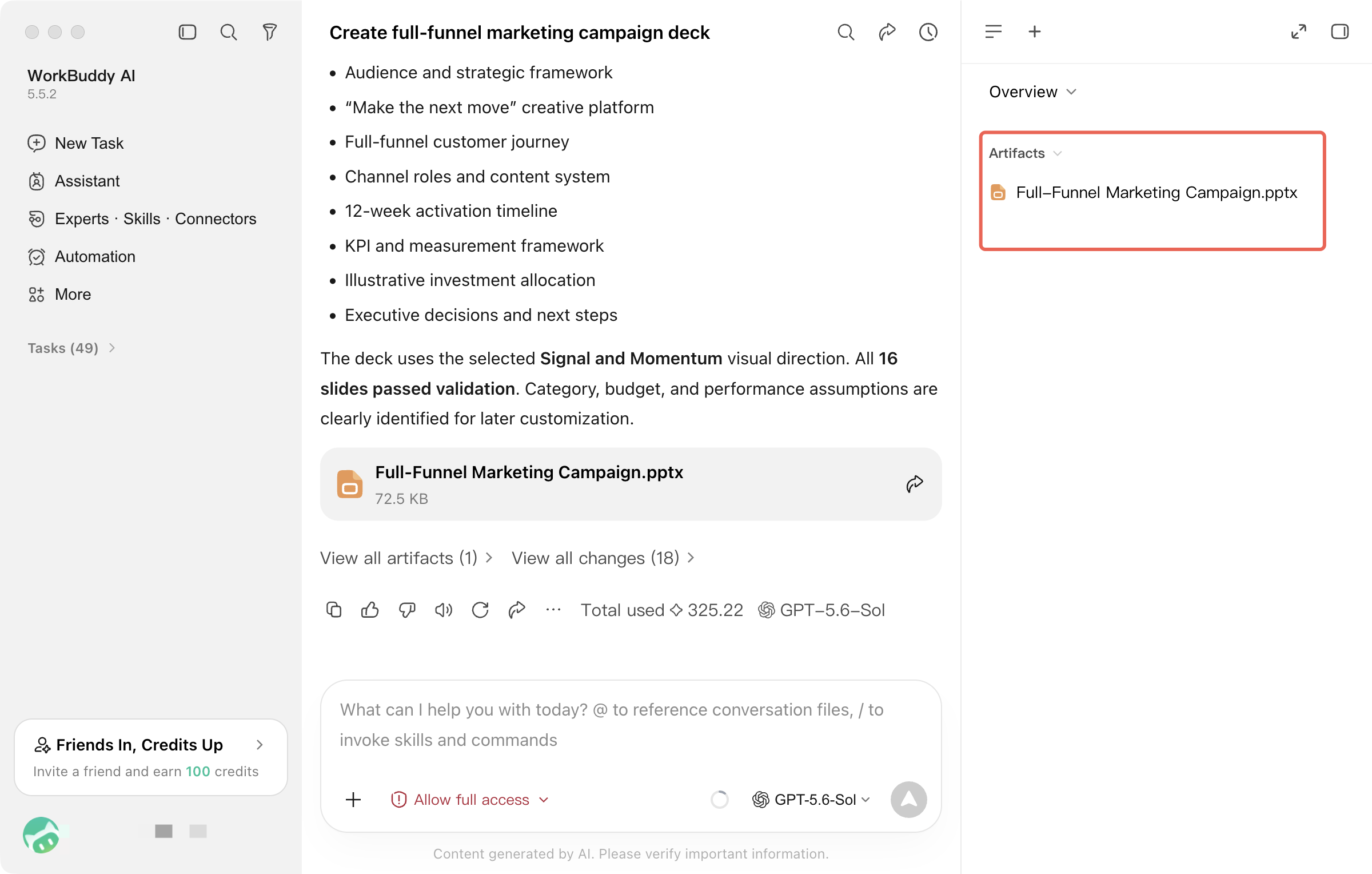
The right sidebar currently contains the following fixed views:
View | Function |
Artifacts | Centrally view files and other results explicitly delivered in the current task. |
Workspace Files | Browse files and folders in the current task workspace. |
Changes | View file changes recorded by WorkBuddy AI in the current task, and verify the content through the diff view. |
When you open a file or webpage that supports preview, the panel enters the corresponding Preview/Browser view. This view is used to view the current content and is not displayed as a fourth fixed tab.
When the window is narrow
In a narrower window, the right sidebar may switch to a dropdown navigation or collapsed display instead of always retaining the full tab bar. This does not change the files and artifacts of the current task.
I. Products
The Artifacts view is used to centrally display the results explicitly delivered to you in the current task, such as documents, spreadsheets, presentations, images, or webpage files presented through artifact display operations.
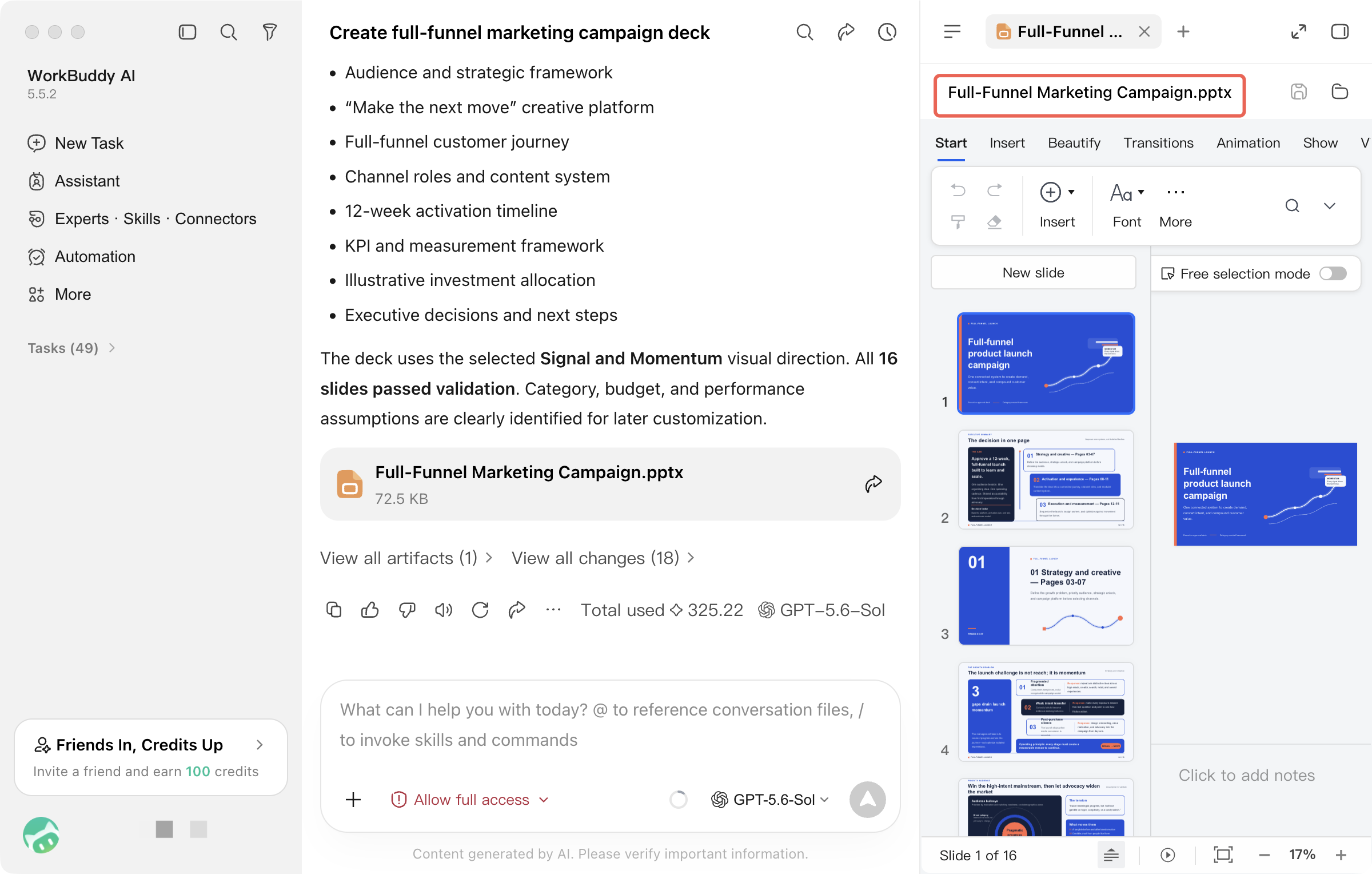
Not every newly created or modified file in the workspace is automatically classified as an artifact. Process files, internal files, and intermediate results that are not explicitly delivered may only appear in the workspace files or changes view.
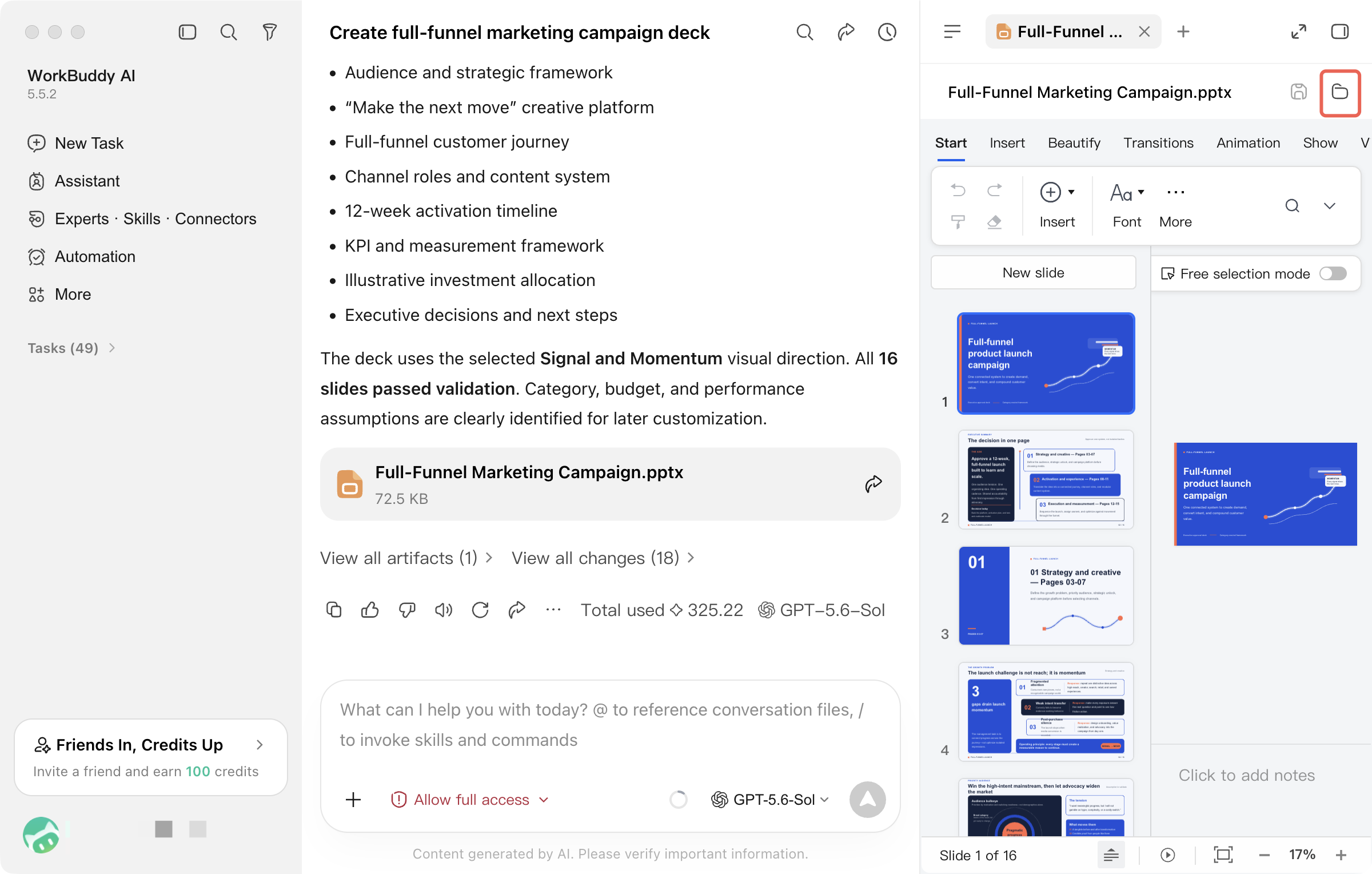
Click an artifact to open its corresponding viewing method. Whether you can preview it directly in the panel depends on the file type and the current runtime environment. Files that do not support preview can still be opened or saved locally using the method provided in the interface.
Click the folder icon to locate the file in the system file manager: macOS uses Finder, and Windows uses File Explorer.
When the file cannot be found
If the file has been moved, renamed, or deleted, the original artifact entry may no longer be accessible. Check the path in the workspace files first, and if necessary, have WorkBuddy AI regenerate or re-render the result.
II. Workspace Files
The workspace files view displays the files and folders in the current task workspace as a directory tree, allowing you to view the materials used by the task and the generated content.
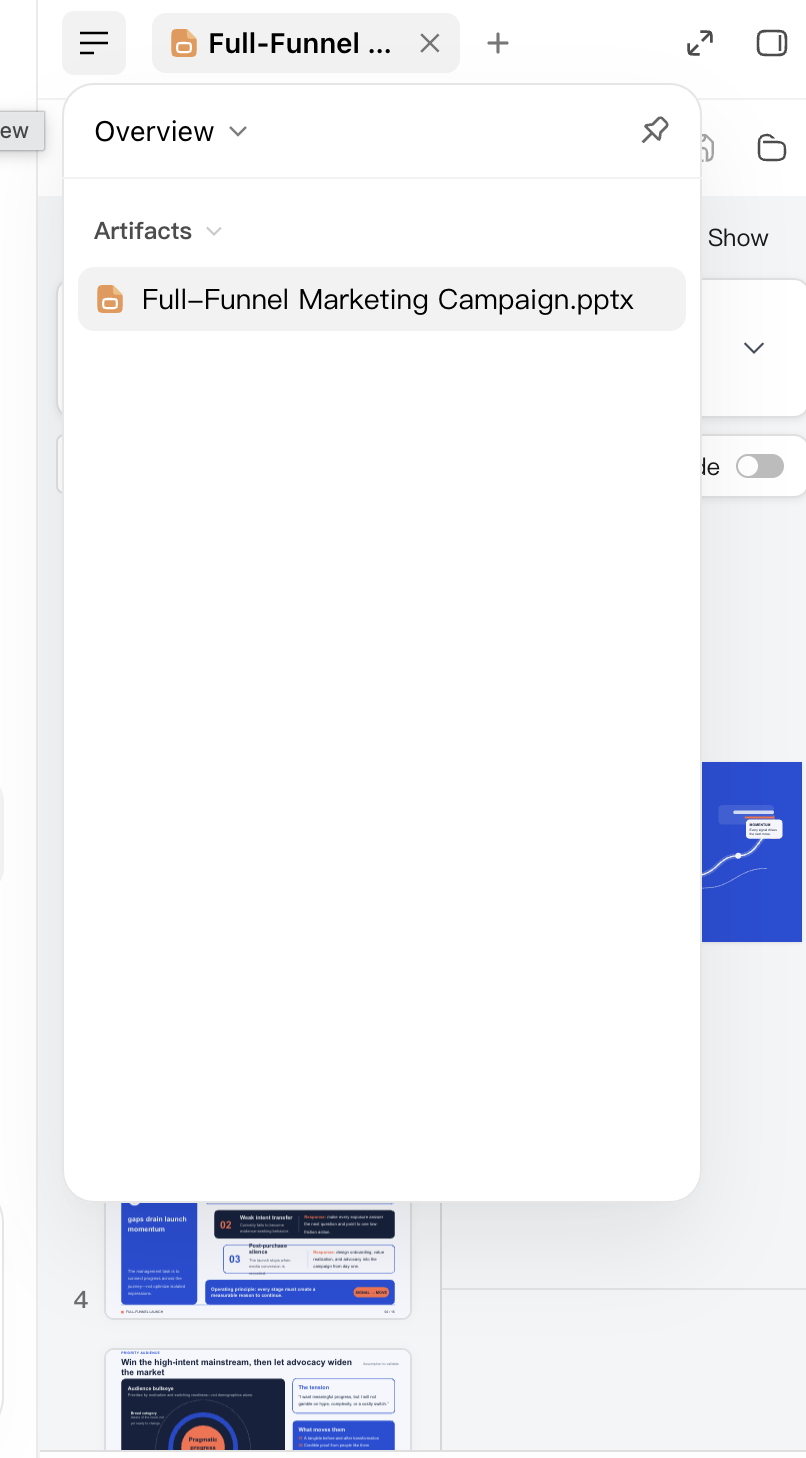
The file tree is updated based on the task workspace. When you open different tasks, the content you see may differ. If the expected working directory is not set for the current task, verify the task workspace path first.
Some files can be opened by double-clicking or through the corresponding entry. What is shown here is the file browsing scope, which does not mean that every file in it is a final deliverable, nor that every format can be previewed directly in the panel.
III. Changes
The changes view is used to display the file changes recorded by WorkBuddy AI in the current task, and to compare the content before and after modifications through a diff view.
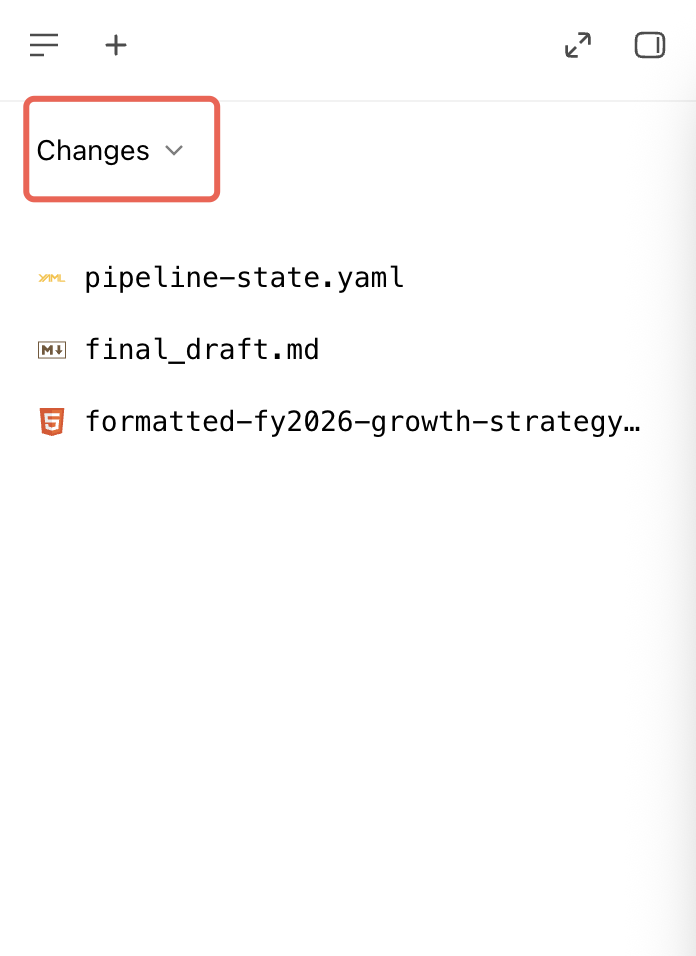
The change log is primarily used to verify the additions or modifications in the current task, and it is not a complete file audit log.
The list is based on the changes generated and recorded by the current task. Edits made by external programs or manually in other locations may not appear here.
In a non-Git workspace or when detailed change information is unavailable, the changes view may be empty or display only limited information.
The current panel is primarily used to view differences and should not be treated as a backup or complete version history. You should still keep a backup before working with important files.
IV. Preview and Browser
When you open a file or web page result that supports preview, the right panel switches to the corresponding preview mode, allowing you to view the content in WorkBuddy AI.
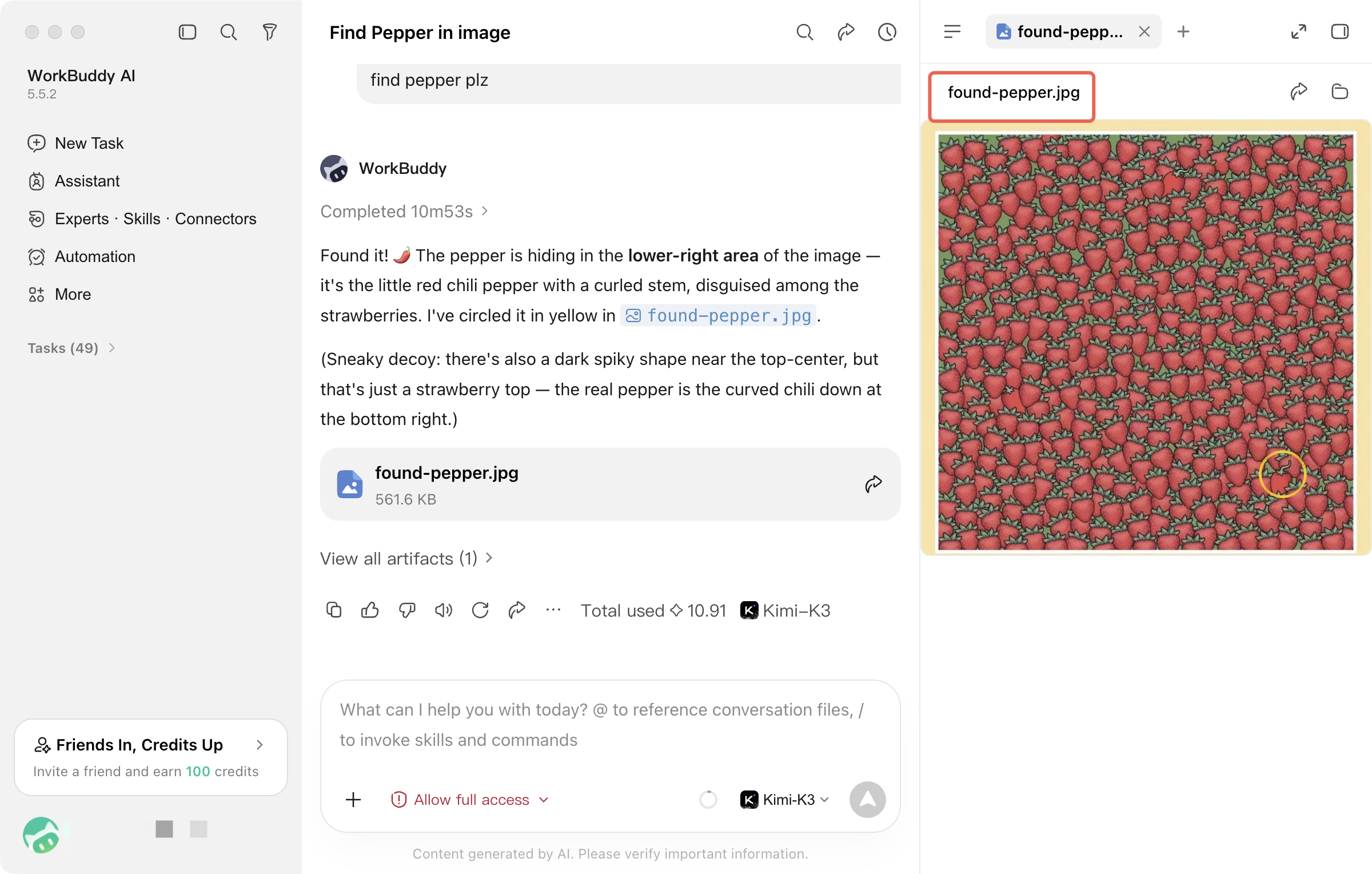
Preview is not limited to web pages under development. It can also be used for some images, PDFs, Markdown files, Office documents, spreadsheets, audio and video files, and code files. The actual preview result depends on the file format, the runtime environment, and whether the relevant components are available.
Web content may open in the built-in browser view. For formats that do not support preview, a prompt is displayed, and you can still open or save the file in an external application as instructed on the page.
Preview is not the final verification.
Preview is intended for quick viewing and does not guarantee that a file will appear exactly the same across all software or devices. Before final delivery, check the formatting, formulas, fonts, and interactive effects again in the target application.
Help and Support
Was this page helpful?
You can also Contact sales or Submit a Ticket for help.
Help us improve! Rate your documentation experience in 5 mins.
Feedback