Model Configuration
Download
Focus Mode
Font Size
Model Settings is the model management entry point of WorkBuddy AI, allowing you to select models based on task requirements or connect your own model services. Custom models can be added, edited, and deleted through the page without manually editing configuration files.
Different models may support different capabilities for text processing, reasoning, image input, and tool calling. Before integration, confirm that the model and service API meet the task requirements.
Automatic Mode
After you select Auto, the model service allocates models to handle requests based on its routing policy, reducing the need to manually select a specific model.
Auto mode does not mean that all added custom models will participate in the selection. To specify a particular model, manually select it in the model selector within the conversation.
Built-in Models
You can view the built-in models available to your current account in the model selector within the conversation. Specific model types and their availability may be adjusted based on the product version, account entitlements, and service configuration.
When selecting, focus on the capabilities actually required by the task:
Task Requirements | Model Capability of Interest |
Q&A, writing, and document organization | Text processing capability and acceptable context length |
Screenshot analysis and chart comprehension | Image input capability, and verify recognition performance in combination with tasks |
File processing and tool operations | Tool calling capability, and availability of related skills and services |
Multi-step analysis | Reasoning capability, and determine whether it is suitable for the current task based on the results. |
Image input is not the same as image generation.
Supporting image input means that the model can receive images for understanding, but it does not mean that the model can generate or edit images. Models from the same vendor may also have different capabilities across different versions, so you should not judge based solely on the vendor name.
Custom Models
On the desktop client, go to Avatar > System Settings > Models to manage your model service configurations:
Model List: View the names and provider information of saved models.
Add / Edit / Delete: Maintain configurations through the form. Confirmation is required for deletion.
Test Connection: Checks whether the API can respond, helping to troubleshoot issues with the address, key, or model name.
Select in Conversation: After saving, select the corresponding custom model in the model selector within the conversation.
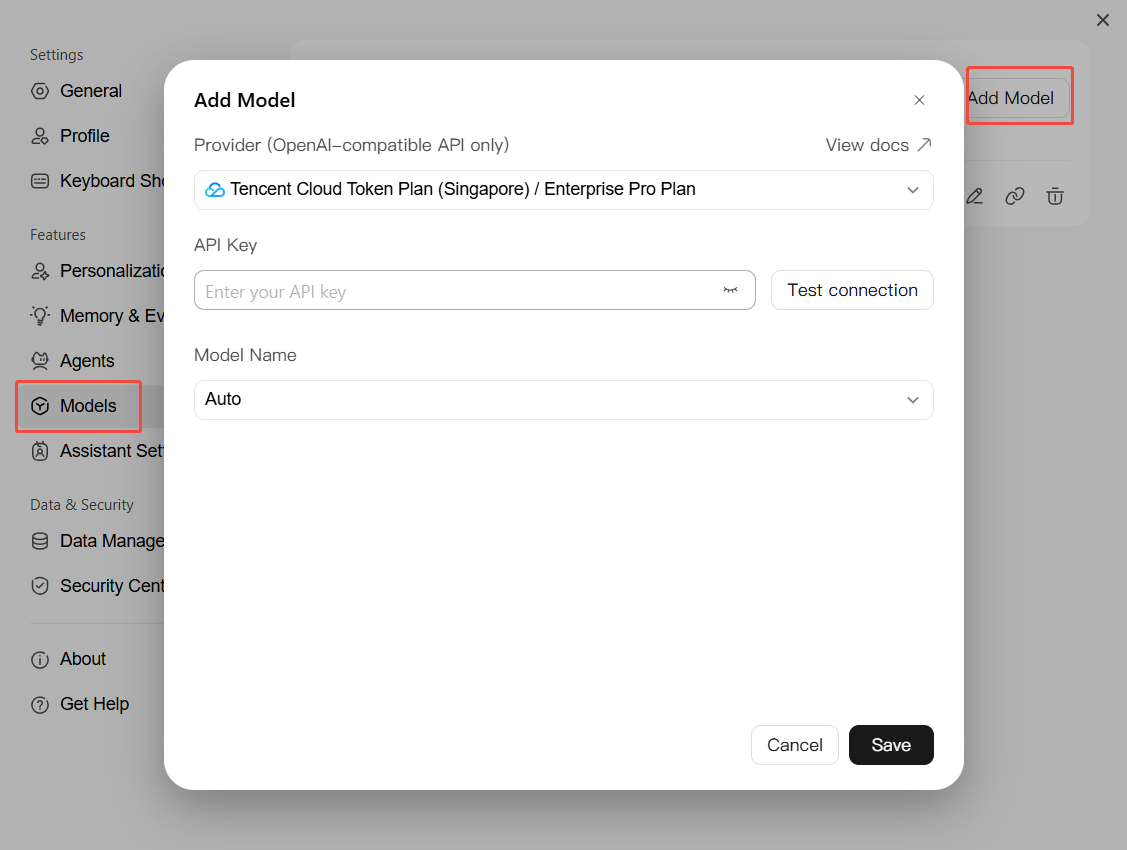
Saving a configuration does not mean that the connection is successful, nor does it automatically switch all conversations to the new model. We recommend that you test the connection first, and then use a simple task to verify the required capabilities.
Configuration save location
The default user-level configuration file is
~/.workbuddy-ai/models.json. On Windows, it is located at %USERPROFILE%\\.workbuddy-ai\\models.json. If you have changed the user configuration directory, use the path shown on the model settings page.Daily management can be completed directly through the interface without manually modifying the file. Do not upload configuration files that contain API keys to public repositories or use them for public sharing.
Access Method
Provider Integration
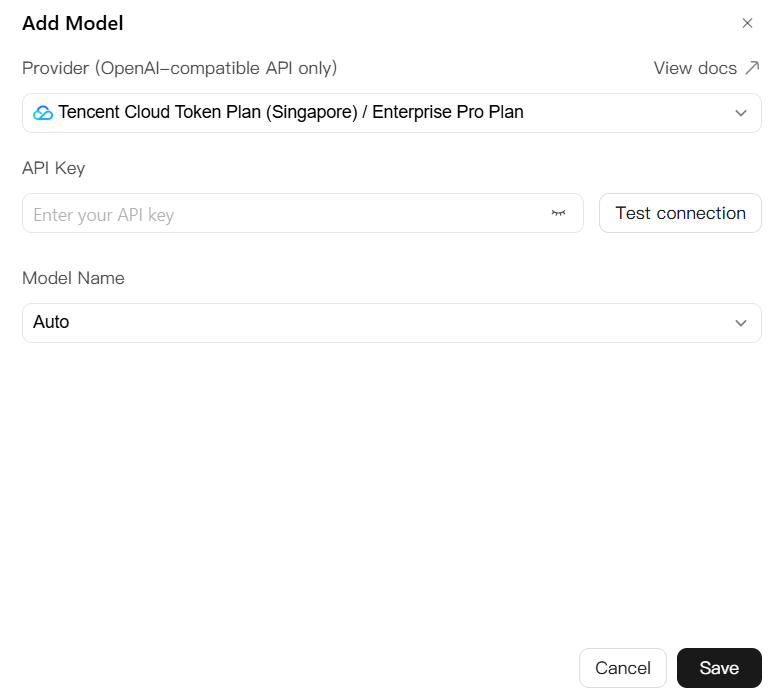
After you select a provider, the page automatically fills in the API address, model options, or default capability information based on presets. Different providers have different form requirements, and some require you to manually enter the model name. Fill in the required information such as the API Key based on the services you have activated.
Provider presets are only used to simplify configuration. They do not indicate that the corresponding plan has been activated, nor do they mean that all of their models are built-in models of WorkBuddy AI.
Token Plan
Select the Tencent Cloud Token Plan option that corresponds to your activated plan, then select a model and enter the API Key required by that plan.
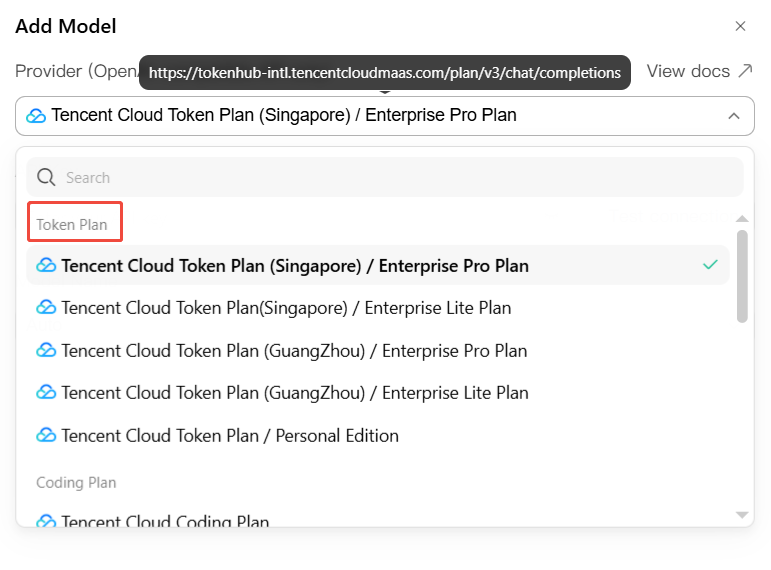
The model scope, quota, and usage conditions may vary by plan. Use credentials that match the selected plan and refer to the provider's service documentation. Do not treat a regular WorkBuddy AI login status as authorization to call the models in that plan.
Coding Plan
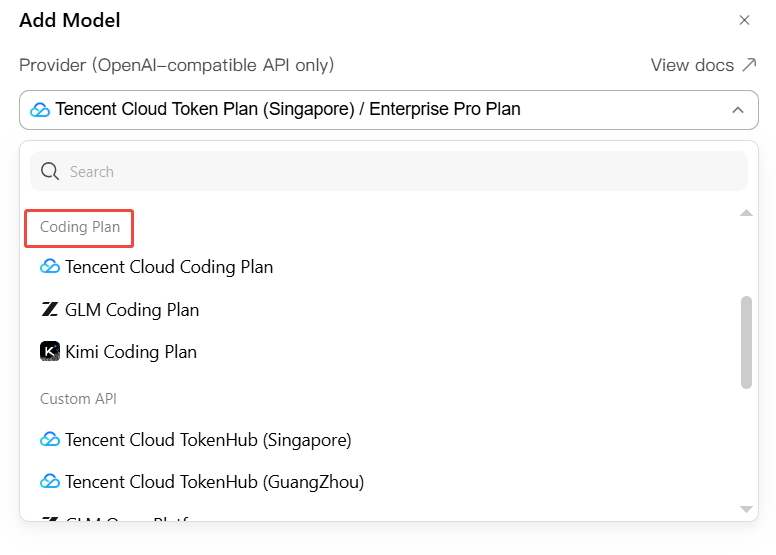
The provider presets include Coding Plan integration options for Tencent Cloud, Zhipu, and Kimi. Before use, confirm that the corresponding service has been activated, and enter the credentials and model information required by the API according to the selected plan.
Custom API
You can integrate supported API services through provider presets, such as OpenAI, DeepSeek, and Zhipu. Presets reduce manual entry, but you still need to verify the API address, model name, and access permissions.
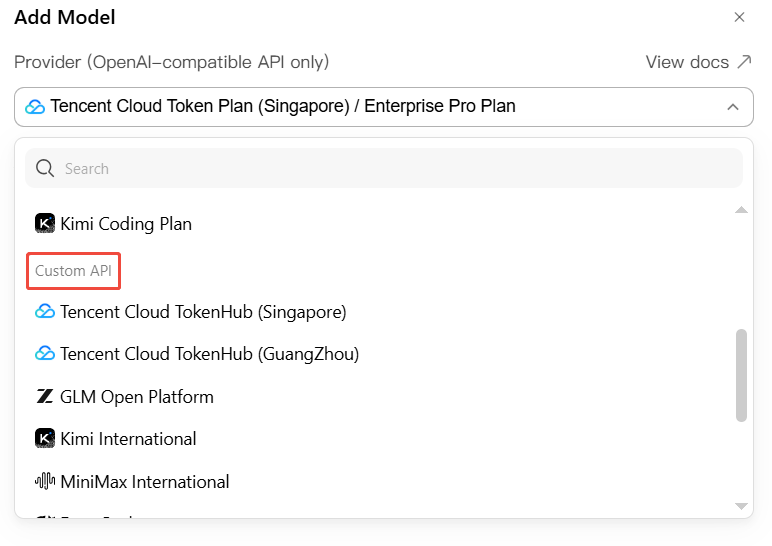
API compatibility requirements
Custom model integration currently uses the OpenAI-compatible Chat Completions API. Confirm that the service's request, response, and required tool call formats are compatible. Do not assume that a model is suitable for all WorkBuddy AI tasks simply because the API can return text.
On-Premises Deployment
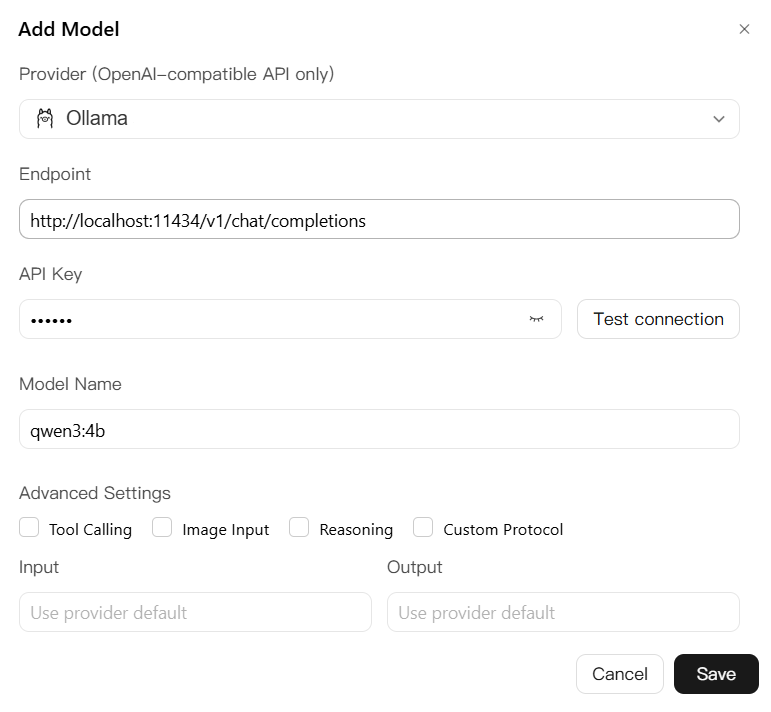
Ollama can run models locally and provides an OpenAI-compatible API for WorkBuddy AI to connect to. Before using local inference, install Ollama, download the required models, and keep the local service running.
Select Ollama as the provider and enter the exact name of the installed model. The default API address is:
http://localhost:11434/v1/chat/completions
The local integration preset for Ollama does not require an API Key. Configure options such as image input and tool calling based on the actual capabilities of the selected model, and then test the connection.
Scenarios where local models are worth considering:
1. You want to run and test models locally instead of offloading model inference to a remote service.
2. You already have sufficient memory, storage, and computing resources and want to select and manage models on your own.
3. You want to evaluate how local models perform on specific text processing or tool calling tasks.
Limitations of local inference
Make sure you are using a locally downloaded model rather than calling a cloud model through Ollama. Local inference consumes computer resources, is not zero-cost, and does not guarantee that all WorkBuddy AI features can be used offline.
Web search, external connectors, or other online services may still access the network. Therefore, integrating a local model does not mean that task data will never leave your computer, nor does it guarantee compliance with specific regulatory requirements.
Custom
If the model service is not in the preset list, select Custom, enter the API address, API Key, and model name provided by the service provider, and verify the relevant capability options.
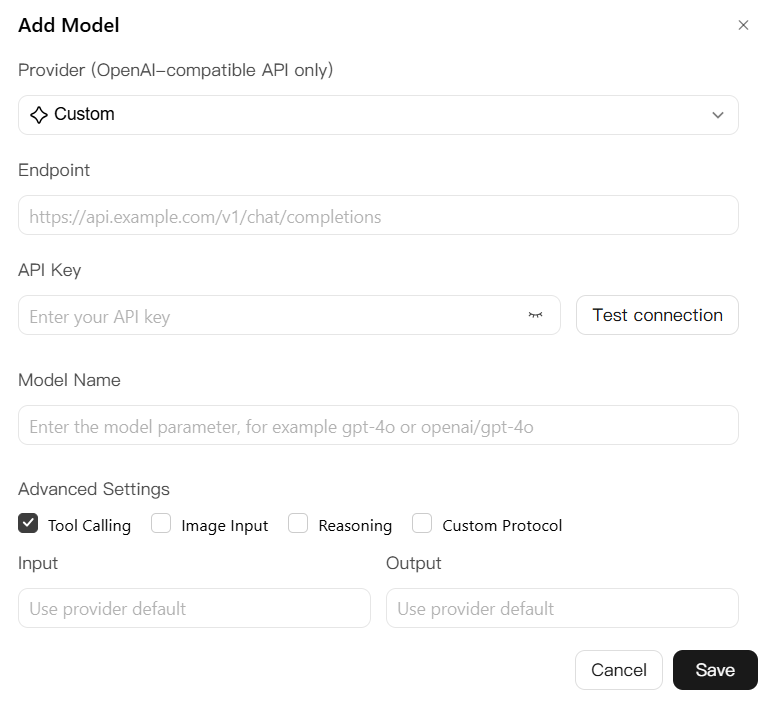
The model name should be the parameter value accepted by the API, not a display name you create yourself. After saving, test the connection first. If the connection fails, check the address, API key, model access permissions, and account quota.
Capabilities and Advanced Configuration
For some providers, capability indicators are automatically filled in based on the selected model. Providers that support manual configuration display the corresponding options. Fill in the fields according to the actual capabilities supported by the service instead of enabling all capabilities.
Configuration Item | Description |
Tool calling | Indicates that the model and API support tool calls, which are a prerequisite for many execution-oriented tasks. |
Image input | Indicates that the model and API can receive images, but does not mean they have image generation capabilities. |
Reasoning mode | Configure based on model support. Different services may use different control methods. |
Maximum input/output tokens | Configure based on model and service limits. Entering a larger value does not expand the actual model capacity. |
Thinking intensity | Use only when it is supported by the model and configuration entry. Do not enter a level that the service does not accept. |
A successful connection does not mean that all capabilities have been verified.
Test Connection is used to perform a preliminary check of the API response. Capabilities such as image understanding, tool calling, and long inputs must be verified separately using corresponding tasks. Test requests may also incur service usage.
Custom Protocol
Some providers offer a Custom Protocol toggle in advanced settings to control whether the API path is automatically completed. In most cases, you do not need to enable it. Enable it only when the service provider requires a specific full URL, and configure it according to their instructions.
Status | Action |
Disabled (default) | Normalize the custom model address to ensure the path ends with /chat/completions; other path segments required by the provider are not automatically appended. |
Enabled | Use the complete API address as entered, without automatically appending /chat/completions. |
For example, if the full service URL is
https://api.example.com/v1/chat/completions, you can enter the base URL containing /v1 or the full URL when the toggle is disabled. If the provider uses a different path, configure it according to their official documentation.Custom Protocol only changes how addresses are processed and is not a general-purpose API protocol converter. After it is enabled, the service must still comply with the request and response formats required for the current custom model integration, and it will not bypass authentication or permission restrictions.
Help and Support
Was this page helpful?
You can also Contact sales or Submit a Ticket for help.
Help us improve! Rate your documentation experience in 5 mins.
Feedback