Help and Feedback
Download
Focus Mode
Font Size
Help and Feedback is the entry point for submitting issues and suggestions about WorkBuddy AI, allowing you to report problems encountered during use or propose product improvement suggestions. Clear problem descriptions, reproduction steps, and necessary screenshots help the team understand the specific situation.
Feedback Entry
Click your avatar in the lower-left corner of the WorkBuddy AI desktop app, select Help and Feedback, and the Feedback window opens.
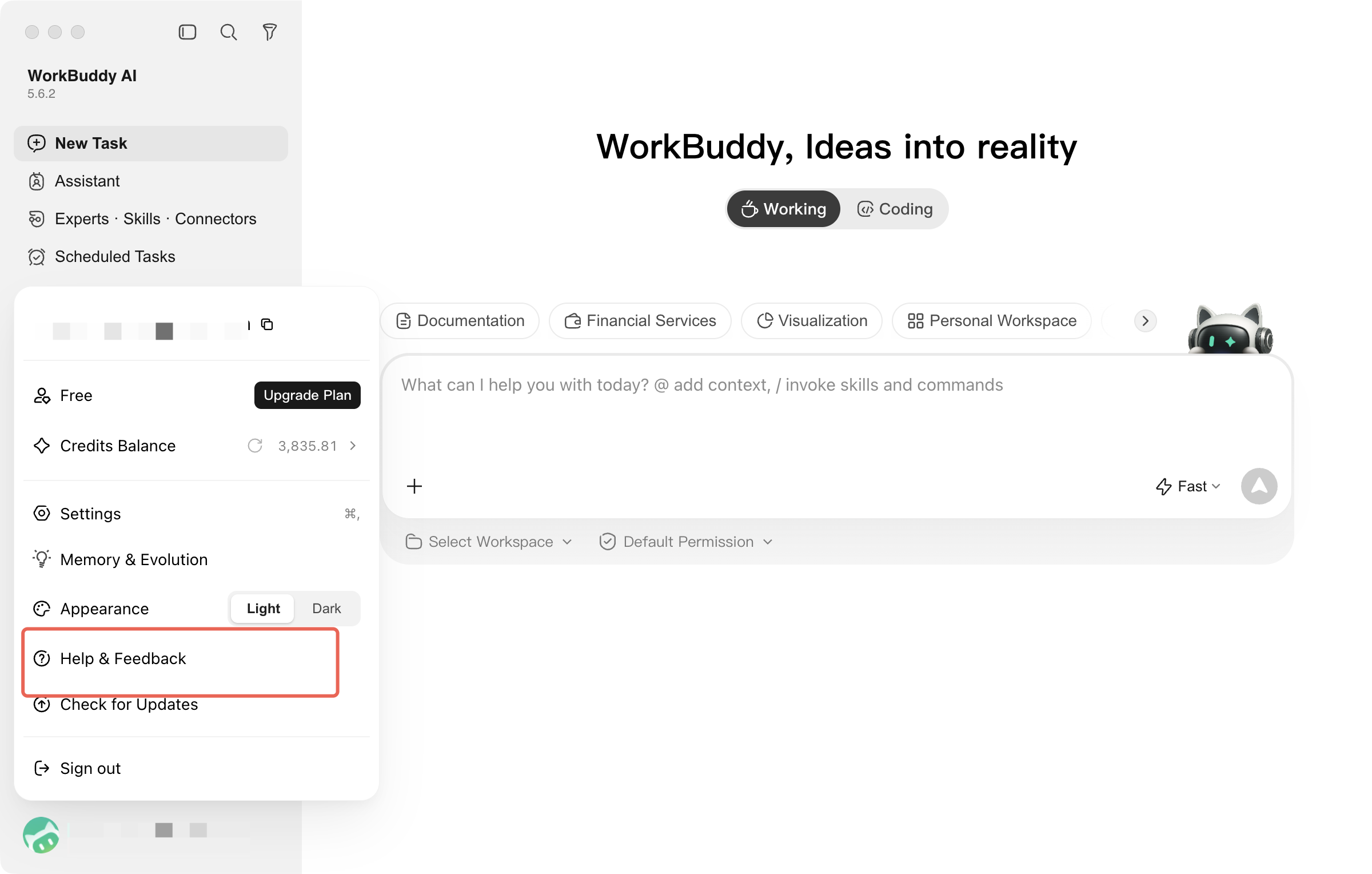
You can also go to Avatar > System Settings > About and click Submit Feedback.
Describe the issue or suggestion in the input box, add screenshots as needed, choose whether to upload logs, and then click Submit.
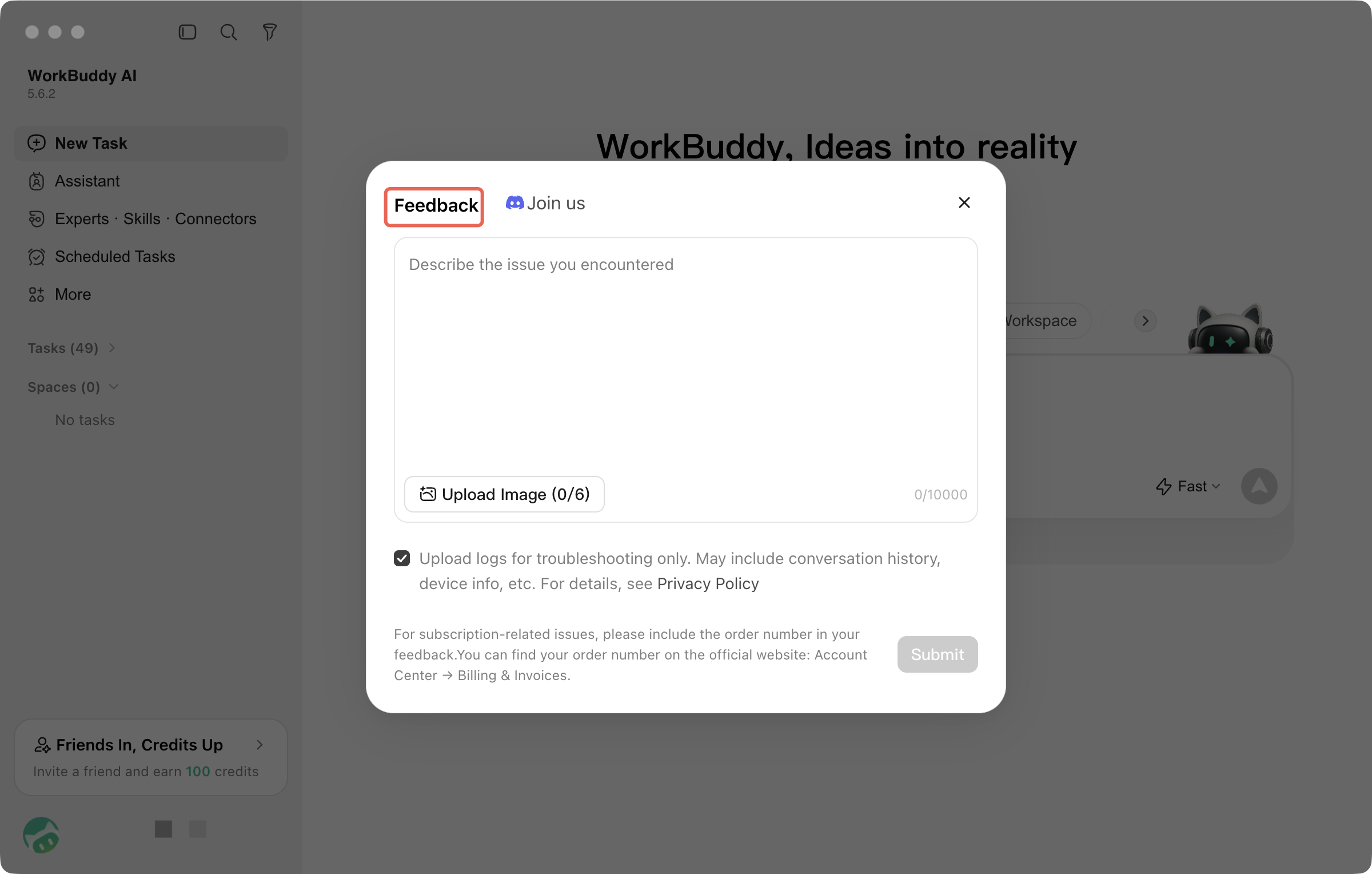
Problem Description: Describe the operation in progress, the expected result, and the actual situation that occurred.
Screenshots: You can upload or paste relevant images, up to 6 images, each no larger than 10 MB. Supported formats include JPG, PNG, GIF, BMP, and WebP.
Logs: Uploading logs is optional. When a runtime exception occurs, logs can serve as troubleshooting data. You can also submit feedback without uploading logs.
After successful submission, the window displays a success message and closes. If submission fails, check the page prompts and try again. In-app feedback does not currently provide an entry for querying processing progress.
Check for sensitive information before uploading.
Before taking screenshots, mask passwords, keys, personal information, or business content that should not be disclosed. Logs may contain data such as conversation records and device information. Read the log upload instructions and relevant privacy notices before deciding whether to upload logs. If you do not want to upload logs, you can clear the selection.
Contact Us
If you cannot use in-app feedback or need to provide more complete information, you can contact us by email:
Email:
workbuddy_ai@tencent.comScenarios
Scenario | Description |
Bug Report | Functional exceptions, error messages, or other issues that affect normal use |
Feature Request | Suggestions for improving existing features or requests for new features |
Account Issues | Issues such as login failures and abnormal account access |
Privacy and Data | Inquiries about data usage, privacy settings, or data deletion |
Subscription and Billing | Inquiries about subscription plans, bills, or payments |
How to Get Help Faster
To help understand and troubleshoot the issue, it is recommended that your email include the following information:
Email Subject: Briefly describe the issue, for example, "macOS login failure" or "Feature suggestion: Improve file preview".
WorkBuddy AI Version: You can find it in Avatar > System Settings > About > Current Version.
Environment: The computer operating system and version, such as macOS or Windows. When using the mobile app for remote access, also specify the messaging channel and the computer environment.
Time of Occurrence: The approximate date and time when the issue occurred, and whether it occurs continuously or occasionally.
Problem Description: Describe the expected result, the actual result, and the impact on usage.
Reproduction Steps: Describe how to trigger the issue in the order of operations, and indicate whether it can be reproduced every time.
Screenshots or Logs: Attach relevant materials as needed, and check for sensitive information before sending.
Response time
The response time for email feedback is subject to the information published on the official website's Contact Us page, and is currently within 7 business days.
If the issue severely impacts normal use, mark "Urgent" in the email subject and describe the scope of impact so that the team can assess the situation. The response time is not equivalent to the time for issue resolution or feature launch.
Help and Support
Was this page helpful?
You can also Contact sales or Submit a Ticket for help.
Help us improve! Rate your documentation experience in 5 mins.
Feedback