Application Usage
Download
Focus Mode
Font Size
Application Usage aggregates usage consumption by connected application (ClientID) within the enterprise's current subscription cycle. It is used to view how many credits each application has consumed, set cycle limits for individual applications, and prevent abnormal usage by a single application from exhausting the entire enterprise usage pool.
Note:
Aggregate by Application: Each row corresponds to an application connected to WorkBuddy, with
ClientID as the primary key. All calls made by the same application within the cycle are aggregated for statistics.Cycle Limit as Per-Application Cap: Controls the maximum credits that the application can consume within the current subscription cycle. By default, no limit is applied and the application shares the enterprise's total usage pool. Once a limit is set, the application will be throttled after exceeding it, without affecting other applications' continued usage.
Cycle Scope: It aligns with the enterprise's subscription cycle. You can switch to historical cycles at the top of the page to view the application usage and limit settings for that period.
Operation Steps
Step 1: Going to the Application Usage List
Log in to the WorkBuddy Enterprise admin console, and go to Subscriptions & Usage > Application Usage in the left sidebar to view the list of applications that have generated calls within the current subscription cycle.
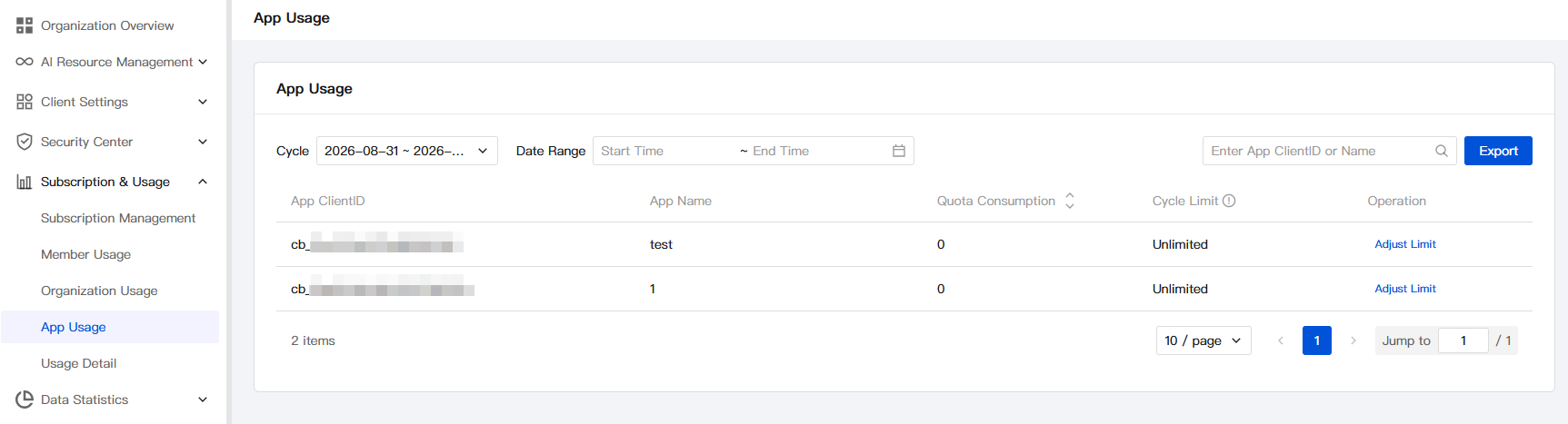
The fields in the list are described as follows:
Column | Description |
Application Client ID | Unique identifier of the access application (for example, cb_xxxxxx), generated by the open platform and used for cross-system tracing and ticket communication. |
Application Name | Display name entered when the application is created. If it is empty, the name is not maintained on the open platform and can be completed in Open Platform. |
Usage consumption | Number of points actually consumed by the application in the current subscription cycle. The column header supports ascending/descending sorting to quickly identify applications with high consumption. |
Periodic limit | Available upper limit for the application in the current subscription cycle. By default, it is unlimited and shares a pool with the total enterprise usage. If a numeric value is set, the application will be rate-limited when the usage exceeds this value. hover over the information icon in the column header to view the calculation rules. |
Operation | Provides an entry for adjusting the limit. Click it to open the limit settings window. |
Filtering and search methods are provided above and to the right of the list:
Filter Method | Description |
Period | Select a subscription cycle from the dropdown list. After switching, the list content is reset to the usage and limit settings of that cycle. |
Date Range | The "Start Time - End Time" input box with a calendar icon is used to customize the statistical range. The range must fall within the selected period. |
Search | The search box on the right supports fuzzy search by application ClientID and application name. |
Step 2: Adjusting the Cycle Limit for a Single Application
In the Actions column of any row in the list, click Adjust Limit to open the "Adjust Limit" dialog. The application's name and ClientID are displayed at the top of the dialog in gray as read-only text to help you confirm the target of the operation.
Keep unlimited (default)
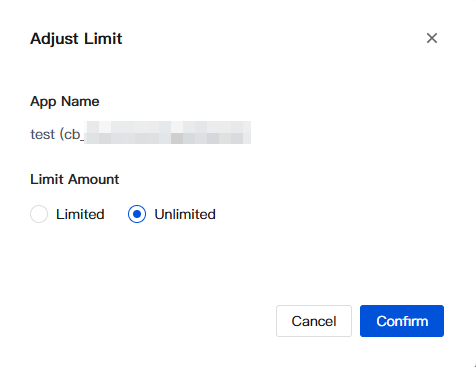
By default, Unlimited is selected for "Limit Amount", which means no separate cap is set for the application and it shares the enterprise's total usage pool. Keep this option if no specific control requirements exist.
Switch to limited and set a value.
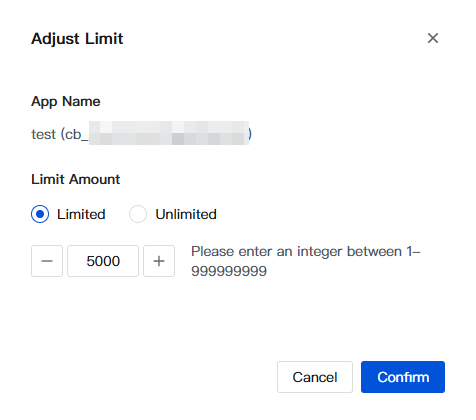
Field | Description |
Limit amount | Single choice: Limited / Unlimited. After "Limited" is selected, the numeric input box below becomes editable. |
Limit value | Integer input box that supports input via step buttons or direct typing. Value range: 1 - 999999999. If the value is out of range, the frontend blocks the input and displays a prompt. Unit: points. |
After filling in the information, click Confirm to apply the limit immediately within the current subscription cycle. To discard the changes, click Cancel or the close button in the upper-right corner to exit the dialog.
Note:
The limit only constrains the available cap of the application itself within the current cycle, without affecting other applications' continued usage of the enterprise's total pool.
After you switch back to "Unlimited", the previously configured value will be cleared, and you will need to enter it again the next time you make an adjustment.
When the limit is lowered, the application will be immediately throttled if its consumption has already exceeded the new value. When the limit is raised, the application will immediately resume normal calling.
Step 3: Exporting Application Usage
To send the application usage under the current filter conditions to finance, operations, or security teams for offline analysis, you can generate an Excel file by using the export feature.
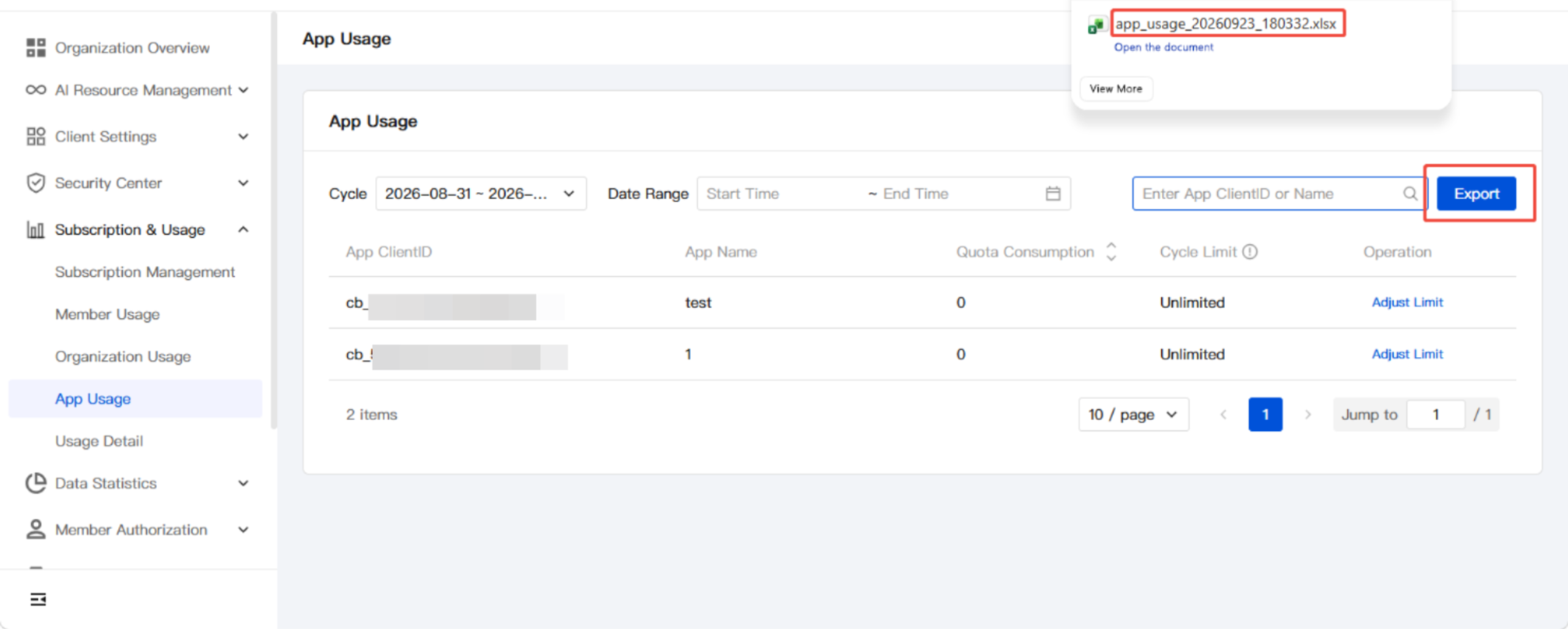
Access: the Export button to the right of the search box.
Export scope: all application records under the current filter conditions, including results filtered by cycle, date range, and search keywords.
File naming:
app_usage_<YYYYMMDD>_<HHmmss>.xlsx, for example, app_usage_20260923_141623.xlsx.File content: The column structure is consistent with the list page and includes fields such as application ClientID, application name, usage consumption, and cycle limit.
Help and Support
Was this page helpful?
You can also Contact sales or Submit a Ticket for help.
Help us improve! Rate your documentation experience in 5 mins.
Feedback