WorkBuddy FAQ
ダウンロード
フォーカスモード
フォントサイズ
Note:
This page summarizes the most common issues and troubleshooting suggestions encountered when WorkBuddy is used, and applies to scenarios such as daily access, installation and login, workspace management, model configuration, and performance troubleshooting.
If you encounter issues while using WorkBuddy, you can find solutions on this page. If the issue is not resolved, contact workbuddy_ai@tencent.com by email for assistance.
Installation and Login Issues
WorkBuddy Cannot Find the Original Workspace Folder After an Upgrade or a Next-Day Restart
Recommended Action:
1. Open File Explorer (Windows) or Finder (Mac), and locate the
WorkBuddy main folder.Windows:
C:/Users/Username/WorkBuddy Mac:
/Users/Username/WorkBuddy2. You can restore previous history records by opening the folder named with a date or a user-defined name in WorkBuddy.
3. It is recommended to sync important files to a separate directory.
No Response When WorkBuddy Is Clicked, Login Failure, or Login Issues
1. Common Cause: No default browser is set.
Recommended Action:
1. Go to system settings, open default apps, and set
Chrome as the default browser. Then, select Open in Browser to try launching the login verification window again.2. Select Copy Link and open your browser. Then press Ctrl + V or right-click to paste the link into the browser to complete login verification.
1. Open System Preferences > General.
2. Set the default browser to Chrome or Safari.
3. Restart the app and log in again.
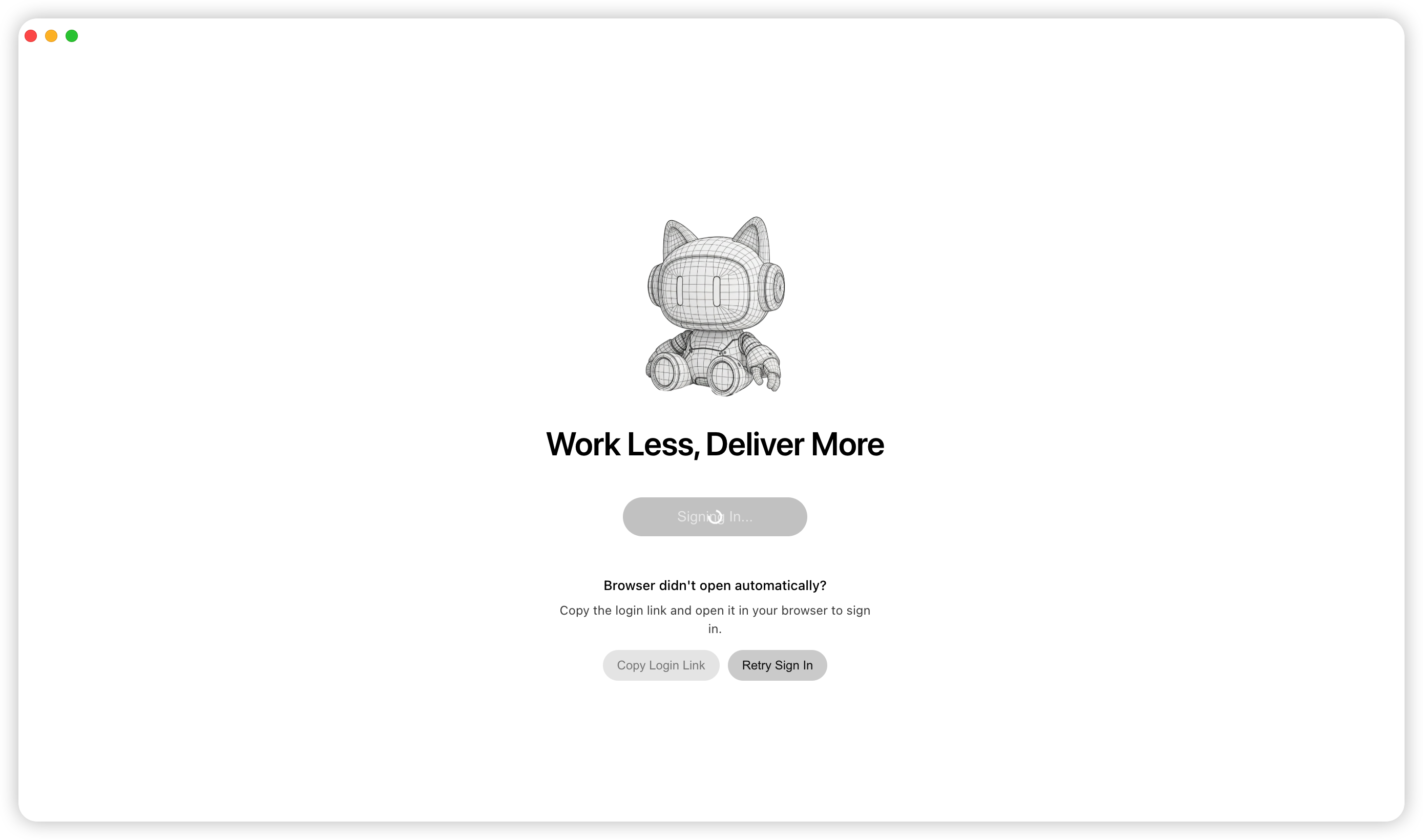
2. Common Cause: The user does not have permission to operate the WorkBuddy account folder.
Recommended Action:
Confirm the directory permissions.
On
Mac, run the following command in the terminal. If the directory owner is not the current user (which can be confirmed by running the whoami command), authorization is required.ls -la ~/Library/Application\\ Support/CodeBuddyExtension/ls -la ~/Library/Application\\ Support/CodeBuddyExtension/Data/ls -la ~/Library/Application\\ Support/CodeBuddyExtension/Data/Public/ls -la ~/Library/Application\\ Support/CodeBuddyExtension/Data/Public/auth/
On
Windows, run the following command in PowerShell. Confirm that the Owner and Access lists include the current user. You can run the whoami command to confirm the current username.Get-Acl "$env:APPDATA\\CodeBuddyExtension" | Format-ListGet-Acl "$env:APPDATA\\CodeBuddyExtension\\Data" | Format-ListGet-Acl "$env:APPDATA\\CodeBuddyExtension\\Data\\Public" | Format-ListGet-Acl "$env:APPDATA\\CodeBuddyExtension\\Data\\Public\\auth" | Format-List
Authorize the current user.
On
Mac, run the following command in the terminal:sudo chown -R $(whoami) ~/Library/Application\\ Support/CodeBuddyExtension
On
Windows, open PowerShell as an administrator and run the following command:$user = [System.Security.Principal.WindowsIdentity]::GetCurrent().Name$path = "$env:APPDATA\\CodeBuddyExtension"takeown /F $path /R /D Yicacls $path /grant "${user}:(OI)(CI)F" /T
To log in again, exit WorkBuddy, reopen it, and log in to your account again.
3. Common Cause: The request is blocked by security software.
Recommended Action: Temporarily exit the following security software and try again.
Huorong
360 Total Security
Tencent PC Manager
Windows Security
Note:
WorkBuddy is often blocked by mistake. Disable the security software and try again.
Windows 11 ARM 64 Devices Cannot Install WorkBuddy
The current version does not support
Windows 11 on the ARM 64 architecture.Recommended Action: Use a supported device environment or wait for support in a later version.
Logs and Troubleshooting
Where to View Logs
Open WorkBuddy, choose Help > Open Log Folder at the top, and locate the corresponding log (.zip) package.
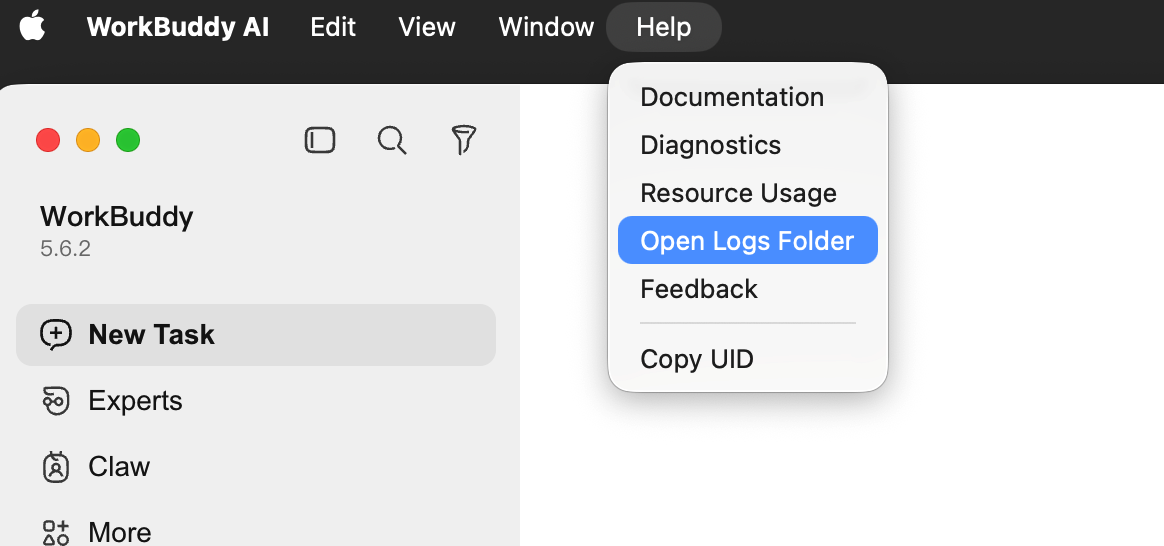
Open WorkBuddy, find Open Log Directory in the dropdown menu of Help in the upper-left corner. The compressed package inside is the log file.
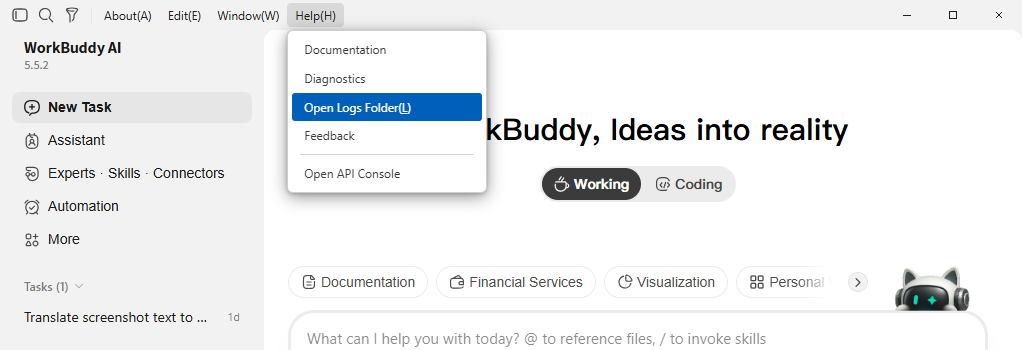
Sending Issue Logs to the Team for Product Feedback
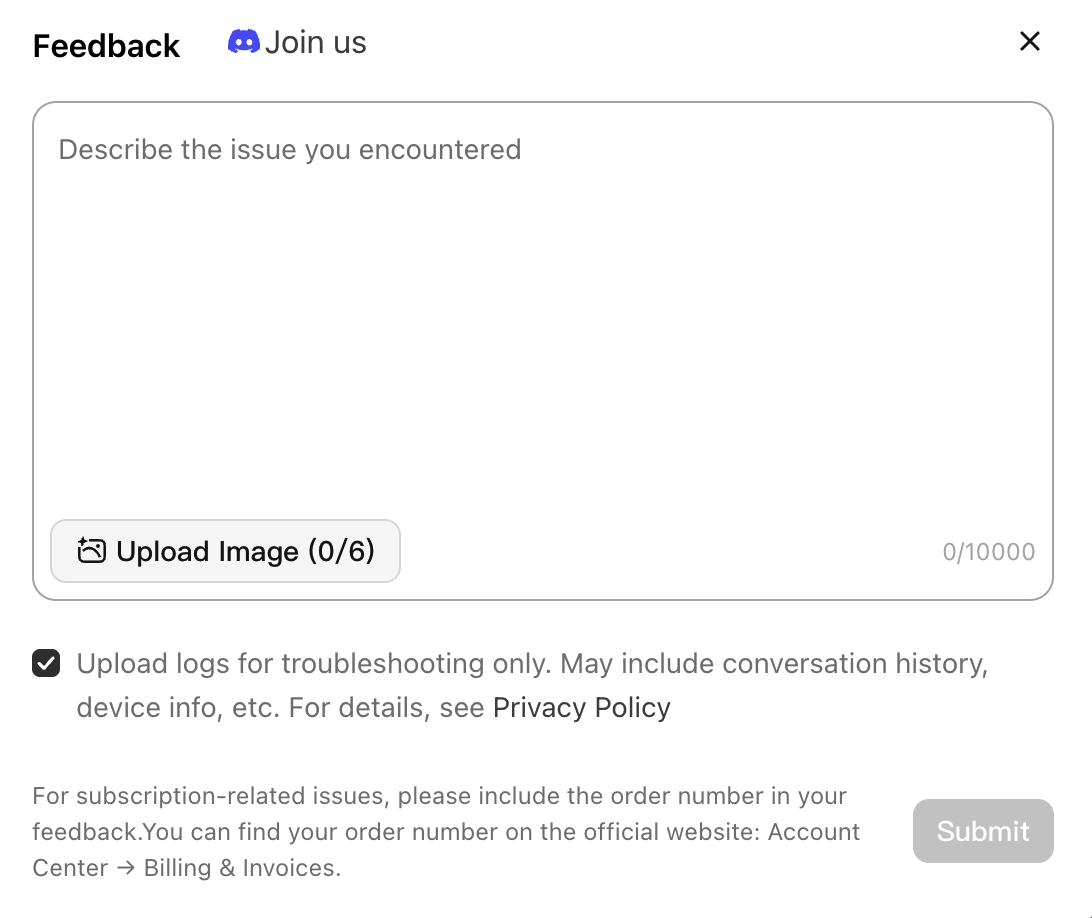
1. Open WorkBuddy, find helpFeedback in the dropdown menu of Help in the upper-right corner to quickly access the feedback entry. Alternatively, click your avatar in the lower-right corner and open Settings > Help and Feedback > Feedback.
2. On the feedback page, describe the issue you encountered, upload a screenshot of the situation, select Upload Logs, and then click Submit to send your feedback.
Note:
Logs are used only for troubleshooting and may contain data such as conversation records and device information. For details, refer to the Privacy Protection Statement.
Bot Connection Issues
Connected but No Response After Messages Are Sent
The WorkBuddy client shows that registration or configuration is complete, but the bot does not respond, disconnects occasionally, or becomes unreachable when reopened after being initially available. This may be caused by model exceptions, network instability, or platform connection timeouts.
Recommended Action:
1. First, check whether the current connection is still online.
2. Switch the model first and then test again. Some unresponsive issues can be mitigated by switching the model.
3. If WeChat is unresponsive for a long time, disconnect and reconnect it.
4. If the bot works initially but fails later, record the reproduction time and platform type for further troubleshooting.
File Reading and Workspace Issues
Unable to Read Files Such as Images, PDF, Excel, and Word
This usually occurs because the current model does not support the corresponding file type, or the relevant plugin and
Skill are not installed.Recommended Action:
1. Switch to a model that supports image or document input, such as a model with image understanding capabilities.
2. Describe your requirements step by step so that
AI can complete environment installation and file processing incrementally.3. Install document processing plugins and
Skill from the plugin or skill marketplace.Files Missing After Desktop Cleanup
After you send a desktop organization command to
WorkBuddy, a PS file is generated. After the file is executed, the desktop is organized, but some files may be lost.Recommended Action:
1. Back up important files on the desktop before proceeding.
2. After execution, check the target organization directory and Recycle Bin first.
3. If the issue persists, keep the generated script and screenshots of the execution results, and report them to the team for troubleshooting.
Unable to Open Files Generated by WorkBuddy
Recommended Action: When assigning a task, clearly specify the file format to generate, such as
Word, Excel, PDF, or Markdown."User Project Directory Detected in the Application Installation Directory" Prompt During Update
When
WorkBuddy is updated or reinstalled, the installation directory is cleared and files are written again.Recommended Action:
1. Open the installation directory: right-click the WorkBuddy icon and select Open file location.
Note:
Common installation directory paths:
Windows: C:\\Users{Username}\\AppData\\Local\\Programs\\WorkBuddy
MacOS:/Applications/WorkBuddy.app
The installation directory typically contains the following folders:
bin, locales, resources, and tools.2. Remove the folders generated by the conversation, and keep only the system folders named
bin, locales, resources, and tools. Check for personal files, and if any are found, move them out as well to prevent them from being overwritten by the installer. 3. Restart the client, choose WorkBuddy > Check for Updates at the top, and wait for the installation package to finish downloading.
Product Feature Issues
Support for Custom Models
Integrating a Configured Bot into Group Chats
Recommended Action: Confirm the target platform, bot type, and group chat permission requirements before further troubleshooting.
Why Can't the Default Folder Be Modified in Assistant Features?
Description: The Assistant is designed specifically for remote tasks and does not support modification.
Support for Cloud Deployment or Server Installation
Description: Server-side capabilities are still being improved. Official support is subject to future releases.
Performance, Exceptions, and Mobile Limitations
WorkBuddy Replying with Garbled Text, Random Output, or No Response for a Long Time
This is usually caused by model exceptions, excessive load, or network instability.
Recommended Action:
1. Switch the model first and then test.
2. Split complex tasks into smaller steps.
3. Record whether error codes, timeouts, or network fluctuations are also present.
Prompt Indicating Inability to Complete When Uploading Desktop Files Is Required on WeChat Mobile
Recommended Action: This capability is typically limited by current device permissions, path access methods, and platform capabilities. Specify the file path explicitly on the local machine before proceeding.
WorkBuddy Running Slowly with Long Task Execution
Recommended Action:
1. First, check whether the network environment is stable.
2. Minimize overly long or large compound tasks that are completed in a single step.
3. Switch the model if necessary, or split the work into multiple independent tasks for parallel processing.
WorkBuddy Task Execution Stuck Without Response
Recommended Action:
1. Click the button Stop Task in the lower-right corner of the task sending area.
2. Switch to another model.
3. Re-run the historical task.
Common Error Code Descriptions
Error Code | Description | Recommended Action |
14003,11133,1001 | Mostly related to the model-side status | Prioritize switching models for retries, but this method may only provide temporary relief. |
3002,3003,400,401,504 | Mostly related to the network environment | 1. First, check whether you are using a corporate network or a home network. 2. If you are on a corporate network, contact your enterprise IT team for troubleshooting.3. If you are on a home network, follow the network troubleshooting steps on the official website one by one. |
6003 | Indicates that the request rate is limited. | Try switching models first as a temporary mitigation. |
Account-Related Issues
How to Request a Refund
Recommended Action:
1. Before submitting a ticket for a return and refund, first confirm whether the conditions in the refund policy are met.
2. Log in to the Tencent Cloud official website, go to the Submit Ticket page, find CodeBuddy, fill in the refund reason and problem description, and then submit the ticket.
3. After you submit a refund ticket, the ticket will enter the review stage, and Tencent Cloud customer service personnel will process your application within two business days.
4. After the ticket is approved, the system will perform the return operation.
5. You can view the return order on the Order Management page, where the order status is Refunded, and you can view the payment on the Billing Center page. If the review is not approved, you can view the review result in the ticket.
How to Query the Latest Plan Prices
Recommended Action: You can view WorkBuddy plan pricing and place an order on the Pricing Plans page.
How to Claim Compensation Points
Recommended Action: Log in to the official website, click the avatar account in the upper-right corner, and choose Personal Homepage > Usage Management to claim it.
Points Not Credited or Consumed Abnormally
Recommended Action:
1. Log in to the official website, click the avatar account in the upper-right corner, and go to Personal Homepage > Usage Management to query your points balance and usage details.
2. Send the exception screenshot to workbuddy_ai@tencent.com. The team will verify it and reply.
Presales Consultation and Business Engagement for Enterprise Users
Recommended Action: Go to Pricing Plans to view Enterprise Edition pricing information and pre-sales channels.
How to Issue an Invoice
Recommended Action:
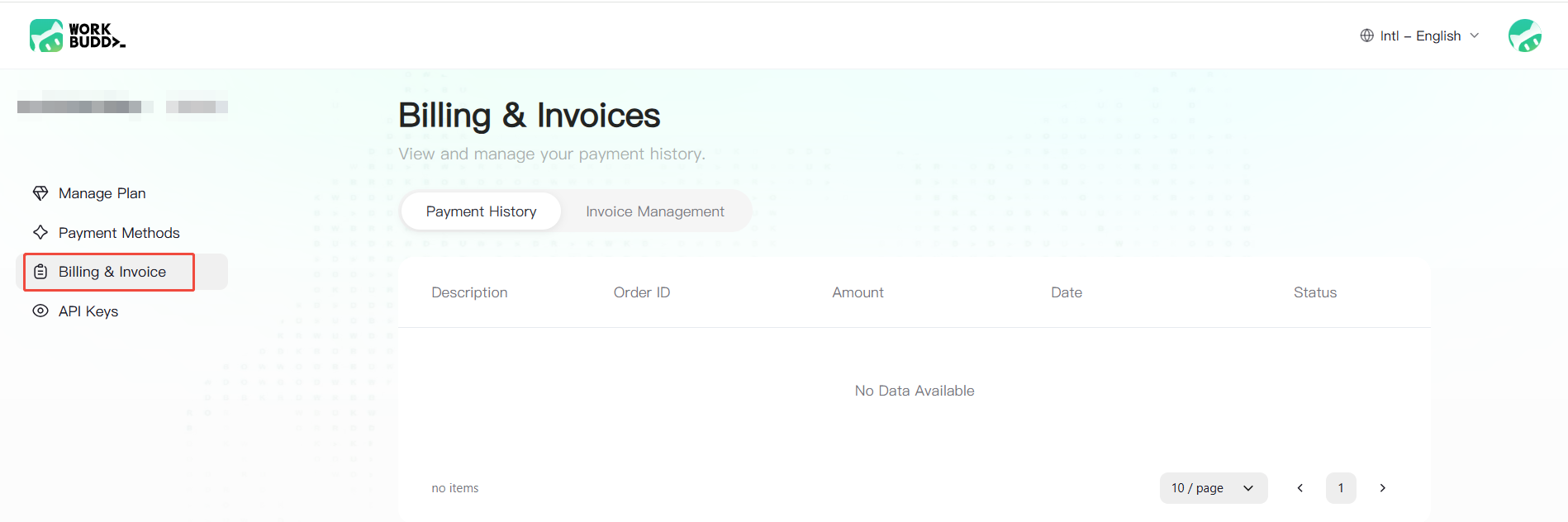
Personal Edition: You can view invoices on the WorkBuddy official website under Profile.
Log in to the WorkBuddy official website and go to your profile.
In the left sidebar, select Billing and Invoices.
Click View Invoice to go to the Tencent Cloud console's Invoice Management Create Invoice page.
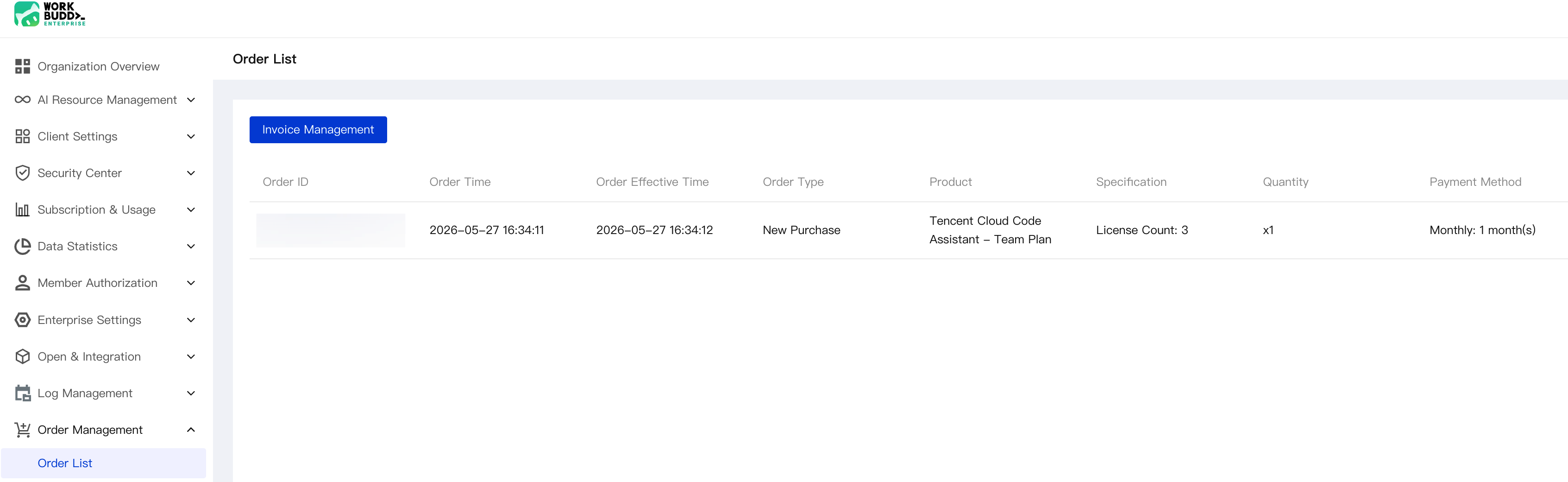
SaaS Enterprise Edition: Enterprise administrators can log in to the WorkBuddy admin console to view order records.
Log in to the WorkBuddy admin console.
In the left sidebar, select Order Management.
Click Invoice Management to go to the Tencent Cloud console and view invoices. Make sure to log in to the Tencent Cloud console with the uin bound to your enterprise.
Data Security Notes
Data security is fully guaranteed when WorkBuddy is used. WorkBuddy has established a comprehensive enterprise-grade security system, with the following specific safeguards:
Three-Layer Defense-in-Depth Security Architecture
1. Technical Defense Layer: Sandbox Isolation and Permission Control
Bash Command Sandbox: AI operations are strictly isolated from the real system to prevent damage to the system.
File system isolation: Only pre-authorized workspace directories can be accessed, and system-sensitive files cannot be accessed.
Sandbox escape prevention: Block writes to configuration files to prevent malicious script injection.
Secure by design: The system has read-only permissions at startup, and editing files or running commands requires explicit user approval.
Layered permission system: Supports three permission rules: allow, ask, and deny.
2. Management and Control Layer: Enterprise-grade unified management and control
SSO Single Sign-On: Unified identity authentication with automatic synchronization of the organizational structure.
Credit Quota Control: Differentiated AI usage quotas configured by department or role.
IP Address Allowlist: Restrict logins to devices from specific IP address ranges to prevent external access.
Granular Tool Invocation Permissions: Strictly control AI access to files, commands, and networks.
3. Compliance Audit Layer: Data protection and compliance
Skill Security Audit: Integrates with security teams to classify risks by severity.
skill-scanner Local Security Check: Proactively defend against potential risks before installation.
Local Data Processing Without Upload: All data is processed locally in the user's environment, fundamentally eliminating the risk of data leakage.
The server only processes data fragments: They are discarded immediately after use, never stored, and never used for model training.
Comprehensive User Agreement and Privacy Policy: Compliant with the Cybersecurity Law/Data Security Law/Personal Information Protection Law.
Communication Security Assurance
1. HTTPS End-to-End Encryption
All data transmission uses HTTPS end-to-end encryption.
Supports TLS 1.2/1.3 encryption protocols.
Ensure that data is not intercepted, tampered with, or subjected to man-in-the-middle attacks during transmission.
2. IM Built-in WebSocket Channel Communication
Communicate through the built-in WebSocket channels of mainstream IM platforms such as WeCom, QQ, DingTalk, and Feishu.
This is not an intrusion into the enterprise private network, so no additional ports need to be opened on the enterprise firewall.
Fully reuse existing secure channels.
3. Secure Communication Gateway
Built-in secure communication gateway that supports Gateway Token authentication and connection authorization.
Works with SSO/enterprise authentication and role-based access control.
Ensure that every connection is strictly verified.
Does not rely on third-party tunneling tools such as frp/ngrok/Tailscale.
Advantages over Open Source Solutions
Security Dimension | WorkBuddy | Open Assistant Open Source Solution |
Identity Authentication | SSO Single Sign-On/Organization Structure Sync/Role-Based Permission Control | Gateway Token + basic authentication; requires self-built SSO/manual Role configuration. |
Network security | HTTPS Full-Path Encryption/Enterprise-Grade IP Address Allowlist/Secure Communication Gateway | SSH/Tailscale tunneling; requires self-configuration of HTTPS and IP address allowlist. |
Permission Control | Member Authorization/Credit Quota/Tool Invocation Permission/Skill Security Audit | Basic read/write/execute permissions; requires manual configuration of quotas and auditing. |
Compliance and Certification Assurance
As a Tencent Cloud product, WorkBuddy inherits the Tencent Cloud security and compliance system and holds 400+ authoritative domestic and international certifications, including:
ISO27001 Information Security Management System certification (UKAS international accreditation and CNAS domestic accreditation).
ISO27018 international certification for personal information protection.
ISO27701 Privacy Information Management System.
CSA STAR cloud security management system certification (Gold).
Multi-Level Protection Scheme (MLPS) Level 3/Level 4.
PCI-DSS Payment Card Industry Data Security Standard certification.
SOC audit report.
Trusted Cloud data security certification.
Summary of Core Security Advantages
1. Out-of-the-box enterprise-grade security: natively integrates a full suite of security controls without requiring enterprises to build SSO, configure networks, or audit Skills themselves.
2. Security Team Endorsement: Skill Security Audit is deeply integrated with security teams for tiered risk assessment, rather than relying on a community self-governance model.
3. Compliance First: fully meets compliance requirements for domestic enterprises, with localized data execution, comprehensive privacy agreements, and the VPC Dedicated Edition providing high-level data sovereignty assurance.
4. Zero Data Leakage: Data is processed locally and not uploaded to the cloud. The server processes only data fragments, which are discarded immediately after use, never stored, and never used for model training.
In summary, WorkBuddy can fully safeguard enterprise data security through a three-layer defense-in-depth system comprising technical defense, management control, and compliance auditing, combined with multiple security measures such as HTTPS full-path encryption, secure communication gateways, and the VPC Dedicated Edition, backed by 400+ authoritative Tencent Cloud certifications, making it suitable for enterprises with high data security requirements.
Usage Recommendations
Prioritize Evidence Preservation: include error codes, error screenshots, system version, network environment, and occurrence time.
Prioritize Minimal Verification: switch the model, reconnect to the platform, and split tasks before further troubleshooting.
Back Up Important Files First: especially before operations such as desktop cleanup, batch moves, and workspace migration.
Beginner-friendly getting-started scenarios:
High-frequency scenarios:
Control WeChat to automatically post to Moments or gather group chat statistics.
Automatically write and publish Xiaohongshu content.
Automatically collect information from specified web pages and organize it into a target file.
Recommended Approach: Start with a single, well-defined scenario, complete one full workflow end to end, and then gradually expand to more complex tasks.
フィードバック