Upgrading the Gateway Edition
Download
Focus Mode
Font Size
Scenarios
If the current gateway version has entered the end-of-life phase, we recommend that you upgrade your gateway to a stable version through the console to ensure the stable operation of your gateway instances.
Attention:
To ensure a successful upgrade, do not perform any change operations on your gateway instances before or during the upgrade. During the upgrade, the gateway console will be write-disabled. Please plan your upgrade accordingly.
Version upgrade
1. Log in to the TSF console.
2. In the left sidebar, click Cloud Native Gateway > Instance List and locate the target gateway.
3. If the gateway version column shows Upgrade Available, go to Operation > More and click Upgrade Gateway Version.
4. Click OK to enter the version upgrade process.
5. Before the upgrade, an environment check will be performed. You must ensure that all check items pass before proceeding with the upgrade. If any check fails, you can fix the issue and then click Recheck to run the environment check again. The check items are as follows:
Check Item | Passing Condition | Remedial Action for Check Failure |
Instance State | The status is Running. | Wait for the instance change to complete and for the status to become Running, then perform the recheck. |
Backend Service State | No service has a backend pointing to the gateway admin address. | Delete the service or modify the service address, then perform the recheck. |
AS State | All AS rules are disabled. | Disable the enabled AS rules, then perform the recheck. |
Subnet IP address quantity | The subnet IP address quantity is sufficient. | Go to the VPC, release the subnet IPs, then perform the recheck. |
Node Weight | Node weights are consistent. | Go to Instance Details > Basic Information > Deployment Architecture, manually adjust the node weights, keep the node weights consistent, then perform the recheck. |
6. Confirm the instance ID and instance name, select the target upgrade version, read and select the gateway upgrade instructions, and then click OK to enable the upgrade. The overall upgrade duration is related to the current number of nodes in the instance. If the instance has many nodes, the upgrade may take a long time. You can check the task status in the status column of the gateway list.
Viewing Upgrade Task Progress
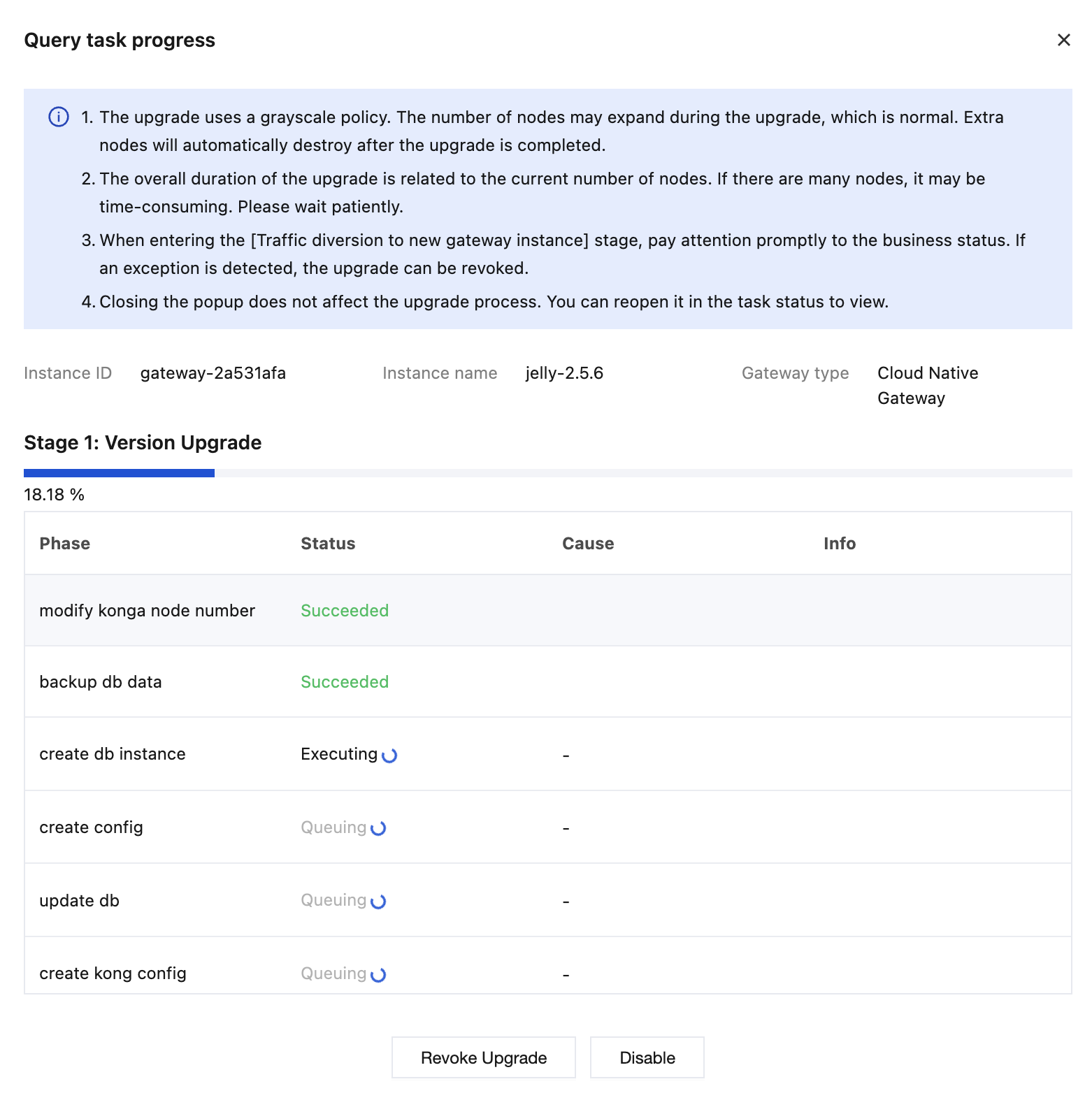
1. Click Cloud Native Gateway > Instance List, locate the target gateway, click Status, and then click View Task Status.
2. The upgrade follows a canary policy and consists of two phases: Version Upgrade and Resource Reclamation. The Version Upgrade phase is primarily used to provision the component resources required for the upgrade, during which the number of nodes may increase. After the version upgrade is completed, resource reclamation is required to terminate the redundant nodes created during the upgrade. Therefore, you must manually confirm and agree to execute the resource reclamation. Afterwards, the gateway will automatically trigger the old resource reclamation process.
Canceling an Upgrade
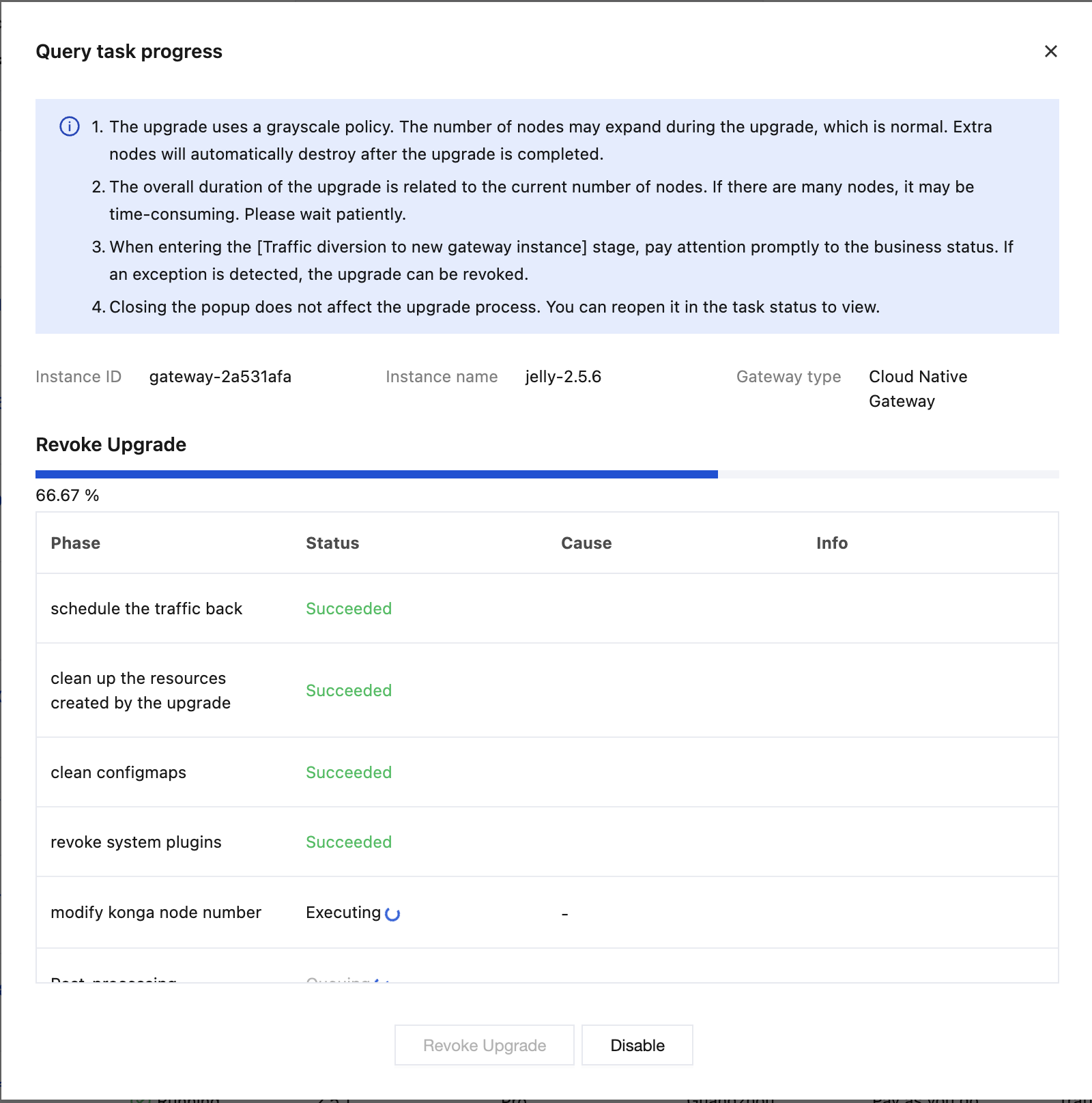
If you detect any business exceptions during the upgrade process, you can roll back the upgrade.
1. Click Cloud Native Gateway > Instance List, locate the target gateway, click Status, and then click View Task Status.
2. Click Roll Back Upgrade. The gateway will then initiate a rollback task to switch traffic back, ensuring production stability.
Help and Support
Was this page helpful?
You can also Contact sales or Submit a Ticket for help.
Help us improve! Rate your documentation experience in 5 mins.
Feedback