Domain Name Management
Download
Focus Mode
Font Size
This document quickly guides you on how to access the API Gateway using a custom domain name in Cloud Native Gateway. Cloud Native Gateway provides access via IP address but does not offer a domain name entry point. Therefore, you need to add an A record in your domain's DNS that points to the IP address provided by Cloud Native Gateway.
Overview
You need to complete the following steps sequentially:
1. Add an A record in DNS to bind the IP address provided by Cloud Native Gateway.
2. Bind a certificate (if HTTPS is used to access the gateway).
Operation Steps
Step 1: Adding an A Record in DNS to Bind the IP address Provided by the Cloud-Native Gateway
1. Go to the Cloud Native Gateway console, choose Cloud Native Gateway > Instance Management, choose the instance you want to access, and go to the instance details page.
2. Select the cluster group you need to access, view Network Configuration > Public Network CLB, and obtain the access IP address.
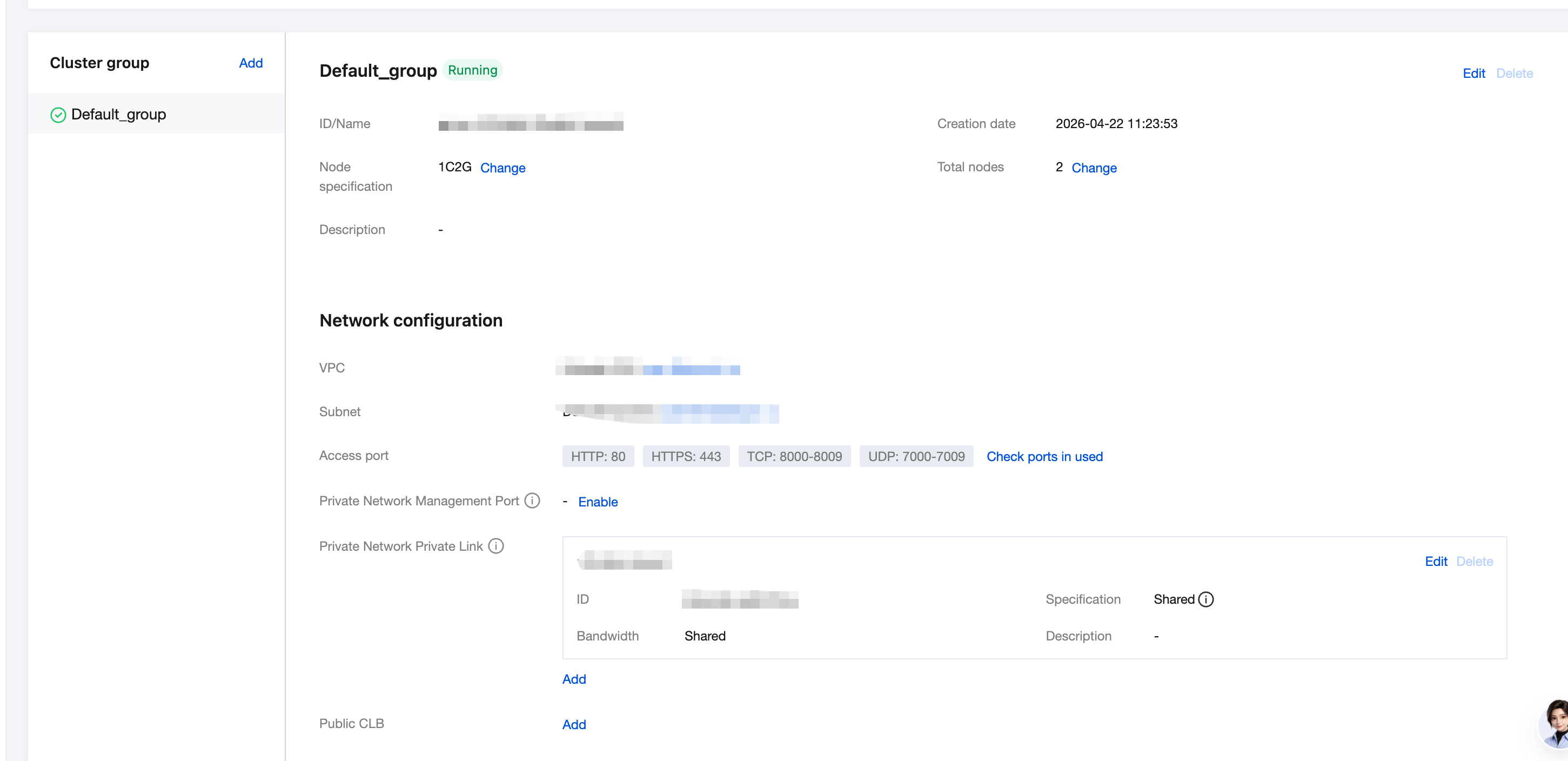
3. Add a record in DNS to bind the domain name to the public IP address.
Step 2: Binding a Certificate (If HTTPS Is Used to Access the Gateway)
If you need to access gateway resources via HTTPS, see the Certificate Management steps to bind a certificate.
Attention:
If no certificate is bound, a certificate mismatch with the custom domain name occurs when you access the domain via HTTPS. If you use the curl tool for testing, add the
-k parameter to skip server certificate verification. In a production environment, you must bind a certificate to use HTTPS.Help and Support
Was this page helpful?
You can also Contact sales or Submit a Ticket for help.
Help us improve! Rate your documentation experience in 5 mins.
Feedback