Version Management
Download
Focus Mode
Font Size
Feature Introduction
MCP Tool supports configuration-level version management, helping you trace historical changes, compare version differences, and roll back erroneous modifications with one click, thereby reducing the recovery time for online misconfigurations. Its core behaviors:
Automatic Version Recording: An initial version v1 is automatically generated when you create a Tool. Subsequently, a new version snapshot is created according to the version number you specify each time an edit triggers a change in a versioned field.
Runtime Transparency: Version snapshots only record configuration history and do not affect the actual invocation chain of the Tool. Runtime configuration is always based on the currently active version.
Version Numbering Rules
Rule Item | Description |
Format | Consists of letters, digits, and underscores. Length: 1 to 32 characters. User-defined naming, for example, v1, v2_0, release_20260425. |
Unique | Version numbers must be unique within the same Tool. The edit dialog box validates in real time and indicates whether a version number already exists. |
Retention Limit | Each Tool retains a maximum of 100 versions by default. When this limit is exceeded, the earliest non-active version is automatically pruned. The currently active version is never pruned. |
Editing a Tool and Generating a New Version
1. Log in to the Microservices Platform console. In the left sidebar, select AI Gateway to go to the instance list.
2. On the instance list page, click the ID of the gateway instance you want to configure to go to its basic information page.
3. Select MCP Management, locate the target HTTP-to-MCP Service, and go to its Tool list.
4. Locate the target Tool in the MCP Tool list and click Edit.
5. Modify the Tool's display name, description, input parameters, and other configurations.
6. When a modification involves versioned fields, you must enter the version number for this change in the pop-up window (required).
7. Click OK to save. The system then generates a new version snapshot and sets it as the currently active version.
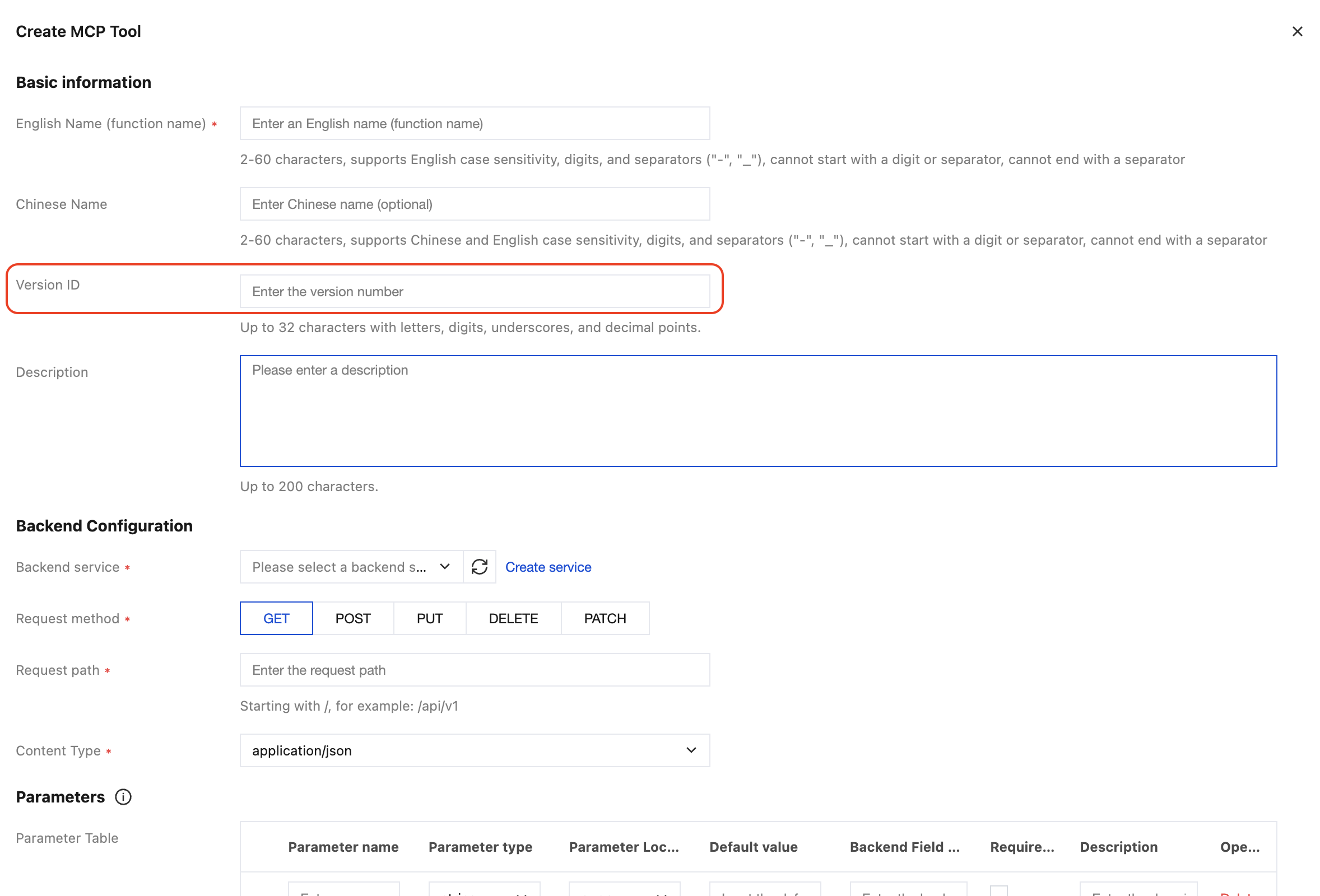
Note: If you modify only non-versioned fields (which do not affect the display name/description/input parameters), you are not required to enter a version number, and a new version will not be generated.
Viewing Version List
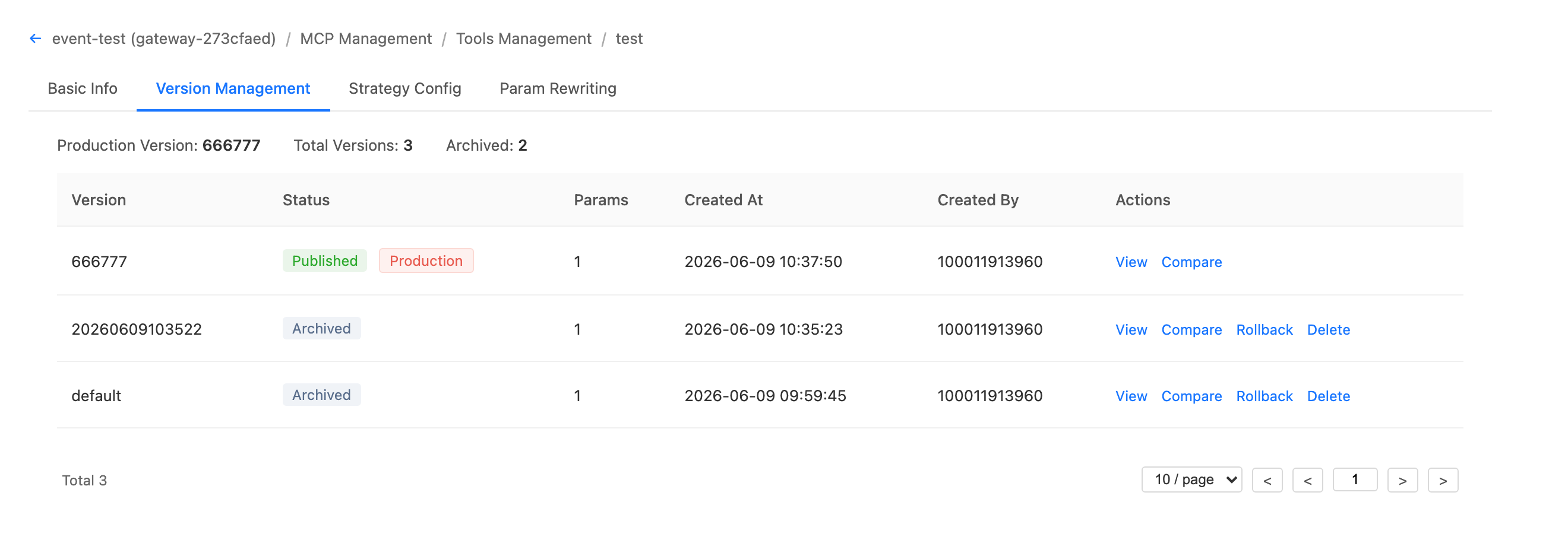
In the Tool details, switch to the Version Management tab to view all historical versions of the Tool in a paginated list. The list fields include:
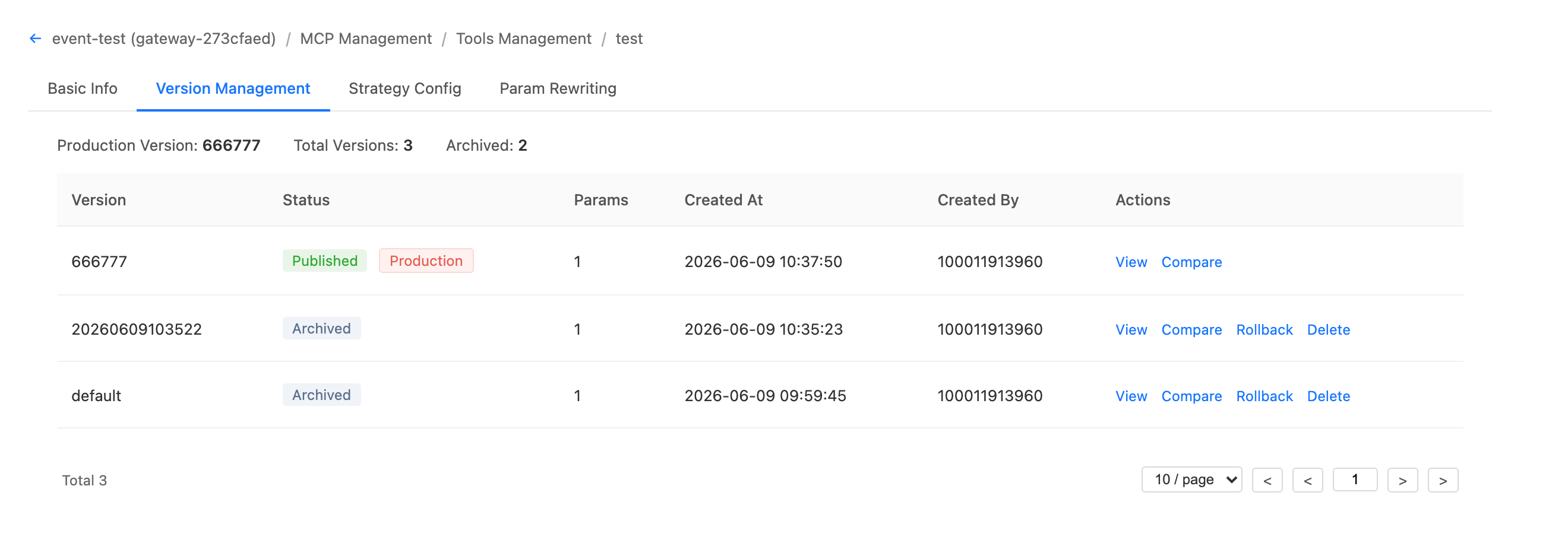
Field | Description |
Version number. | User-defined version identifier. |
Status | Indicates whether the version is a released version/archived version. |
Parameter Quantity | The number of parameters in this version. |
Creator. | The account that initiated this change. |
Creation Time | The time when the version is generated. |
Comparing Version Differences
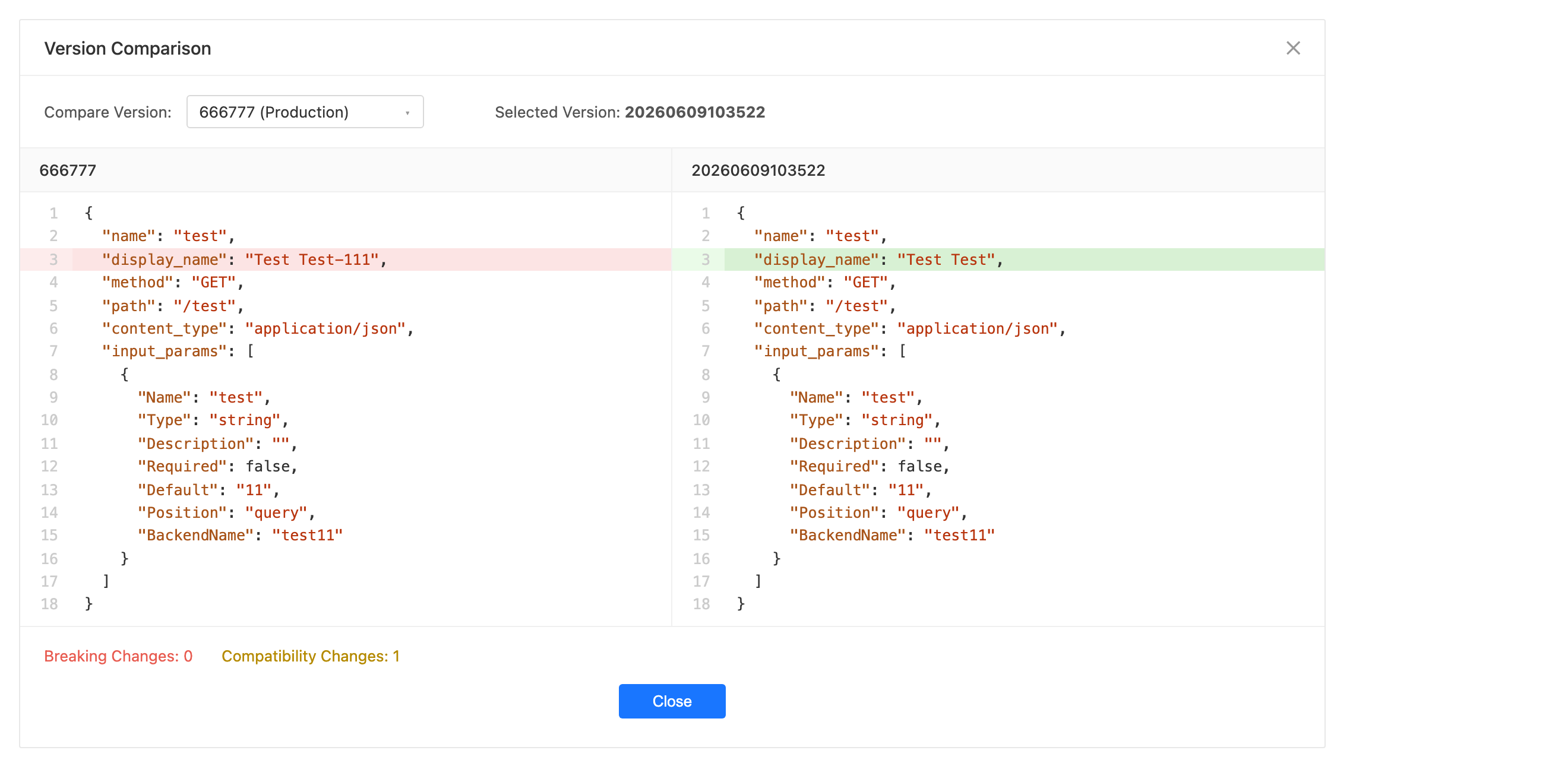
Select any version from the version list and click Compare. The system then displays the differences between the two versions by field. Each difference includes:
Rolling Back to a Historical Version
1. In the version list, select the target historical version and click Rollback.
2. Confirm the operation in the secondary confirmation pop-up window.
3. The system redeploys the configuration snapshot of that historical version as the currently active configuration and marks it as the active version.
Note:
The rollback operation takes effect immediately on the runtime configuration.
If the target version is already the currently active version, the rollback is an idempotent operation and does not cause any changes.
Help and Support
Was this page helpful?
You can also Contact sales or Submit a Ticket for help.
Help us improve! Rate your documentation experience in 5 mins.
Feedback