Tools Grouping
Download
Focus Mode
Font Size
Feature Introduction
As the number of connected MCP Servers and Tools increases, a flat tool management approach leads to three types of issues: Agent context Token inflation, naming conflicts among tools from multiple sources, and the inability to tier tool permissions. Tool grouping addresses these issues through "virtual MCP Server endpoints":
Reduce context consumption: Organize Tool subsets by business scenario (such as "inventory management" and "supply chain query"), and the Agent loads only the required subsets.
Group isolation and automatic conflict handling: Tools in different groups are invisible to each other. When a Tool with a duplicate name is added, conflicts are automatically detected and resolution policies are provided.
Unified entry point: Each group externally presents itself as a standard MCP Server endpoint, enabling Agents to connect with zero configuration.
Note:
Tool grouping is an optional enhancement. When grouping is not used, the gateway's behavior remains exactly the same as before. This feature requires the gateway instance version to be 3.9.4 or later.
Prerequisites
The MCP Gateway instance has been created.
At least one MCP Server exists and Tool registration is complete (groups are built by "referencing" existing Tools, without creating duplicate Tools).
Operation Steps
Creating/Editing a Tools Group
1. Log in to the Microservices Platform console. In the left sidebar, click AI Gateway > Instance List.
2. On the instance list page, click the ID of the gateway instance you want to configure to go to its basic information page.
3. In the left sidebar, click MCP Management to go to the Service List page.
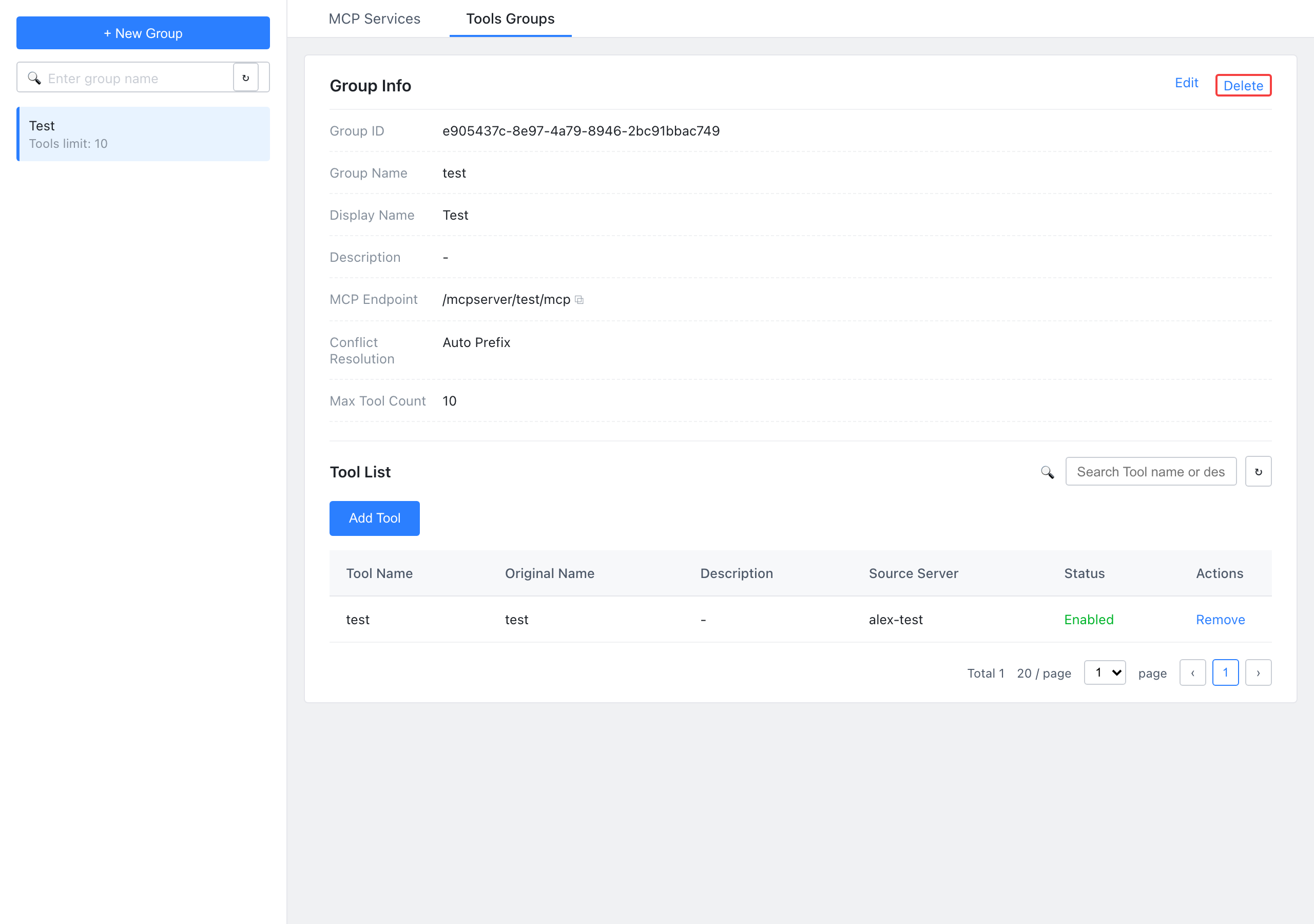
4. On the service list page, click the Tools Grouping tab at the top. Above the list, click New Group to open the "New Tools Group" page.
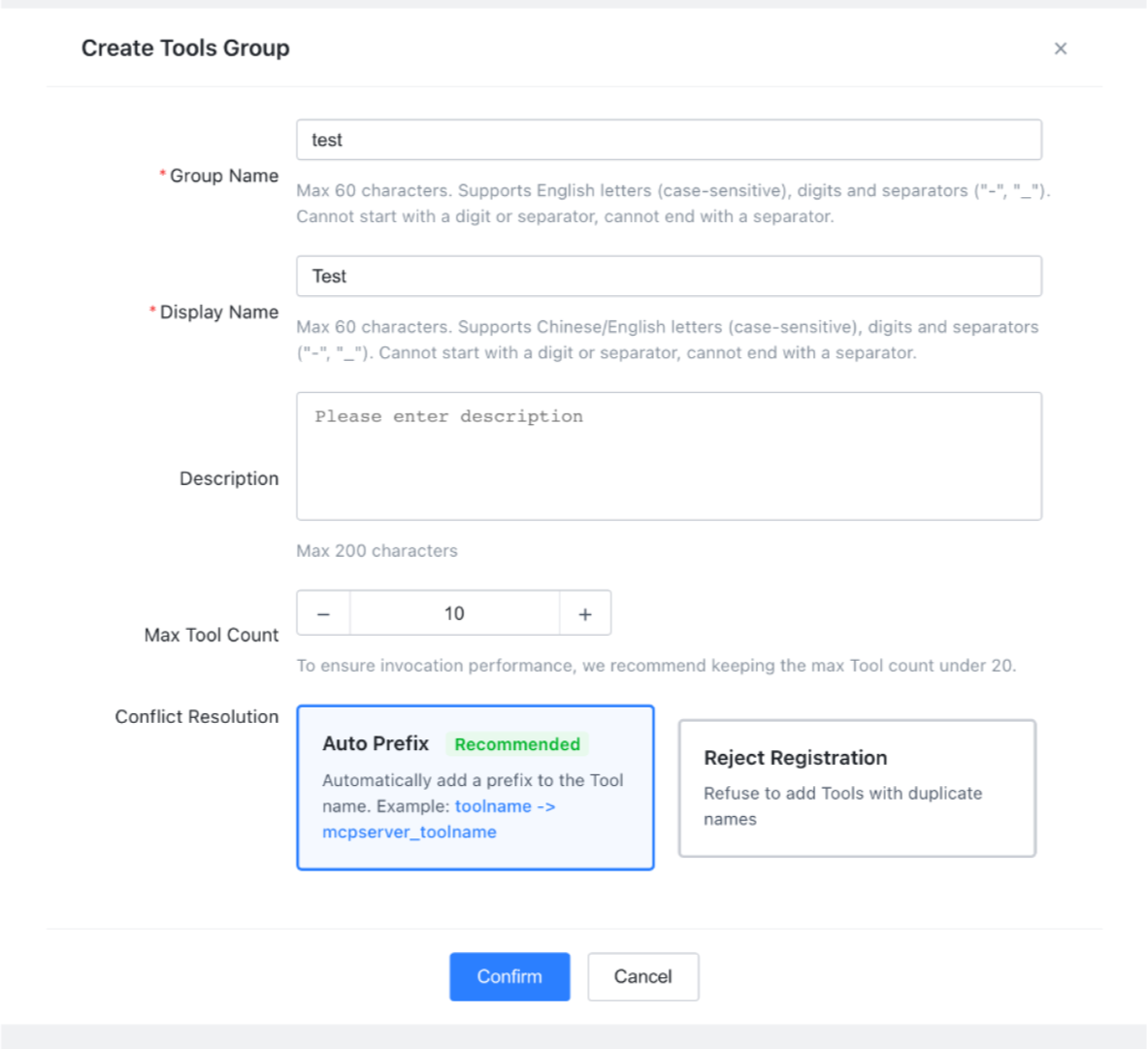
5. In the pop-up window, enter the following configurations:
Configuration Item | Required | Description |
Group name (Name) | Yes | An identifier in English, with a maximum of 60 characters, unique within the same gateway instance, and used as part of the access endpoint path. |
Group display name (DisplayName) | Yes | The Chinese/display name of the group, with a maximum of 60 characters. |
Description (Description) | No | A maximum of 200 characters. |
Maximum number of Tools (ToolCountLimit) | No | The range is 1 to 100, with a default value of 10. It is recommended to configure 1 to 20 Tools per group. |
Conflict resolution policy (ConflictStrategy) | No | Reject (reject registration) / AutoPrefix (automatically add a prefix, default, automatically adds a prefix to the Tool name. Example: toolname -> mcpserver_toolname). |
6. Click OK. The gateway will automatically create a virtual MCP Server endpoint for this group.
Adding MCP Tools
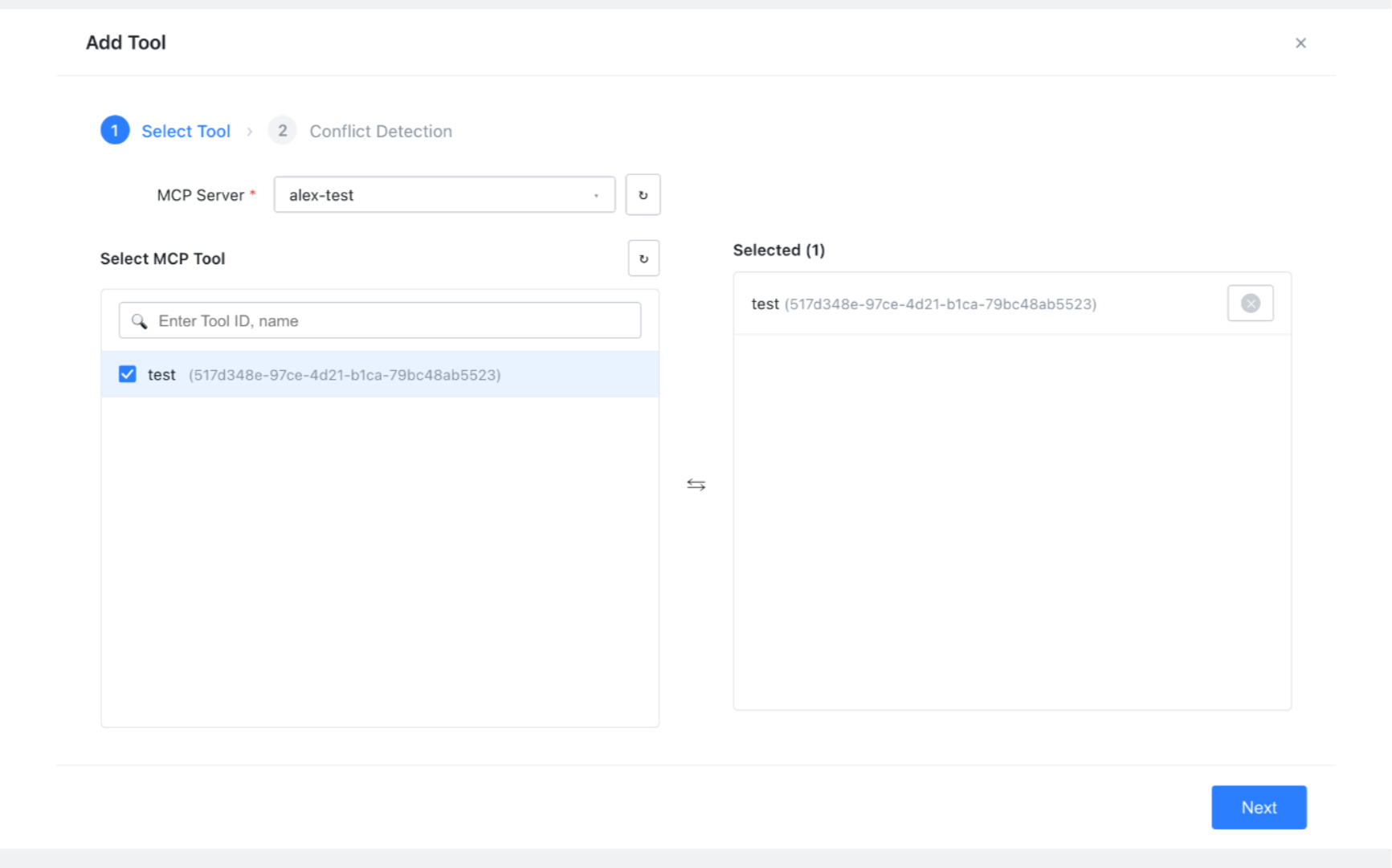
Step 1: Select Tools
Select the Tools you want to add to the group from existing MCP Servers as needed (cross-server multi-selection is supported). The same Tool can be referenced by multiple groups. When a Tool is added, only the reference relationship is written, and the Tool data is not copied.
Step 2: Tools Name Conflict Detection
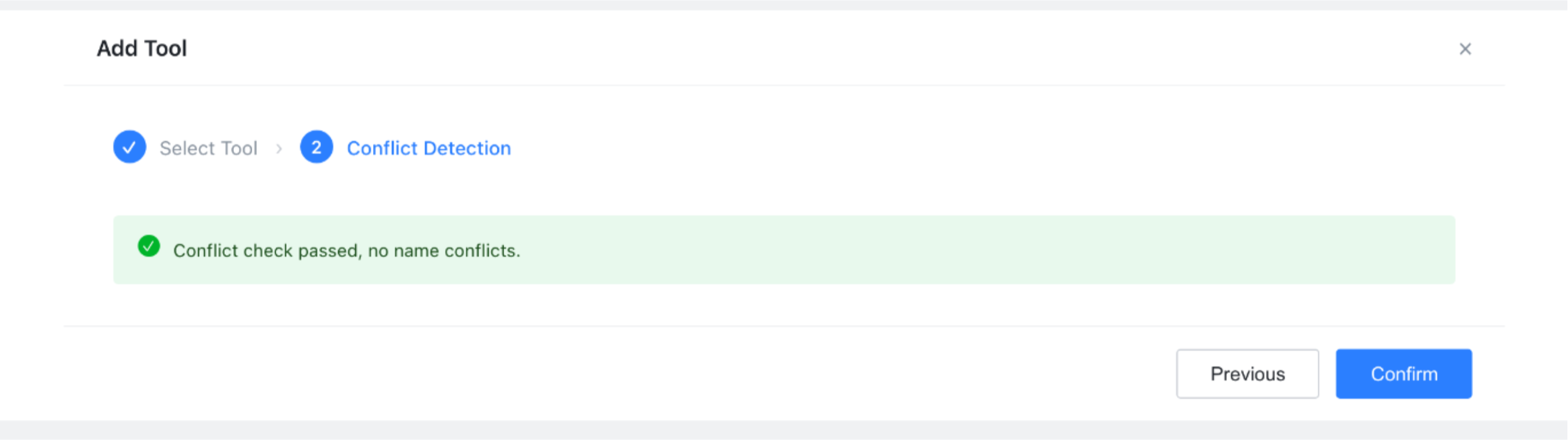
The system compares the name of the Tool to be added with the existing Tools in the group.
No conflict: The Tool is added successfully.
A conflict exists: It is handled according to the group's name conflict policy.
Reject: The system blocks the current addition and displays the name of the conflicting Tool and its original MCP Server.
AutoPrefix: A prefix is automatically added to the conflicting Tool to distinguish its ownership. The addition is successful.
Attention:
Naming conventions, such as "domain-noun-verb", are recommended but not mandatory. The MCP protocol itself only requires that Tool names be unique within the same endpoint.
Removing a Tool
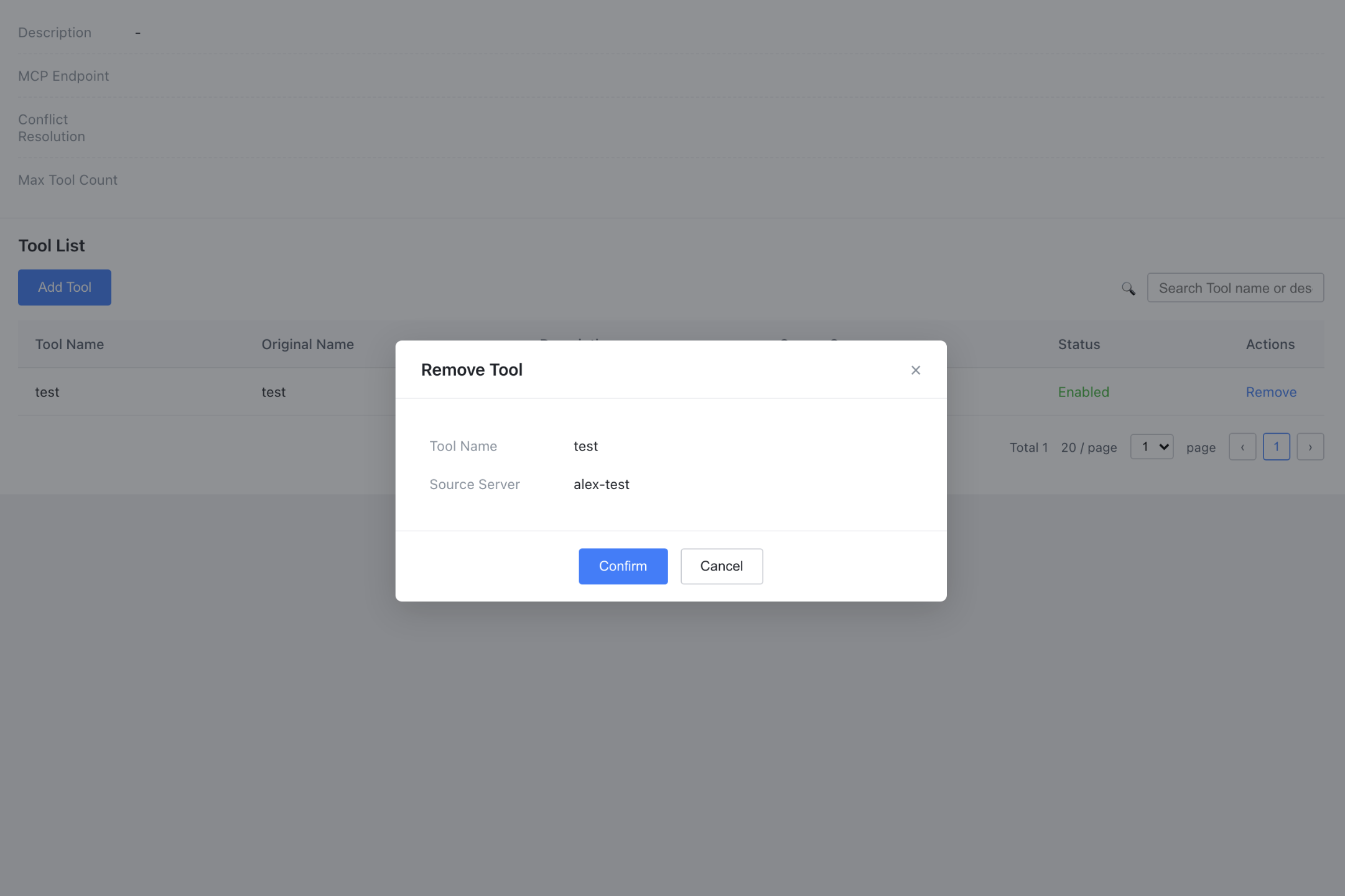
In the group's Tool list, click Remove for the target Tool. Removal only severs the reference relationship and does not affect the Tool's definition in its original MCP Server.
Deleting a Group
Deleting a group automatically cleans up all Tool reference relationships within the group and reclaims the corresponding endpoint resources. You do not need to manually remove the Tools from the group first.
Help and Support
Was this page helpful?
You can also Contact sales or Submit a Ticket for help.
Help us improve! Rate your documentation experience in 5 mins.
Feedback