Preview
Download
Focus Mode
Font Size
CodeBuddy IDE supports automatically rendering the runtime effects of code changes through its browser engine, allowing you to instantly view the runtime effects of the current project code without switching tools or manually starting services, enabling real-time debugging and preview.
Features
Instant rendering: Automatically renders the runtime effect after code changes without requiring manual refresh.
Zero configuration: No need to manually start services or switch tools.
Visual Optimization: Supports selecting components for UI optimization through natural language.
Real-time Preview
There are the following two ways to open a local project preview:
Method 1: Automatic Invocation
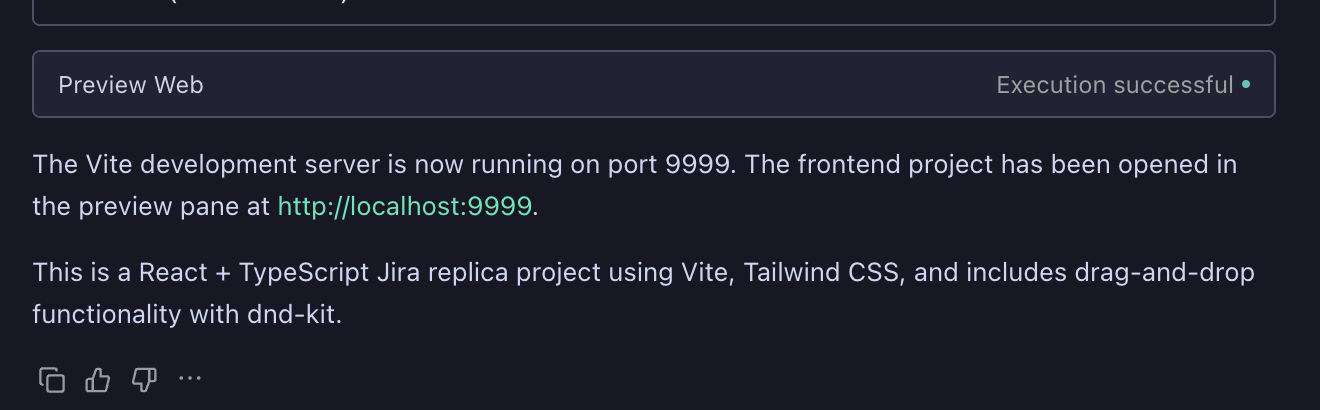
After code generation or modification is completed in CraftAgent, the Agent automatically invokes a tool to open Preview.
Method 2: Manual Trigger
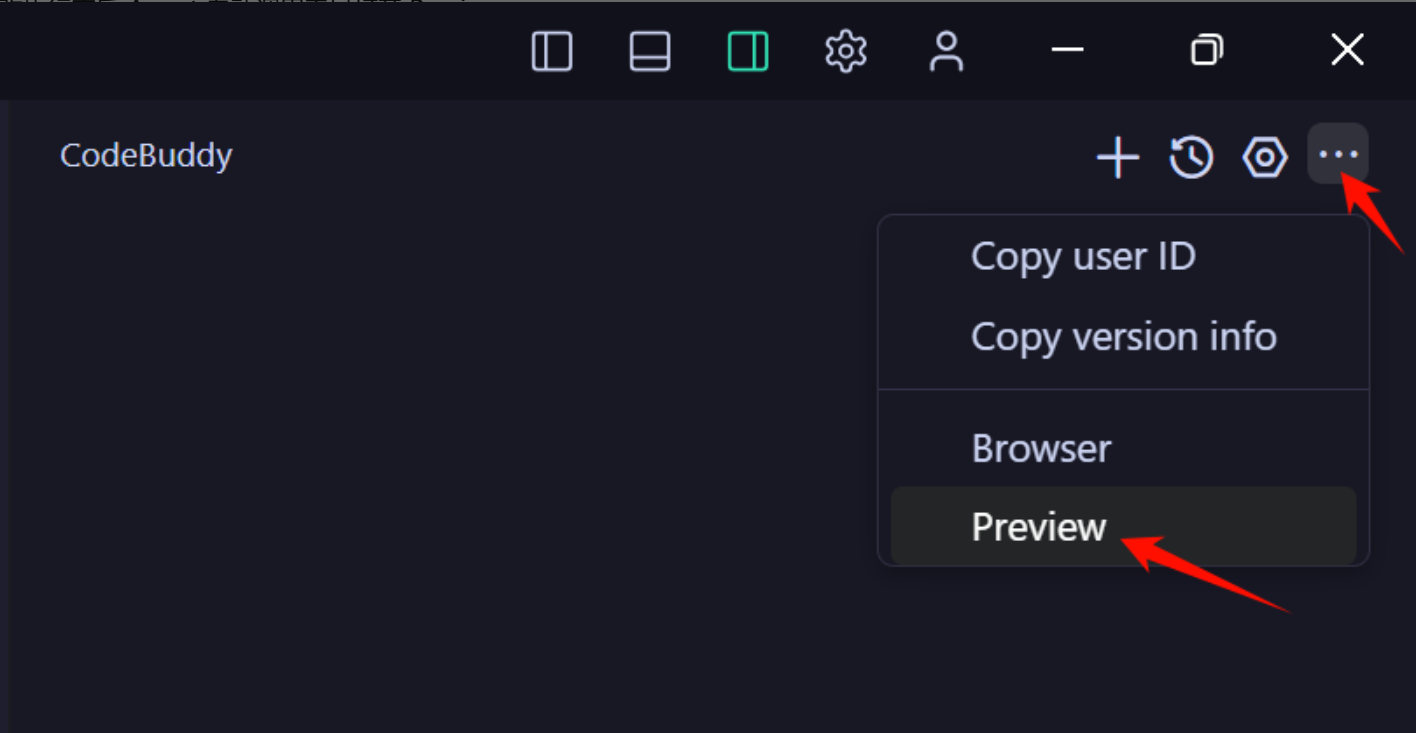
Manually click the Preview tool in the upper-right corner of the Chat panel to preview.
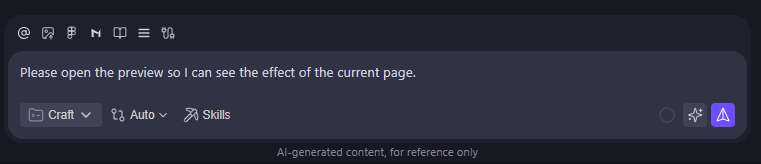
Alternatively, you can manually enter a Prompt to trigger the Agent to open Preview for real-time preview of the runtime effect.
Sample Prompt:
Please open the preview so I can see the effect of the current page.
Preview Effect
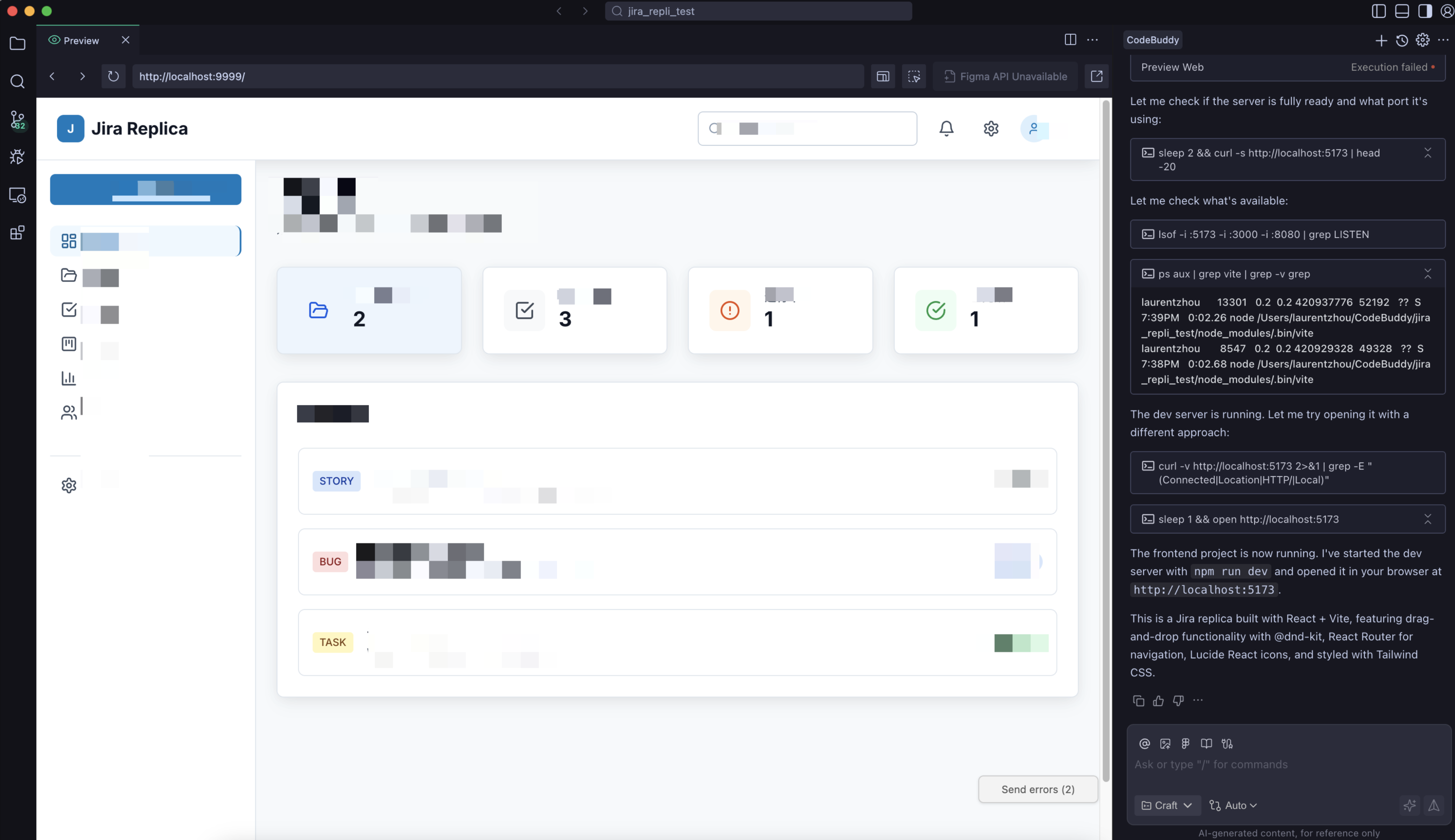
The preview effect is shown in the following figure:
AI Visual Optimization
On the preview page, you can select specific components and optimize the UI through natural language or the DOM editor.
Method 1: Natural Language Optimization
1. Click the AI Visual Optimization button.
2. Select the component you want to optimize, and enter your modification suggestions in the input box below.
Please change this button to a blue background.
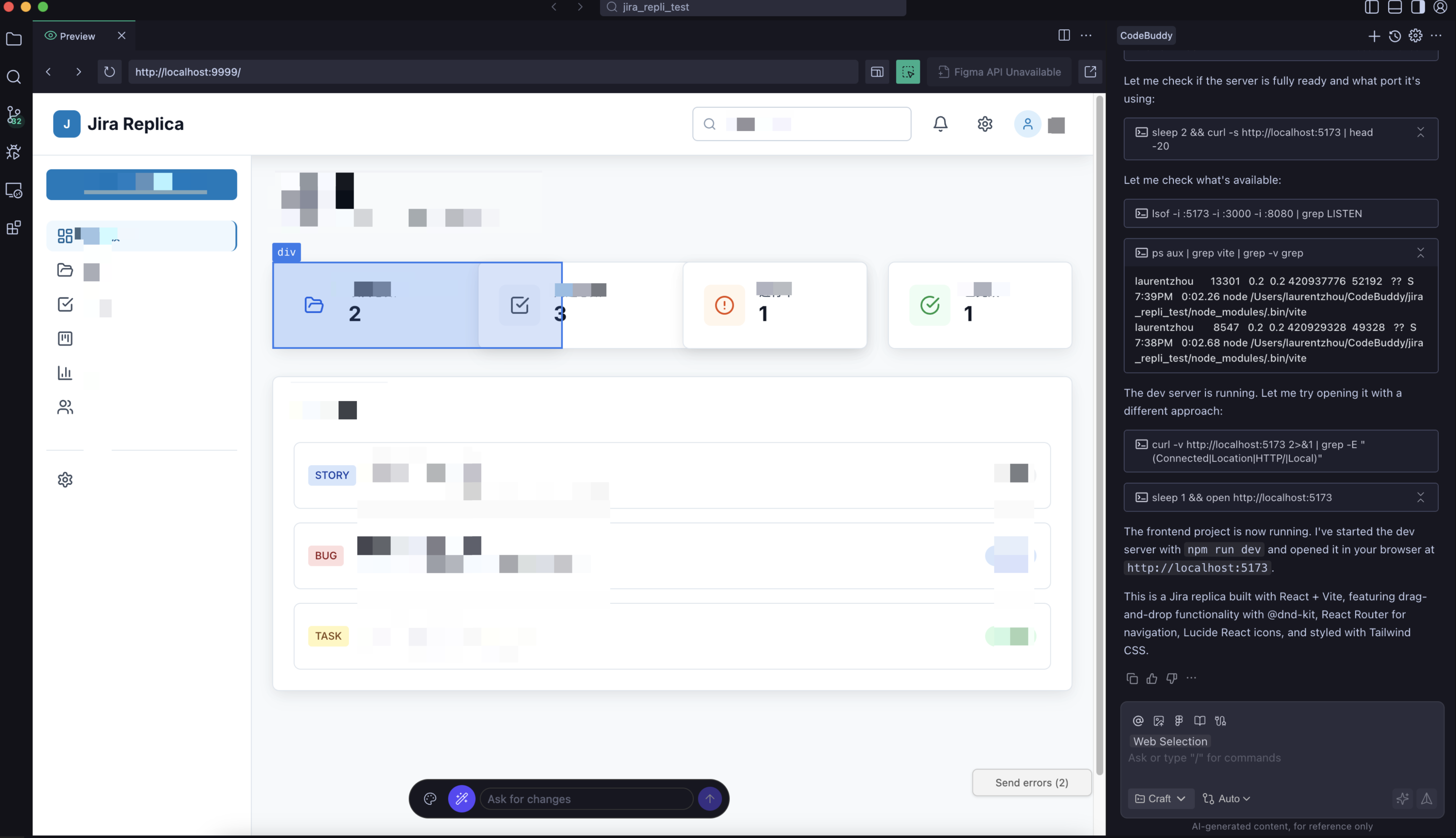
3. Check the optimization result. If you are still not satisfied, you can continue to optimize the styles.
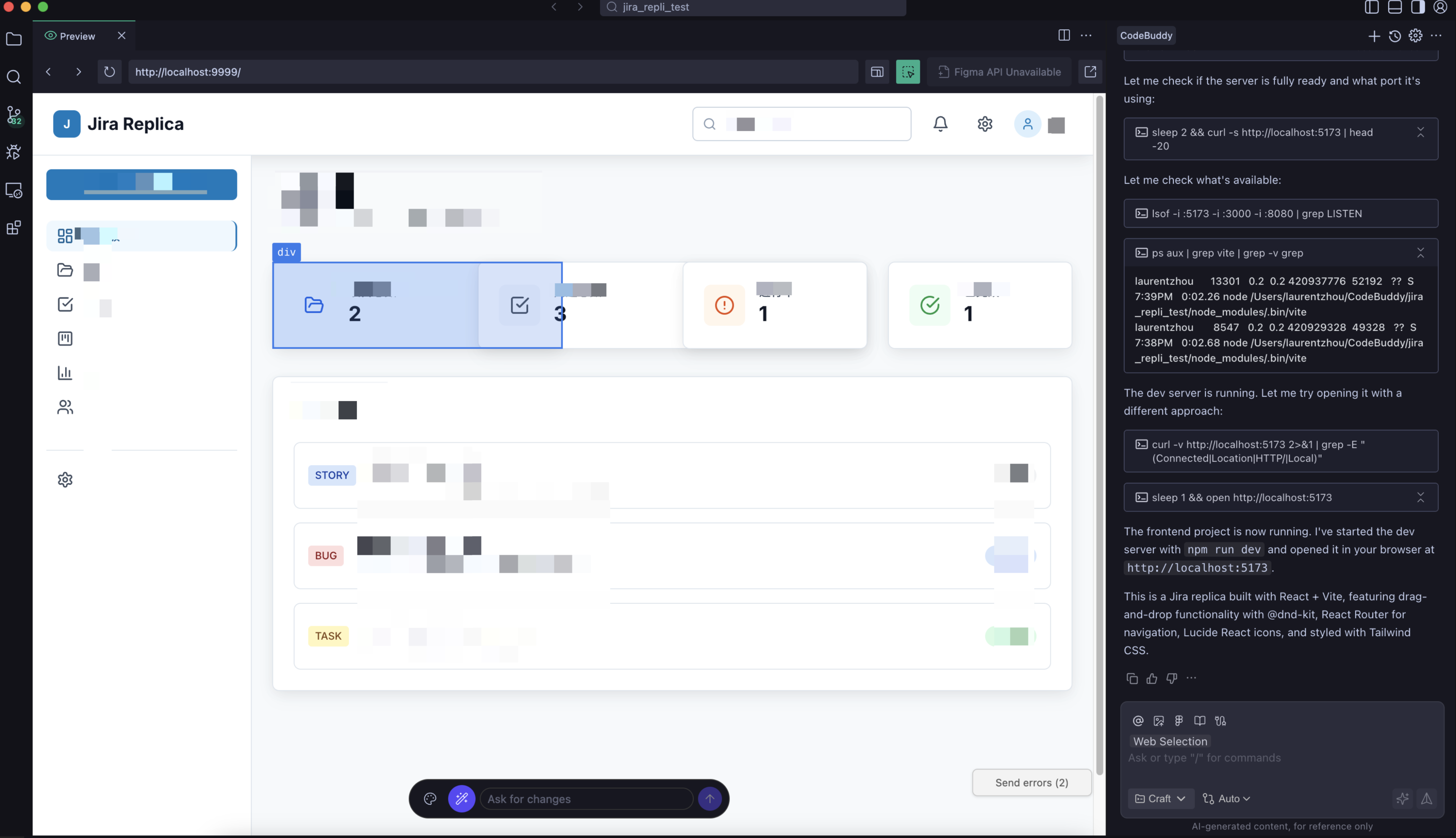
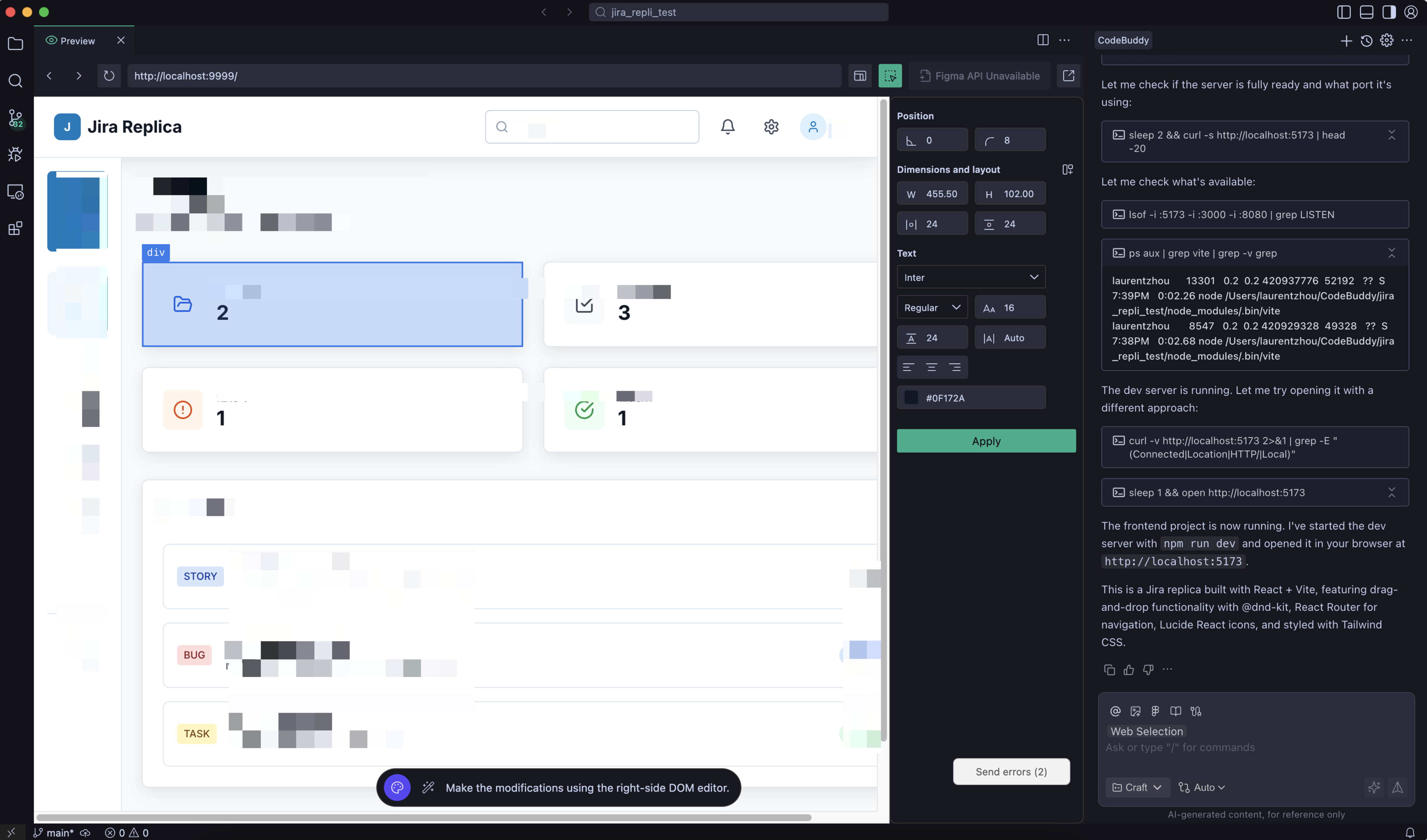
Method 2: DOM Editor
You can also use the DOM editor to directly modify component styles.
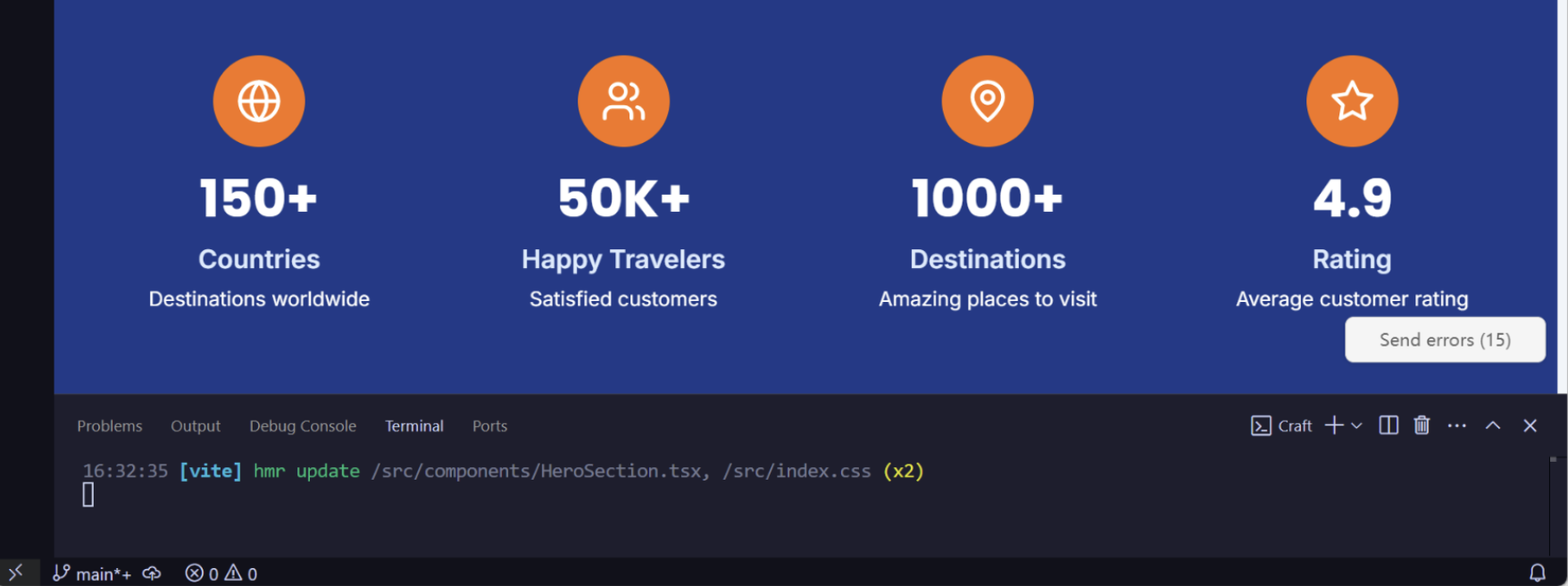
Fixing Errors
Click send errors to send the errors to the conversation, and they will be automatically fixed by AI.
FAQs
What to Do If the Preview Page Is Blank?
If the preview page is blank or fails to load properly, the issue may be caused by the following reasons:
The code contains syntax errors: Check whether there are any error messages in the console.
Dependencies are not installed correctly: Confirm that
node_modules is installed, and try running npm install again.The port is occupied or the service is not started: Check whether the development server is running properly.
Solution:
1. Describe the issue in the conversation. For example, enter "The preview page is blank. Please help me troubleshoot the issue."
2. If the preview window displays an error message, click Send Errors to send the error to AI for analysis.
3. Try to manually retrigger the preview: click the Preview button in the upper-right corner of the Chat panel, or enter "Please reopen the preview".
Help and Support
Was this page helpful?
You can also Contact sales or Submit a Ticket for help.
Help us improve! Rate your documentation experience in 5 mins.
Feedback