System Settings
Download
Focus Mode
Font Size
System settings are used to personalize the interface and operation of WorkBuddy AI. To access them, go to Avatar > Settings > System Settings.
Settings are grouped by purpose into General, Runtime, Storage, Network, Skills and Agents, Memory and Evolution, and Model. Each group is described below.
1. General
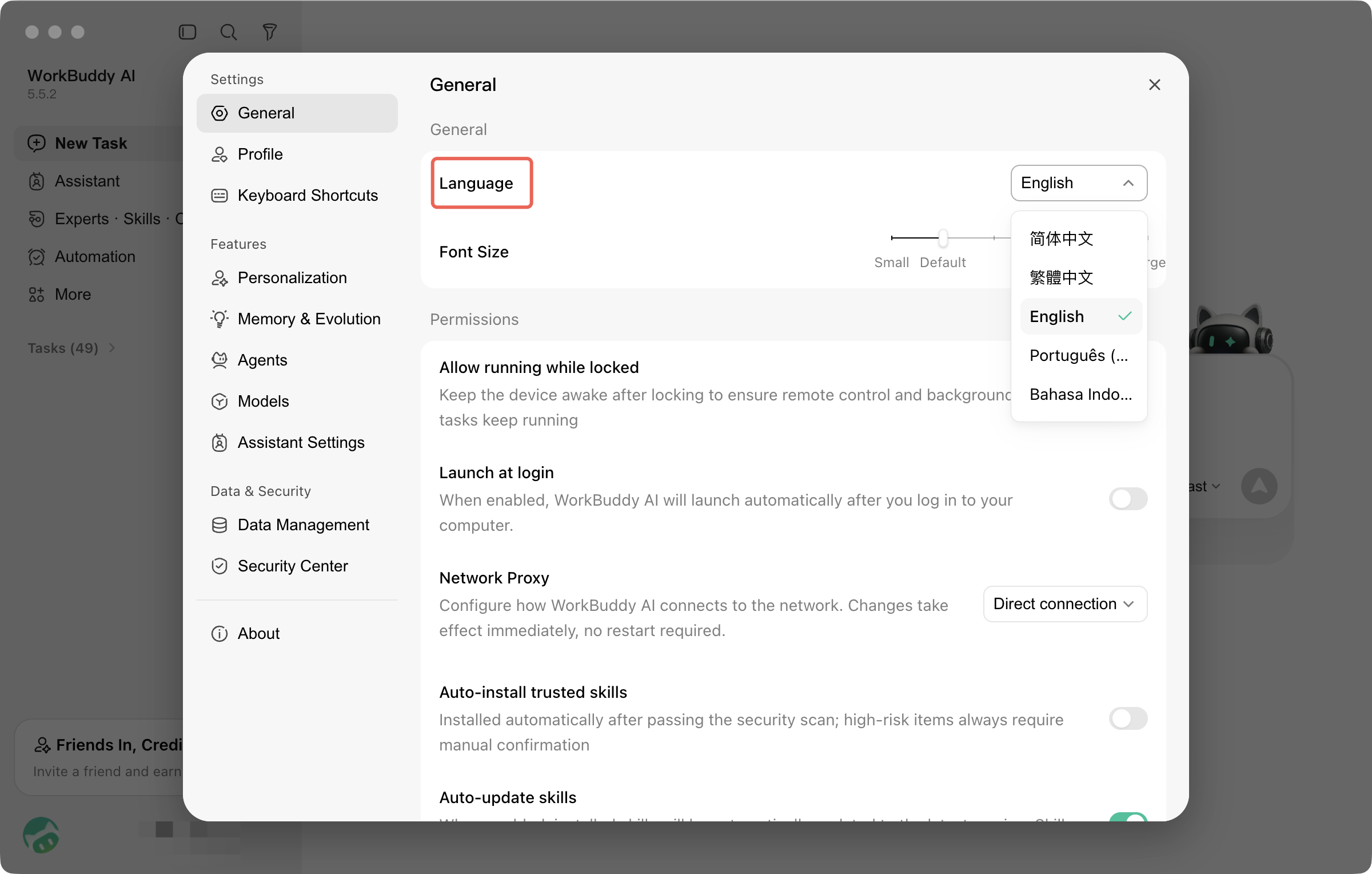
Language
Set the display language for the application interface. Supported languages include Chinese (Simplified), Chinese (Traditional), English, Portuguese, and Indonesian.
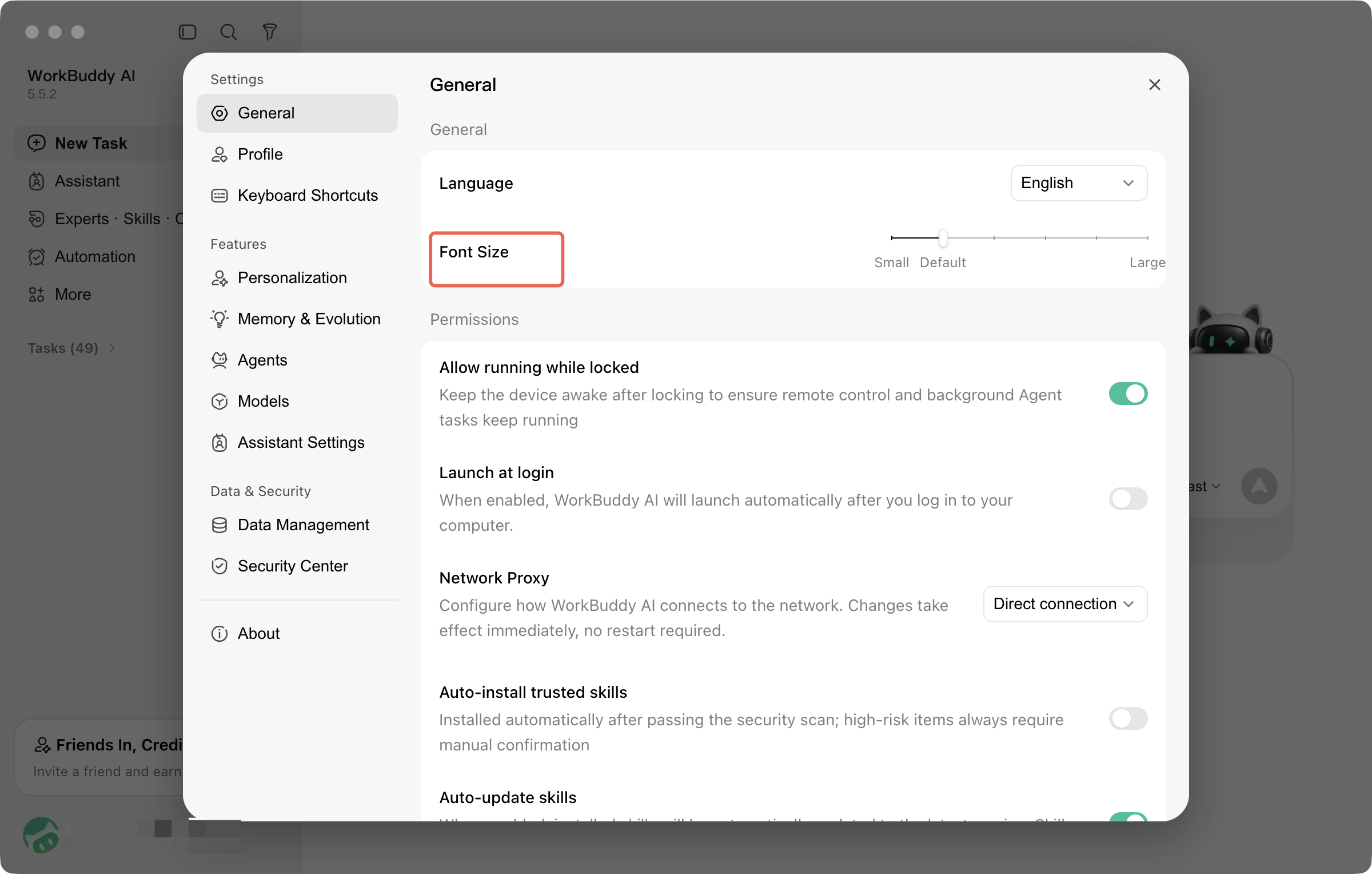
Font Size
Adjust the interface font size. Three options are available: Small / Default / Large.
Topic
Select the display theme for the application. Both Light and Dark themes are supported.
Display Mode
Compact Mode
When this feature is enabled, the conversation interface is simplified by hiding some decorative elements and collapsing process information such as tool calls in conversations.
Note:
Compact mode is enabled by default.
Sending a Message
Set the shortcut key for sending messages in the chat input box.
2. Operation
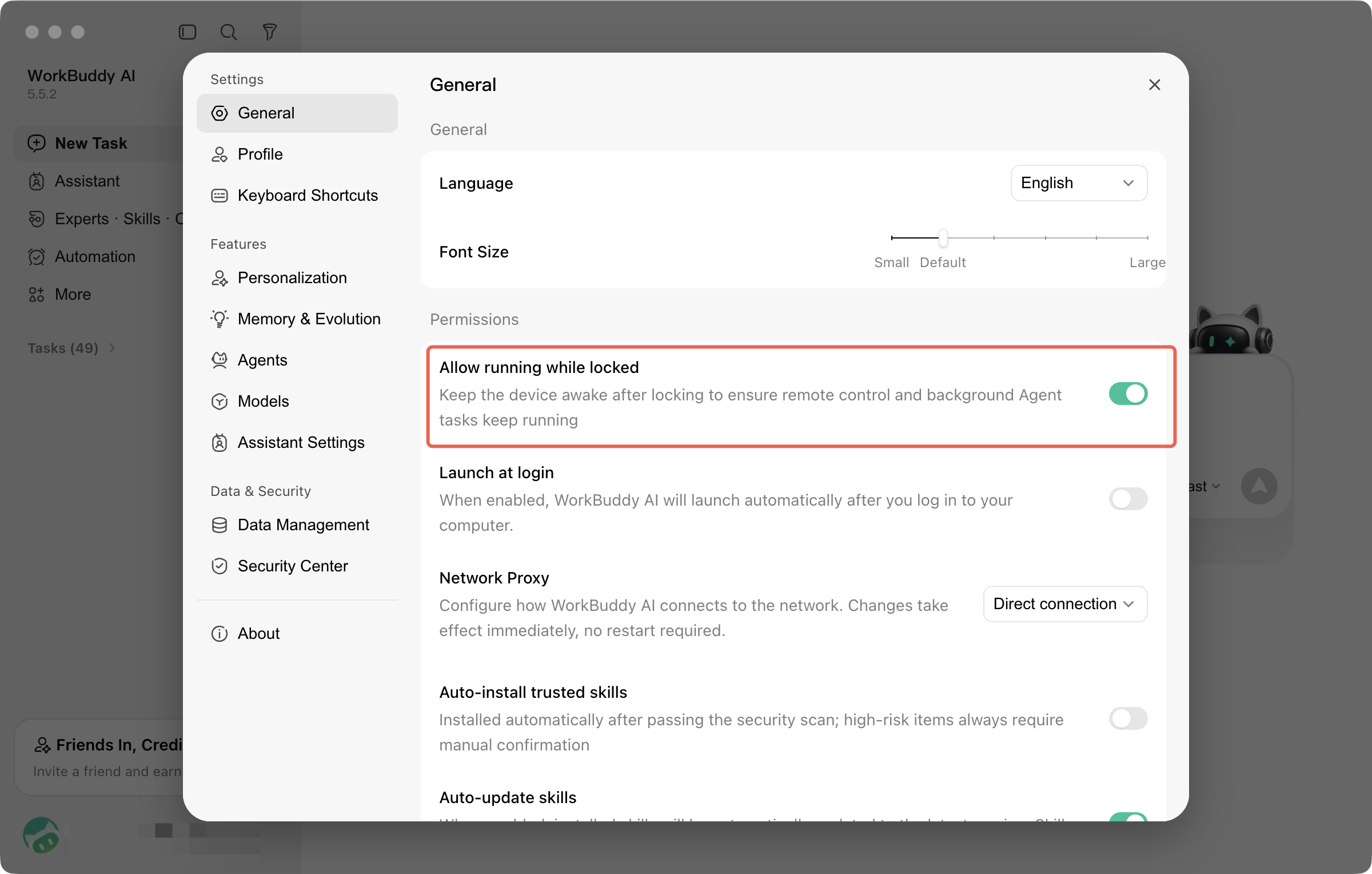
Lock Screen Remote
After you enable "Allow Running When Locked", the device stays awake while locked, ensuring that remote control and background Agent tasks continue to run.
When should you enable it?
Enable this option if you need to remotely send commands from your phone or let automated tasks continue running while you are not looking at the screen. You can leave it disabled if you only use the device in front of a computer.
Auto-Start on Boot
After you enable it, WorkBuddy AI starts automatically when you log in to your computer.
3. Storage
Default Workspace Storage Path
When you create tasks and workspaces, they are automatically stored in this path. Changing the path does not affect existing data.
Note:
Set it to a location that you are familiar with and that has sufficient disk space. This will make it much easier to find the outputs later.
Storage
View the system cache directory (where conversation records, runtime caches, and temporary files are stored) and disk usage, and set the task retention period.
Option | Description |
Permanent retention | Task conversation records are not automatically cleared. |
90 days / 60 days / 30 days | Task conversation records are automatically cleared after expiration. |
Note:
Scope of the retention period: It applies only to tasks created after this point, and existing tasks are not affected. Tasks that have been saved to a workspace will not be cleared.
4. Network
Network Proxy
Configure how WorkBuddy AI accesses the network. The change takes effect immediately without requiring a restart.
Proxy Mode | Description |
Direct connection | Do not use a proxy. |
Follow system | Use the current proxy settings of the operating system. |
Manual configuration | Enter the proxy address manually, for example, http://proxy.corp.com:8080 |
After filling it in, you can click Test Connection to verify whether it is available.
5. Skills and Agents
Auto-Installing Trusted Skills
After you enable it, skills are automatically installed after they pass security checks. High-risk items always require manual confirmation.
Note:
Security checks are never skipped: Regardless of whether this option is enabled, a security check is always performed first after you upload a Skill. This option only determines whether to automatically install the Skill after it passes the check, and it does not affect the check itself.
Expert and Skill Recommendations
Each time you start a new task, the system recommends experts and skills suitable for completing that task.
Agent Team Management
When a complex task is encountered, multiple agents are automatically assembled to collaborate and complete it. After you disable this feature, all tasks are handled independently by a single agent.
Note:
Expert teams are not affected. This option only controls automatically assembled agent teams. The expert teams that you actively summon in the Expert Center are not affected by this setting.
Local Skills and Memory Retention
The system automatically records local memories and work logs, and automatically consolidates and optimizes skills. Data is stored locally and retained only on your device and in your workspace.
6. Memory and Evolution
Memory enables WorkBuddy AI to remember your preferences and habits. The more conversations you have, the better it understands you. This group includes:
Configuration Item | Description |
Local Memory | Write daily work memories to local files and retain context across sessions. |
Generate Conversation Memory | Allow extracting and remembering relevant context from conversations to make subsequent responses more coherent. |
Manage Memory | View saved memory content and submit modification suggestions. |
Import | Support importing memories from other AI systems such as ChatGPT and Claude. |
Reset Memory | Clear all current memories. This operation cannot be undone. |
Warning:
A reset clears all memories and cannot be undone. If "Generate conversation memory" remains enabled, new memories will still be generated from subsequent conversations. To disable it completely, turn off this feature as well.
7. Models
Custom Models
Manage local custom model configurations. After you add a model, it is automatically written to the local configuration file and appears in the Custom Models group in the chat model dropdown list.
Integration by provider is supported, including Tencent Cloud Token Plan, Coding Plan (Tencent Cloud / Zhipu / Kimi), Zhipu Open Platform, Kimi, MiniMax, DeepSeek, OpenAI, Google Gemini, OpenRouter aggregation, and Ollama local deployment.
For detailed configuration, see "Model Configuration".
For complete descriptions of parameters such as the built-in model list, automatic mode, Token limit, and thinking intensity, see Model Configuration.
Help and Support
Was this page helpful?
You can also Contact sales or Submit a Ticket for help.
Help us improve! Rate your documentation experience in 5 mins.
Feedback