Creating a Taskbar (Local AI Workbench)
Download
Focus Mode
Font Size
The new task bar is the unified entry point for local tasks. Here, you can select the working mode, model, working directory, and skills, and then hand over the task to WorkBuddy AI with a single sentence.
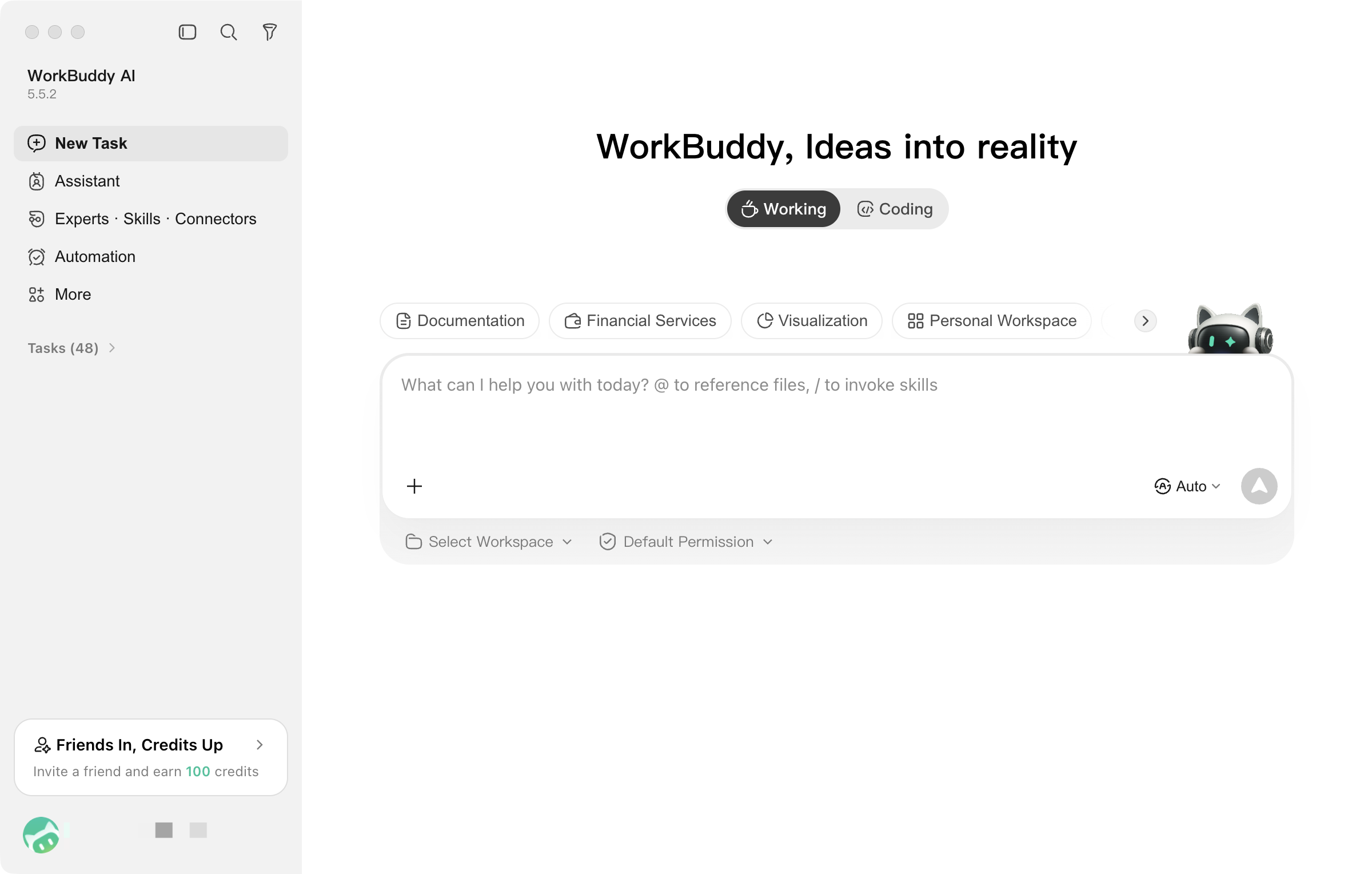
The entire process consists of only five steps. Among them, only "Describe the task" is required, and you can use the default values for the rest.
Select mode > Select model > Set directory > Choose skills > Describe task.
I. Interface Introduction
1) Working Mode
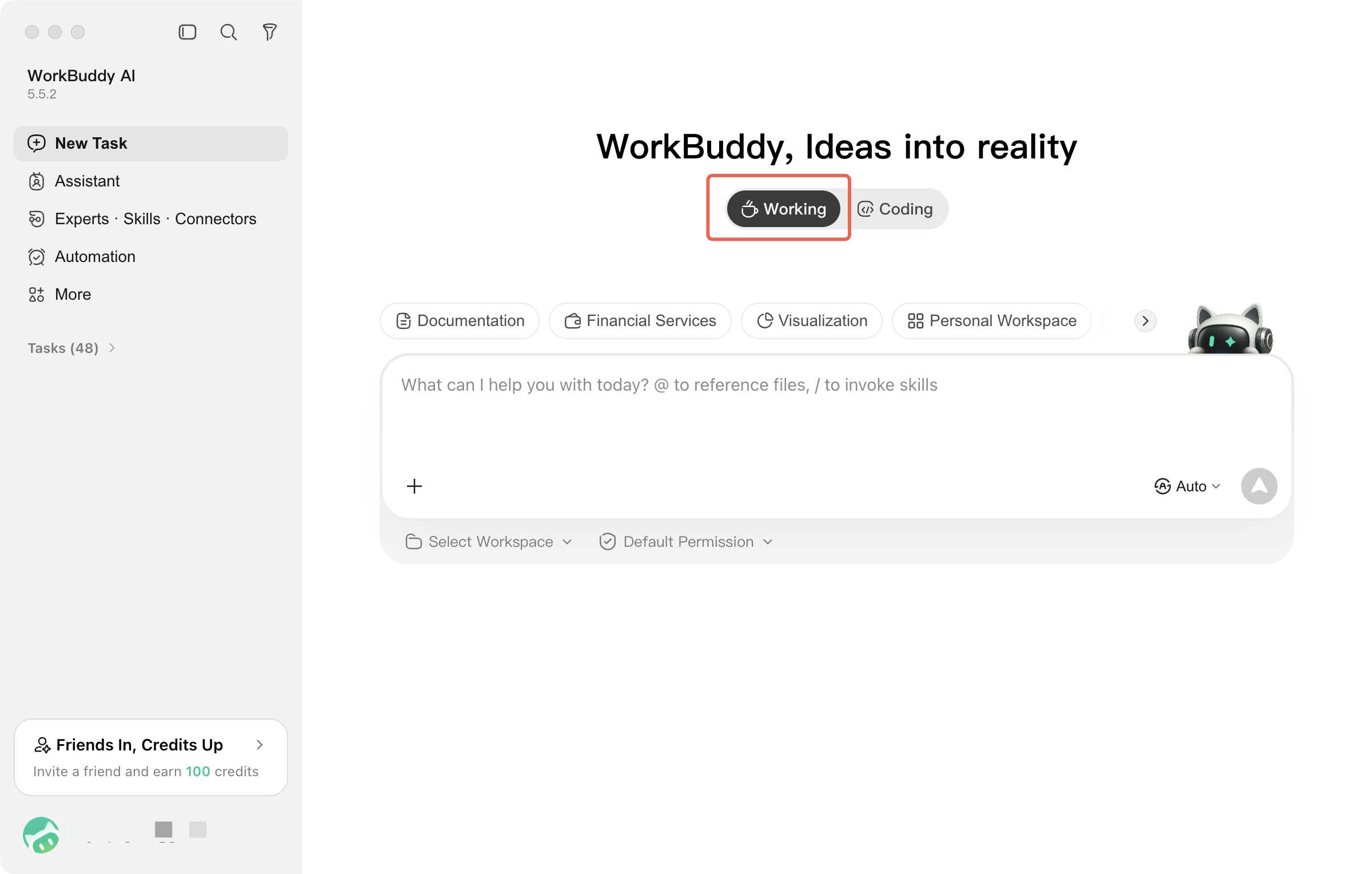
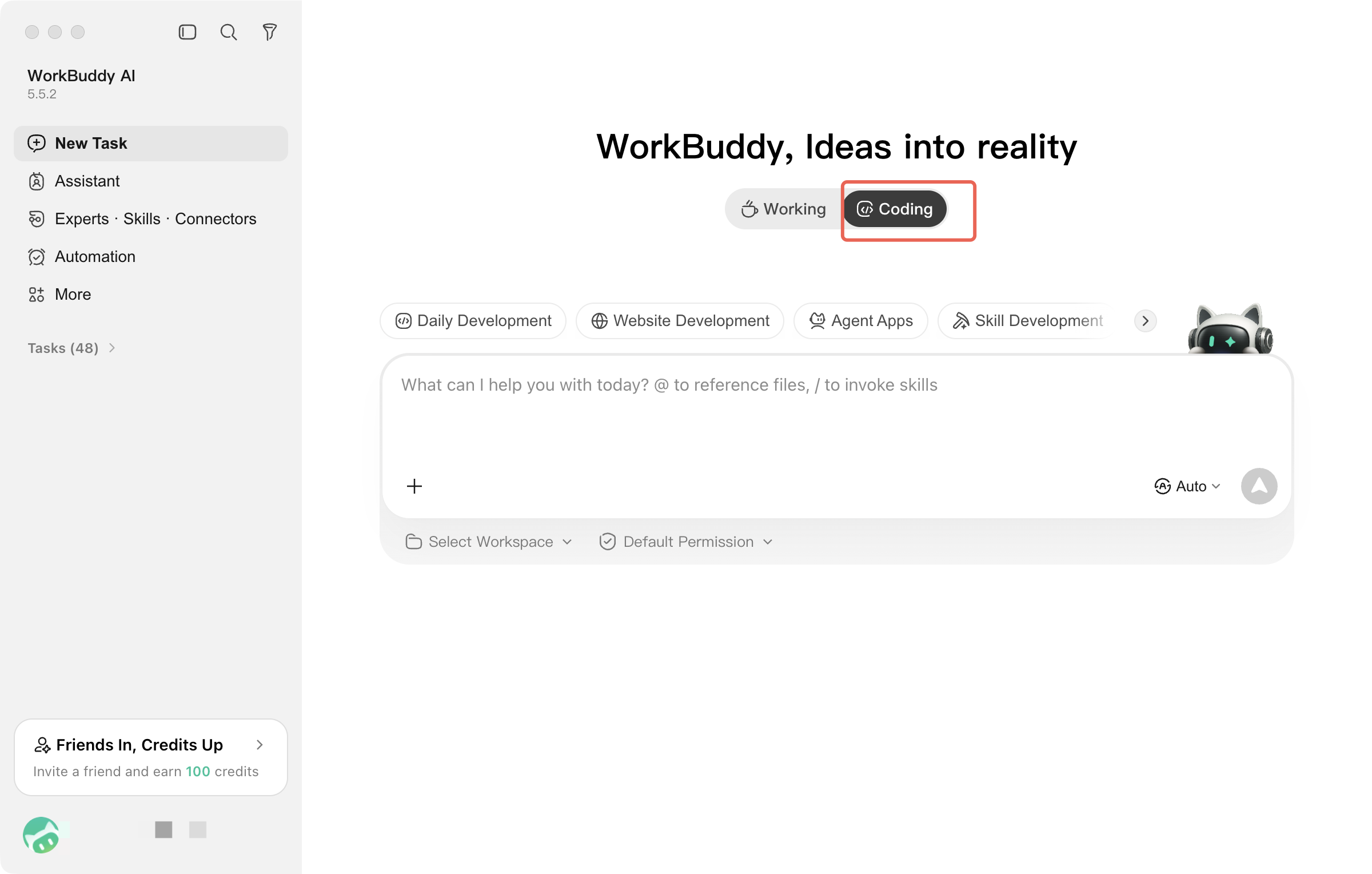
WorkBuddy AI provides two working modes: Office Mode and Coding Mode.
Office Mode:
Coding Mode:
2) Switching Models
WorkBuddy AI has multiple mainstream large models built in, covering reasoning, multimodal, and image processing capabilities.
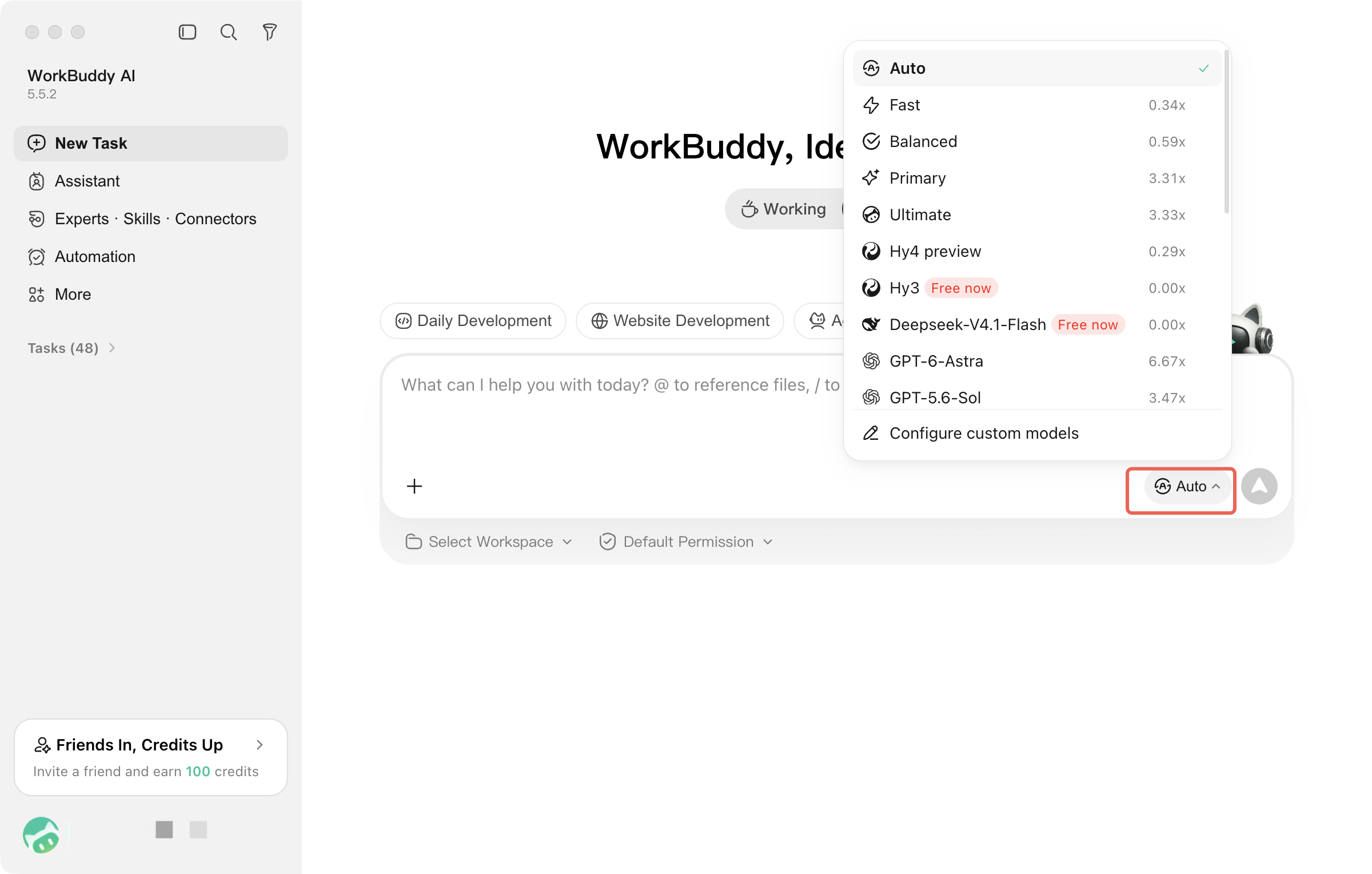
It is recommended to use "Auto" directly. After it is selected, WorkBuddy AI automatically selects an appropriate model based on the task type, without requiring manual judgment. If you need finer control over performance and cost, specify a model manually:
Model | Specialty | Image Input |
Auto | Automatically selected by WorkBuddy AI based on the task. Recommended default. | — |
Tencent Hunyuan Hy3 | Chinese writing, meeting minutes, Chinese document processing, deep reasoning | — |
GLM-5.2/ GLM-5.3/ GLM-5.3 Flash | Multi-step tasks involving long documents and long workflows | — |
DeepSeek-V4-Flash / DeepSeek-V4-Pro | Data analysis and complex reasoning; Flash offers fast responses, while Pro prioritizes depth. | — |
Kimi-K2.8 Preview / K2.6 / K3 | Long-form reading and code generation | - |
Gemini-3.5-Flash | Daily tasks | - |
Why Is Image Input Capability Needed?
Only models that support image input can understand screenshots you paste or images you upload. For tasks involving screenshot analysis, image-to-document conversion, or chart understanding, select Kimi-K2.5 / K2.6 or MiniMax-M3.
The specific available models are subject to the list in the client.
The models actually visible depend on the model plan you use. For example, Tencent Cloud Token Plan, Hunyuan Plan, and Coding Plan each offer different models, which may also vary with product versions and service availability. You can view the currently available models in Settings > Models, or add, edit, and delete custom models through the graphical interface without manually modifying configuration files.
Custom models support integration with Custom API, Tencent Cloud Token Plan, and Ollama local deployment. When Ollama is selected, both models and data remain on the local machine, making it suitable for scenarios with high data privacy requirements, such as finance and government enterprises.
3) Setting the Working Directory
Set the working directory before use. WorkBuddy AI will read and save files in this directory. Tasks without a specified path will also be executed in this directory by priority. This directory serves as both the workspace for the current task and the basis for the permission system to determine whether an operation is out of bounds.
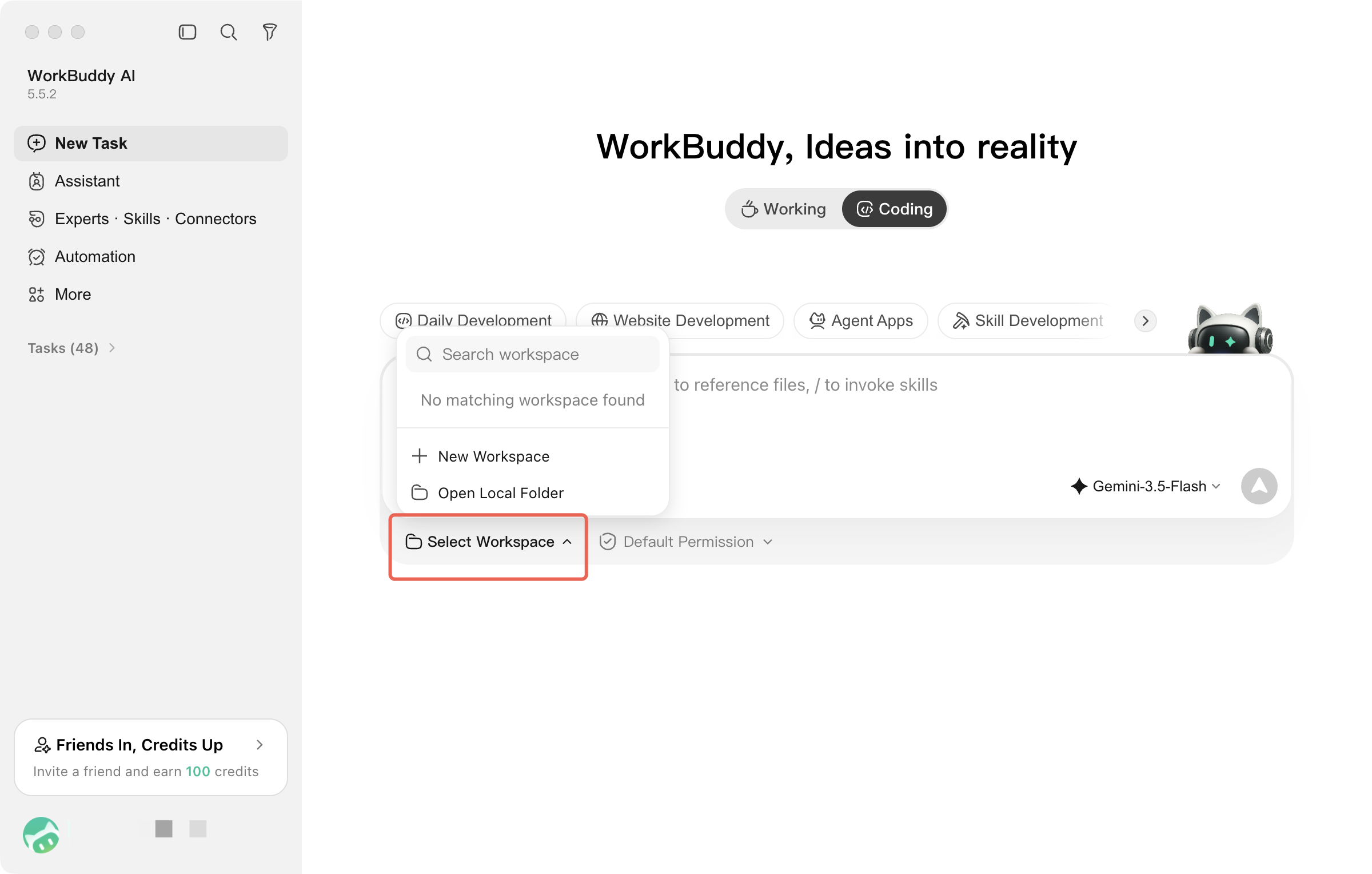
What is a file path?
A path is the location of a file or folder on a computer. Examples:
Windows:
C:\\Users\\YourUsername\\Desktop\\WorkMaterialsMac:
/Users/YourUsername/Desktop/WorkMaterialsNo manual input is required. When setting the working directory, locate and select the target folder directly in the file picker. If it is not specified in advance, WorkBuddy AI automatically creates a separate directory when creating a new task.
How to Choose a Suitable Working Directory?
It is recommended to create separate directories by task type, such as
Invoice Organization, Weekly Reports, and Photos to Process, to facilitate management and reduce the risk of misoperation.When important materials are handled, a better practice is to create a separate folder for the task and place only the copies that need to be processed into it. Default permissions can reduce misoperations but cannot replace backups.
4) Selecting a Skill
Skills are used to extend the task capabilities of WorkBuddy AI. After the corresponding skills are enabled, the system can complete more specific types of work.
Select an installed skill in the dialog box, and WorkBuddy AI will automatically invoke the corresponding capability when executing tasks:
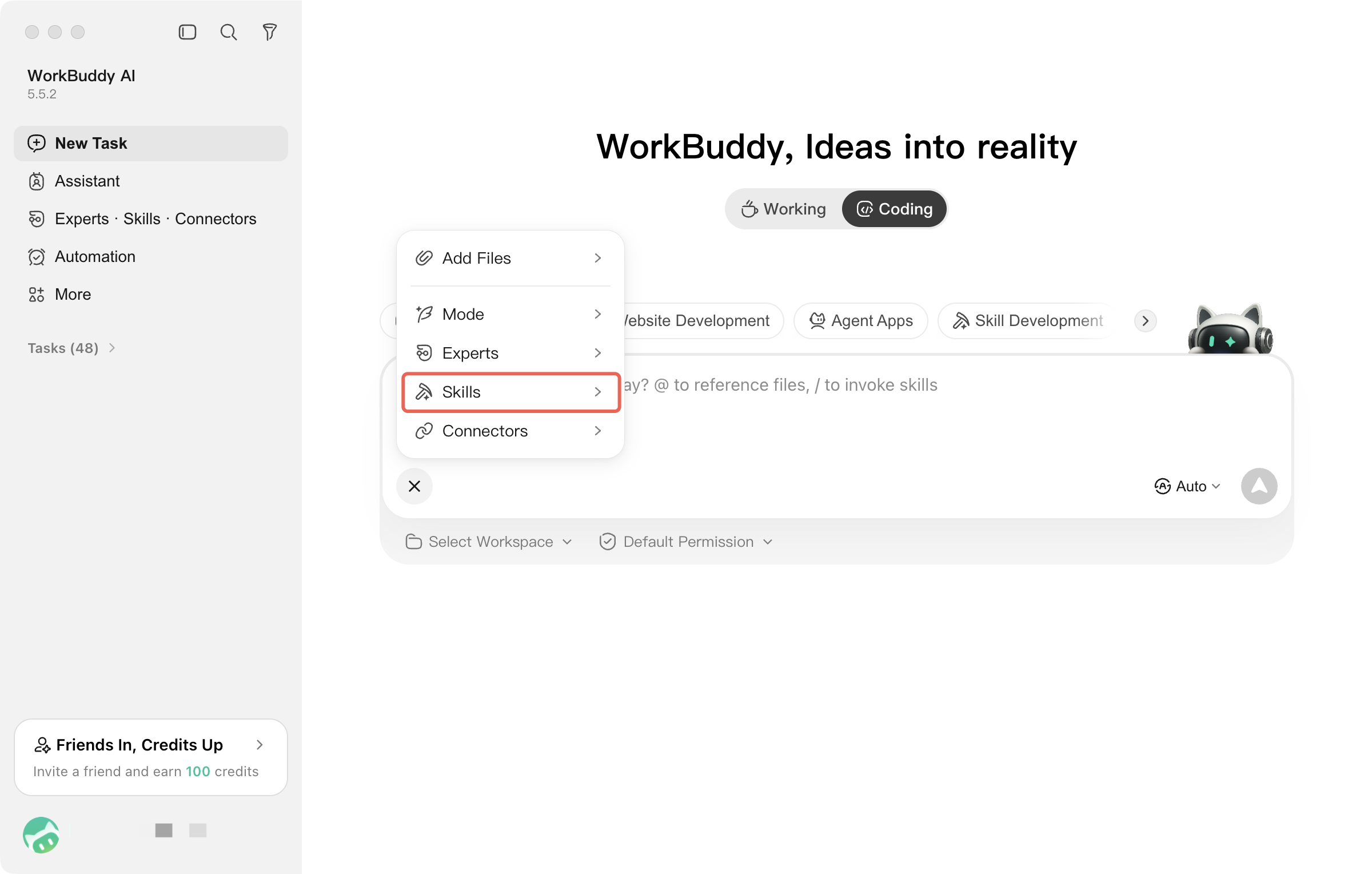
Skill Example | Effect |
PPT creation | Generate a presentation based on the data. |
Poster generation | Generate an event poster based on requirements. |
Automated reporting | Merge multiple Excel files and output a chart report. |
Note:
The Skill Marketplace currently includes 268 skills, which are divided into 11 categories: Development Tools, Content Creation, Productivity Tools, OPC·Solo Business, Office Collaboration, Lifestyle Services, Education & Learning, Information & News, Business Operations, Website Deployment, and Investment & Finance. In addition, a set of skills built into the client is available out of the box.
In addition to installing ready-made skills directly, you can also:
Upload Skill: Import a local skill package, and the system automatically completes the configuration.
Find Skills: Describe the task in one sentence, and WorkBuddy AI will find relevant skills.
Create Skill: Describe your requirements in natural language, and WorkBuddy AI will directly generate a skill.
It also supports importing skill packages from the OpenClaw community. It is recommended to enable only the skills required for the current task to reduce distractions and lower the probability of incorrect invocation.
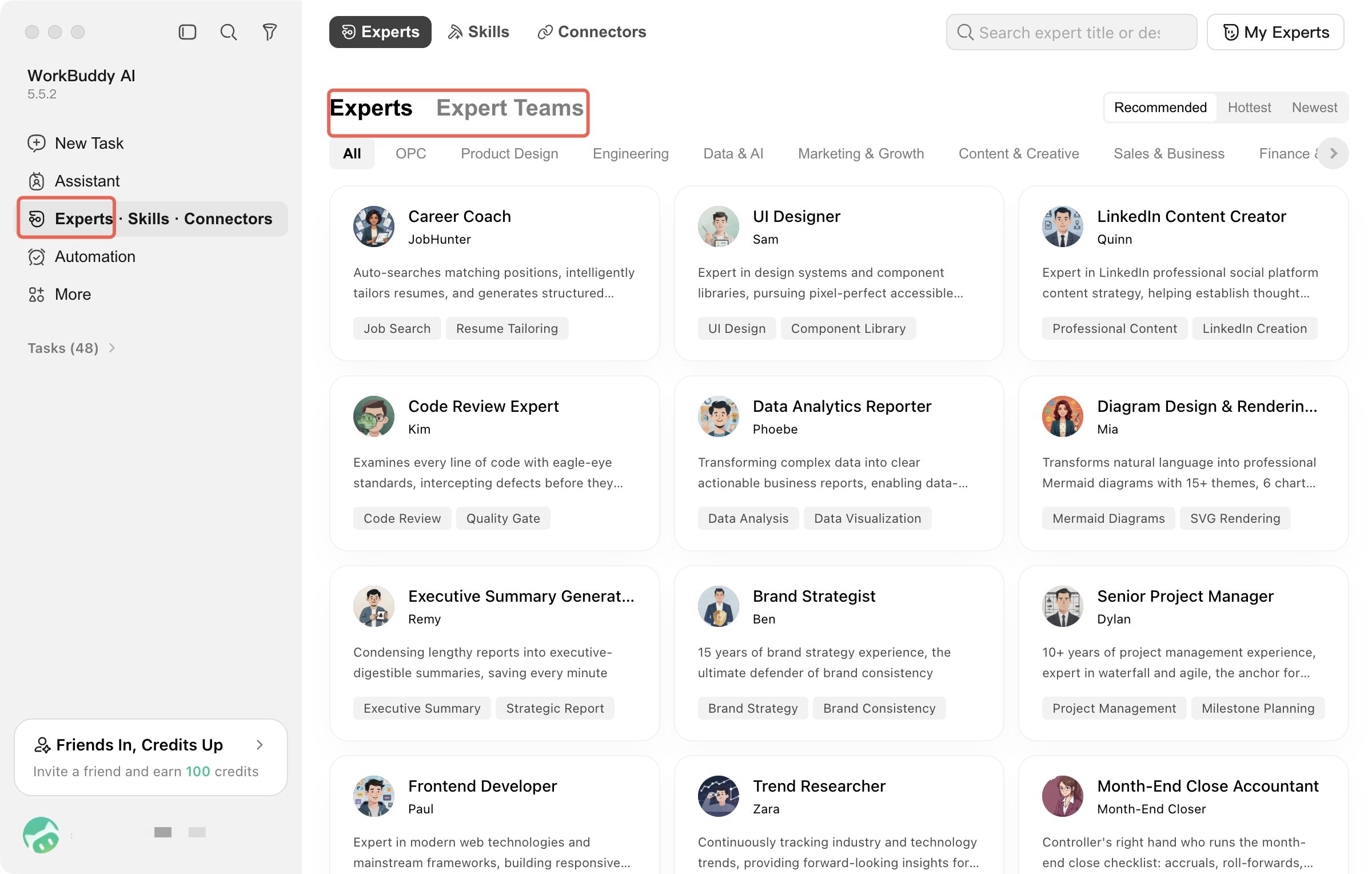
5) Summoning an Expert
In addition to skills, you can also assign an Expert or an Expert Panel to a task in the conversation.
Expert: An expert has an independent persona, methodology, and toolchain, representing a senior perspective for a specific role. It is suitable for tasks with clear, single-point problems and high requirements for output style.
Expert Panel: A multi-agent team with a lead and defined roles. You only need to describe the task, and the lead will automatically break it down, assign subtasks for parallel execution, and finally integrate and deliver the results. It is suitable for complex tasks that require collaboration among multiple roles.
Note:
An Expert Panel invokes multiple experts to collaborate on execution, and its credit consumption is typically several times that of a single expert. Before enabling it, make sure your account has sufficient credits.
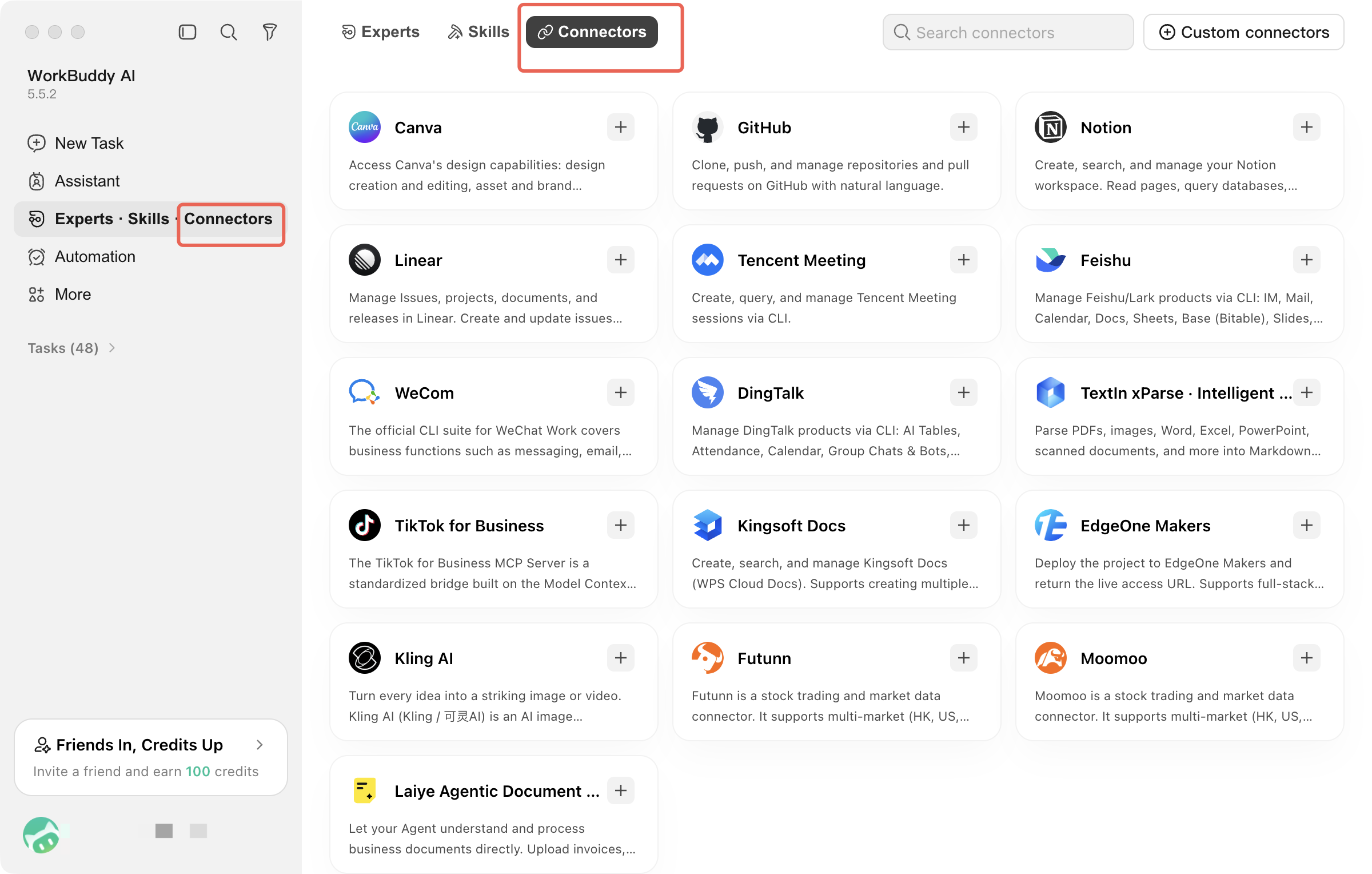
6) Connecting Third-Party Applications
Quickly manage connectors to connect external services and extend AI capabilities. Read and write operations of connectors do not consume credits. When data needs to be moved, prioritize handing it over to connectors and let AI focus on processing.
7) Permission Management
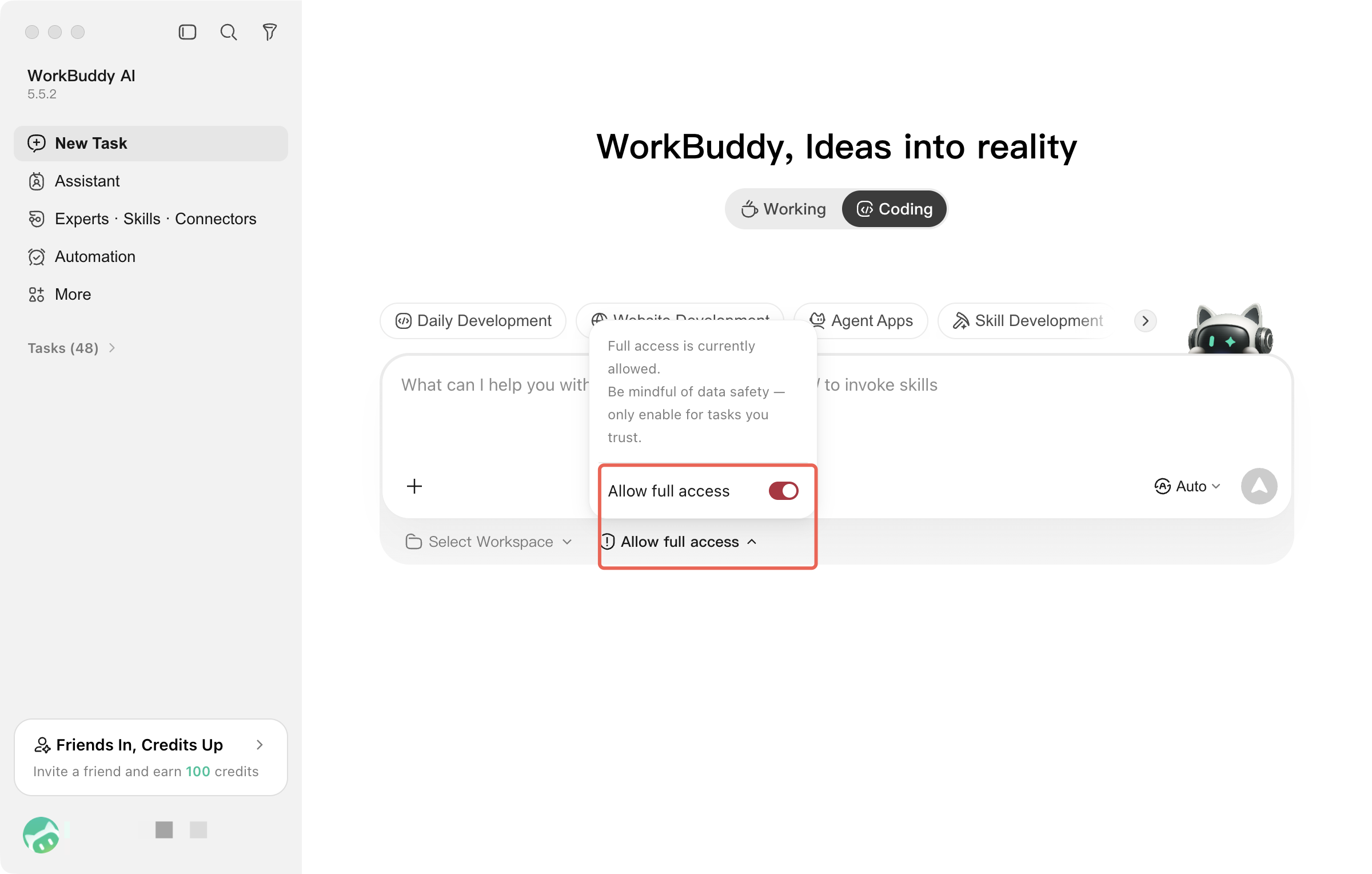
The permission entry is at the bottom of the input box and is a persistent status button (displayed as "Default Permission" by default). After clicking it, you can view the current permission status and switch between the two levels using the "Allow Full Access" toggle. The permission status is always visible, so you can confirm it at any time before initiating a task.
Comparison Item | Default Permission | Full Access Permission |
File Access Scope | Within sandbox constraints. Out-of-bound access requires permission. | Any location on the computer |
Delete/Modify Files | Confirmation required for each operation | Most operations are executed directly. |
Terminal Commands | System-level commands require confirmation. | Run commands, install software, and modify system settings directly. |
Access the Internet | Controlled. Sensitive actions require confirmation. | Access websites, send data, and use enabled connectors. |
Effective Scope | Current task | Global, effective for all tasks. |
Risk Level | Low | High |
Default Permission: WorkBuddy AI automatically performs low-risk steps in daily tasks and pauses for your confirmation in the following situations:
Write to protected or sensitive paths (such as keys, credentials, and security configurations);
Delete protected files, important directories, or perform batch deletions;
Execute scripts, commands, or external programs;
High-risk capabilities that involve network access or trigger Security Center rules.
After you cancel the confirmation, the step will not be executed. You can continue the conversation and ask it to use a safer approach, such as listing the files to be deleted first or saving the results to the workspace.
Full Access: Disables the secondary confirmation described above, so high-risk operations are no longer confirmed step by step. When you switch to this mode, a "Confirm allowing full access?" dialog appears, clearly listing the capabilities that will be granted (file operations, terminal commands, and internet access).
Enable with Caution
Full Access is a global switch. After it is enabled, it takes effect uniformly for all existing tasks and subsequently created tasks on the current client, and it does not take effect across devices. Each client manages it independently. It does not mean greater security; it simply hands the confirmation step over to AI for automatic approval.
It is recommended to use it only for a short time in fully trusted, isolated, and recoverable environments (such as Docker, virtual machines, or disposable working directories), and to disable it immediately after use. It is not recommended to enable it in scenarios involving production data, unique copies, or locations near the desktop or download directories.
Want to Further Tighten Boundaries?
In Settings > Security Center, you can also configure sandbox security (file, command, and network access policies), automatic backup, deletion protection, batch deletion approval, sensitive data protection, and audit logs.
II. Creating a Task
Each conversation corresponds to an independent task. Tasks do not affect each other, and each maintains its own workspace and context.
1. On the main page, click New Task. If no directory is specified in advance, the system automatically creates an independent working directory.
2. Enter the task content, select the working directory and model, and then send it to start execution.
When describing a task, you can provide additional context to help WorkBuddy AI understand your requirements more quickly:
Method | Description |
Referencing context | Reference files, documents, rules, and other information using @. |
Pasting a screenshot | Paste images from the clipboard directly using Ctrl/Cmd + V (requires a model that supports image input). |
Uploading a file | Click the upload button, or drag and drop files into the input box. |
Remarks | Specify the goals, scope, constraints, and expected outputs in the task description. |
After the task starts:
1. New tasks appear in the task list in the left sidebar, and you can switch between them at any time to view progress.
2. The conversation area continuously displays the execution process and output.
3. The result area on the right displays artifacts, all files, changes, and previews based on the task type.
WorkBuddy AI supports parallel processing of multiple tasks: you can create a separate task for writing proposals, organizing data, and replying to emails, with each task running independently and progressing simultaneously.
Help and Support
Was this page helpful?
You can also Contact sales or Submit a Ticket for help.
Help us improve! Rate your documentation experience in 5 mins.
Feedback