Mac Installation Guide
Download
Focus Mode
Font Size
Environment Requirements
macOS 12 (Monterey) or later
Note:
Systems that do not meet the above requirements will be unable to start WorkBuddy AI.
1. Download
1. Visit the official WorkBuddy AI website and click Download.
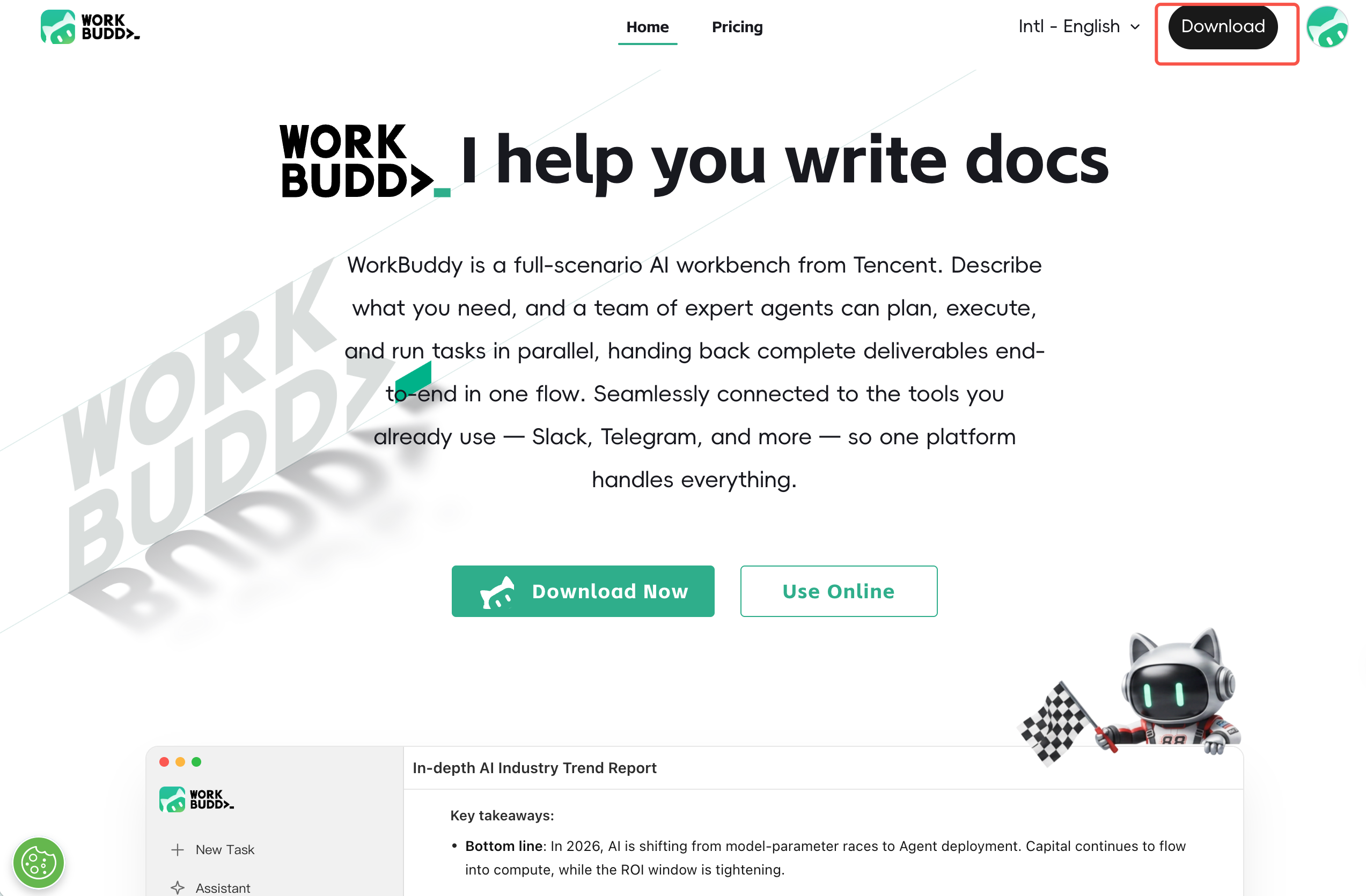
2. Allow the download in the browser pop-up and wait for the installation package to finish downloading.
2. Installation
1. Double-click the downloaded
.dmg disk image file to open the installation window.2. Drag the WorkBuddy AI icon into the Applications folder.
3. Wait for the copy to complete.
4. Right-click to eject the installation disk and delete the leftover
.dmg file on the desktop.3. Login
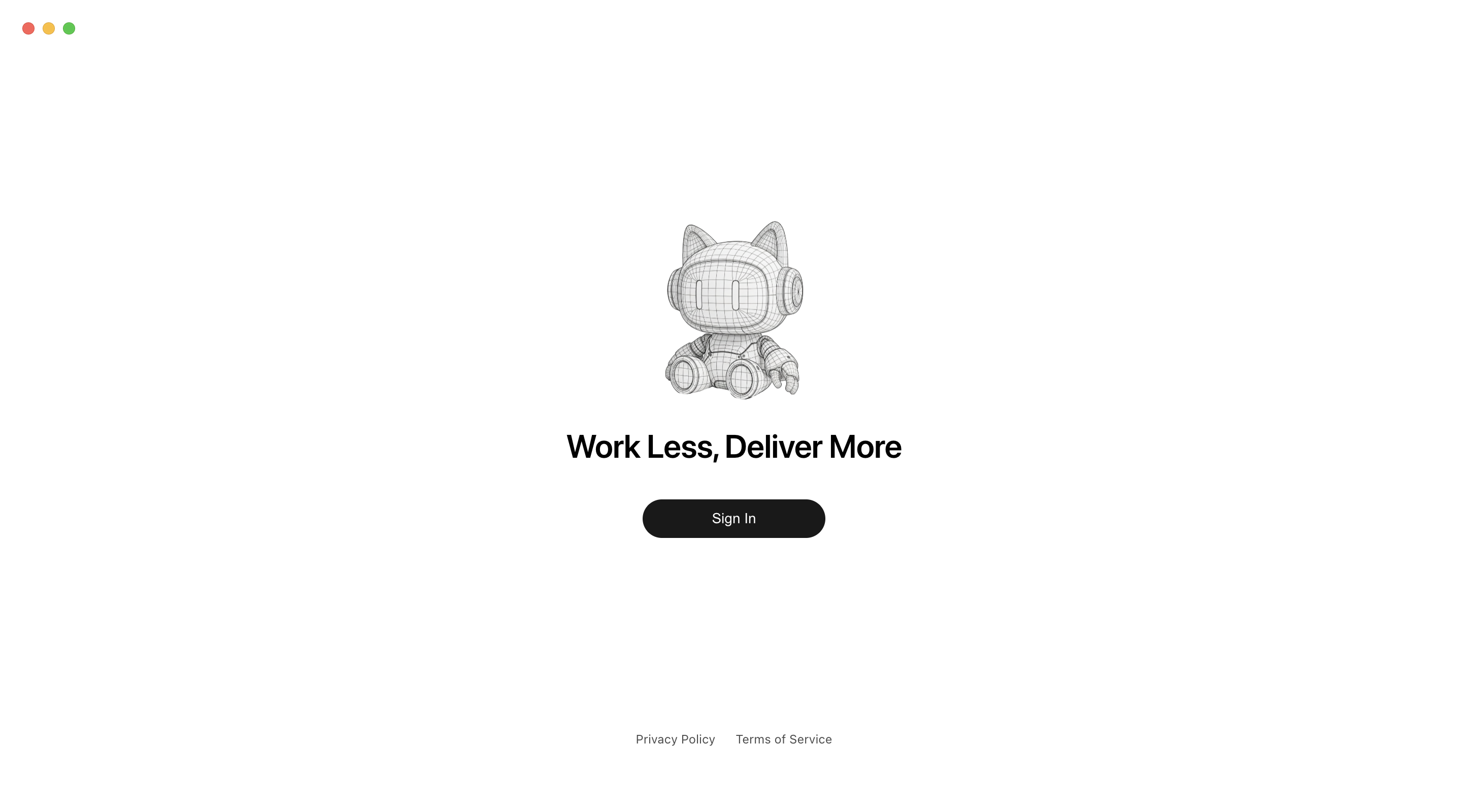
1. Open WorkBuddy AI by searching in Launchpad or with
Command + Space.2. Click the Log In button, and the browser will automatically open the login page.
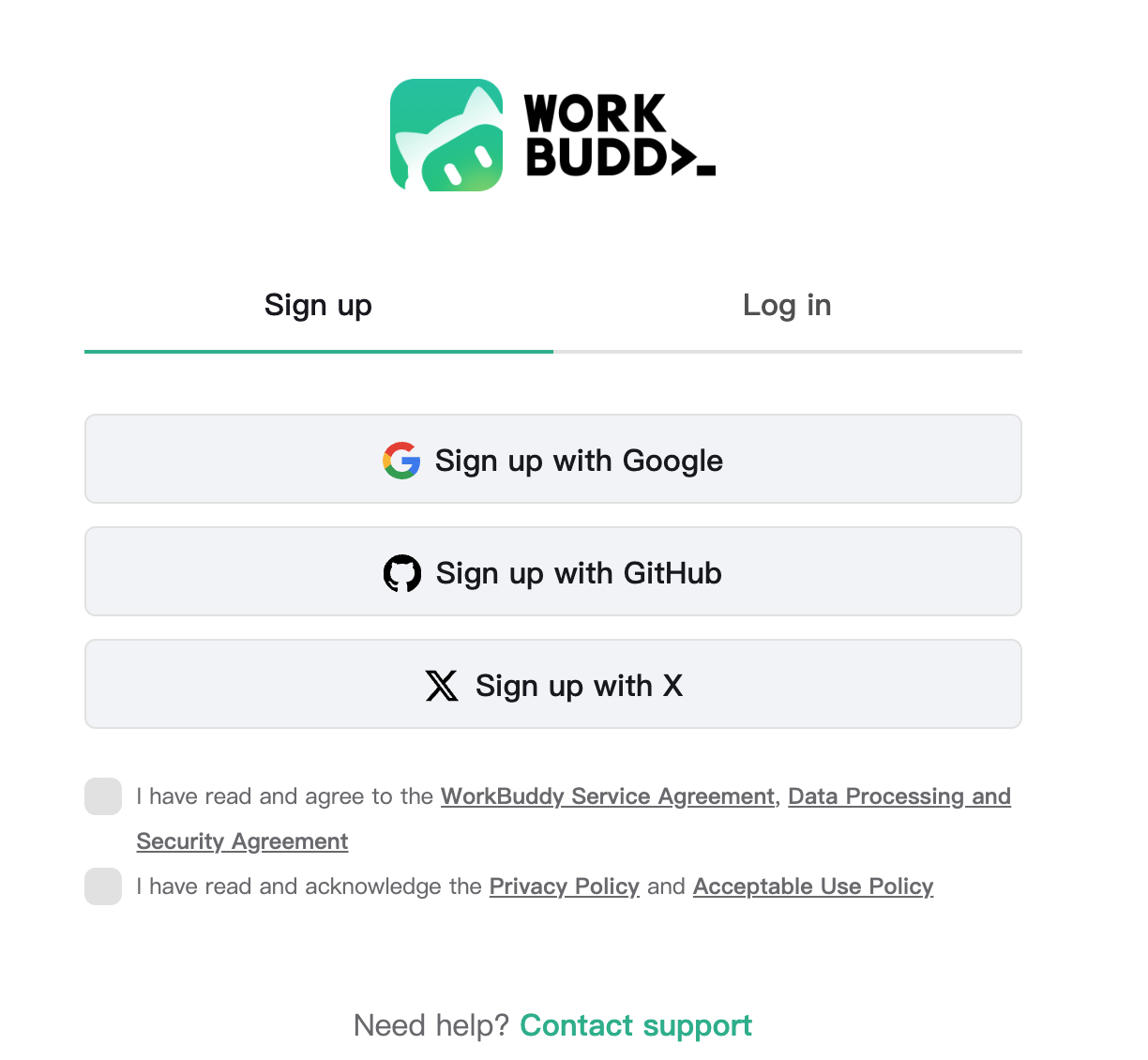
3. For first-time use, stay on the Register tab, select the agreement confirmation item at the bottom of the page, and then choose a method to complete registration:
Sign up with Google
Sign up with GitHub
Sign up with X
Existing users can switch to the Log In tab and log in using the same method they used for registration.
Note:
You must first select "I confirm that I have read and understood the Privacy Policy, Data Processing and Security Agreement, and CodeBuddy Terms of Service" before you can continue with registration.
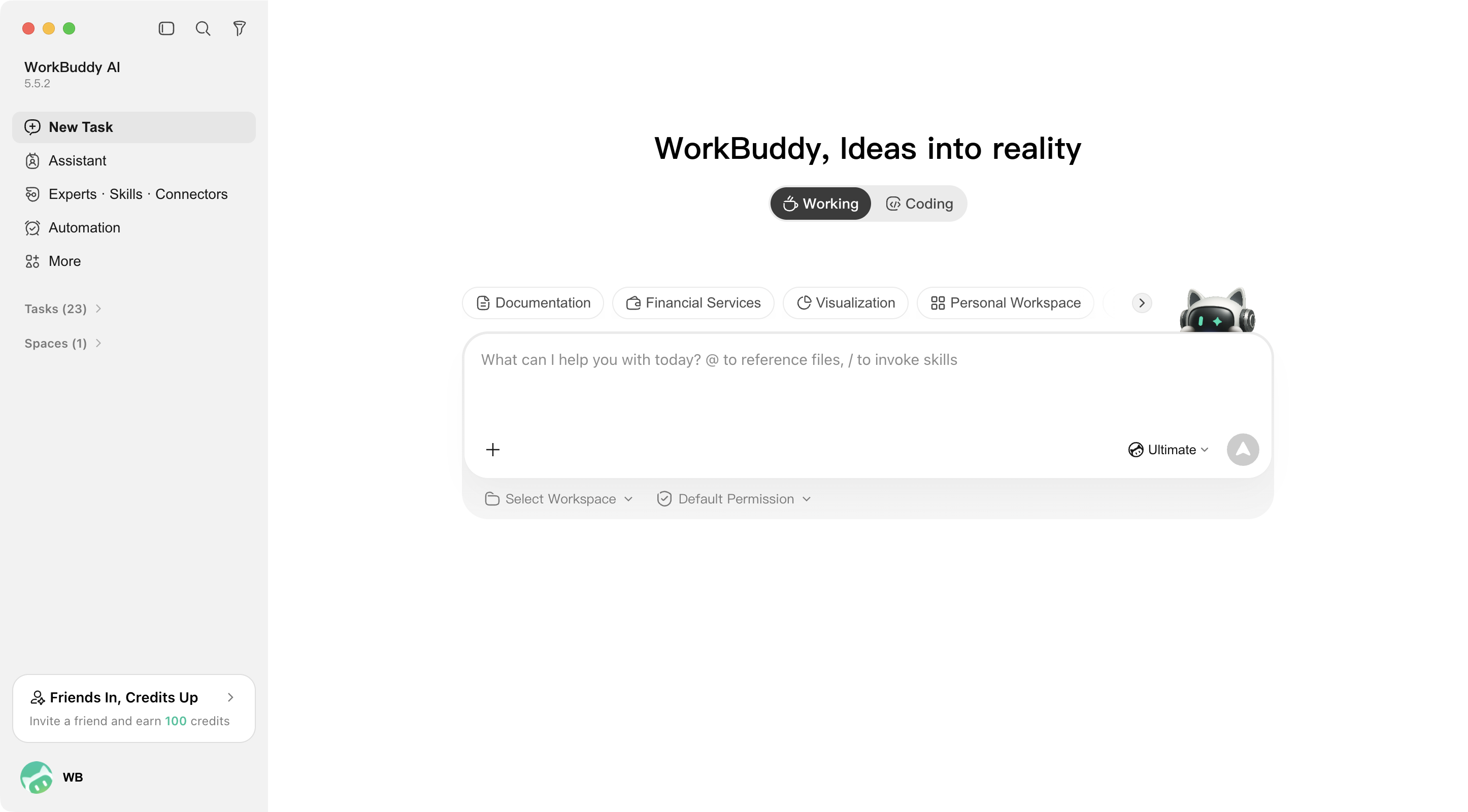
4. After a successful login, you will be automatically returned to the client and can start using it.
Language Settings:
To switch the interface language, click Profile > Language in the lower-left corner.
4. Version Update
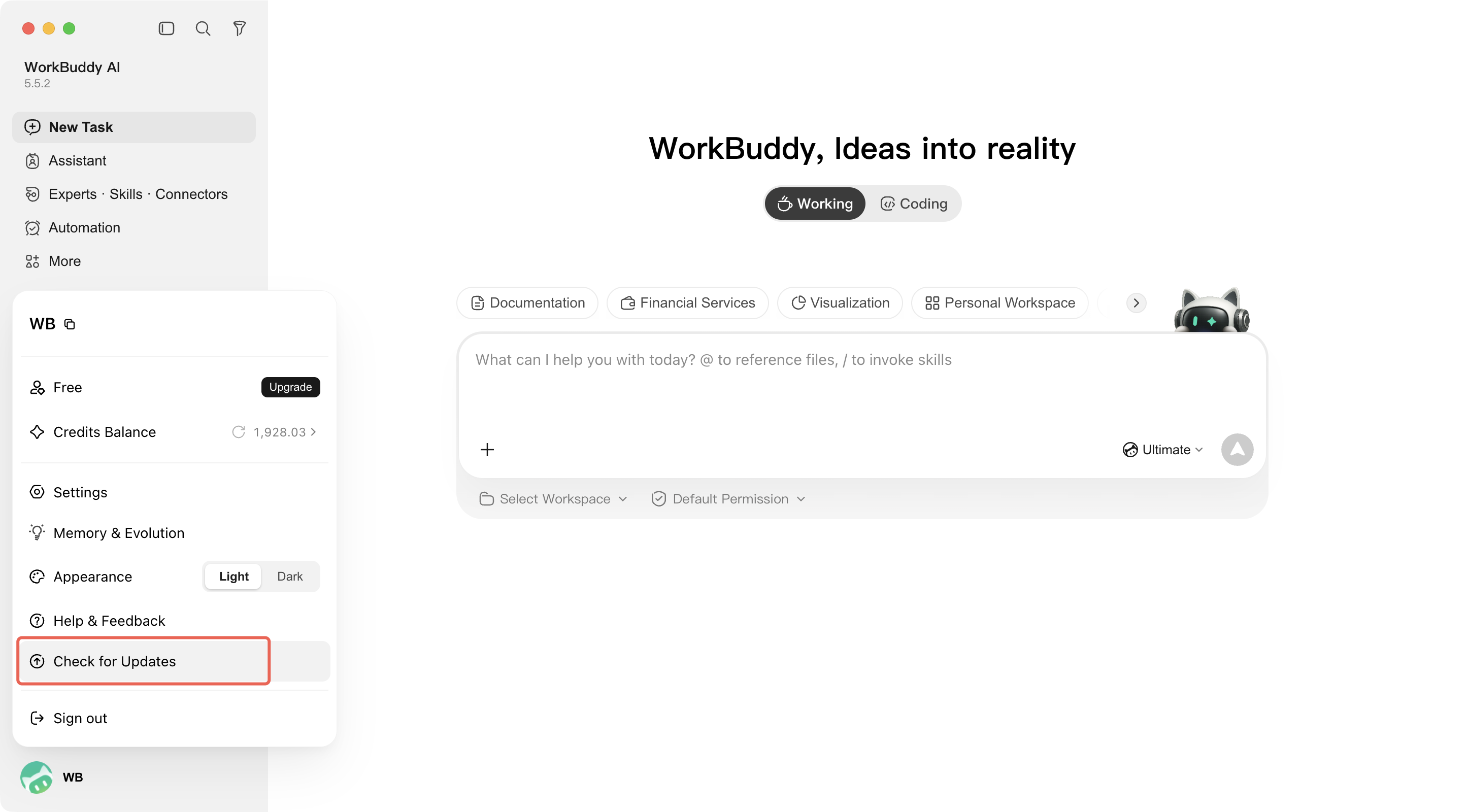
Click Profile > Check for Updates in the lower-left corner, and the system will automatically detect and complete the upgrade.
Help and Support
Was this page helpful?
You can also Contact sales or Submit a Ticket for help.
Help us improve! Rate your documentation experience in 5 mins.
Feedback