Subscription Management
Download
Focus Mode
Font Size
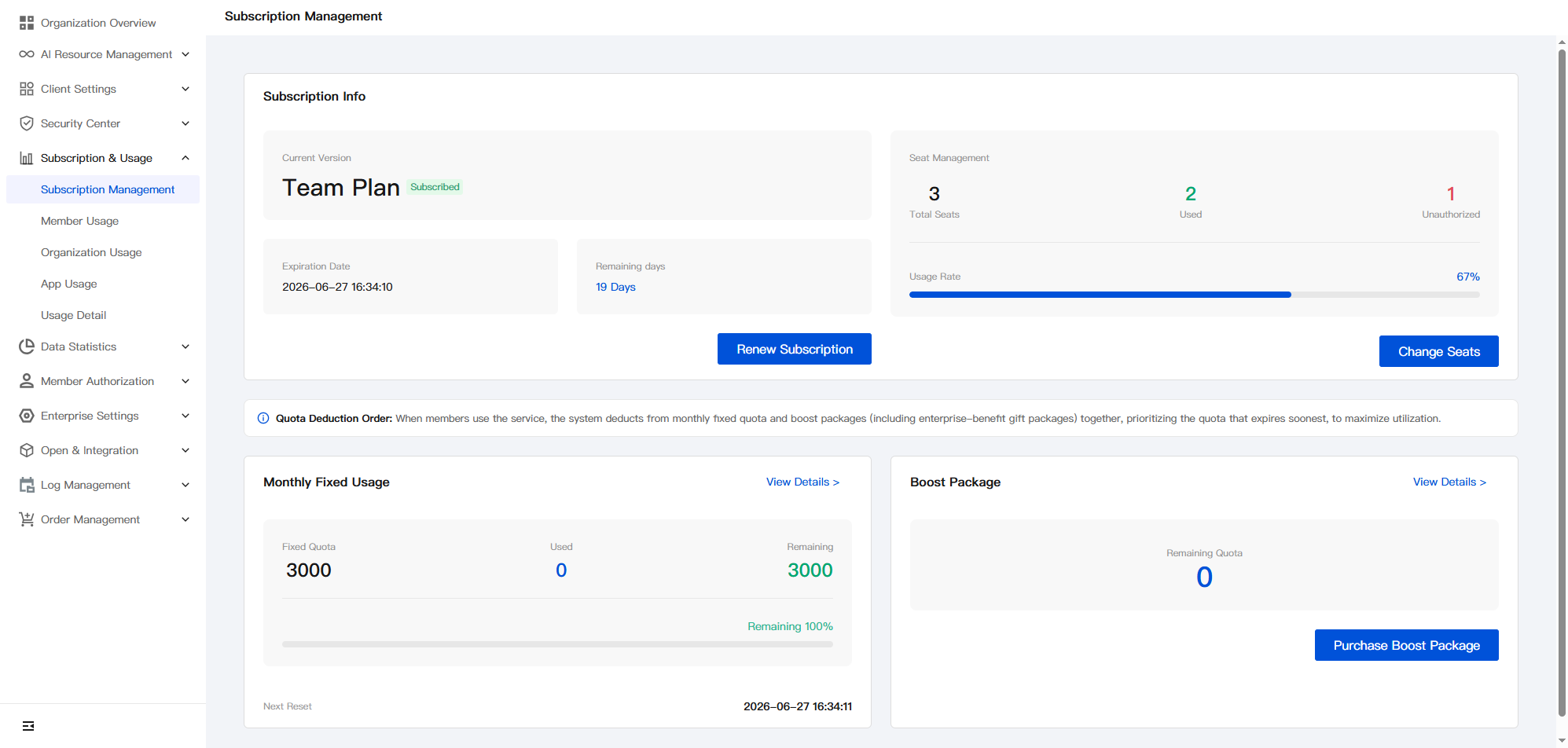
Subscription Management provides full lifecycle management capabilities for Enterprise Edition subscriptions. Administrators can view the subscription edition, seat usage, fixed monthly usage, and add-on pack balance here, and can perform operations such as subscription renewal, license expansion, and add-on pack purchase.
Operation Steps
Go to Subscriptions & Usage > Subscription Management in the Enterprise Admin Console to view the enterprise's subscription information, including the subscription edition, seat usage, fixed monthly usage, and add-on pack balance.
Renewing a Subscription
On the Subscription Management page, click Renew Subscription to go to the renewal purchase page.
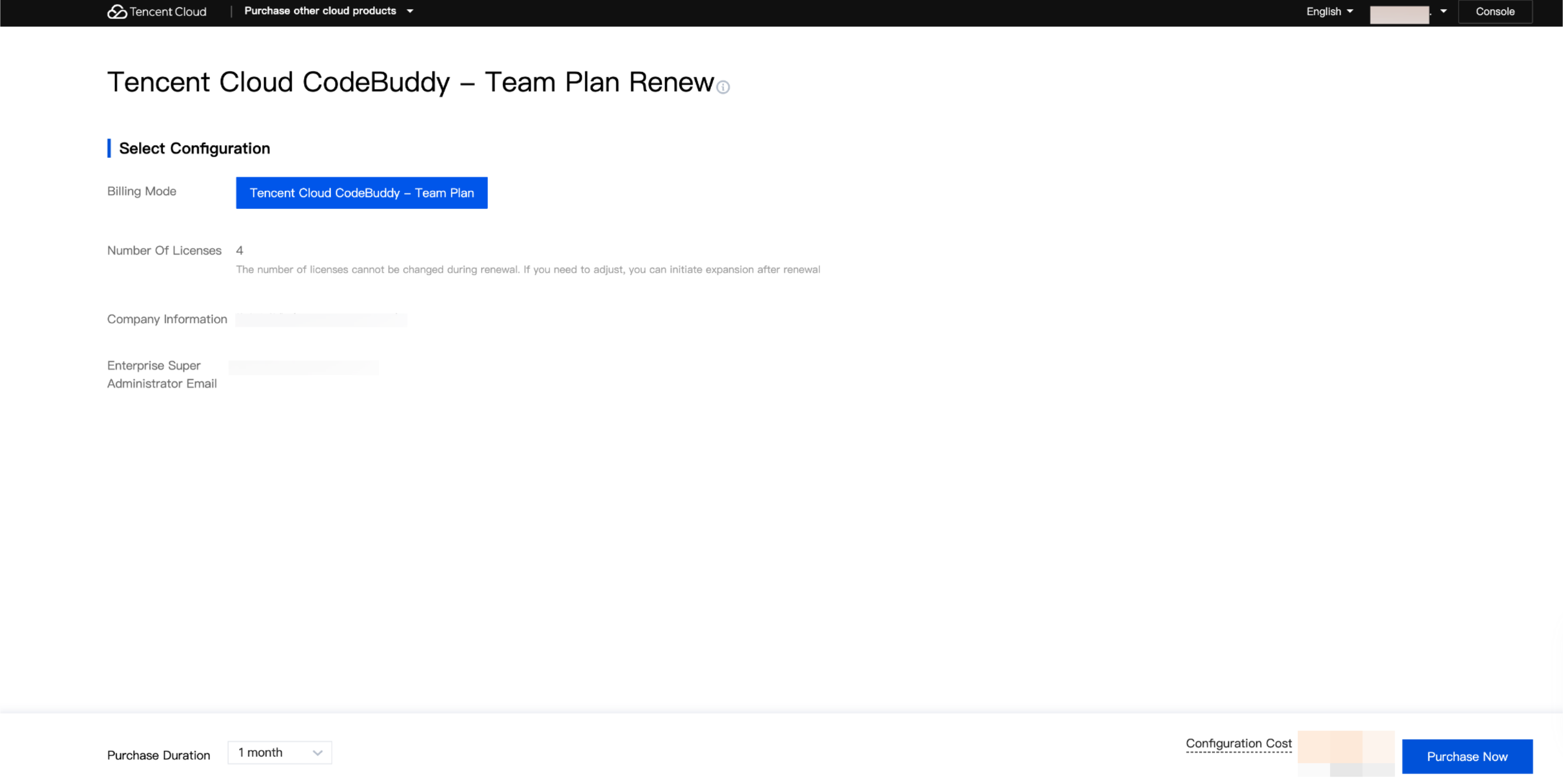
1. Confirm the billing mode, license quantity, enterprise information, and enterprise super administrator email address.
2. Select the purchase duration and confirm the configuration cost.
3. Click Buy Now to complete the payment.
Note:
The license quantity cannot be changed during renewal. To adjust the number of seats, use License Expansion after the renewal is completed.
License Expansion
On the Subscription Management page, click License Expansion to go to the configuration change page.
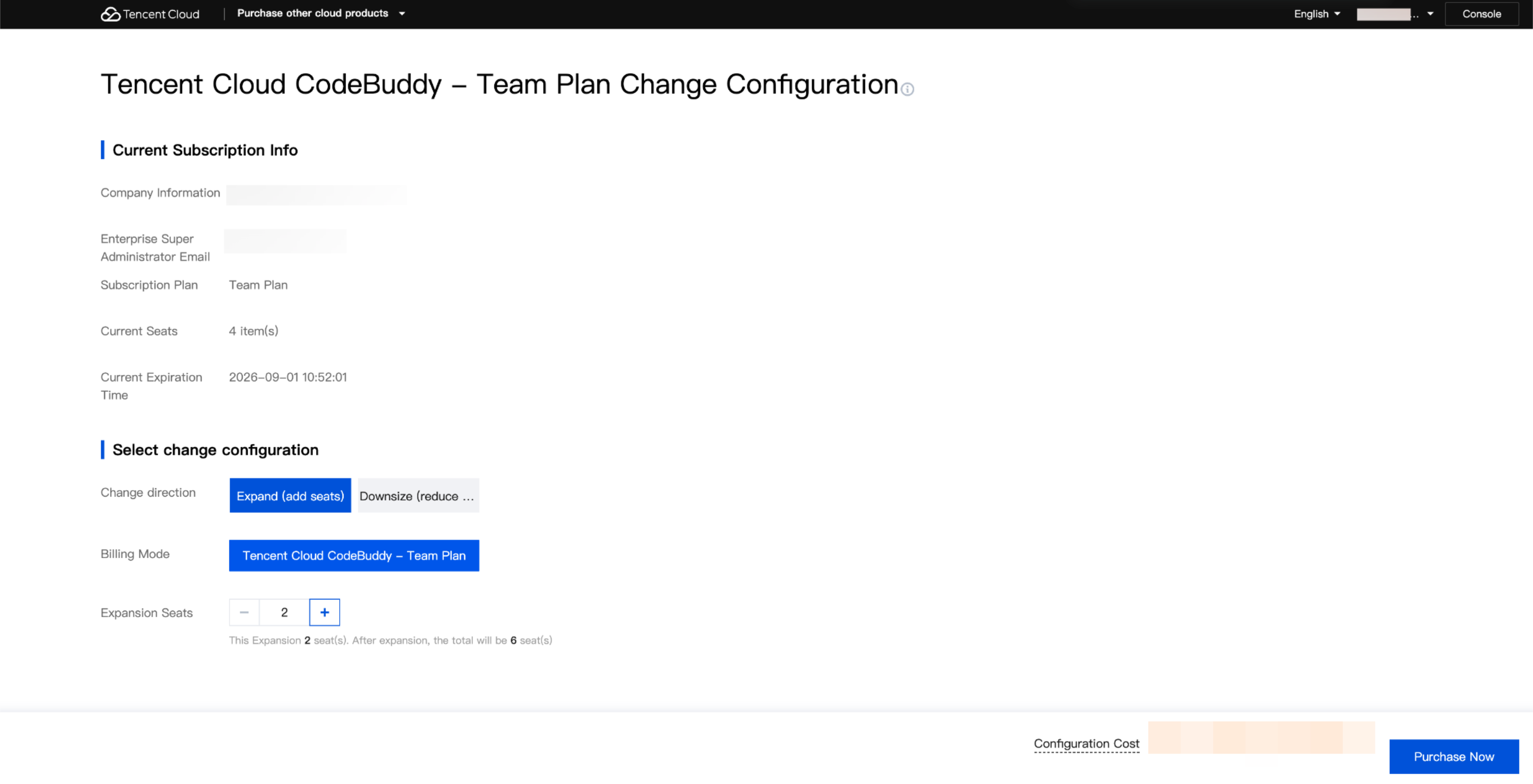
1. View the subscription edition, current number of seats, and current expiration time in Current Subscription Information.
2. In Select Configuration Change, select the configuration change direction: expansion (increase seats) or reduction (decrease seats).
3. Enter the number of seats to change, and the page will display the number of seats to be changed and the total number of seats after the change.
4. Confirm the configuration cost, click Buy Now, and complete the payment.
Purchasing an Add-on Pack
When the enterprise's fixed monthly usage cannot meet its needs, administrators can click Purchase Add-on Pack on the Subscription Management page to supplement the enterprise's Credits usage. Add-on packs are prepaid and must be purchased before they can be used for deduction. Add-on packs cannot be used independently of the Enterprise Edition, and cannot be deducted after the Enterprise Edition expires.
On the Subscription Management page, click Purchase Add-on Pack to go to the add-on pack purchase page.
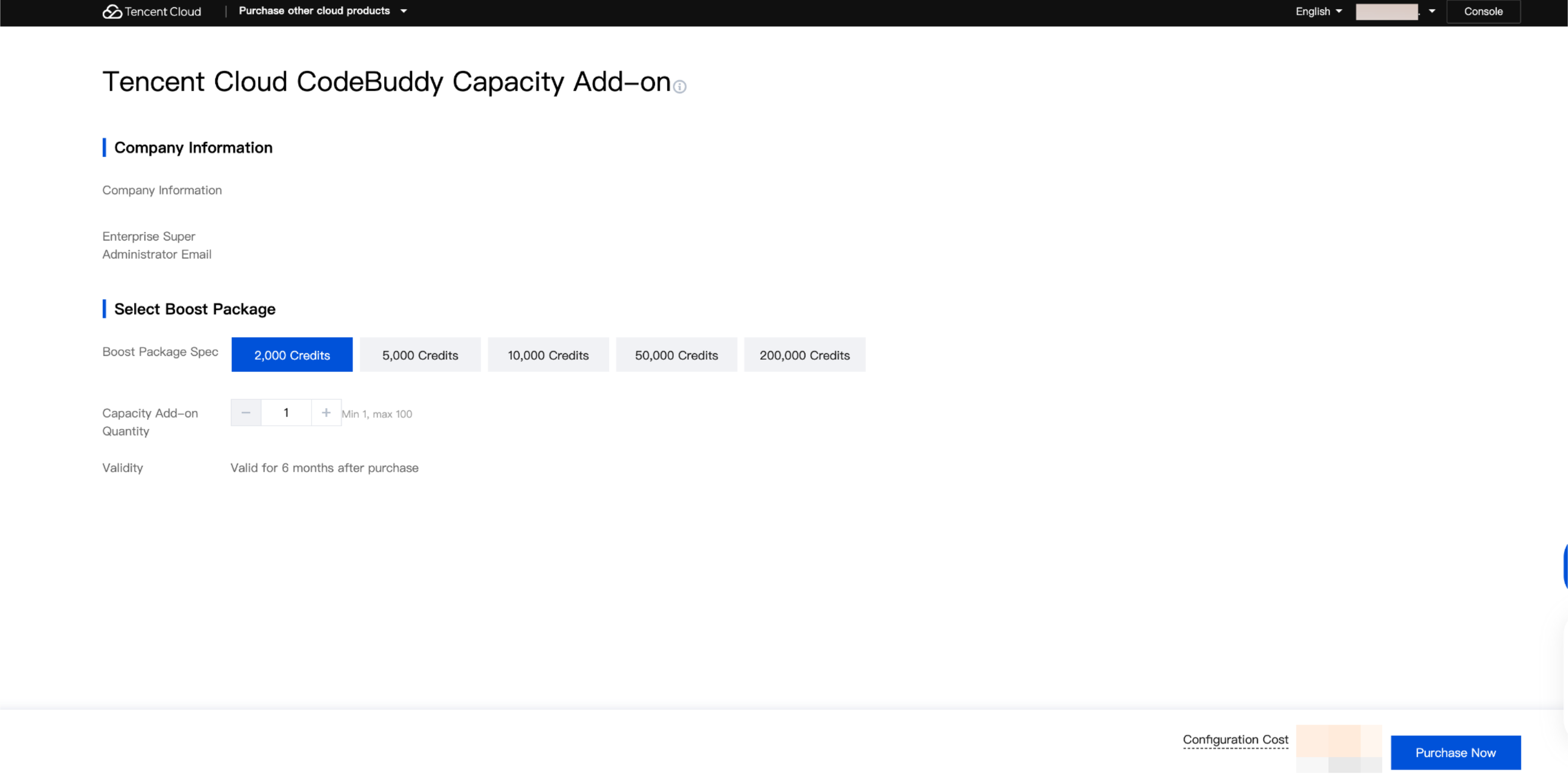
1. In Select Configuration, set the number of add-on packs and select the purchase capacity. For prices of each capacity specification, see Billing Details - Add-on Pack.
2. Verify the enterprise information, click Buy Now to confirm the order information, and complete the payment.
3. After the payment is successful, click Go to Enterprise Console. The system is expected to take some time to complete the configuration delivery. Please wait patiently.
4. Return to Enterprise Admin Console > Subscriptions & Usage > Subscription Management, and check the remaining usage in the Add-on Pack card to confirm whether the add-on pack has been credited.
Help and Support
Was this page helpful?
You can also Contact sales or Submit a Ticket for help.
Help us improve! Rate your documentation experience in 5 mins.
Feedback