Metering Settings
Download
Focus Mode
Font Size
Metering settings control the reset time of enterprise-level, member-level, and department-level limit cycles, determining "which day each metering cycle starts counting usage from and when it resets to zero". Two modes are currently available: Default (sliced by subscription effective date) and Natural month (refresh on the 1st at 00:00:00).
Note:
Default (sliced by subscription effective date): Usage is refreshed once every full month starting from the subscription effective date. The cycle start and end vary with the subscription effective date. For example, for a subscription effective on March 15, usage is reset on the 15th of each month at 00:00:00.
Natural month: Limit cycles are strictly sliced by natural month, independent of the subscription effective date. Usage is automatically reset to 0 on the 1st of each month at 00:00:00.
Operation Steps
Step 1: Entering Metering Settings
Log in to the WorkBuddy Enterprise admin console, and go to Enterprise Settings > Metering Settings in the left sidebar. The main body of the page is the Limit Cycle Mode group.
Step 2: Selecting a Limit Cycle Mode
Mode 1: Default (sliced by subscription effective date)
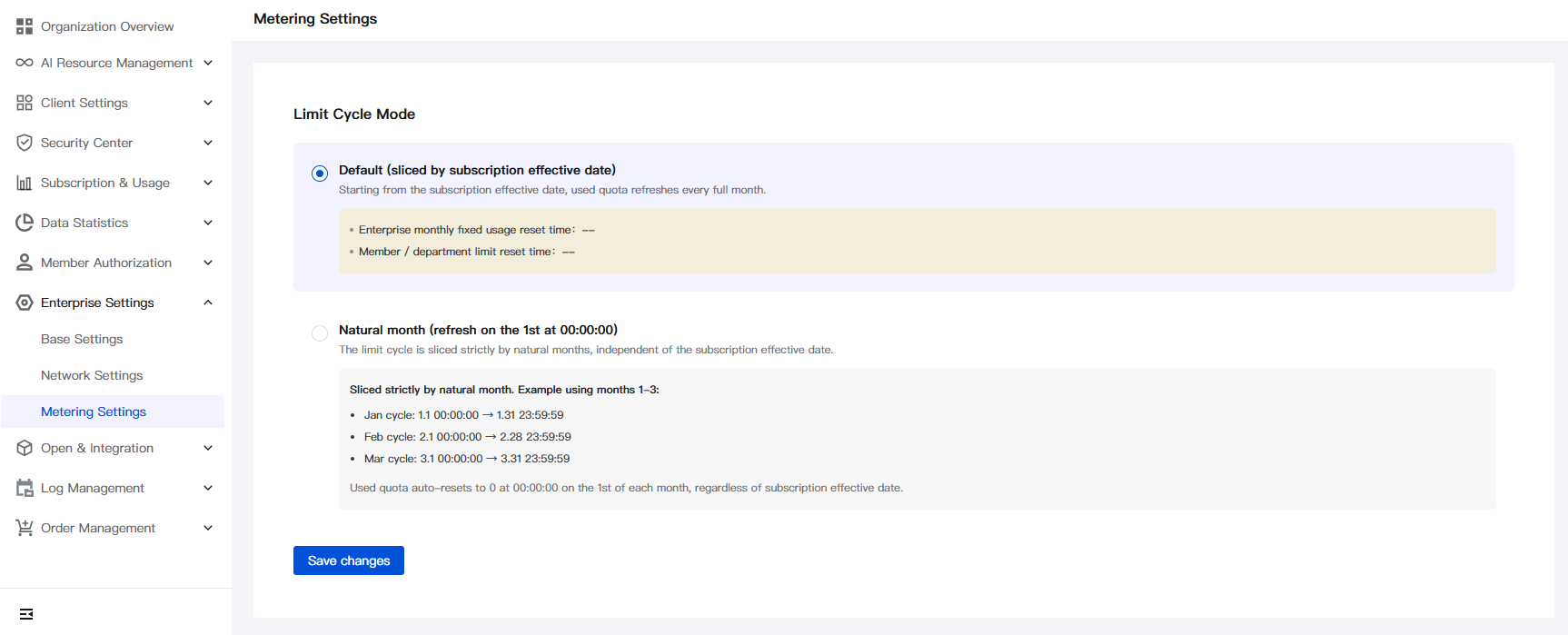
Select the Default (sliced by subscription effective date) radio button, and a yellow note appears at the bottom of the page indicating the two reset times for the current enterprise:
Prompt | Description |
Monthly fixed usage reset time for the enterprise | The time point when the enterprise-level quota cycle next resets to zero. The data is derived from the subscription effective date. If the subscription is not active or not in effect, -- is displayed. |
Member/department quota reset time | The time point when the quota cycle configured for the member/department dimension next resets to zero. If no member/department quota is configured, -- is displayed. |
Applicable scenario: You want the cycle caliber to stay consistent with the subscription billing caliber, avoiding reconciliation difficulties caused by "billing cycles and usage cycles being out of sync".
Mode 2: Natural month (refresh on the 1st at 00:00:00)
Select the Natural month radio button, and a gray note appears at the bottom of the page with an example of strict natural month slicing:
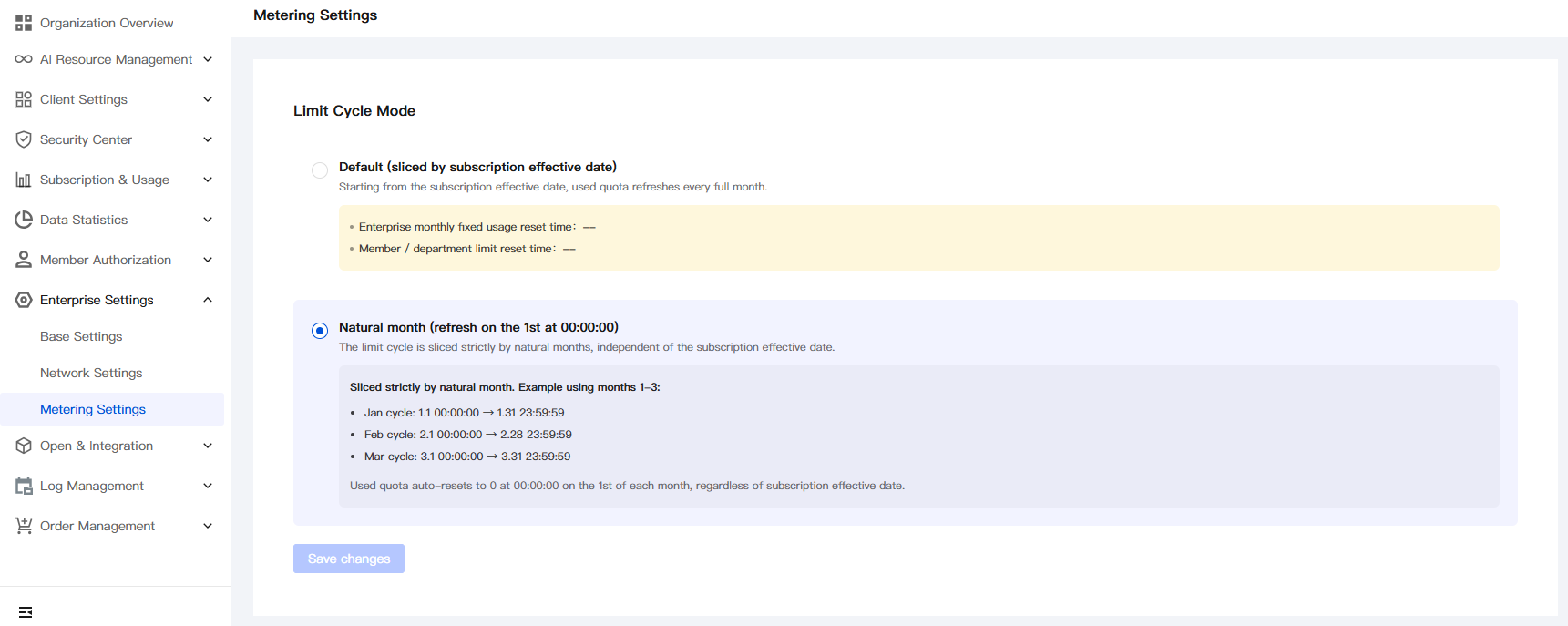
Limit cycles are strictly sliced by natural month. Take January - March as an example:
January cycle:
1.1 00:00:00 → 1.31 23:59:59February cycle:
2.1 00:00:00 → 2.28 23:59:59March cycle:
3.1 00:00:00 → 3.31 23:59:59Usage is automatically reset to 0 on the 1st of each month at
00:00:00, independent of the subscription effective date.Applicable scenario: Finance and operations teams want all enterprises to align by natural month (for example, for departmental monthly cost accounting / monthly reports), independent of differences in subscription effective dates across enterprises.
Step 3: Saving Changes
After you select or switch a radio option, the Save Changes button in the lower-left corner of the page changes from gray to blue. Clicking Save Changes writes the enterprise-level settings, which take effect from the next cycle calculation. Changes do not take effect until you click Save.
Note:
Switching modes only affects the start and end times of future cycles and does not retroactively modify historical cycle data.
After the switch, the limit cycle calibers at the enterprise, member, and department levels are updated accordingly. Before switching, confirm that financial reconciliation and usage reports will not become ambiguous due to the change in cycle caliber.
In the "Default" mode, the reset time is determined by the subscription effective date. To adjust the reset time, change the effective date on the subscription side instead of configuring it on this page.
Help and Support
Was this page helpful?
You can also Contact sales or Submit a Ticket for help.
Help us improve! Rate your documentation experience in 5 mins.
Feedback