Skill Management
Download
Focus Mode
Font Size
Skill Management is used to centrally distribute and manage CodeBuddy/WorkBuddy capability extensions within an organization. It supports two sources: enterprise-level distribution and member customization, helping administrators achieve standardized skill sharing and fine-grained permission control.
This document describes the core concepts and policy system of Skill Management, along with operational steps such as creating a Skill, managing the Skill list and categories, configuring distribution policies, and enabling member-customized Skills. It also provides security tips and declaration information to help administrators quickly master the end-to-end management of enterprise Skills.
Overview
Skill is a reusable CodeBuddy/WorkBuddy capability extension unit that encapsulates domain-specific instructions, tools, and knowledge, enabling agents to perform specialized tasks. Use the enterprise Skill Management feature to centrally distribute and manage CodeBuddy/WorkBuddy capability extensions within your organization, achieving standardized skill sharing and fine-grained permission control.
Feature | Description |
Discoverability | Members can browse and use authorized Skills by category in the client. |
Manageability | Administrators can control the visibility scope and usage permissions of each Skill. |
Scalability | Supports two sources: enterprise unified distribution and member customization. |
Key Distinctions
Built-in Skill: A system-preset capability that is available to members without any administrator action.
Custom Skill: An organization-specific capability uploaded by enterprise administrators or members. It takes effect only after approval and policy configuration.
Core Concepts
Policy System
Enterprise Skill Management adopts a two-tier policy architecture:
Policy Dimension | Control Object | Typical Scenario |
Skill delivery policy | Which Skills can members use? | Only the development team is allowed to use the code review Skill. |
Member-defined Skill | Whether members can upload Skills by themselves | Permission to allow/restrict members from creating personal Skills |
Priority Rules
Blocklist > Allowlist > Default allow.
The "distribution policy" and the "client upload policy" are independent of each other.
Creating a Skill
Step 1: Uploading an Enterprise Skill
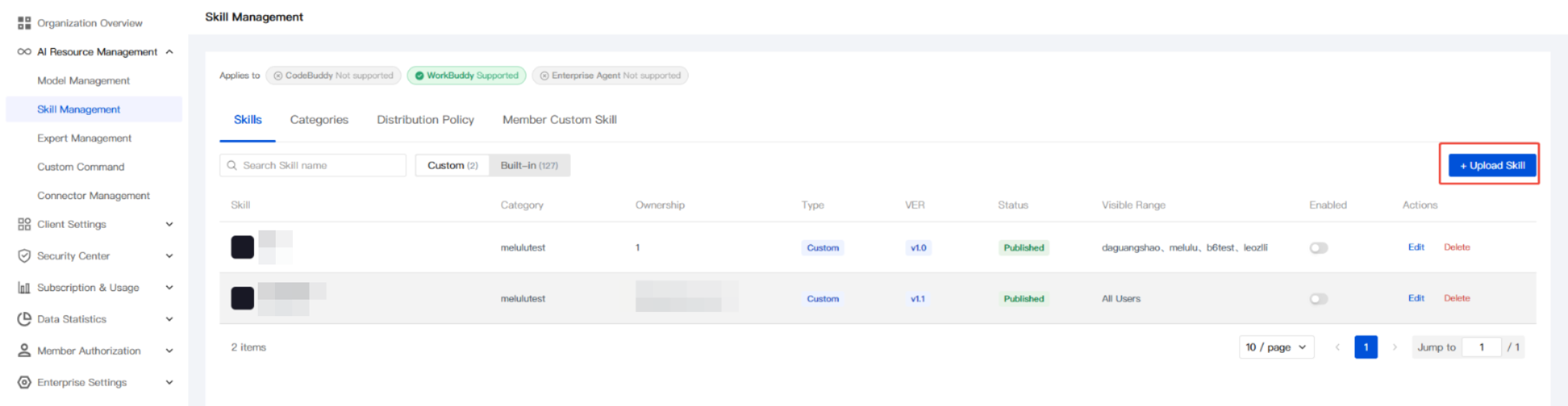
1. Go to Enterprise Admin Console, and navigate to AI Resource Management > Skill Management > Skill List.
2. Click + Upload Skill in the upper-right corner.
3. Fill in the basic Skill information, and click or drag to upload a local Skill package file (the
.zip format is supported).Skill ID (required): A unique identifier used for display.
Display Name (required): The name displayed on the client.
Category (required): Select an existing category or create a new one.
Version (optional): The Skill version number.
Description (optional): A brief description of the Skill.
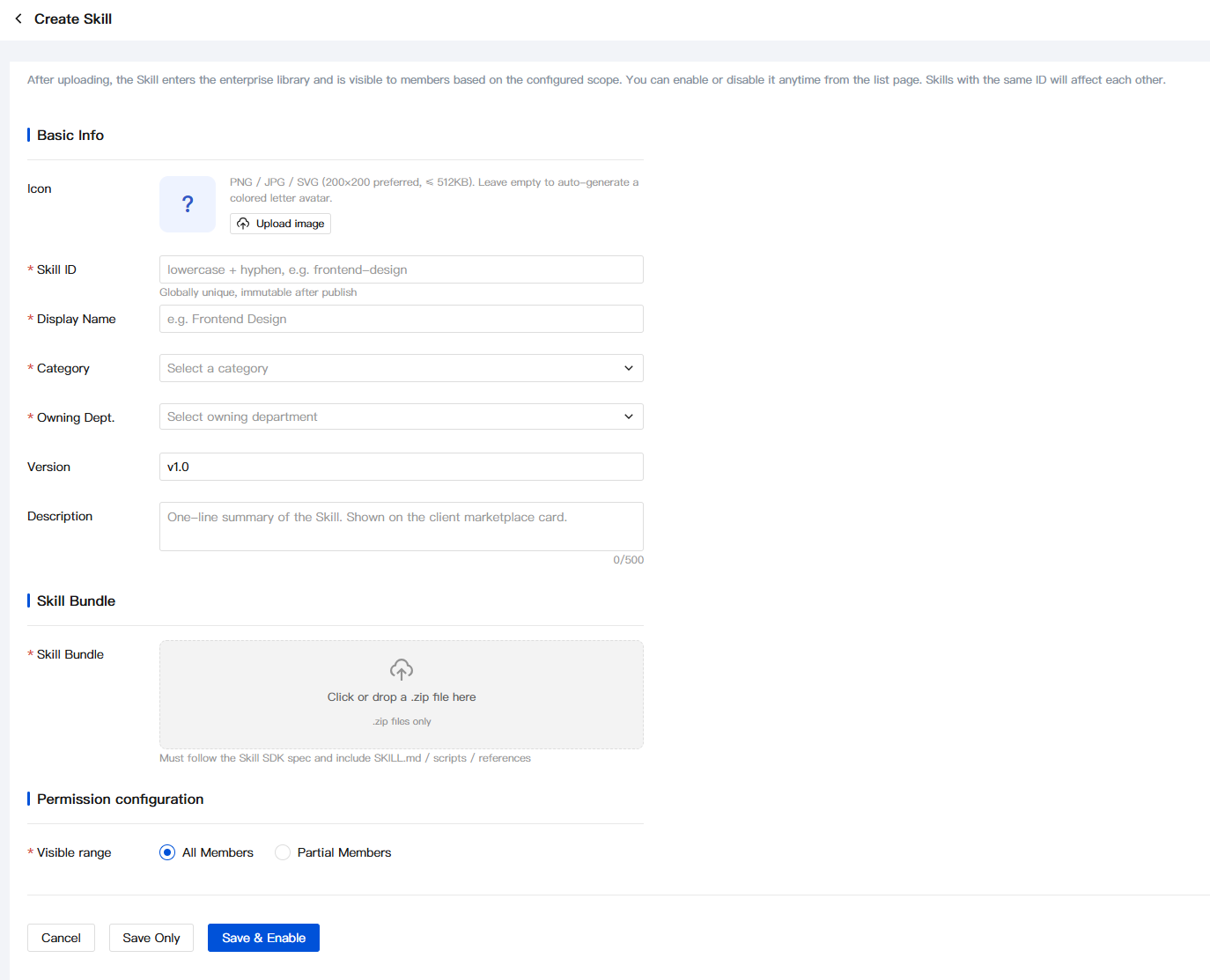
After the configuration is completed, click Save and Enable to finish.
Step 2: Configuring Categories
1. Switch to the Category Management tab.
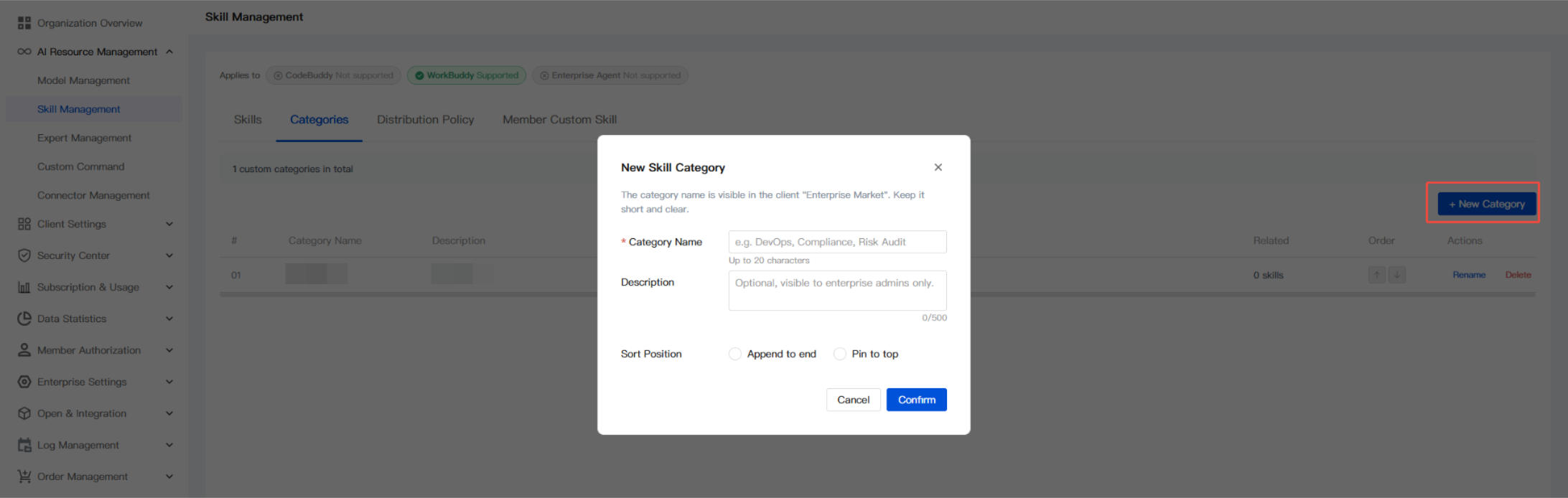
2. Click + Add Category to create a business category.
3. On the Add Skill Category page, complete the following configuration items:
Field | Description | Example |
Classification Name | Category name displayed on the client | "Code Review", "Data Analysis" |
Category Description | Descriptive text that aids understanding | Used for automated code quality detection |
Sort Position | Determines the display order on the client | Can set append to the end or pin to the top |
Step 3: Configuring Distribution Policies
If you need to restrict the usage scope of specific Skills:
1. Go to the Skill Delivery Policy tab.
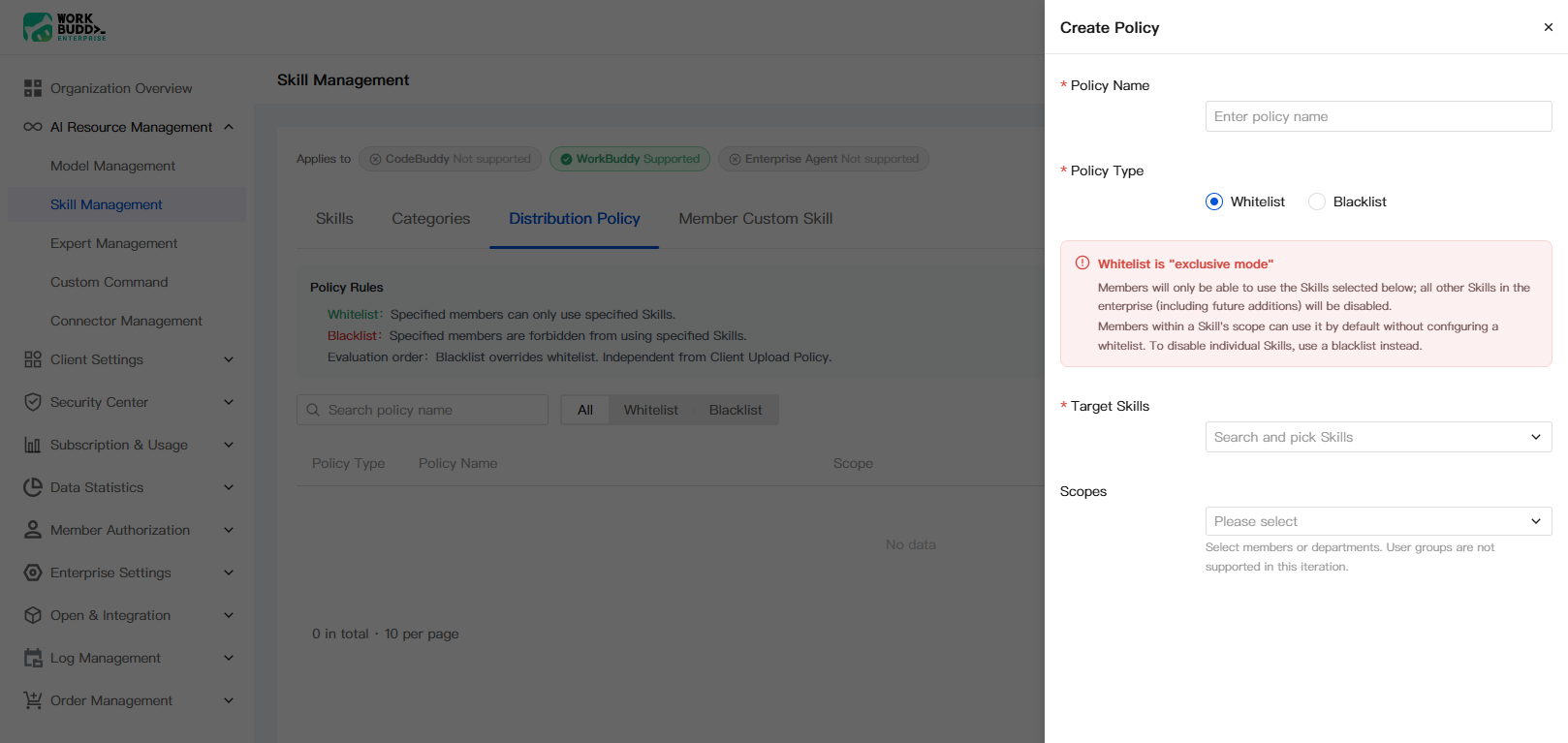
2. Click + Create Policy.
3. Select the policy type and configure it:
Policy name: Define a custom name for the policy.
Policy type: You can select an allowlist or a blocklist.
Target Skill: Search for and select the Skill to be restricted.
Scope: Select the members or departments to which the policy applies.
4. The policy takes effect immediately after you click Save.
Skill List
Page Feature Overview
The Skill List is the core entry for management, providing full lifecycle operations for Skills.
Functional Area | Description |
Search box | Search by Skill name with fuzzy matching |
Source filter | Switch to view custom or built-in Skills. |
Data Column Definitions
Column Name | Type | Description |
Skill | Text | Skill display name. Click to view details. |
Category | Text | Name of the category it belongs to |
Type | Enumeration | Built-in / Custom |
VER | Version number. | Currently released version, such as v1.2.0 |
Status | Enumeration | Enabled / Disabled |
Visible range | Text | Visible member/department scope of the current Skill |
Operation | Button | Edit / Disable / Delete / View permissions |
Skill Upload Specifications
Supported Skill package structure:
my-enterprise-skill/├── SKILL.md # [Required] Name + Description + Usage Instructions├── manifest.yaml # [Required] Version, Dependencies, Metadata├── scripts/ # [Optional] Executable scripts├── references/ # [Optional] Reference documents└── assets/ # [Optional] Resources such as icons and templates
Minimal manifest.yaml example:
name: my-enterprise-skillversion: 1.0.0description: "A Skill dedicated to internal enterprise data processing"category: data-processingauthor: enterprise-admin
Category Management
Category management solves two core problems:
Issue | Solution |
Too many Skills make search difficult. | Group by business domain, and the client presents the results in a tree structure. |
Different departments have different concerns. | Visible categories can be customized based on departmental requirements. |
Creating a New Category
1. On the Category Management tab, click + Add Category.
2. Fill out the form:
Field | Required | Constraint | Description |
Classification Name | Yes | 1-20 characters | Client Display Name |
Category Description | No | Up to 500 characters | Supplementary Information |
Sort | No | Append to the end / Pin to the top | Sorting Criterion for the Same Level |
3. Click Save.
Managing Existing Categories
Operations supported for existing categories:
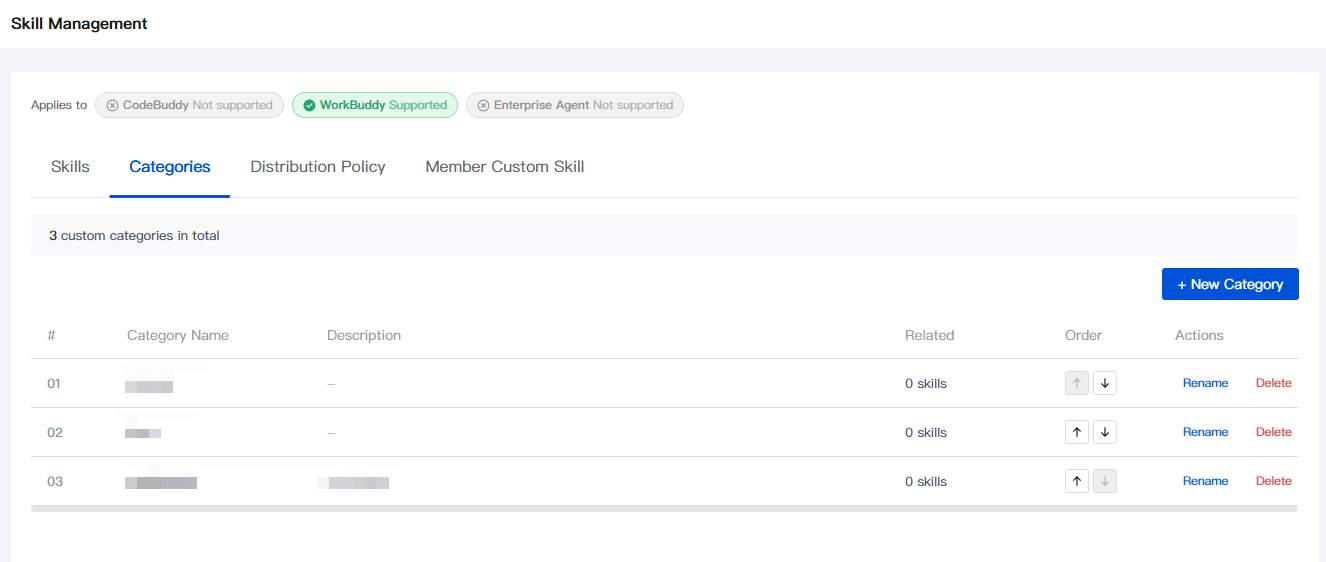
Operation | Triggering Method | Impact |
Sort | Click the up/down arrow. | Modify sorting |
Rename | Rename button | Modify classification name |
Deleting an alarm policy | Operation Delete button | Skills under the category become uncategorized. |
Note:
Deleting a category does not delete the Skill. It only removes the association between them.
Skill Distribution Policy
Policy Type Details
The system provides three policy modes:
Allowlist Policy
Definition: Specified members can only use the Skills in the list.
Applicable scenarios:
When a new employee joins, only basic capabilities are enabled.
External personnel can access a restricted Skill set.
Compliance requirements restrict the range of available tools.
Blocklist Policy
Definition: Specified members are prohibited from using the Skills in the list.
Applicable scenarios:
Access to high-risk Skills must be restricted.
Sensitive operations are restricted to core personnel.
Advanced features are restricted during the trial period.
Policy Management Operations
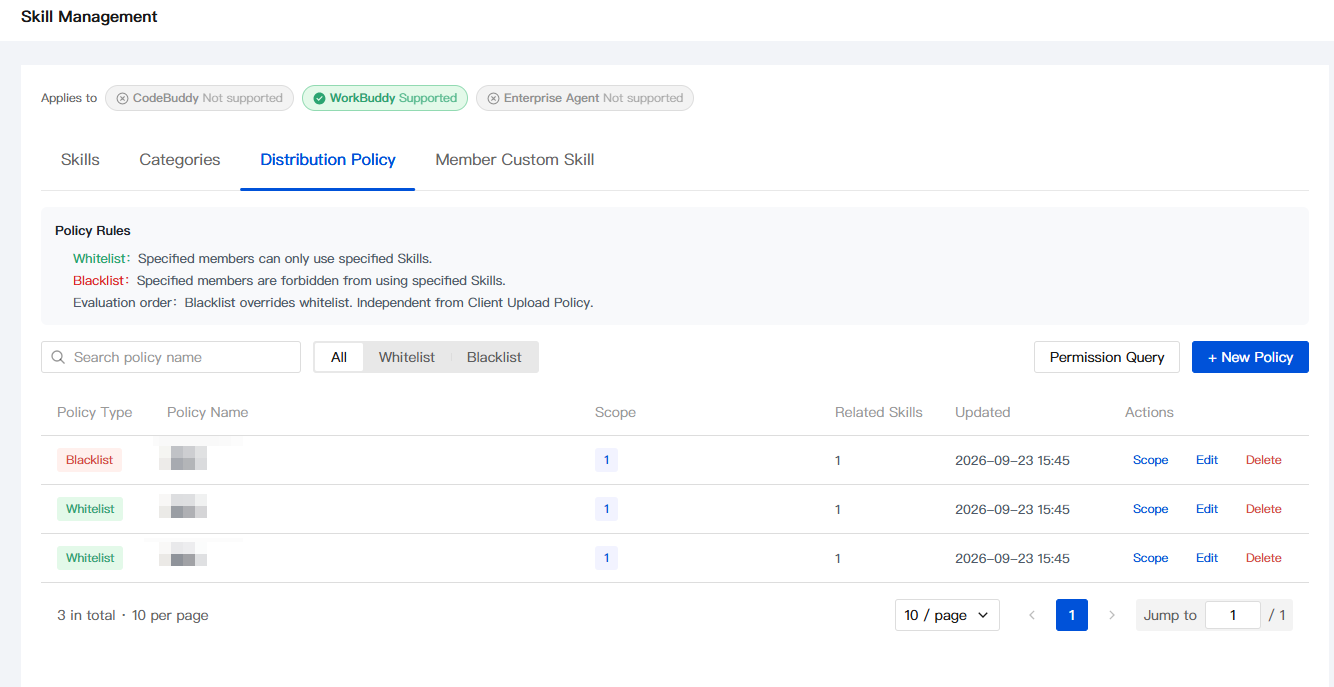
Operation | Description |
Creating a policy | Click "+ Create policy", select a type, and then fill in the form. |
Querying permissions | Enter the member name to query which policies cover the member and the final effective result. |
Edit/Delete | Adjust or remove existing policies. |
Policy Attribute Overview
Attribute | Type | Description |
Policy Type | Enumeration | All / Allowlist / Blocklist |
Policy Name | Text | Management identifier for easy search. |
Scope of Effect | Composite | Support specifying members, departments, or roles. |
Associated Skill | List | The set of skills involved in the policy. |
Modification time | Timestamp. | Last update time. |
Member Custom Skills
Feature Description
Control whether enterprise members can upload and use personal Skills on their own.
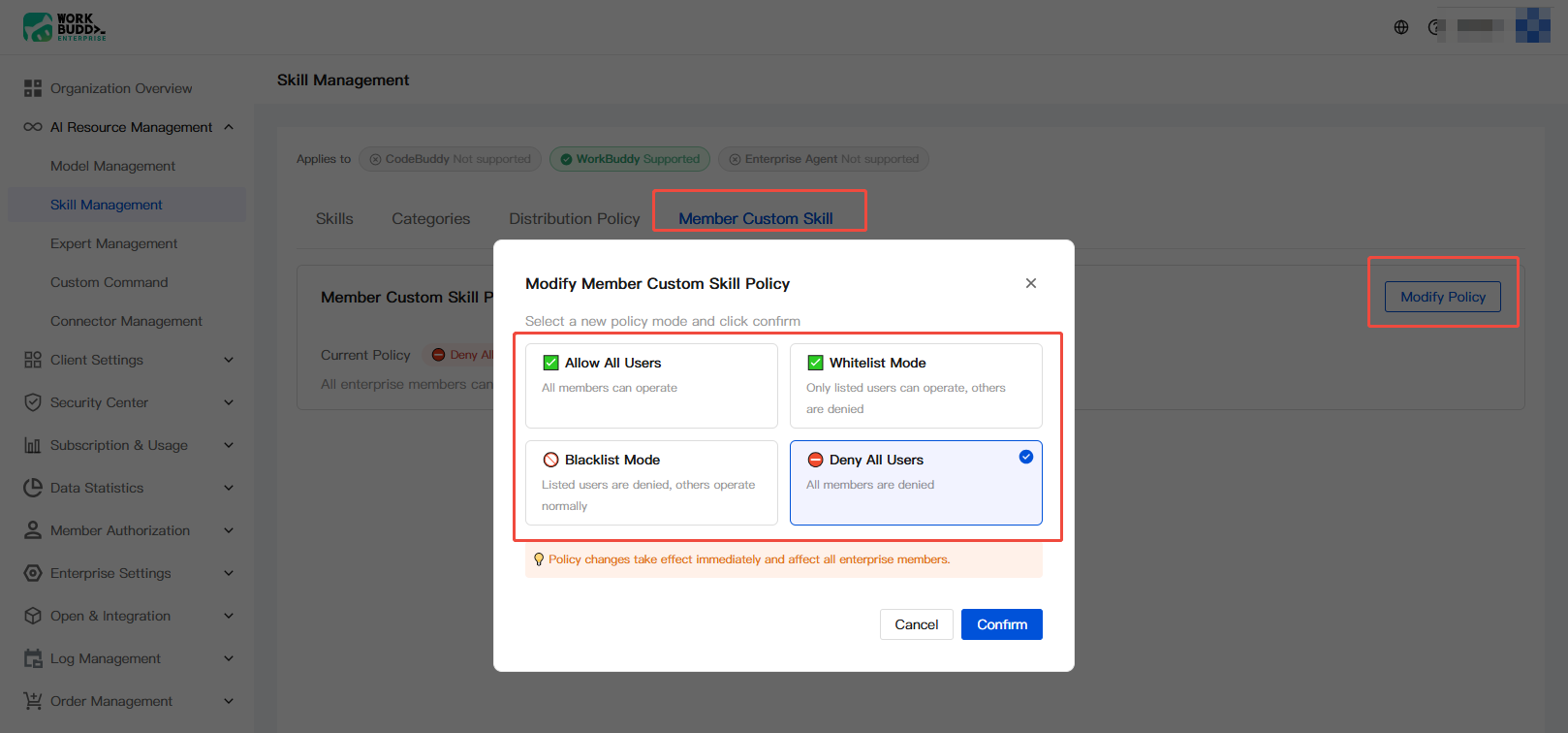
Policy Options
Option | Effect |
Allow all users | All members can upload their own Skills. |
Allowlist mode | Only users on the list can perform operations, while others are prohibited. |
Blocklist mode | Users on the list are prohibited, while others are allowed. |
Forbid all users | All members are prohibited from performing operations. |
Configuration Steps
1. Go to the Member-defined Skill tab to view the current policy status.
2. Click the Modify Policy button.
3. In the dialog box, select a new policy mode and confirm to save.
Notes and Important Tips
Information Collection and Use
Collection Item | Type | Purpose |
Enterprise account information (login credentials) | Required | Log in to the enterprise management console to upload, configure, and manage Skills. |
Skill package file contents (SKILL.md, manifest.yaml, scripts, reference documents, and more) | Required | Build definitions, instructions, and behavioral capabilities for enterprise Skills. |
Category Name and Description | Required | Used to display Skills in the client and help members find them by domain. |
Policy distribution configuration (member/department/role selection) | Required | Control the visibility scope and usage permissions of Skills. |
Member-customized Skill upload behavior and content | Optional | Involved only when the member-defined Skill policy is enabled and members proactively upload personal Skills. |
Type determination criteria:
Required: Information that must be provided when core Skill management features are used, such as enterprise account, Skill package content, category configuration, and policy member selection.
Optional: Data that is involved only when the administrator enables a specific policy and members proactively trigger it, such as personal Skill upload content.
Permission Boundaries
Administrators control which Skills members can use by distributing policies, without directly intervening in members' actual invocation behavior in the client.
Member-defined Skills are visible only to the uploader and are not automatically shared within the enterprise.
Category management is independent of Skill data. Deleting a category does not delete the Skill. It only removes the association between them.
The blocklist takes precedence over the allowlist. When the same member matches both policies, the blocklist applies.
Security Tips
Before uploading a Skill package, ensure that the source is reliable. Scripts in the Skill package (
scripts/) will be executed in the client sandbox.Issued policies are visible to all members by default. We recommend that you configure an allowlist policy for Skills that contain sensitive operations to limit their usage scope.
The member-defined Skill feature is disabled by default. To enable it, we recommend that you use an allowlist mode to grant access only to specific members.
Disable or delete Skills that are no longer in use in a timely manner, and clean up the associated issued policies.
Built-in Skills require no additional administrator action, but they cannot be modified or deleted by the enterprise.
Points Consumption Reminder
Browsing, uploading, and managing Skills do not consume credits. When members call a Skill in the client to perform tasks, the client consumes credits based on the task content.
Third-Party Sharing
The content of enterprise-created Skills is managed and controlled by the enterprise and is not shared with third parties outside the platform.
Built-in Skills are provided and maintained by the platform and follow the platform's data management policies.
The MCP connection or external API call capability of a Skill depends on the configuration within the Skill package and is outside the scope of enterprise management.
Disclaimer
The uploader is responsible for the accuracy and security of the content of enterprise-created Skills. WorkBuddy is not liable for the execution results of scripts within a Skill package.
Built-in Skills are maintained by the platform, and the availability and accuracy of their features depend on the platform's update policy.
After the member-defined Skill policy is enabled, members are solely responsible for the content of the Skills they upload.
Usage Recommendations
Align category names with departmental business (such as "Code Review", "Data Analysis", and "Test Automation") to avoid overly broad categories that make them difficult to find.
After the issued policy is configured, we recommend using the "Permission Query" feature to verify the results and confirm that the target members have obtained the correct Skill permissions.
Before enabling the member-defined Skill policy, evaluate your team size and Skill quality control requirements, and then select an appropriate mode from allowlist/blocklist/open to all.
Regularly review the list of published Skills and issued policies, clean up Skills that are no longer in use or expired, and maintain the quality and maintainability of Skills in the enterprise space.
Before performing batch operations (enable/disable/delete), confirm the selected scope to prevent accidental operations from affecting members in the production environment.
Declaration
The content of this section constitutes an integral part of the Service Agreement and the Privacy Protection guidelines and has the same legal effect. In case of any inconsistency, the original text of the aforementioned agreements shall prevail.
Help and Support
Was this page helpful?
You can also Contact sales or Submit a Ticket for help.
Help us improve! Rate your documentation experience in 5 mins.
Feedback