Operation Logs
Download
Focus Mode
Font Size
Super administrators can view member operation logs in the admin console, including the operator, operation content, and operation time. This helps super administrators manage logs centrally, making member operations viewable and traceable for team collaboration tracing, troubleshooting, and security compliance.
Operation logs support date filtering, search, field filtering, refresh, and exporting operation logs. Log entries are sorted in chronological order, with the latest data displayed first.
Operation Steps
Viewing Operation Logs
1. Go to Enterprise Admin Console, choose Log Management > Operation Logs in the left sidebar, and then you can view member operation logs.
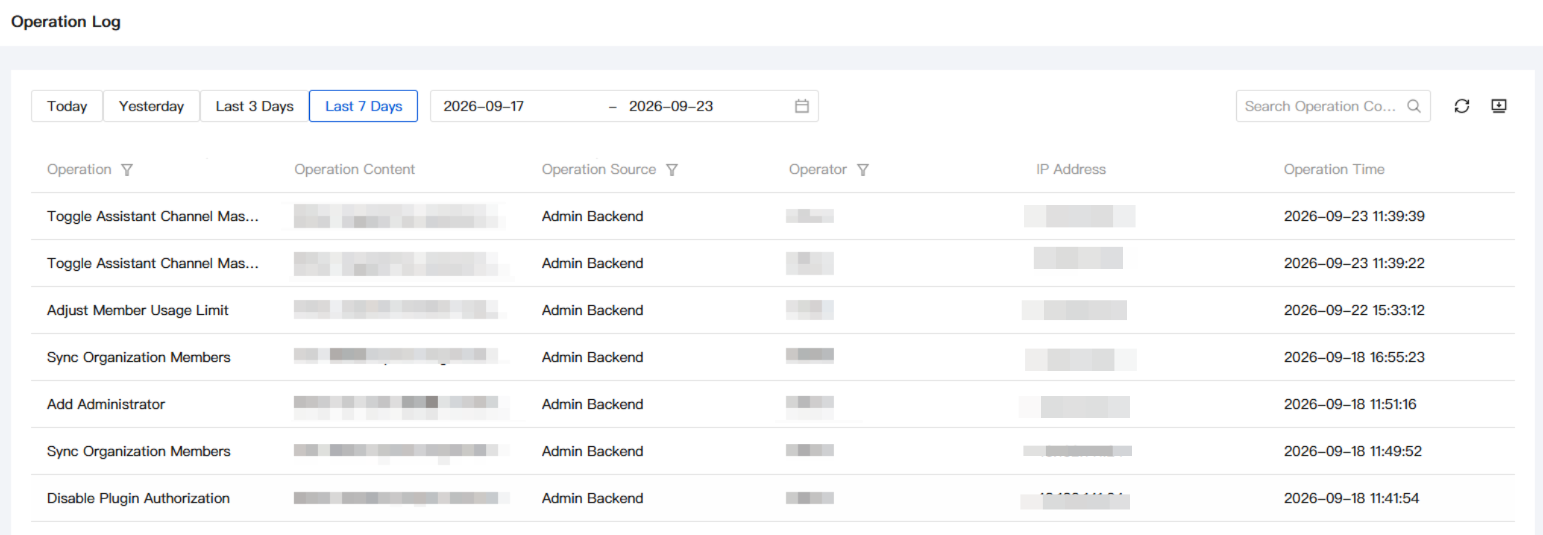
2. View information such as operation, operation content, operation endpoint, operator, IP address, and operation time in the operation log list. The list is sorted in chronological order, with the latest data displayed first.
Filtering Operation Logs
1. Date Filtering: supports quick filtering by preset date options such as Yesterday, Today, This Week, This Month, Last 7 Days, and Last 30 Days, as well as manual filtering by selecting a date range. With quick filtering, you can quickly view operation logs.

2. Search: Enter a keyword related to the operation content in the search box, and the system will perform fuzzy matching based on the operation content text to quickly filter operation logs.

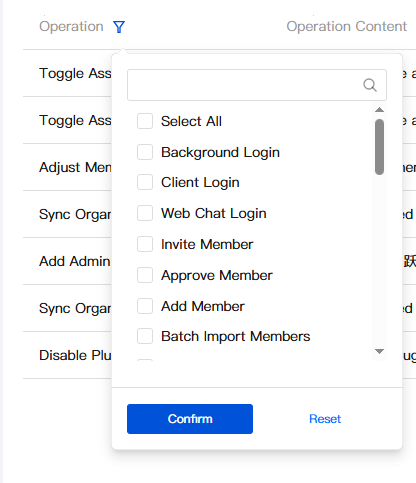
3. Field Filtering: Click the filter button in the Operation, Operation Endpoint, and Operator column headers, select filter items or enter search keywords in the pop-up window, click Confirm to apply the filter, and click Reset to clear the filter conditions.
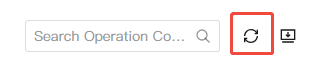
4. Refresh: Click Refresh to refresh the current page and synchronize the latest operation log data.
Exporting Operation Logs
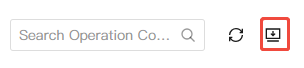
1. Click Download to export the operation log as an Excel file.
2. In addition to the operation log list fields, the exported file also includes Enterprise Name and Data Statistics Time.
Field Description
The fields in the Operation Log list are described as follows:
Field | Description |
Operation | Operation type, including backend login, plugin login, web chat login, member invitation, member approval, member addition, and more. Supports filtering and search. |
Operation content | Records the specific operation content of enterprise members, such as member data export and enterprise admin console login. |
Operation source | Operation source, including enterprise admin console, IDE plugin, web chat, and API. Supports filtering and search. |
Operator | Owner of the operation log, including all enterprise members and deleted members. Supports filtering and search. |
IP address | IP address used by enterprise members to perform operations on the operation source. |
Time when the operation is performed. | Timestamp of the operation performed by the operator, currently accurate to seconds only. |
The date filter options are described as follows:
Filter | Description |
Yesterday | Filter operation logs from yesterday 00:00:00 to 23:59:59. |
Today | Filter operation logs from today 00:00:00 to the current time. |
This week | Filter operation logs from Monday 00:00:00 of this week to the current time. |
This month | Filter operation logs from the 1st of this month at 00:00:00 to the current time. |
Last 7 days | Filter operation logs from the last 7 days. |
Last 30 days | Filter operation logs from the last 30 days. |
Custom range | Manually select the start date and end date, and filter operation logs within that range. |
Help and Support
Was this page helpful?
You can also Contact sales or Submit a Ticket for help.
Help us improve! Rate your documentation experience in 5 mins.
Feedback