Organizational Structure Synchronization
Download
Focus Mode
Font Size
Member and department data in the WorkBuddy Enterprise admin console comes from Tencent Unified Identity (OneID). After enterprise administrators complete department and member maintenance in OneID, they need to sync the organizational structure data from OneID to WorkBuddy through the organization sync capability. Only then will members appear in the "Members & Departments" list for client authorization.
Note:
This page is only responsible for syncing organizational structure data. To add, modify, or delete members and departments, go to the OneID admin console. To authorize synced members, go to "Member Authorization > Members & Departments".
Operation Steps
Step 1: Go to the Organization Sync Page
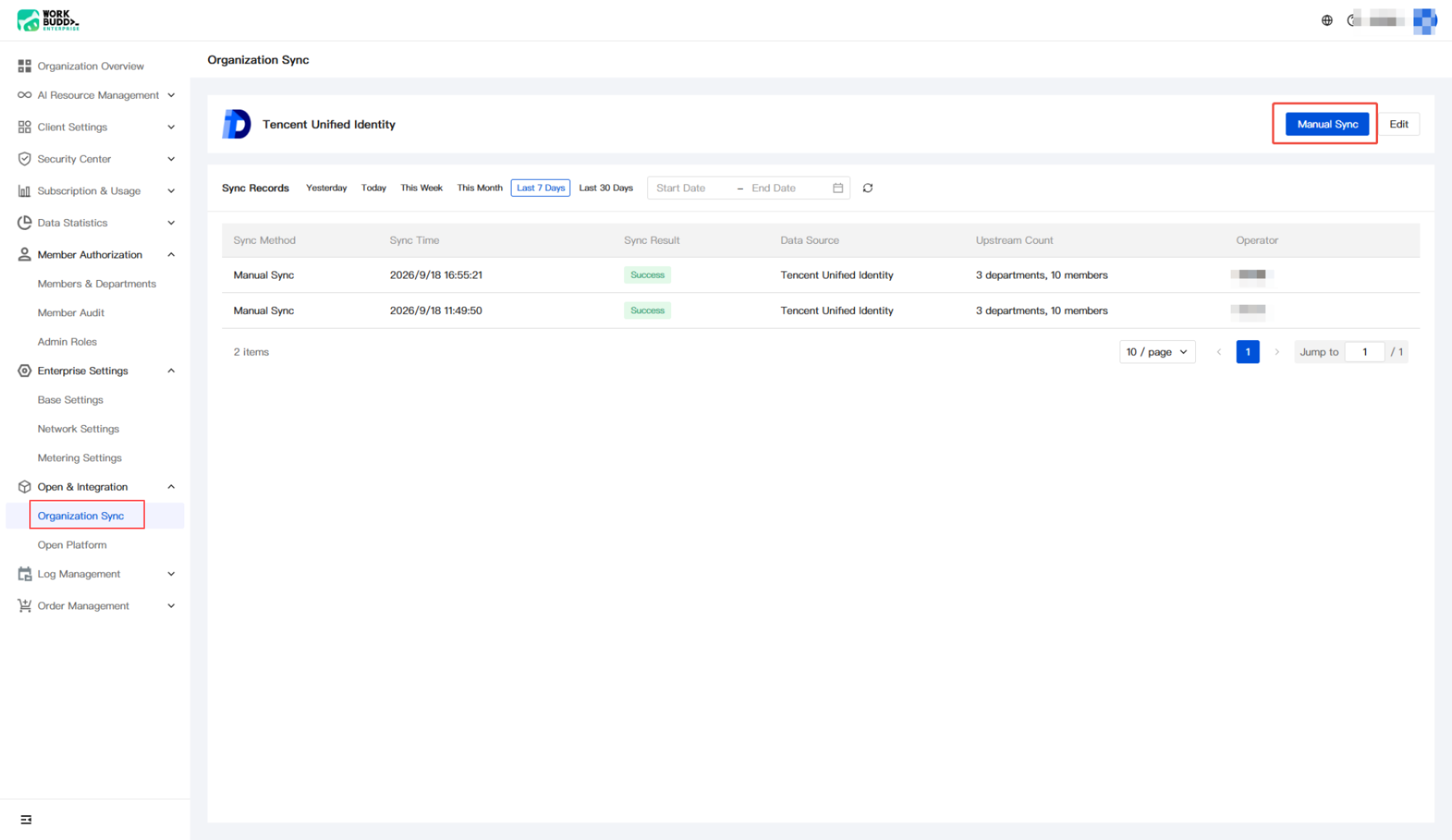
Log in to the WorkBuddy Enterprise admin console, and go to Open & Integration > Organization Sync in the left sidebar to view the organization sync record list.
Step 2: Performing Manual Synchronization
Click Manual Sync in the upper-right corner of the page, and the system will immediately pull the latest department and member data of the current enterprise from Tencent Unified Identity (OneID) to overwrite the corresponding data in WorkBuddy.
After the sync is completed, a new sync record will be added to the top of the list, displaying information such as the sync method, time, result, data source, upstream quantity, and operator.
Note:
Organization sync is a full sync: additions, edits, and deletions in OneID will overwrite the corresponding data in WorkBuddy after the sync.
Syncing only pulls member information into WorkBuddy and does not automatically grant client access permissions. Members are in the "Unauthorized" state by default and can log in to the client only after an administrator explicitly authorizes them in "Members & Departments".
If you trigger multiple manual syncs within a short period, wait for the previous sync to complete before triggering another one to avoid record accumulation or data conflicts.
Step 3: Viewing Synchronization Records
The page list displays all sync records in reverse chronological order, making it easier for administrators to check sync results and troubleshoot exceptions.
Field Description
Field | Description |
Synchronization method | Trigger method of this synchronization, for example, "manual synchronization". |
Synchronizing time | Execution time of this synchronization task. |
Synchronization result | "Success" indicates that this synchronization is complete. If the status is "Failed", check the error message or contact technical support. |
Data Source | Upstream source of this synchronization, currently fixed to "Tencent Unified Identity". |
Upstream Quantity | Number of departments and members pulled from the upstream source in this synchronization. |
Operator | Enterprise admin account that triggered this synchronization task. |
Help and Support
Was this page helpful?
You can also Contact sales or Submit a Ticket for help.
Help us improve! Rate your documentation experience in 5 mins.
Feedback