Open platform
Download
Focus Mode
Font Size
The Open Platform is used to manage third-party applications that enterprises integrate with WorkBuddy Enterprise. Here, administrators create application credentials (Client Secret) and authorized callback URLs (Redirect URI) for each external application that needs to connect through OAuth 2.0, allowing third parties to initiate the standard OAuth 2.0 authorization process in their own systems.
Note:
The Client Secret of a third-party application is visible and copyable only at the time of creation. Store it securely. Do not share your credentials with others or expose them in browsers or other client-side code.
Operation Steps
Step 1: Go to the Open Platform Page
Log in to the WorkBuddy Enterprise admin console, and go to Open & Integration > Open Platform in the left sidebar to view the list of third-party applications created by the current enterprise. The top of the page displays the total number of applications, such as "Third-party Applications (2 total)".
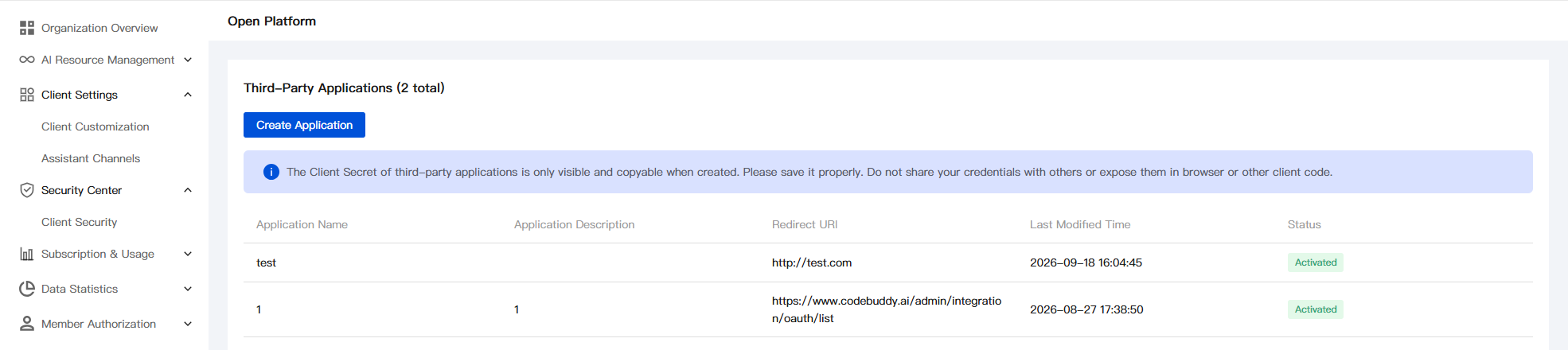
List field description:
Field | Description |
Application Name | Name entered when the application is created, used to identify the application. |
Application description | Description of features and purposes entered when the application is created. Can be empty. |
Redirect URI | Callback address to which the client is redirected after OAuth 2.0 authorization, used to receive the authorization code. |
Last modification time. | Time when the application was last edited or its status changed. |
Status | Current application status. "Activated" indicates that the application can initiate OAuth authorization normally. |
Note:
If an "Operation" column (Edit / Disable / Delete / Regenerate Key, and so on) is added to the list in a later version, supplement the corresponding operation descriptions. The current screenshot is from version 2026-09-23 and shows only the fields listed in the table above.
Step 2: Create a Third-Party Application
Click Create Application in the upper-left corner of the list. In the "Create Third-party Application" form that appears, fill in the application information and click Create.
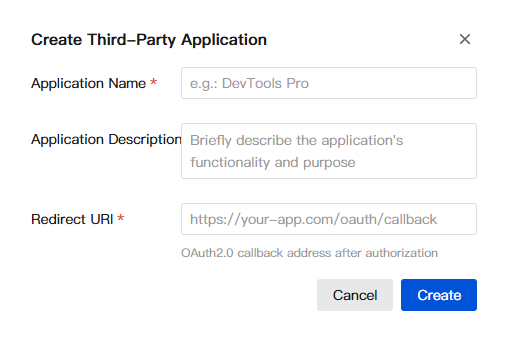
Field | Required | Description |
Application Name | Required | Display name used to identify the application, for example, DevTools Pro. |
Application description | Optional. | Briefly describe the features and purpose of the application for future management by administrators. |
Redirect URI | Required | The callback address after OAuth 2.0 authorization must be a complete URL, for example, https://your-app.com/oauth/callback. After the client initiates authorization, WorkBuddy will return the authorization code to this address upon successful authorization. Ensure that the address correctly handles the callback in the client system. |
Warning:
After the application is created, the system displays the Client Secret of the new application only once. Copy and store it securely immediately. You will not be able to view it again after leaving the current page or closing the dialog box. If the secret is lost, you can only regenerate it, and integrations using the old secret will become invalid.
Note:
The Client Secret is a server-side credential and can only be stored in the backend environment variables or KMS of the integrating party.
Do not commit the Client Secret to a code repository, write it into browser scripts, or share it with third parties.
Step 3: View Existing Applications
After creation, the application appears in the list with the "Active" status. Administrators can view the application name, description, redirect URI, last modified time, and status in the list to verify the third-party applications integrated by the current enterprise.
Help and Support
Was this page helpful?
You can also Contact sales or Submit a Ticket for help.
Help us improve! Rate your documentation experience in 5 mins.
Feedback