Tools Management
Unduh
Mode fokus
Ukuran font
Scenarios
A Tool is the minimal capability unit of an MCP service. Each Tool corresponds to a backend HTTP interface, representing a specific feature that an AI Agent can directly invoke via the MCP protocol. Tool metadata, such as its English name, Chinese name, description, and parameter definitions, is exposed to AI Agents in the standard MCP format. Based on this, the AI model understands the Tool's purpose, parameters, and invocation method, enabling it to make reasonable decisions on Tool selection. Consequently, the clarity and accuracy of Tool configuration directly impact the effectiveness of AI Agent invocations.
For HTTP-to-MCP services, the AI Gateway supports the following two methods for creating Tools:
Manual Tool Creation: Configure the Tool's basic information, backend HTTP request, and parameter definitions individually. This method is suitable for scenarios where the number of Tools is small and each field requires fine-grained control.
OpenAPI Batch Import: Based on existing OpenAPI 3.0 / Swagger 2.0 specification files, Tools are parsed and generated in batches with one click. This method is suitable for scenarios where the backend already maintains standard specification documents and you want to quickly configure a large number of Tools.
This document describes how to add and edit Tools for HTTP-to-MCP services in the AI Gateway, as well as how to batch import Tools and configure common protocol conversions using OpenAPI files.
Operation Steps
Creating a Tool Manually
1. Log in to the Microservices Platform console. In the left sidebar, click AI Gateway > Instance List.
2. On the instance list page, click the ID of the gateway instance you want to configure to go to its basic information page.
3. In the left sidebar, click MCP Management. In the service list, click the ID/Name of the target HTTP-to-MCP service to go to the service details page.
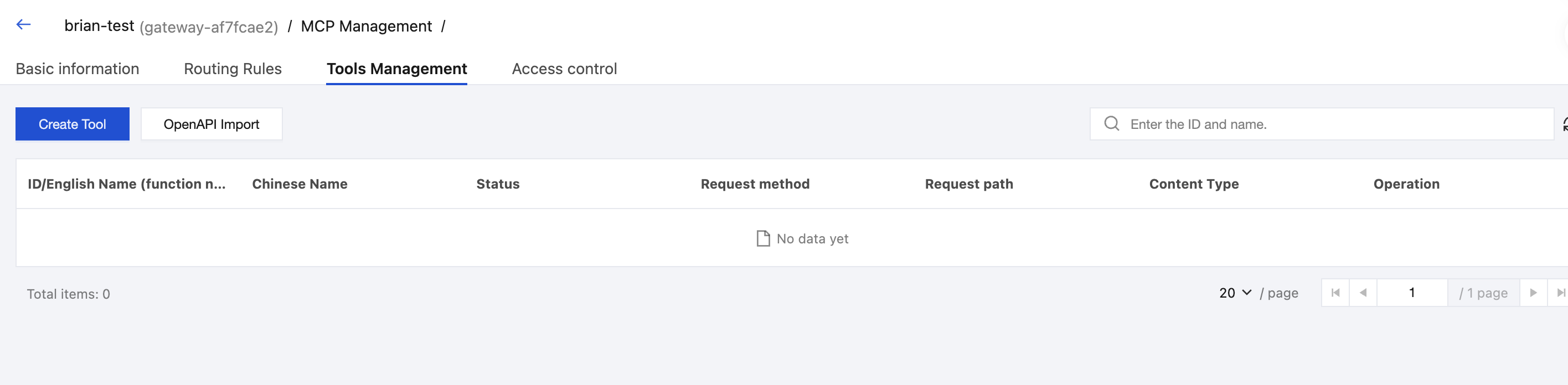
4. At the top of the service details page, click the Tools Management tab. Above the list, click New Tool to open the "New MCP Tool" page.
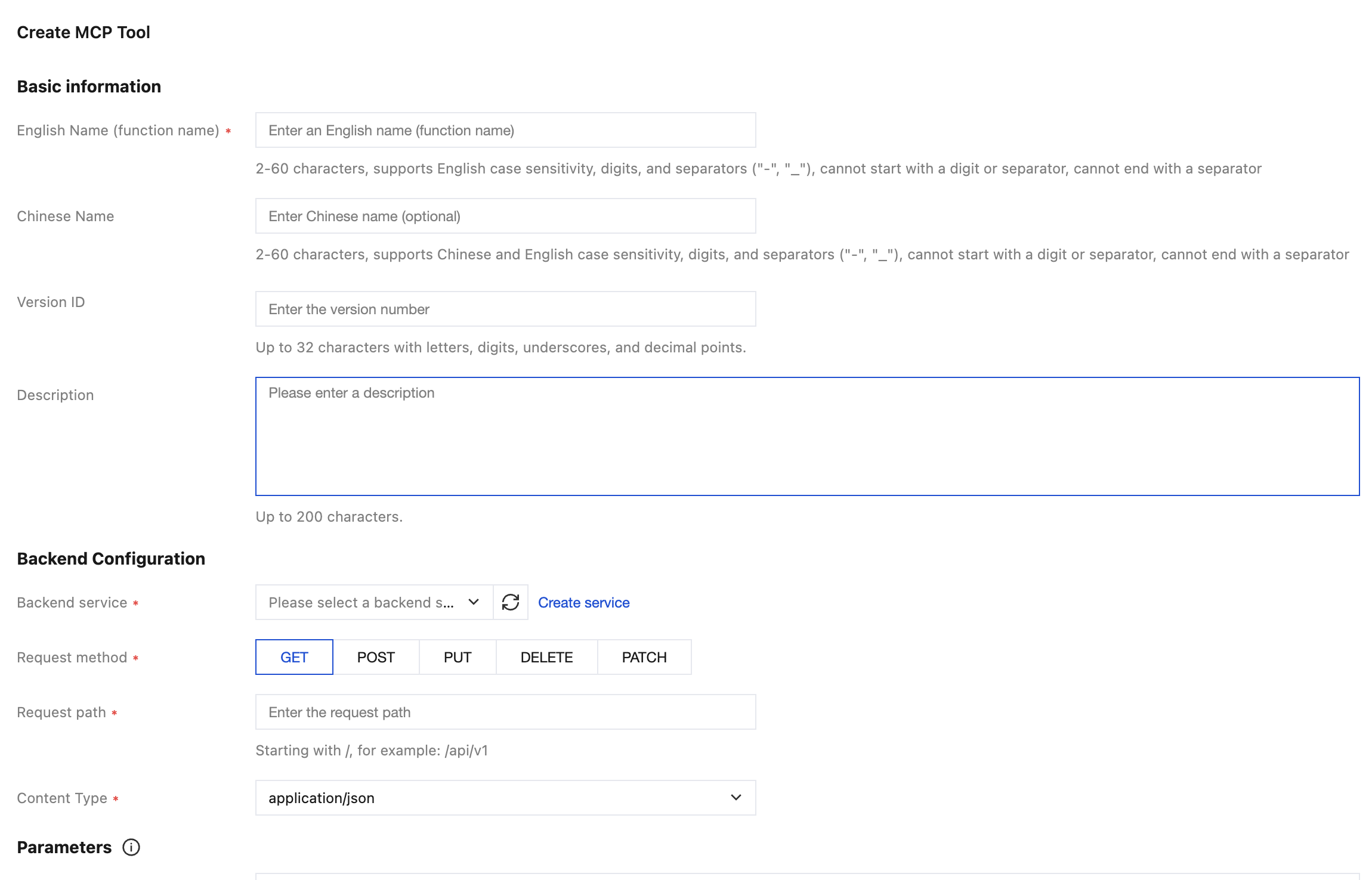
5. In the "New MCP Tool" page, complete the configuration in the Basic Information section.
Parameter Name | Required | Description |
English Name (Function Name) | Yes | Enter the English name of the Tool, which serves as the unique identifier for AI Agent invocation. It can be up to 60 characters long, supporting uppercase and lowercase English letters, digits, and the separators ("-" and "_"). It cannot start with a digit or separator, nor end with a separator. It must be unique within the same service and cannot be modified after creation. It is recommended to adopt the action-object naming convention, such as create_order and query_stock. |
Chinese Name | No | Enter the Chinese name of the Tool, which is used for display in the console list and details page to facilitate manual identification. It can be up to 60 characters long, supporting uppercase and lowercase Chinese and English letters, digits, and the separators ("-" and "_"). It cannot start with a digit or separator, nor end with a separator. |
Description | No | Describe the feature of this Tool in natural language. |
6. Continue to complete the configuration in the Backend Configuration section.
Parameter Name | Required | Description |
Backend service | Yes | Choose a backend service that has been created under Service Management > Services from the drop-down list. The request path of the Tool will be automatically concatenated with the protocol, address, port, and base path of the backend service. If not created, click New Service to quickly jump to the creation process, or click Refresh to reload the drop-down data. In virtual MCP Server mode, different Tools can point to different backend services, thereby achieving multi-backend aggregation. |
Request Method | Yes | Select the request method for the backend HTTP interface. The default is GET, and the options include POST, PUT, DELETE, and PATCH. |
Request path | Yes | Enter the relative path of the backend HTTP interface, starting with /, for example, /api/v1/orders/{order_id}. You can use the {parameter name} placeholder in the path, and the gateway will automatically replace it with the value of the path-type parameter. |
Content type | Yes | Select the Content-Type for the HTTP request. The default is application/json, and the options include multipart/form-data, application/x-www-form-urlencoded, and others. |
7. Continue to complete the configuration in the Parameter Configuration section.
Configuration Item | Description |
Parameter Name | Enter the parameter name, which must match the actual parameter name in the backend API. |
Parameter Type | Select the data type for the parameter. The default is string, and the options include number, integer, boolean, object, and array. |
Parameter position | Select the location of the parameter in the backend HTTP request. • path: A URL path parameter. A corresponding {parameter name} placeholder must exist in the "request path".• query(default): A URL query parameter. • header: An HTTP request header. • body: The HTTP request body, applicable only to POST, PUT, and PATCH request methods. |
Default | Enter the default value to be used when the client does not provide this parameter. Combined with selecting "Required", this enables constant injection (such as a fixed authentication Token, tenant ID, and so on). |
Required | When the option is selected, the AI Agent must provide this parameter when invoking the Tool; otherwise, the gateway will directly return a validation failure error. |
Description | Enter a natural language description of the parameter, which influences the LLM's understanding of the parameter's meaning and value range. |
Protocol Conversion Description: AI Gateway implements common protocol conversion capabilities through parameter configuration, eliminating the need for separate configuration.
Request Parameter Mapping: MCP call input parameters are mapped to different locations (path / query / header / body) in the backend HTTP request by using the "Parameter Position".
Request Header Injection (Constant Injection): Define fixed request headers (for example,
Authorization: Bearer <token>, X-Tenant-ID) as parameters of the header type, enter the "default value", and select "required". These headers will then be automatically injected into all calls.Request Body Assembly: Multiple
body-type parameters are automatically assembled by the gateway into a JSON request body expected by the backend. This supports nested structures such as object and array.Request Method and Content-Type Conversion: Clients make unified calls via the MCP protocol. The gateway then converts these calls into the HTTP request format actually required by the backend, based on the "Request Method" and "Content-Type" configured for the Tool.
8. After completing the configuration, click OK to create the Tool. The created Tool will appear in the Tools list, and AI Agents can immediately invoke it via the MCP protocol.
Importing Tools in Batches via OpenAPI Files
If your backend APIs already have standard OpenAPI 3.0 or Swagger 2.0 specification documents, you can use the OpenAPI import feature to generate Tools in batches with one click.
1. Go to the details page of the target HTTP-to-MCP service. Click the Tools Management tab, then click OpenAPI Import above the list to open the "Import Tool from OpenAPI File" dialog.
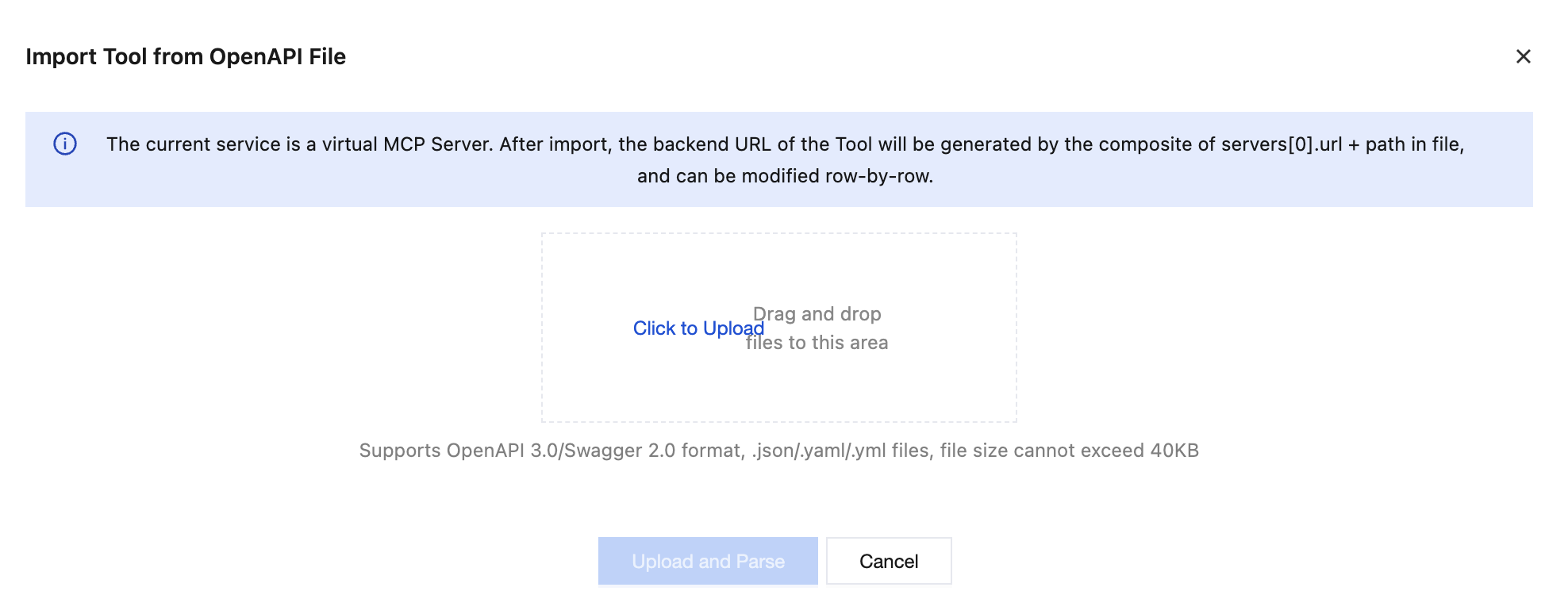
2. In the dialog box, click the upload area or drag and drop a file to select a local OpenAPI specification file, then click Upload and Parse. Currently,
.json, .yaml, and .yml formats are supported, with a maximum file size of 40 KB.3. After the file is parsed, the system displays a list of all identified HTTP APIs, including fields such as API method, API path, API description, and Tool name. After all Tool information is verified to be correct, select the APIs to be imported and then click Confirm Import. The system will create the Tools in batches and return to the Tools Management list upon completion. At the top of the list, an "OpenAPI Import Task Progress" card is displayed, showing the import status (Import Complete/Import Failed), completion time, total number of imports, number of successful imports, and number of failed imports. Click View Details to see the import result and failure reason for each API.
Editing a Tool
In the Tools Management list, locate the target Tool and click Edit in its operation column. You can then modify all fields except English Name (Function Name) in the options, including the Chinese name, description, backend service, request method, request path, content type, and parameter configuration. After making changes, click OK to save, and the changes will take effect immediately.
Bantuan dan Dukungan
Apakah halaman ini membantu?
Anda juga dapat Menghubungi Penjualan atau Mengirimkan Tiket untuk meminta bantuan.
masukan