MCP Log Management
Unduh
Mode fokus
Ukuran font
Scenarios
The MCP Gateway supports recording MCP protocol invocation logs (MCP access logs), helping you audit tool usage, troubleshoot issues, and analyze consumption. You can view logs in the console, or deliver logs to Tencent Cloud CLS for long-term storage and search.
Prerequisites
The Cloud Native Gateway instance has been created.
The MCP Server service has been created and exposed through the gateway.
To ship logs to CLS, activate CLS and prepare a logset/log topic in advance.
Operation Steps
Viewing MCP Access Logs
1. Log in to the Microservices Platform console. In the left sidebar, select AI Gateway to go to the instance list.
2. Click the ID/Name of the target instance to go to its details page and access the target gateway instance.
3. In the left menu, select Data Observation, and then choose Log Dashboard > MCP Monitoring.
4. Search by criteria such as time range and keywords to view specific MCP invocation records.
Configuring Log Delivery to CLS
1. Log in to the Microservices Platform console. In the left sidebar, select AI Gateway to go to the instance list.
2. Click the ID/Name of the target instance to go to its details page and access the target gateway instance.
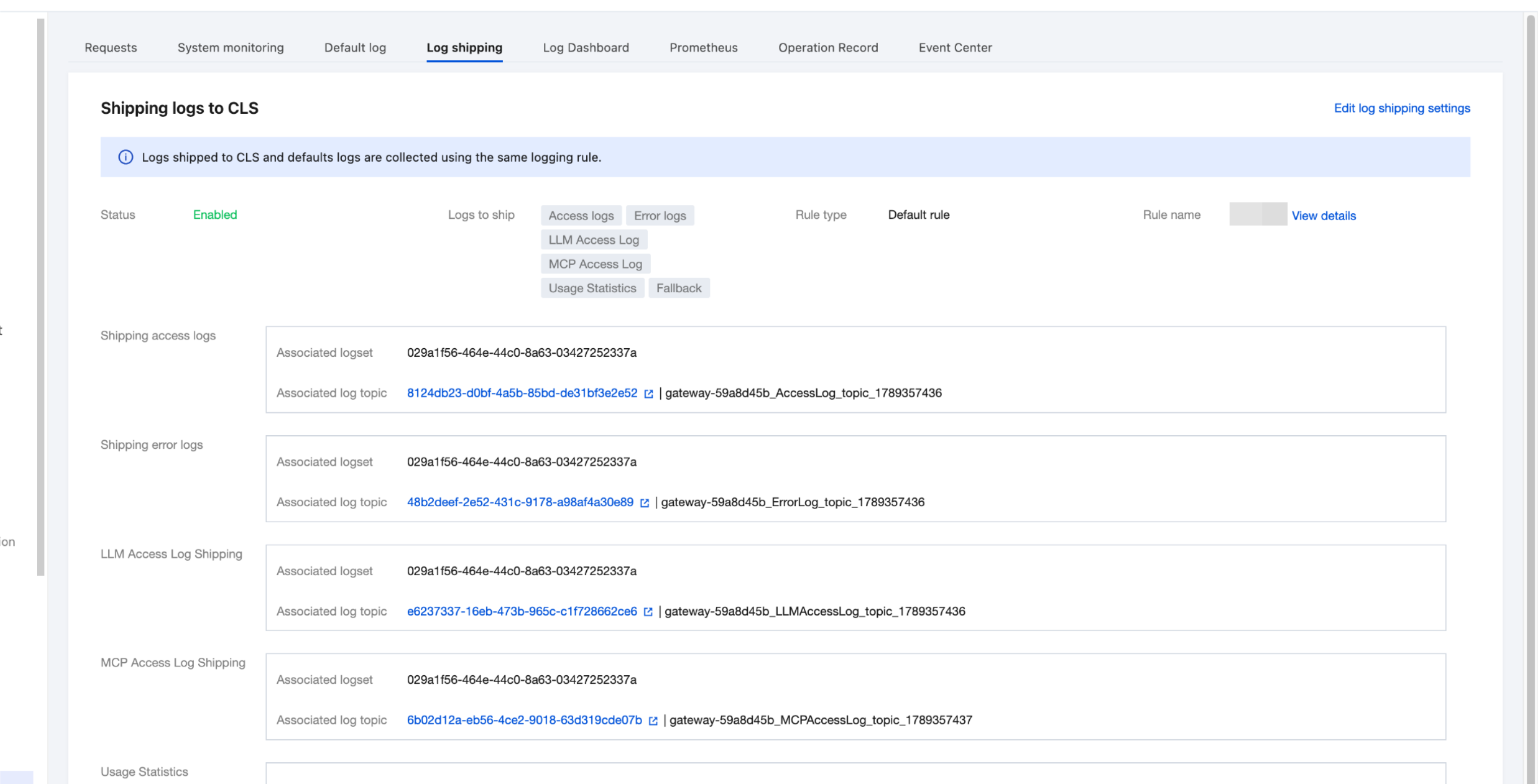
3. In the left menu, select Data Observation, and then select the Log Shipping page.
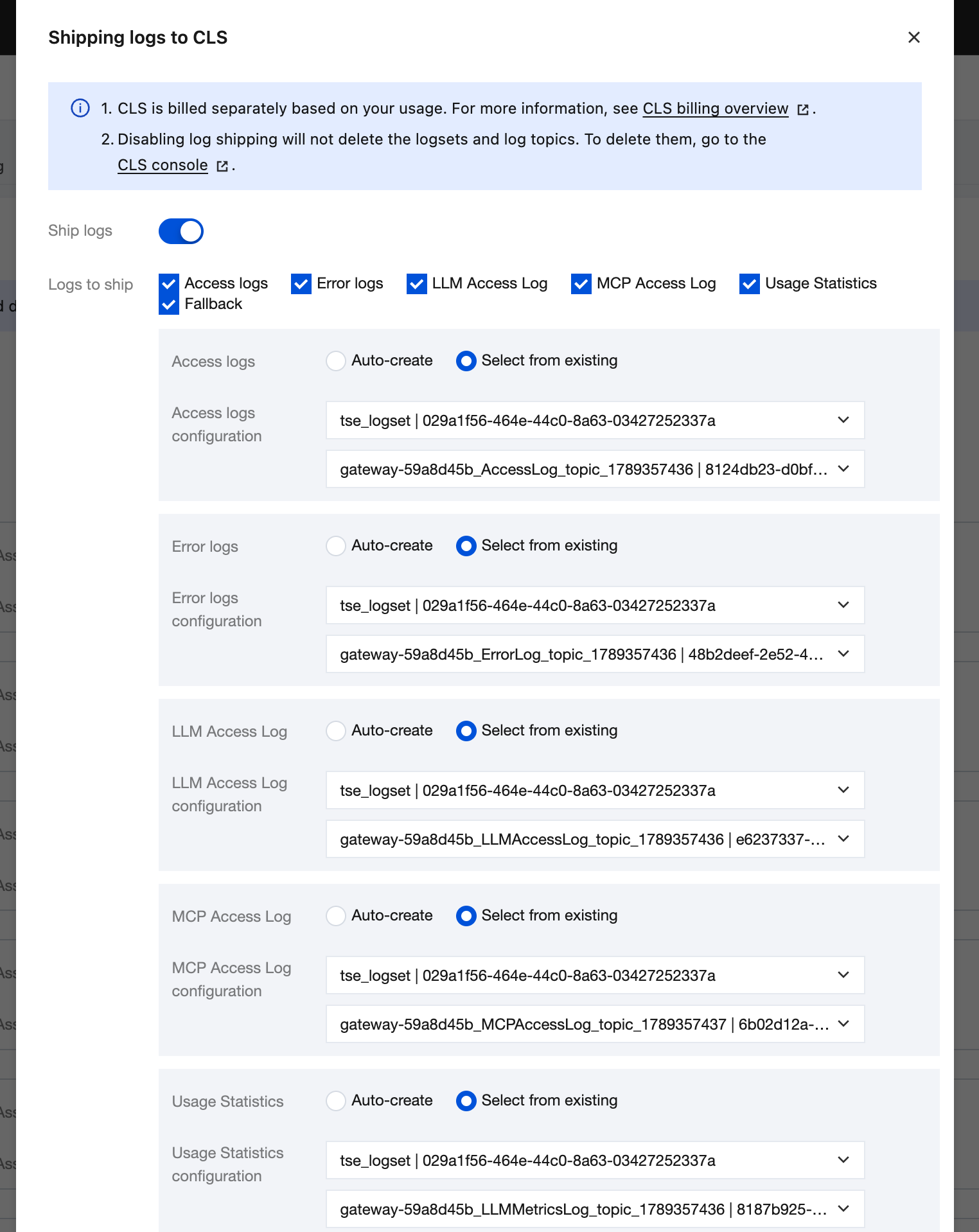
4. After the Edit button in the upper-right corner is clicked, select the MCP Access Log log shipping item.
5. Select the target CLS logset/log topic.
6. Click Save. Logs will be shipped to CLS according to the configuration.
Related Instructions
MCP access logs contain a set of dedicated fields (13 in total, such as tool name, session ID, and invocation result) prefixed with
aigw.mcp.*, facilitating granular analysis.Logs are recorded in the
mcp-access.log file format, using OTel standard field formats.After logs are shipped to CLS, you can leverage CLS capabilities such as search and analysis, dashboards, and alarms for further operations.
Bantuan dan Dukungan
Apakah halaman ini membantu?
Anda juga dapat Menghubungi Penjualan atau Mengirimkan Tiket untuk meminta bantuan.
masukan