Model Access Group
Unduh
Mode fokus
Ukuran font
Scenarios
A model access Group (MAG) is a preset collection of accessible models. You can create multiple model access groups in advance for different scenarios and directly reference them when authorizing model APIs for consumer groups, thereby reusing the same model scope configuration.
You can use model access groups to:
Maintain once, reuse everywhere: The same model access group can be referenced by multiple consumer groups, eliminating the need to select models repeatedly for each group.
Real-time change synchronization: After a model access group is modified, the available model scopes of all consumer groups that reference it take effect in real time, eliminating the need for group-by-group adjustments.
Note:
For information about how to reference a model access group in consumer group authorization, see Specify Accessible Models for a Consumer Group.
Prerequisites
An AI Gateway instance has been activated.
A model service has been created. All models in a model access group come from created model services.
Step 1: Viewing the Model Access Group List
1. Log in to the Microservices Platform console, choose AI Gateway > Instance Management in the left sidebar, and go to the instance list.
2. On the instance list page, click the ID of the gateway instance you want to configure to go to its basic information page.
3. In the left sidebar, click Model Management and switch to the Model Access Groups tab.
4. The list page displays detailed information about created model access groups. You can search by model name or access group name.
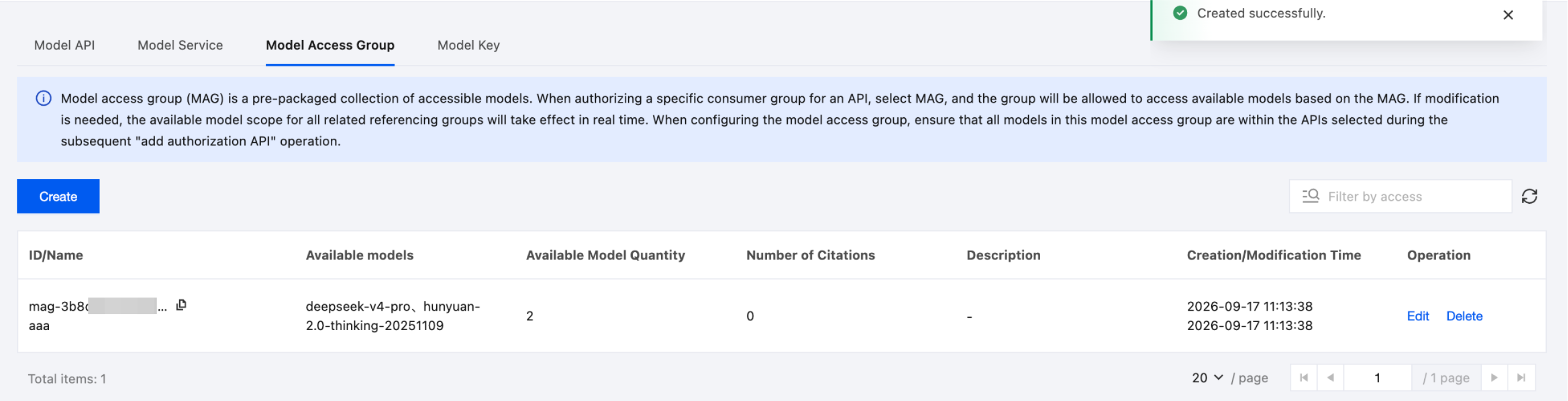
Step 2: Creating a Model Access Group
1. On the Model Access Groups list page, click Create.
2. In the creation panel, fill in the following information:
Name: The name of the model access group (required).
Description: A description of the model access group (optional).
Select Models: Select the models to include in this access group (required). Multiple selection is supported, and you can search by model name.
Note:
If models in a single MAG belong to different model APIs, before referencing the MAG, confirm that the model APIs of all models in the group have been authorized for the target object. Otherwise, a model in the MAG is still unavailable even if it is included in the group.
3. Click Submit to complete the creation.
Step 3: Editing a Model Access Group
1. On the Model Access Groups list page, locate the target model access group and click Edit.
2. You can modify the name, description, or available models.
3. Click Submit, and the available model scopes of all consumer groups that reference this model access group are updated synchronously.
Step 4: Deleting a Model Access Group
1. On the Model Access Groups list page, locate the target model access group and click Delete.
2. In the confirmation dialog box, click OK to complete the deletion.
Note:
If the model access group is being referenced by a consumer group, deletion is not allowed. You must first remove the reference to the model access group from the relevant consumer group before deleting it.
Bantuan dan Dukungan
Apakah halaman ini membantu?
Anda juga dapat Menghubungi Penjualan atau Mengirimkan Tiket untuk meminta bantuan.
masukan